Login rate limiting: a checklist for login and signup forms
Login rate limiting is one of those controls every team means to add and few teams test. The login form works, the signup form works, and nobody tries the hundredth wrong password until someone outside the company does. This checklist shows where to count attempts, what the user should see, and how to test your own forms before launch.
It follows the OWASP Authentication Cheat Sheet and the Credential Stuffing Prevention Cheat Sheet, and it ends with a test you can run on a staging account in under an hour.
What login rate limiting protects against
A login form answers one question: is this the right password for this account? Without a limit, an attacker can ask that question as many times as they like. Three patterns show up again and again:
- Guessing: many passwords tried against one account.
- Credential stuffing: username and password pairs leaked from other sites, tried against yours.
- Account discovery: the form or the signup page tells the attacker which emails have accounts, which makes the first two attacks cheaper.
Rate limiting does not fix weak passwords, and it does not replace a second factor. OWASP calls multi-factor authentication the best defense against most password attacks. What rate limiting does is make every guess slower and more expensive, so the attack stops paying.
Where to count: the account, the address and the form
The most common mistake is counting in only one place. OWASP's advice is to tie the failed-login counter to the account itself, not only to the IP address, because an attacker can send attempts from a large number of addresses. The Credential Stuffing cheat sheet adds that attack tools spread requests across proxy networks, so each address stays under a simple per-IP limit.
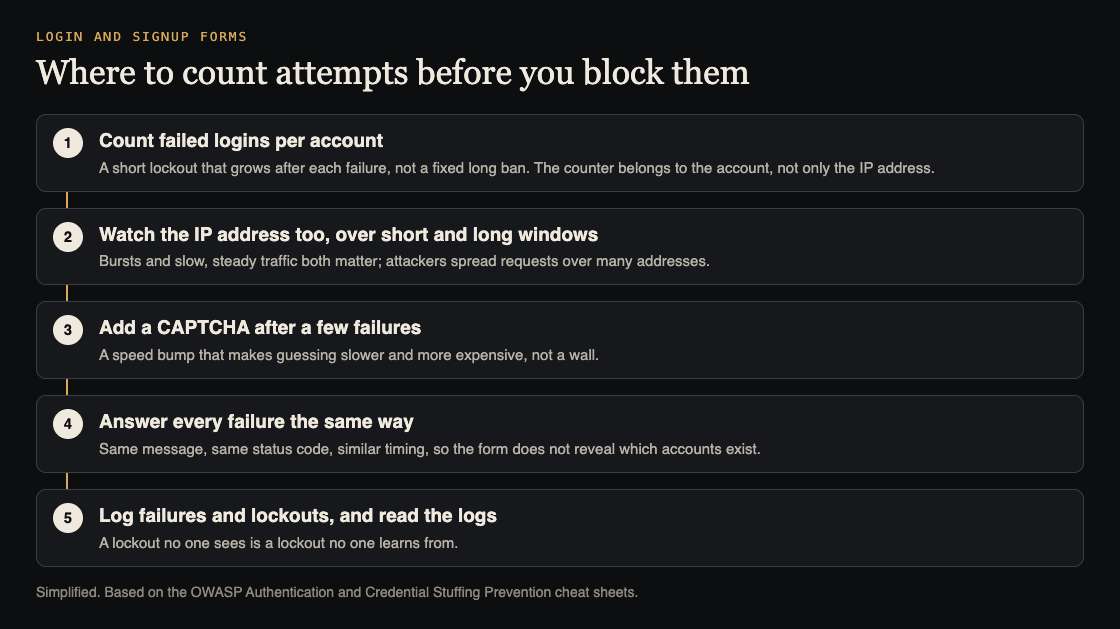
So count in three places:
- Per account: failed logins within an observation window, with a lockout threshold and a lockout duration you chose on purpose.
- Per address: a short burst window and a longer window, because a slow, steady trickle from one address is also a signal.
- Per form: signup, login and password reset each get their own limit. A reset form with no limit lets someone flood a user's inbox, which the OWASP Forgot Password Cheat Sheet calls out directly.
Lockout without locking out your real users
A hard lockout has a cost. If ten wrong passwords lock an account for an hour, anyone who knows a user's email can lock that user out on purpose. OWASP warns about exactly this and suggests designs that keep the door open for the real owner, such as letting the forgotten password route still work while the account is locked.
One option the cheat sheet describes is an exponential lockout: the first delay is very short, about one second, and it doubles after each failed attempt. A person who mistypes twice barely notices. A script trying thousands of passwords slows to a crawl.
Write down three numbers for your app, even if they are a first guess: how many failures before the lockout, over what window, and for how long. Numbers that are written down can be tested and changed. Numbers that live only in a library default usually are not.
Same message, same status, similar timing
Account discovery is the quiet half of this problem. OWASP says login, password reset and recovery should answer with a generic message whether the password was wrong, the account does not exist, or the account is locked. The same idea applies to registration where you can manage it.
Check more than the words on screen:
- The HTTP status code should be the same for every failure. A 200 for one case and a 403 for another tells a script what the page hides.
- The response time should be similar. If a missing account returns instantly and a real one waits for a password check, the timing gives the answer away.
- The lockout message should not confirm that the account exists.
This is a usability trade-off, and OWASP says so. A vague message can confuse a real user. Decide how critical your data is, and pick the wording on purpose rather than by accident.
CAPTCHA, a second factor and logs
OWASP treats CAPTCHA as defense in depth: it makes brute force more time-consuming and expensive, but tools and paid services can solve many CAPTCHAs. A friendlier pattern is to show it only after a few failed attempts, so most users never see it.
A second factor changes the picture far more than any limit. If you cannot require it for everyone, the Credential Stuffing cheat sheet describes asking for it when a login looks unusual, such as a new device or location.
Finally, log every authentication failure and every lockout, and have someone read them. A lockout that fires a hundred times a night is an attack in progress, and you will only know if the log goes somewhere a person looks.
Worked example: test login rate limiting on staging
Here is a one-hour test for your own app. Run it on a staging copy with test accounts you own, never on someone else's system.
- Write your expected numbers first. For example: 5 failures in 15 minutes locks the account for 15 minutes; a CAPTCHA appears after 3 failures; reset requests are limited per account.
- Create two test accounts, A and B, and pick one email that has no account, C.
- Fail six logins on account A. Note the attempt where the lockout or CAPTCHA appears, and compare it with your numbers.
- Try the correct password on A during the lockout. It should still be refused, with the same generic message.
- Compare A, B and C. A wrong password on B and a login for C should return the same message, the same status code, and a similar time. Use your browser's network panel to see codes and timings.
- Repeat on signup and password reset. Does signing up with A's email reveal that A exists? Can you request twenty reset emails for B in a minute?
- Check the logs. Every failure and the lockout on A should be there, with a time and the account.
Each mismatch between your written numbers and what happened is a finding. Fix it, then run the same steps again.
What this checklist does not cover
This is one control on one set of forms. It does not test how sessions are created after login, who can see whose data, or how payments behave. Those are covered in our pre-launch checklist for sign-in and payments and our guide to testing broken access control.
It also does not prove the app is safe. A limit can be bypassed through an API route the form does not use, or a mobile client that calls a different endpoint. That is why the test above checks every route that takes a password, not just the page you see.
Frequently asked questions
Should login rate limiting count by IP address or by account?
Both. OWASP recommends tying the failed-login counter to the account, because attackers spread attempts across many addresses, and a per-address limit still helps against bursts.
Does a CAPTCHA replace rate limiting?
No. OWASP treats CAPTCHA as defense in depth that makes attacks slower and more expensive, since many CAPTCHAs can be solved by tools or paid services.
Can a lockout hurt my real users?
Yes, if anyone can trigger it for any email. Keep the lockout short or growing, and keep a recovery path such as password reset working while an account is locked.
What should the error message say?
The same thing for every failure, such as "Email or password is incorrect", with the same status code and similar timing, so the form does not reveal which accounts exist.
Get started
If you want a second pair of eyes on your forms, whitehatstoic runs security tests on web apps and AI systems, with a written report, fixes and a retest after fixes. Every engagement is scoped after a short call.
Book a meeting with whitehatstoic: tell us the product, the deadline and your biggest worry, and we reply with a plan and a price.
Comments
No comments yet.
Sign in or make an account to comment.