Record a Chrome tab with audio, and keep the rest private
To record a Chrome tab with audio, you share that one tab instead of your whole screen, and you tell Chrome to share the tab's sound as well. The result is a recording of just that page and what it plays, with your other tabs, apps and pop-up notifications nowhere in the file. This guide shows how to do it in Cheap Recorder, why a tab is often a better choice than a window or the whole screen, and what keeps the tab's sound going until you stop.
Why record one tab instead of the whole screen
Anything on the screen you share ends up in the file. With the whole screen, that includes a chat message that pops up, a tab with your bank in it, or a document you forgot to close. You can tidy up first, and you should, but one missed notification is enough to make you record again.
Sharing one browser tab removes that worry. Only the page in that tab is filmed, so your other tabs, other apps and private things stay out of the recording. It also gives you something a window or a whole screen often cannot: the page's own sound.
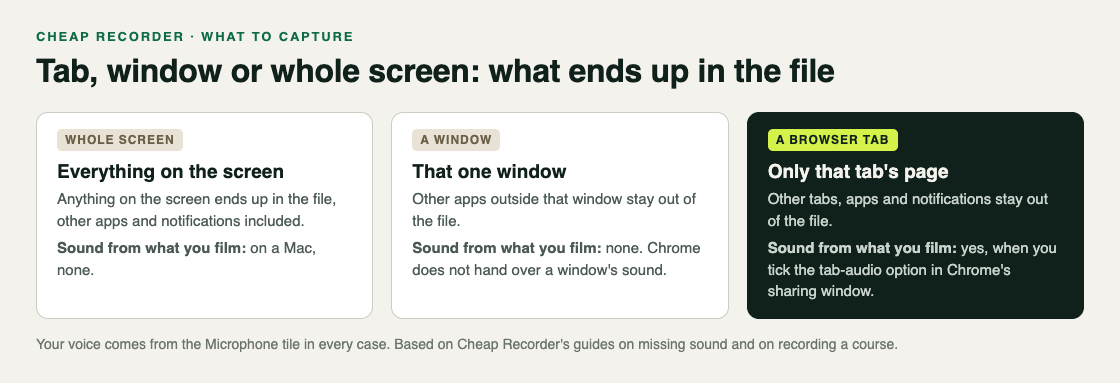
Here is how the three choices differ for sound. When you share a window, Chrome does not hand over that window's sound. On a Mac, a whole-screen share has no sound either. A browser tab is the choice that brings the page's sound with it, as long as you tick the tab-audio option in Chrome's sharing window.
How to record a Chrome tab with audio
Open the page you want to film in its own tab first. Then, in Cheap Recorder:
- Choose where to save. Under Where to save, press Choose folder... and allow Chrome to save there. Each recording gets its own folder inside it.
- Pick the tab. Under What to capture, choose A browser tab. Chrome opens its own sharing window.
- Tick the tab's sound. In Chrome's sharing window, select the tab you opened and tick the tab-audio option. This is the step people miss.
- Press Share. The preview at the bottom of the page now shows the tab. What you see there is what the file will hold.
- Check your voice. Your voice does not come from the tab. It comes from the microphone ticked in the Microphone tile. If the wrong one is ticked, open Change or add microphones and tick the one you speak into.
- Decide on your face. Leave Record my webcam on to sit in the corner of the tab, or switch it off for a page-only recording.
- Name it and record. Type a name in Name this recording, press Start recording, and press Stop and finish when you are done.
If Start recording is greyed out, read the short note beside it. It says what is missing, such as choosing a folder first.
Keep the tab's sound until you stop
A tab recording depends on that tab staying shared. Three habits keep it that way.
- Leave the tab open. If the tab closes during the recording, Chrome stops sharing its sound, and the rest of the recording has none of it.
- Finish with Stop and finish. Chrome shows its own Stop sharing bar while you share. Pressing it ends the recording, so use Stop and finish in Cheap Recorder instead.
- Bring outside sound into a tab. Sound from other programs on your computer cannot be recorded this way. If you want to include a clip, play it in a Chrome tab and share that tab.
One trap applies to calls. If the tab you film is a Google Meet or Teams call, and you also pick the same tab in the Call audio tile, the voices go in twice. Tick tab audio in one place only. The post on recording a Google Meet call covers call sound in detail, and you should always tell people on a call that you are recording.
A worked example: a walkthrough of a web app
Say you need to show a colleague how to set up a report in a web app you use, and the app plays a short sound when a report is ready. You want both your voice and that sound, and none of your email.
- You open the web app in a new tab and close the tabs you will not need. You silence notifications for the next ten minutes.
- In Cheap Recorder you choose a folder called Walkthroughs, pick A browser tab, select the web app's tab in Chrome's sharing window, tick the tab-audio option and press Share. The preview shows only the app.
- You name the recording Test and record 30 seconds: you say one sentence and trigger the ready sound once. You play it back. Both are there, so the right microphone is ticked and the tab's sound is shared.
- You name the real recording Report setup and record five minutes. You click through the app inside the tab, talk as you go, and press Stop and finish at the end.
- The card shows the recording with a player, and the MP4 is already in its own folder inside Walkthroughs.
If the test had come back silent, you would have saved yourself a wasted five minutes. A 30-second test at the start of a session catches a wrong microphone or a muted tab before it matters.
If the sound is still missing
Play the recording back and note which sound is missing. If it is your voice, check the Microphone tile: the level bar beside your ticked microphone should move while you talk. If it is the page's sound, the usual cause is that a window or the whole screen was shared, or the tab-audio option was left unticked. Pick A browser tab again and tick it before you start the next recording.
The no sound guide walks through every check in order, and the post on finding which sound is missing explains how to tell the three sound sources apart. For a page recording that a developer will act on, the bug report post shows what to include.
Frequently asked questions
Will my other tabs show up in the recording?
No. When you share one browser tab, your other tabs, other apps and private things stay out of the recording.
Why does my window recording have no sound?
When you share a window, Chrome does not hand over its sound. Share A browser tab and tick the tab-audio option instead.
What happens if I close the tab I am recording?
Chrome stops sharing its sound, so the page's sound is missing from that point on. Leave the tab open until you press Stop and finish.
Does recording one tab work on Windows and Linux?
Yes. Cheap Recorder runs in Google Chrome on macOS, Windows and Linux, and you pick A browser tab the same way on each.
Get started
The free plan needs no card. Try Cheap Recorder in Chrome, share one tab with its sound, and keep the rest of your screen to yourself.
Comments
No comments yet.
Sign in or make an account to comment.