Record audio in Chrome and save it as an M4A file
You can record audio in Chrome without installing anything. In Cheap Recorder, two switches turn the screen recorder into a sound-only recorder: switch off the webcam and do not pick a screen. Press record, talk, and you get an M4A audio file in a folder on your own computer. This guide covers the setup, picking and testing the right microphone, what an M4A file is, and how to get an MP3 or WAV from it when another app asks for one.
How to record audio in Chrome with Cheap Recorder
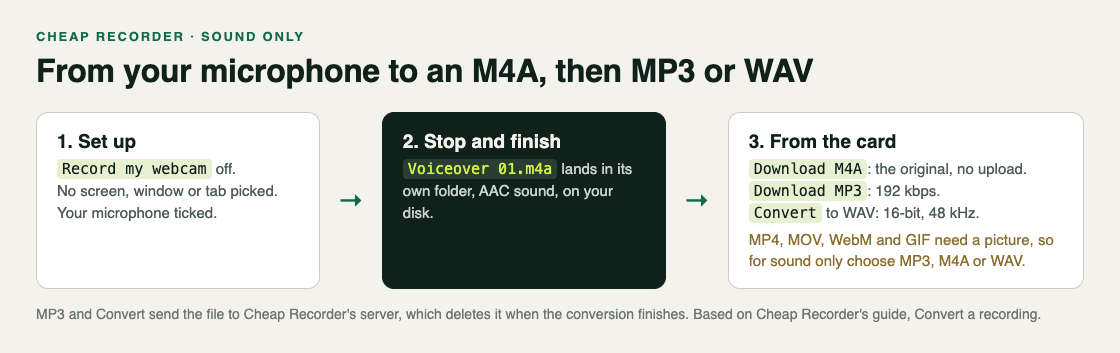
Cheap Recorder runs in Google Chrome on macOS, Windows and Linux. Open it, sign in, then:
- Choose where to save. Under Where to save, press Choose folder... and allow Chrome to save there. Your recording is written into that folder as you record.
- Switch off the webcam. Turn off Record my webcam.
- Do not pick a screen. Leave What to capture alone, so no screen, window or tab is shared.
- Check the microphone. The Microphone tile names the microphone it found. More on this below.
- Name it. Type a name in Name this recording, such as Voiceover 01. The name is used for the file and its folder.
- Record. Press Start recording, speak, and press Stop and finish when you are done.
With no picture to record, the recorder saves an M4A audio file instead of an MP4. It lands in its own folder, named with your recording's name and the date and time it began, inside the folder you chose.
Pick the right microphone before you start
A sound-only recording is only as good as the microphone it uses, and the one Chrome picks first is not always the one in front of you. A webcam, a monitor and a headset can each have their own microphone.
- Tick the one you speak into. Open Change or add microphones and tick the right one. If you have just plugged it in, press Rescan. The recorder remembers your choice in this browser.
- Watch the level bar. While you record, each ticked microphone has a bar that moves with its sound. If yours stays still while you talk, check the microphone's own mute switch and your computer's sound settings.
- Avoid a Bluetooth headset microphone on a Mac. Used as a microphone, it switches into a low-quality mode that sounds like an old phone line. Use the headset to listen and a wired or USB microphone to speak.
- Decide on the clean-up. By default Chrome cleans up echo, noise and volume. With a good studio microphone, tick Record the microphone untouched under Options to get the plain signal. Leave it unticked for calls.
If a microphone's name appears followed by dropped out, it disconnected, often a USB cable or a Bluetooth link, and its sound ends at that point. Reconnect it and start a new recording.
What you get: an M4A file on your disk
An M4A is an audio-only file. It holds AAC sound, the same format the recorder's MP4 files use for their sound, so you lose nothing by recording without a picture.
After you press Stop and finish, the card for your recording appears with a player. Its first download button follows the recording's format, so it reads Download M4A. That button hands you the original file straight from your computer, with no upload. The same file is already in your folder anyway.
If you tick Live transcript under Options before you start, the folder also gets a plain-text transcript with the time of each line, as long as it heard speech. While the live transcript is on, Chrome sends your microphone audio to Google to turn it into text, so leave it off if that does not suit you. The guide to where recordings are saved lists every file that can appear.
Turn the M4A into MP3 or WAV
Some podcast hosts want MP3, and many audio editors work best from WAV. The card can make either one:
- MP3: press Download MP3. You get sound at 192 kbps, accepted by every podcast host and audio player.
- WAV: open More formats..., pick WAV, and press Convert. You get uncompressed sound, 16-bit at 48 kHz. It is the biggest file and the best starting point for an audio editor.
MP4, MOV, WebM and GIF need a picture, so for a sound-only recording choose MP3, M4A or WAV. Download MP3 and Convert send the file to the Cheap Recorder server, which converts it and deletes its copy as soon as it finishes. The converted file downloads and is also saved next to the original, which is never changed. One conversion runs at a time, and if you convert to the same format twice while the page is open, you get the copy it already made.
The card lasts only while the recorder page stays open, so convert before you close it. Closing the tab also cancels a conversion in progress. The guide to converting a recording explains each format in more detail.
A worked example: a voiceover for a slide deck
Say you are narrating a twelve-slide deck that a colleague will put together with the slides in a video editor. They have asked for one WAV file per slide.
- You make a folder called Deck voiceover and choose it under Where to save. You switch off Record my webcam and leave What to capture empty.
- You plug in a USB microphone, open Change or add microphones, press Rescan and tick it. Its level bar moves when you speak.
- You name a recording Test and record 30 seconds, then play it back on the card. Your voice is clear, so the right microphone is ticked.
- You name the next recording Slide 01 and read the first slide's notes. You press Stop and finish, then pick WAV from More formats... and press Convert.
Slide 01.wavis saved next toSlide 01.m4a. - You repeat for Slide 02 to Slide 12, converting each one before you start the next, because the card covers your most recent recording.
Numbering with a leading zero keeps the folders in order on your disk, so your colleague can find each slide's file at a glance.
Recording other people
This setup records your own microphone. If you want the other side of a call, read the post on recording a Google Meet call, and for a show with several voices, the post on recording a podcast with separate tracks. Recording people may need everyone's agreement depending on where you and they are, so always tell them first.
Frequently asked questions
Can I record audio in Chrome without a webcam?
Yes. Switch off Record my webcam and do not pick a screen, and Cheap Recorder saves a sound-only M4A file from your microphone.
Is my audio uploaded anywhere?
No. The M4A is written to the folder you chose on your own computer. It only leaves your computer if you press Download MP3 or Convert, and the server deletes its copy when the conversion finishes.
How do I turn the M4A into an MP3?
Press Download MP3 on the card for your recording while the recorder page is open. You get an MP3 at 192 kbps, saved next to the original.
Is audio recording on the free plan?
Yes. The free plan includes recording, live transcript and captions, with 12 hours of recording a month and no card needed.
Get started
The free plan needs no card. Try Cheap Recorder in Chrome, switch off the webcam, and record your voice straight to your own disk.
Comments
No comments yet.
Sign in or make an account to comment.