Remove filler words from a video using its transcript
Everyone says um. On a live call nobody minds, but in a recorded video the ums and uhs stand out. If you record in Chrome with Cheap Recorder, you can remove filler words from a video using its transcript: the recorder finds the ums and uhs, you click any other word you want gone, and a short script cuts them out of the video. This guide shows each step, what saving does and does not change, and how to make cuts that sound natural.
What you need before you record
- A plan that includes cutting words from the transcript. On other plans the Remove filler words button does not appear. To see what your plan includes, open the menu under your name in the top right and look under What you can do on this plan.
- The live transcript, on while you record. All the cutting happens on the transcript, so no transcript means nothing to cut. Live transcript is ticked by default under Options, and it cannot be added to a recording afterwards.
- A decision about the video. In a normal one-file recording, your cuts change the transcript and the captions, not the MP4. To get a video with the words removed, tick Also save every source separately before you start, and have the free tool ffmpeg on your computer.
One more thing to know: while the live transcript is on, Chrome sends your microphone audio to Google to turn it into text. Choose the language you will speak before you press Start recording. The filler words guide on cheaprecorder.com has the full reference.
How to remove filler words from a video, step by step
- Record with Live transcript ticked, then press Stop and finish.
- In the card for your recording, open the Transcript fold. Every line of the transcript is there with its time.
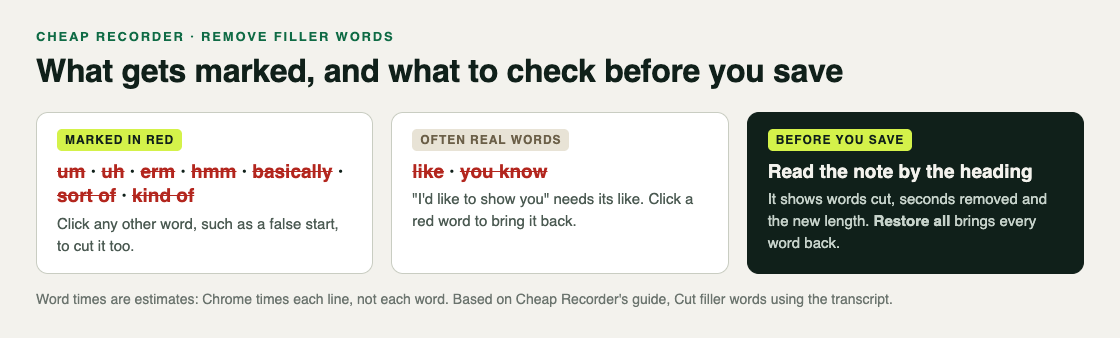
- Press Remove filler words. The recorder marks um, uh, erm, hmm, like, you know, basically, sort of and kind of in red.
- Read through the red words. Click one to bring it back, such as the like in "I'd like to show you". Click any other word to cut it too, such as a false start or a sentence you said twice.
- Watch the note beside the Transcript heading. It reads something like 12 word(s) cut, 4.3 s removed, export becomes 00:09:51, so you know how much shorter the video will be.
- Press Save captions, or Apply edits and rewrite files if you saved every source separately. If you want to start again, Restore all brings every word back.
What saving changes, and what it does not
This is the part people miss. In a normal one-file recording, Save captions changes the words, not the picture:
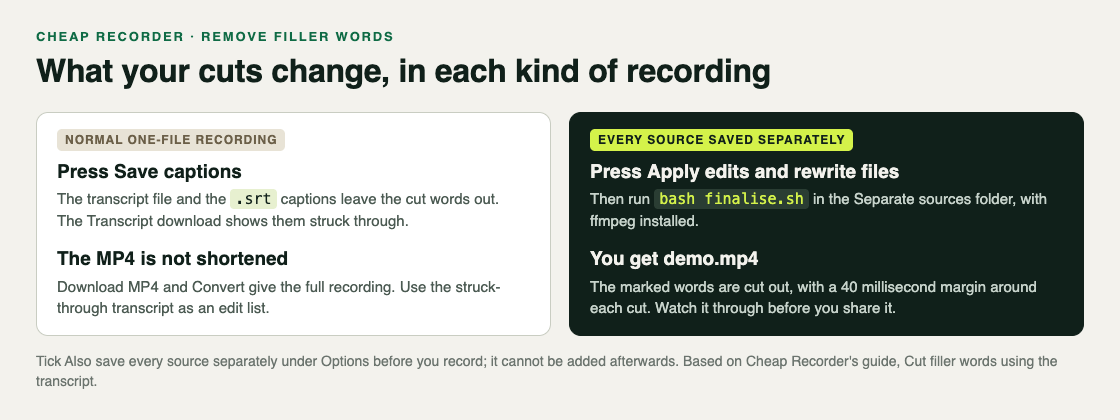
- The transcript file in the recording's folder and the .srt captions leave the cut words out, so they read cleanly.
- The Transcript download keeps the cut words but shows them struck through, so you can see exactly what was removed.
- The MP4 is not shortened. Download MP4 and Convert both give you the full recording as it was made.
That struck-through transcript is still useful on its own. If you already edit in another video editor, it is a ready-made list of what to cut, and every line carries its time, so you know roughly where to look.
Get a video with the words cut out
To have the cuts made for you, the recording has to keep every source as its own file. A small script then does the cutting with ffmpeg on your own computer.
- Before you record, open Options and tick Also save every source separately.
- Record, press Stop and finish, and mark words as above.
- Press Apply edits and rewrite files. A message says Files rewritten. Run bash finalise.sh to export.
- Open a terminal in that recording's Separate sources folder and run
bash finalise.sh. If ffmpeg is missing, the script stops and says so. - The script writes demo.mp4 in the Separate sources folder, with the marked words cut out.
Each cut keeps a 40 millisecond margin around the word, so the words either side are not clipped. In this mode the card does not offer Download MP4 or Convert, so demo.mp4 is the file you share. On Creator and up, the same folder also holds a publish page to send with the video; the post on client demo videos explains it.
A worked example: a ten-minute product walkthrough
Say you record a ten-minute walkthrough of a new feature for your customers, and you want a clean video, not only a clean transcript.
- Under Options you tick Also save every source separately, leave Live transcript ticked, and pick your language in the menu beside it. You name the recording Feature walkthrough.
- You record. Twice you start a sentence, stop, and say it again. You press Stop and finish.
- In the Transcript fold you press Remove filler words, and red words appear through the transcript. You scan them. The like in "it looks like this" is a real word, so you click it back.
- You click each word of the first try of both false starts, so only the clean second try is left.
- You type your own name into the Speaker box in place of the microphone's model name. One save writes both the new name and your cuts.
- You press Apply edits and rewrite files, open a terminal in the Separate sources folder, and run bash finalise.sh.
- You watch demo.mp4 all the way through before you send it, because word timings are estimates.
Tips for cuts that sound natural
- Check the red words before you save. Like and you know are often real words.
- Cut phrases, not single short words. Removing a whole false start sounds more natural than removing one um in the middle of a fast sentence.
- Expect a cut to land a fraction early or late. Chrome's speech recognition gives a time for each line, not each word, so the recorder spreads the words evenly across the line.
- Save before you close the tab. Your marks live on the page until you press Save captions or Apply edits and rewrite files, and the card lasts only while the recorder page is open.
- A mumble it did not hear stays in. The transcript holds only what speech recognition wrote down, so a word it missed cannot be clicked.
The cleaner the transcript, the more there is to click. The post on captions and a transcript while you record covers getting a good one in the first place.
Frequently asked questions
Can I remove filler words without video editing software?
Yes. Cheap Recorder marks them in the transcript, and if you saved every source separately, finalise.sh cuts them out with ffmpeg on your computer.
Why is my MP4 the same length after I saved?
In a normal one-file recording, saving changes the transcript and captions, not the MP4. Tick Also save every source separately before recording and run finalise.sh to get a cut video.
Which words does Remove filler words find?
Um, uh, erm, hmm, like, you know, basically, sort of and kind of. You can click any other word to cut it too.
Is Remove filler words on every plan?
No. The button appears only on plans that include cutting words from the transcript. The live transcript itself is on the Free plan.
Get started
The free plan needs no card and includes the live transcript and captions. Try Cheap Recorder in Chrome, check What you can do on this plan for the editing tools, and your recordings stay on your own disk.
Comments
No comments yet.
Sign in or make an account to comment.