Transcript with speaker names: label who said what
A transcript with speaker names is far easier to use than a wall of text. You can find what your guest said, quote the right person and hand clean notes to anyone who missed the call. Cheap Recorder can label each line of its live transcript and let you swap the labels for real names. The catch is that the labels follow sound sources, not voices, so how you set up the room decides how good the result is. This guide explains where the labels come from, how to give every voice its own label, and where the names end up.
How a transcript with speaker names is made
While you record with Live transcript on, Chrome turns your speech into text, line by line. Each line is labelled with the sound source that was loudest while it was spoken. There are three kinds of source:
- A microphone. The label is the microphone's name, often its model name.
- Meeting. The other side of a call you picked with Pick the call tab... in the Call audio tile.
- Screen. Sound from the tab or window you are filming.
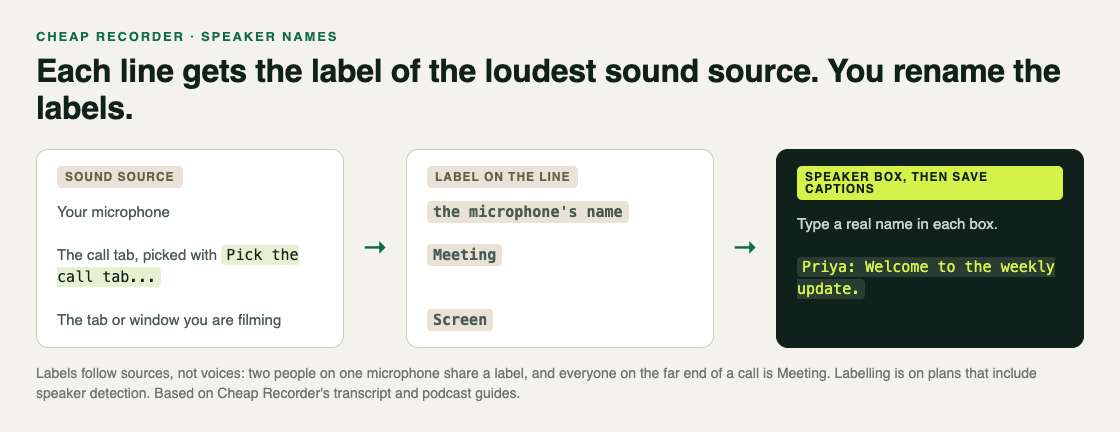
That is the key idea. The recorder does not recognise voices. It knows which source was loudest. If every person has their own source, every person gets their own label, and renaming the labels gives you a transcript with real names.
Labelling comes with plans that include speaker detection. The live transcript itself is on the Free plan and every plan above it. To see what your account has, open your name in the top right and look under What you can do on this plan.
Give every voice its own label
Since labels follow sources, the setup is about sources:
- One microphone per person in the room, all plugged into the same computer. Wired or USB microphones work best. Tick each one under Change or add microphones in the Microphone tile.
- Headphones for everyone, so no microphone picks up a voice coming out of a speaker.
- Microphones with clearly different names. The label starts as the microphone's name, so two identical models are harder to tell apart when you rename them.
- Speak close to your own microphone. Microphones in one room hear each other faintly. The line goes to whichever source is loudest, so keeping each voice loudest on its own microphone keeps the labels right. A close microphone also gives Chrome clearer speech to transcribe than a laptop's built-in one.
For remote guests, open the call in a Chrome tab, press Pick the call tab..., choose the call's tab, tick Share tab audio and press Share. Their lines are labelled Meeting.
Rename the labels to real names
After Stop and finish, open the Transcript fold in the card for your recording.
- Find the boxes marked Speaker above the transcript. There is one per label.
- Type a real name into each box, such as Priya instead of a microphone's model name.
- Press Save captions. If the recording was made with Also save every source separately, the button is Apply edits and rewrite files instead.
Each line now starts with the person's name, for example "Priya: Welcome to the weekly update." Renaming and any words you cut are saved together in the same save, so finish your edits before you press it.
Where the names end up
One save carries the names into everything built from the transcript.
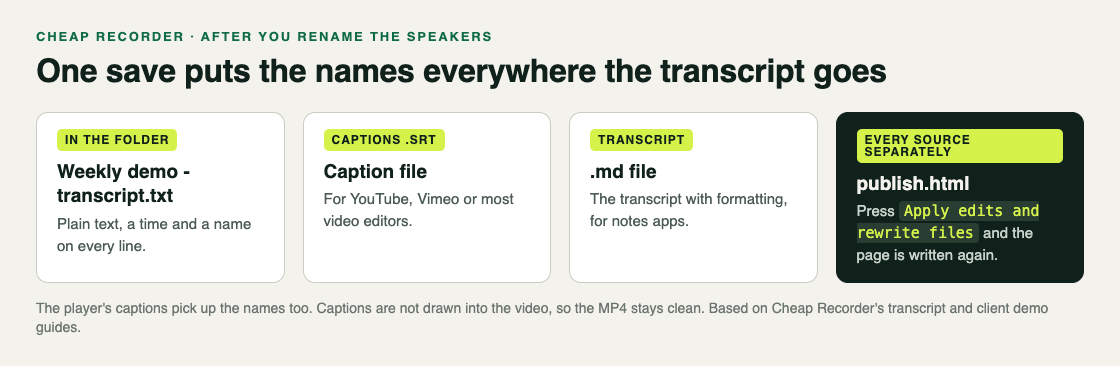
- The transcript file in the recording's folder, such as Weekly demo - transcript.txt: plain text with times and speaker names, easy to paste into notes or an email.
- Captions .srt on the card: the caption file to upload next to your video on YouTube or Vimeo, or import into most video editors.
- Transcript on the card: the transcript with formatting, as a .md file for notes apps.
- The player's captions on the card.
- publish.html, when every source was saved separately: the page is written again with the names in its transcript.
The captions are not drawn into the video. Your MP4 stays clean, and you add the caption file wherever you publish it.
A worked example: two hosts and a remote guest
Say you and a co-host, Ana and Ben, record a podcast in one room, and your guest, Priya, joins on Google Meet.
- Set up the room. Ana and Ben each have a USB microphone of a different model, both plugged into the same laptop, and both wear headphones.
- Set up the recorder. Under Options, Live transcript is ticked and the language is set before you start, because it is fixed when the recording begins. In the Microphone tile you tick both microphones. In Call audio you pick the Meet tab and tick Share tab audio.
- Tell everyone. At the start, Ana says the episode is being recorded and transcribed, and Priya agrees.
- Record. Each host speaks close to their own microphone.
- Rename. After Stop and finish, the Transcript fold shows three Speaker boxes: Ana's microphone name, Ben's microphone name and Meeting. You type Ana, Ben and Priya, and press Save captions.
- Use it. You download Captions .srt for the video upload, and paste the transcript file from the folder into your show notes. Every line says who spoke.
The post on recording a podcast with every voice on its own track covers the room setup in more depth.
Limits worth knowing
- Two people on one microphone share one label. The recorder cannot split them.
- Everyone on the far end of a call is Meeting. The call's sound comes from one Chrome tab, so two remote guests share a label. If you need them apart, rename Meeting to both names, or note who is who.
- A line gets one label. When two people talk over each other, the loudest source wins that line.
- Times are per line. Chrome reports a time for each line, not for each word.
- Turn it on first. The transcript is only made while you record. If Live transcript was off, there is no way to add one afterwards.
- Privacy. While the transcript is on, Chrome sends your microphone audio to Google to turn it into text.
The live transcript guide covers languages and the files in detail, and the post on captions and a transcript while you record shows the basics.
Frequently asked questions
How does Cheap Recorder know who is speaking?
It does not recognise voices. Each line is labelled with the sound source that was loudest while it was spoken: a microphone's name, Meeting or Screen.
How do I change a speaker label to a real name?
Open the Transcript fold on the recording's card, type a name into each Speaker box and press Save captions. The transcript, the player and the caption downloads pick up the names.
Can two remote guests get separate names?
Not automatically. Everyone on the far end of a call comes from one Chrome tab, so they share the Meeting label.
Are the speaker names in the caption file?
Yes. After you save, each line in the transcript and the caption files starts with the speaker's name.
Get started
The free plan needs no card and includes the live transcript. Try Cheap Recorder in Chrome, and your recordings stay on your own disk.
Comments
No comments yet.
Sign in or make an account to comment.