Where are screen recordings saved? You pick the folder
Where are screen recordings saved? It depends on the recorder, and that is why a finished recording can seem to vanish. In Cheap Recorder there is no guessing: before you record, you pick a folder on your own computer, and every recording is written straight into it while you record. This guide shows how to choose that folder, how each recording's folder is named, exactly which files land inside, and what happens in a browser that cannot save to a folder.
Where are screen recordings saved in Cheap Recorder?
In a folder you choose, on your own disk, not on a server. Cheap Recorder runs in Google Chrome on macOS, Windows and Linux, and it uses a Chrome feature that lets a web page write files into a folder you allow. The recording is written about once a second while you record, rather than held in memory until the end, so a long recording does not fill up your computer's memory.
Your recording is not uploaded anywhere. The one exception is Convert: when you use it, the file is sent to the Cheap Recorder server, converted and sent back, and the server deletes its copy as soon as that finishes.
If you made a recording with a different tool, that tool's own settings name the folder it uses, so look there first. The rest of this guide is about Cheap Recorder.
Choose the folder, step by step
- Open the recorder in Chrome and sign in. The Free plan is enough for everything here.
- Find step 1, Where to save. Until you pick a folder, it reads no folder chosen, and the start bar at the bottom says choose a folder first. That is why Start recording stays greyed out.
- Press Choose folder... and Chrome opens its folder picker, starting in your Videos folder. Pick a folder, or make a new one called Recordings.
- Chrome asks whether the page may edit files in that folder. Allow it. The folder's name now shows in step 1.
- Type a name in Name this recording. If you leave it empty, the recording is simply called Recording.
- Set up what to capture, press Start recording, and press Stop and finish when you are done. A Recording saved. message appears, and the card for your recording shows saved to followed by the folder's name.
One thing surprises people: the recorder does not remember the folder between visits. You choose it again each time you open the recorder. Chrome's picker normally reopens where you were last time, so it takes a moment. The guide to where recordings are saved has the same steps with the exact labels.
How each recording's folder is named
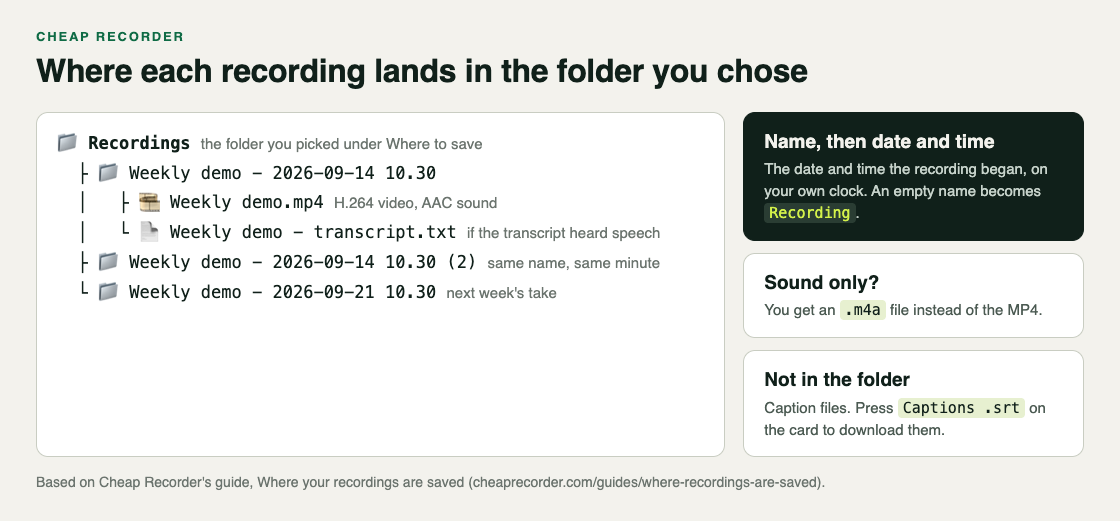
Every recording gets its own folder inside the one you chose. Its name is the name you typed, then the date and time the recording began on your own computer's clock. A recording called Weekly demo, started at half past ten on 14 September 2026, goes in a folder called Weekly demo - 2026-09-14 10.30.
A few rules keep the names tidy:
- No clashes. A second recording with the same name in the same minute gets
(2)on the end, so it never mixes with the first. - Your words, almost exactly. Spaces, accents and any alphabet are kept. Only the characters a file name cannot hold are left out: / \ : * ? " < > |. So "Q3 review: final!" becomes "Q3 review final!".
- A length limit. Long names are cut at 60 characters, so put the part that matters first.
Sorting by name groups each recording's takes together, oldest first. Sorting by date shows everything in the order you made it.
What you will find inside
Open a recording's folder and you will normally see two files, and nothing else:
- The recording itself, named after your recording, such as
Weekly demo.mp4. It is an MP4 with H.264 video and AAC sound, so it plays almost anywhere. If you recorded sound only, with no screen and no webcam, you get an M4A file instead. In the rare case that the browser cannot record MP4, you get a WebM. - The transcript, if the live transcript was on and heard some speech:
Weekly demo - transcript.txt, plain text with the time of each line, which opens in any text editor.
Caption files are not saved in the folder. To get them, press Captions .srt or Transcript on the card for your recording. The post on captions and a transcript made live shows how to switch the transcript on.
Files you make later are saved here too. If you convert the recording to MP3 or another format, the new file is written next to the original with the same name and a new ending. If you tick Also save every source separately under Options before recording, a Separate sources folder appears inside the recording's folder, holding each source as its own file for editing in another app.
A worked example: a weekly demo series
Say you record a short product demo for your team every Monday and want to find any week in seconds.
- On the first Monday you make a folder called Team demos and choose it under Where to save. You allow Chrome to edit files there.
- You type Weekly demo in Name this recording, record eight minutes, and press Stop and finish. The card says saved to Team demos, and a folder called
Weekly demo - 2026-09-14 10.30appears. - Your first take had a wrong slide, so you record again straight away with the same name. The new folder ends in the time you started it, such as
10.39. Had you started twice within one minute, the second would end in(2). Either way the bad take is never overwritten, so you choose which one to delete. - You press Download MP3 on the card for a teammate who listens on the go.
Weekly demo.mp3lands next to the MP4 in the same folder. - The next Monday you open the recorder, choose Team demos again, and use the same name. Sorted by name, every week's demo lines up, oldest first, each with its own transcript.
Because the date and time are in every folder name, you never need to rename anything by hand to keep the series in order.
When your browser cannot save to a folder
Some browsers do not let web pages write into a folder. In that case step 1 says the browser cannot write to disk, and Choose folder... is greyed out.
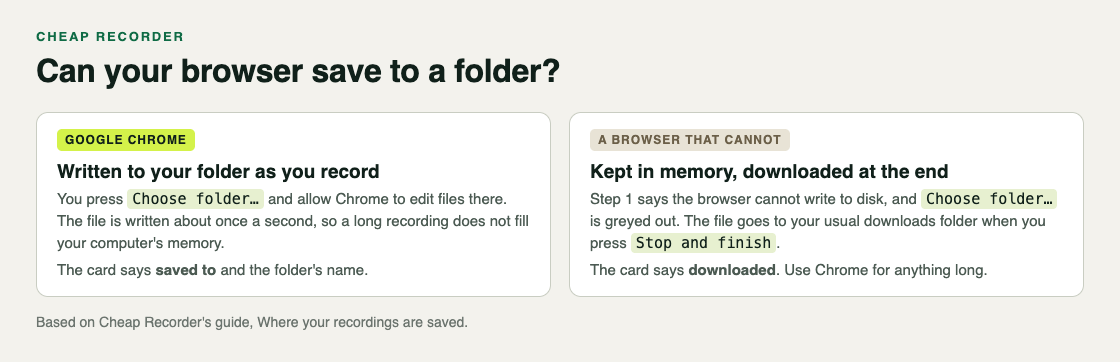
You can still record. The recording is kept in the browser's memory and downloaded to your usual downloads folder when you press Stop and finish, and the card says downloaded instead of saved to. For anything long, use Chrome, so the file is written to disk as you go.
Your recordings are ordinary files, so you can move or rename them like any other file. Finish any downloads or conversions from the card first, because the card reads the file from where it was saved. The card also lasts only while the recorder page stays open; after a reload it is gone, but your files are still in the folder. To change a recording's format later, see the guide to converting a recording.
Frequently asked questions
Does Cheap Recorder keep a copy of my recordings?
No. Recordings are written to the folder you chose on your own computer. The only time a file leaves it is when you use Convert, and the server deletes its copy as soon as the conversion finishes.
Why do I have to choose the folder every time?
The recorder does not remember the folder between visits. Chrome's folder picker normally reopens where you were last time, so choosing it again takes a moment.
Where are the caption files?
They are not saved in the folder. Press Captions .srt or Transcript on the card for your recording to download them while the recorder page is open.
What happens to my recordings if I cancel or delete my account?
Nothing. They are already on your disk, so you keep everything, and deleting your account does not touch recordings on your computer.
Get started
The free plan needs no card. Try Cheap Recorder in Chrome, choose a folder for your recordings, and every file stays on your own disk.
Comments
No comments yet.
Sign in or make an account to comment.