2048 game settings: music, sound and reduced motion
2048 game settings are worth a minute before you play: the music can get in your head, a sound can play in a quiet room, and a spinning cube can tire your eyes. This guide covers every setting in Evolved 2048, the 2048 puzzle on a cube you turn like a Rubik's cube, each one checked in the live game. You will learn what each control does, what it leaves alone, and which mix fits focused play or a commute.
2048 game settings: the five controls and their defaults
In Evolved 2048 you open Settings from the top bar. It sits next to Score, Best, Moves, New game and How to play. The box has five controls:
- Master volume: Off, Low, Mid or High
- Sound effects: Off, Low, Mid or High
- Music: Off, Low, Mid or High
- Reduced motion: Device, On or Off
- Edge merges: On or Off, and On by default
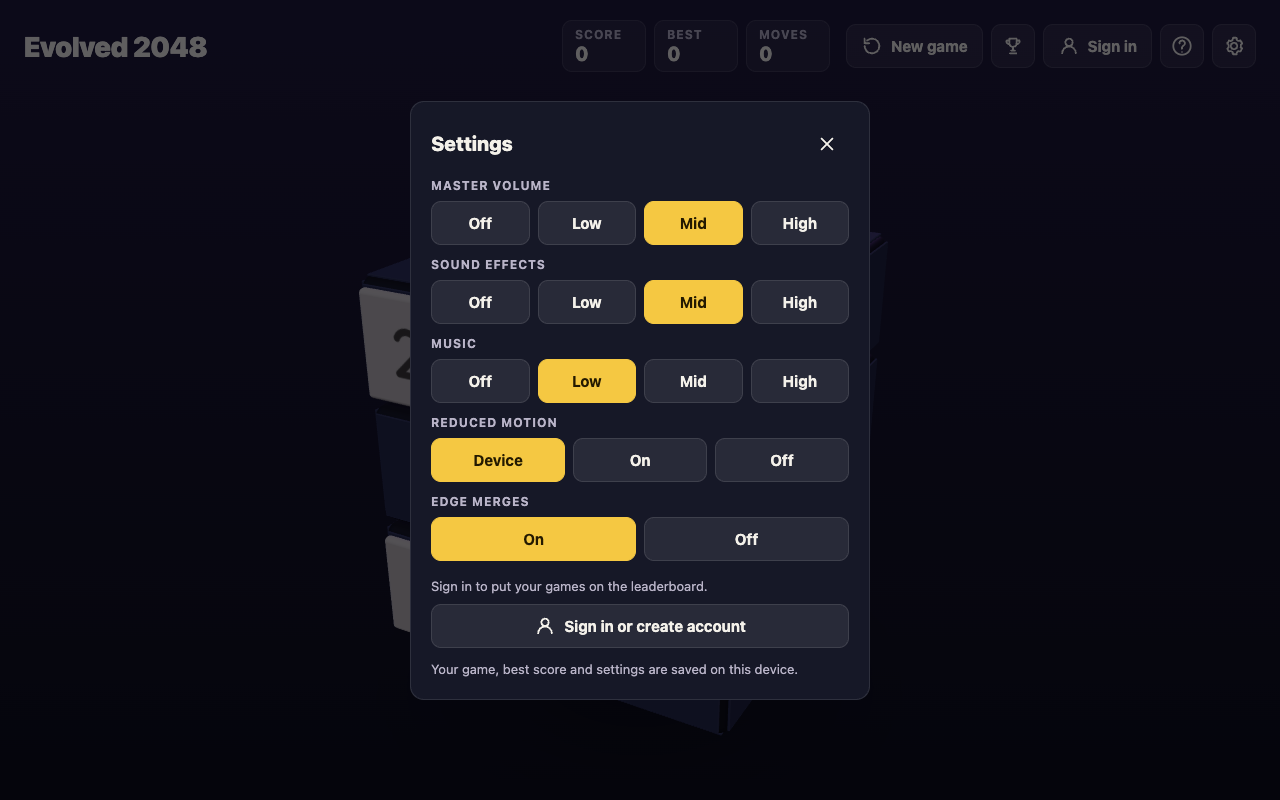
The Settings box in a fresh browser on 11 October 2026, showing the defaults.
In a fresh browser the defaults were Master volume Mid, Sound effects Mid, Music Low, Reduced motion Device and Edge merges On. The first four change how the game looks and sounds. Edge merges is different: it changes play, so it gets its own section further down.
Each sound control has the same four steps. There is no slider and no number to type.
The box ends with "Your game, best score and settings are saved on this device." Set things up once and they stay in that browser. You do not need an account for this. If you play on a laptop and a phone, set each one up on its own.
Music in 2048: when background tracks help and when to mute them
Music has its own control, apart from sound effects. That split is the most useful thing in the box. You can drop the music to Off and keep every other sound as it was.
When music helps:
- You want a slow, relaxed session and are not chasing a best score.
- You are in a noisy place and want something steady over the background noise.
When to mute it:
- You already have your own music or a podcast playing.
- You are planning moves several steps ahead. On this cube that happens a lot. You slide the front face, twist a row or column to carry tiles round from another face, and turn the whole cube to use its other sides. That is plenty to track.
- Other people are in the room.
To turn music off: open Settings, find Music, choose Off. That is the whole job.
Sound effects: tile slides, merges and game over cues
Sound effects is a single control. The Settings box does not list each sound, so this guide will not promise a cue for every event. Play a few slides with effects on Mid and judge by ear.
Sound can help with feedback even when the screen tells you the same thing. When a move is refused, the game shows a message such as "Nothing moves that way. Try another way, or twist a row." or "The cube is full. Merge two tiles on a face to make room before you twist." Those messages appear on screen whatever your volume is. So muting sound effects will not hide a refused move from you.
The end of a game is also shown in words. When nothing can move, a No moves left box opens with this advice: "Next time, keep room on one face so a twist can still bring tiles round to their match." The full ending rule is in our guide to the 2048 rules and how a game ends.
Master volume, the third sound control, has the same four steps. The box does not say how it combines with the other two, so for certain silence set all three to Off.
Reduced motion: calmer animations for comfort and focus
This game moves more than a flat grid does. A slide moves tiles across a face. A twist turns a whole layer a quarter and carries its tiles to the next face. A turn spins the whole cube. You can turn as often as you like, because turning is free: it adds no points and counts no move. A careful player may turn the cube many times a game just to look at the other sides.
All of that is on screen motion. Reduced motion is there for anyone who finds that much movement tiring, distracting or uncomfortable. It has three choices:
- On: you ask the game for reduced motion.
- Off: you ask for the full animations.
- Device: as the name says, the game goes by your device.
What reduced motion does not do: it does not change the rules. The How to play box explains slides, twists, turns, new tiles and the end of a game, and the only setting it links to the rules is Edge merges. Score is counted the same way whatever you pick. A slide adds the value of every tile its merges make. A twist adds no points but counts one move and adds a new tile. A whole cube turn adds nothing and counts nothing.
The Device choice
Phones and computers have their own accessibility option to cut down motion. If you have already switched that on, you probably want every app to respect it without asking you again. That is what the Device choice is for. Leave Reduced motion on Device and your system setting is the one that counts.
Pick On or Off when you want this game to differ from your device. Two examples:
- Your phone has reduced motion off, but the spinning cube bothers you. Set the game to On.
- Your laptop has reduced motion on for other reasons, but you like seeing each twist play out so you can follow where tiles went. Set the game to Off.
If you lose track of tiles with motion reduced, turn the cube with Shift and an arrow key to check the other faces. It costs nothing.
Suggested settings for focus and for a commute
These are starting points. Change them to taste.
Focus: chasing a new best
- Music: Off
- Sound effects: Low
- Master volume: Mid
- Reduced motion: your choice, but try On if long sessions tire your eyes
On a computer, play with the keyboard. Arrow keys or W A S D slide. Shift and an arrow key turns the cube. The keys 1 2 3 twist the top, middle and bottom row right, and 4 5 6 twist the left, middle and right column up. Shift with those twists the other way. Fewer drags means fewer mistakes when you are deep in a plan.
Commuting: phone, maybe no headphones
- Master volume, Music and Sound effects: Off if you have no headphones
- Reduced motion: Device, so it follows your phone
On a phone you swipe the front face to slide, drag a row on the right face sideways or a column on the top face to twist, and drag the space around the cube to turn it. If you get off the train mid game, close the page. A reload test showed the same Score, Best, Moves and tiles came back after a reload in the same browser.
Edge merges: the one setting that changes play
Edge merges is on unless you switch it off. With it on, a slide towards an edge of the front face also merges the tile at that edge with an equal tile just over the edge, on the next face. The new tile stays on the front. In a test, an 8 on the front's top right square and an 8 just over the edge on the right face became a 16 on the front after one slide right. Our edge merges post shows that test.
Here is a test you can repeat, which we ran in a fresh browser, signed out:
- Open Settings with the gear button. Edge merges shows On.
- Choose Off. The choice is saved at once in your browser.
- Reload the page and open Settings again. Edge merges still shows Off.
- Press H to open How to play. The end rule now reads "The game ends when all 54 squares are full and no face has two equal tiles side by side." With edge merges on, it says no two equal tiles may sit side by side "on a face or across an edge".
So switching it off makes the puzzle stricter twice over: fewer merges during play, and an earlier end.
Frequently asked questions
How do I turn off music in 2048?
In Evolved 2048, open Settings from the top bar and set Music to Off. The choice is saved on your device, so it stays off next time you play in that browser.
Can I keep sound effects but mute the music?
Yes. Music and Sound effects are separate controls, each with Off, Low, Mid and High. Set Music to Off and leave Sound effects where you like it.
Does reduced motion change the 2048 rules or scoring?
No. The rules in How to play only tie one setting to play, and that is Edge merges. Score comes from merges, and twists and turns are counted the same way whatever motion setting you use.
Why does 2048 follow my phone's accessibility settings?
Reduced motion in Evolved 2048 has a Device choice, which goes by your device's own setting. If you want something different in this game, choose On or Off instead.
Get started
Open the game, start with the three first-game tips, then open Settings and pick a mix from the list above. If you are new to the puzzle itself, read why the game is named after a tile first. For controls and a first game, see play 2048 online free.
Play Evolved 2048: it is free and plays in your browser on a computer or a phone.
Comments
No comments yet.
Sign in or make an account to comment.