30-second test recording before a talk in Chrome
A 30-second test recording saves you from finding out at minute 40 of a screen and webcam talk that your microphone was muted. A short test costs half a minute. A ruined take costs the whole talk. This post walks you through the test in Cheap Recorder, what to look for when you play it back, and how to fix the usual problems before the real take.
Why a 30-second test saves you from re-recording the whole talk
Most recording mistakes are silent. The wrong microphone is ticked. A browser tab is muted. The camera sits on top of the code you wanted to show. None of these show up until you play the file back.
The Cheap Recorder course guide gives the same advice: record a 30-second test at the start of a session and play it back to catch a wrong microphone or muted tab. It is the same habit as a quick check before any real work. Do not assume the setup works. Check it.
What you need before you press record
Keep the list short.
- Google Chrome. Cheap Recorder runs in Chrome on macOS, Windows and Linux.
- An internet connection. There is no offline mode. Your plan comes from the server, so Start recording stays greyed out until it answers.
- A folder with free space. Recordings are written to a folder you pick on your own computer.
- A microphone and a camera. Allow both when Chrome asks.
- A clean screen. Anything on the shared screen ends up in the file, so close tabs and apps you do not need and silence notifications.
The Free plan covers all of this. It includes recording, live transcript and captions, and 12 hours of recording a month.
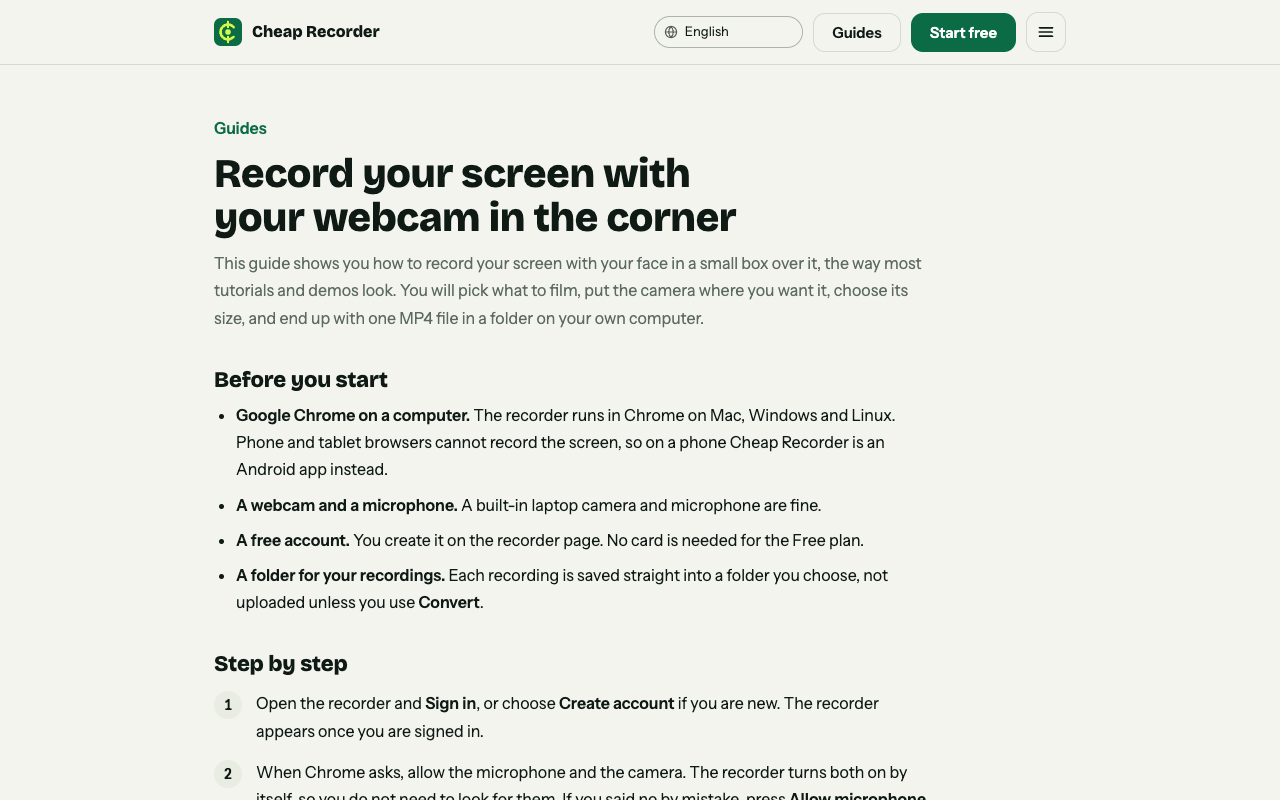
The screen and webcam guide on cheaprecorder.com lists what to have ready.
Set up your screen and webcam layout
Start with the folder. Press Choose folder... under Where to save. Chrome opens its folder picker, then asks whether the page may edit files in that folder. Allow it. The recorder does not remember the folder between visits, so you choose it each time.
Next, type a name in Name this recording. If you leave it empty, the recording is called Recording. A name like Talk 01 keeps files in order, and the folder gets the date and time added.
Then pick what to show under What to capture: Whole screen, A window or A browser tab. Chrome opens its own sharing box. Pick one and press Share. Sharing one window or one tab keeps your other apps and private things out of the recording.
Now the layout. Open the Layout menu in the Preview heading. You get:
- Picture in picture, bottom right (the default).
- Side by side, where the screen takes the left two thirds and the camera has a fixed place on the right.
- Screen only.
- Camera only.
In picture in picture you can drag the camera anywhere. Arrow keys nudge it, and Shift gives bigger steps. The Size slider runs from 12% to 50% of the picture width. The preview is the recording, so where the camera sits in the preview is exactly where it sits in the file. Which layouts you have is listed under What you can do on this plan, in the menu under your name in the top right.
For more on layouts, read the screen and webcam recording guide.
Run a 30-second test recording step by step
- Switch Record my webcam on. When Chrome asks, allow the microphone and the camera.
- Choose your folder and type a test name, such as
Test. - Pick your screen, window or tab, and check the preview.
- Look at the start bar. The note beside Start recording reads ready to record when it can start. If it gives a reason instead, fix that reason and read the note again, because fixing one can bring up the next.
- Set your background before you start. The recording keeps the background that was on when you pressed Start recording.
- Press Start recording.
- Talk the way you will in the real talk. Say your name, read the first lines of your intro, and switch to the slide, tab or app you will show first.
- Watch the level bar for your microphone. It should move as you speak.
- After about 30 seconds, press Stop and finish. Do not use Chrome's own Stop sharing bar to end it. That finishes the recording too, but Stop and finish is the way to do it.
The recording shows up on the page with a player and is already saved in your folder. It also counts toward your plan's recorded minutes, like any recording.
What to check when you play the test back
Play the test in the player on the page, then open the file from your folder if you want to be sure it plays outside the recorder. Go through this list:
- Your voice. Is it clear, at a normal volume, and not thin?
- Sound from the screen. If your talk plays a video or a demo with sound, can you hear it?
- The camera. Is your face in frame and lit from the front? Does the camera cover anything important on the screen?
- The screen. Is the text readable? Are there notifications, tabs or private things in view?
- The transcript. If Live transcript was ticked under Options, did captions appear while you spoke?
The transcript is a quick audio check. It is made from what Chrome hears on your microphone. If it caught your words, your microphone is working.
Fix the most common problems before the real take
No sound, or a flat level bar
Open Change or add microphones and tick the microphone you actually speak into. Press Rescan after plugging one in. If the bar stays still while you talk, check the microphone's own mute switch and the computer's sound settings.
Sound from your slides or demo is missing
Chrome only shares sound in some cases. Choose A browser tab and tick the tab-audio option in Chrome's sharing window. A shared window does not hand over its sound, and on a Mac a whole-screen share has none either. Play the sound in a Chrome tab if you can, and leave that tab open for the whole recording.
For more detail, see the no sound in screen recording guide.
No camera found
Check that no other app, such as a video call, is using the camera. Check that Chrome may use the camera in your computer's privacy settings. Then turn Record my webcam off and on again.
The camera is in the wrong place
If the camera is not in the preview, make sure the layout is not Screen only and that a screen, window or tab is picked. Then drag it, or use the Size slider.
A messy background
None and Blur are always available. The first time you press Blur, the word loading... shows while the part that finds you in the picture downloads. Light your face from the front, because a window behind you makes any cutout struggle. Background pictures and the green screen tick need a plan that includes green screen. See the green screen and blur guide.
Echo or a thin voice
If a Bluetooth microphone is selected, the recorder shows a warning. On a Mac a Bluetooth headset used as a microphone drops into a low-quality mode, so use a wired or USB microphone for your voice. Leave Record the microphone untouched unticked unless you have a studio microphone in a quiet room.
Run the test again after each fix. It takes 30 seconds, so it is cheap.
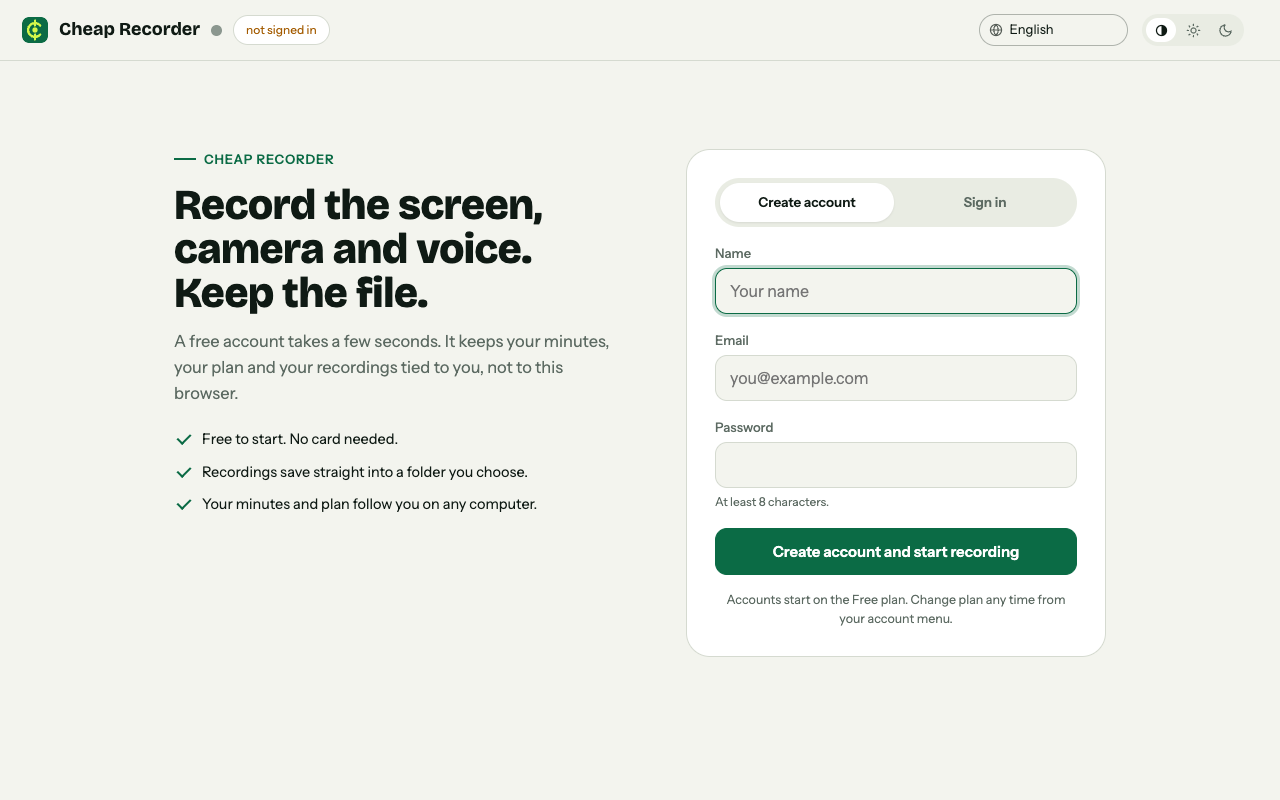
Create a free account on the recorder page, then run your test.
Record the full talk and keep your pace steady
Once the test sounds and looks right, rename the recording (for example Talk 01), check the background and layout one last time, and press Start recording.
Some habits that help over a long take:
- Press M at the start of each section. A short note confirms the time. Markers are saved to a markers list and a chapters file only when Also save every source separately is ticked before you record. With the default single MP4, the notes show while recording but are not saved, so jot down any times you need.
- Keep the shared tab open. If it closes, Chrome stops sharing its sound.
- Watch your minutes. Open your name in the top right to see how many are left. If they run out mid-recording, the recording stops.
- Do not worry about the connection dropping. A running recording keeps writing to your folder every second. The counter by the timer shows how many MB have been written.
When you finish, press Stop and finish. You get Download MP4, and Download MP3 where the site can convert files. With Live transcript on, you also get Captions .srt and Transcript. The same habits apply to longer material, so the course and tutorial guide is worth a read. If your talk is a handover for a new teammate, the post on recording a handover video in Chrome shows a similar workflow.
Frequently asked questions
How long should the test recording be?
About 30 seconds is enough. Say a few lines of your intro, show the first screen you plan to share, and play it back.
Does the test use up my recording time?
Yes, a test counts toward your plan's recorded minutes for the month. The Free plan has 12 hours a month, so a 30-second test costs very little.
Can I add a transcript after I forget to turn it on?
No. If the transcript was off, a transcript cannot be added to that recording afterwards. Live transcript is ticked by default under Options, so check it in your test.
Where does the test file go?
Into its own folder inside the folder you chose, named with your recording name plus the date and time. You can delete it from your computer like any other file.
Get started
Set up your folder, camera and screen, record 30 seconds, and play it back before the real talk. The free plan needs no card. Try Cheap Recorder in Chrome, and your recordings stay on your own disk.
Comments
No comments yet.
Sign in or make an account to comment.