Abstract tech backgrounds for a webinar: how to pick one
Picking abstract tech backgrounds for a webinar sounds like a small job until you are live and your slide text vanishes into a busy circuit pattern. This guide covers which styles stay calm, where motion helps and where it hurts, how to size a background for slides and camera, and which license a webinar for your own company needs.
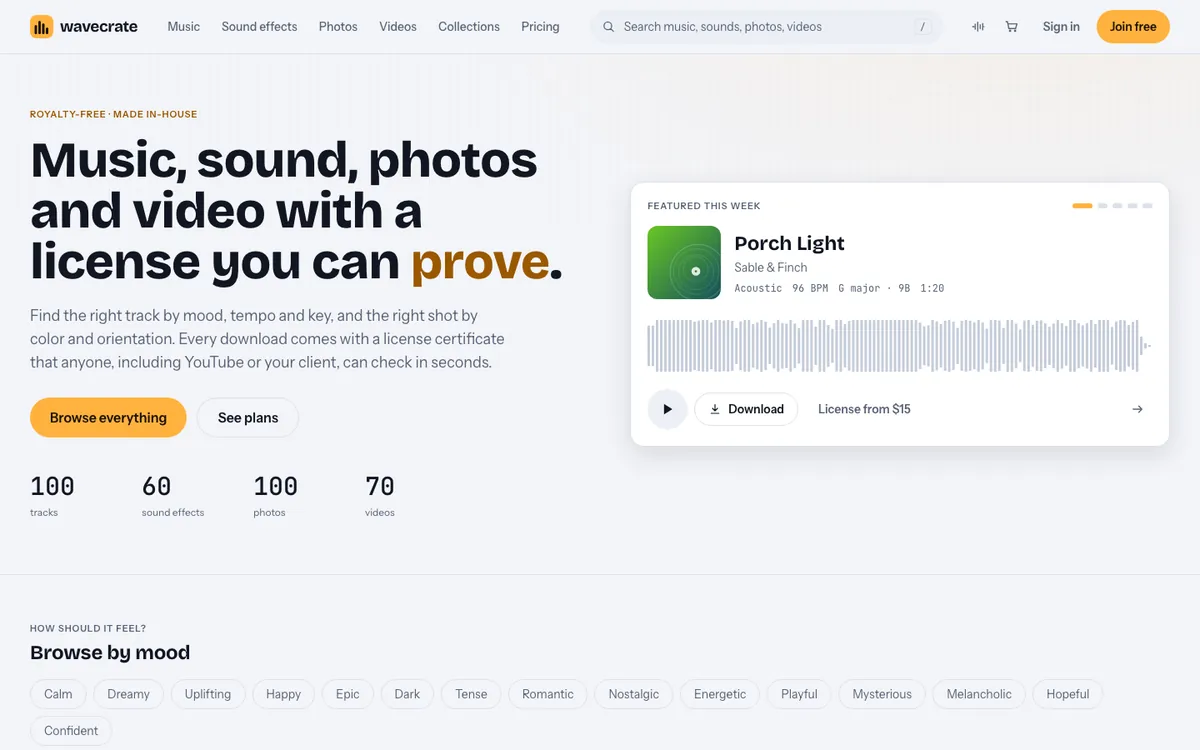
Wavecrate licenses royalty-free music, sound effects, photos and videos, and every download comes with a license certificate and a code anyone can check on its verify page.
Why abstract backgrounds suit a webinar
A webinar asks people to look at the same frame for most of an hour. A real photo of an office or a city competes with you for attention. An abstract background gives the eye somewhere calm to rest while your face and your slides do the talking. Gradients, grids and glowing lines also say "digital" without tying you to one product or place, so the same background works for a talk on cloud costs or on a new feature.
Styles of abstract tech backgrounds for a webinar
- Gradients are the safest choice: smooth color leaves room for titles and keeps attention on you.
- Grids and tunnels feel like engineering and suit developer talks, but their lines turn to noise behind small text.
- Soft lights and particles add depth. Keep them blurred so they read as texture, not detail.
- Network and data shapes work as section dividers.
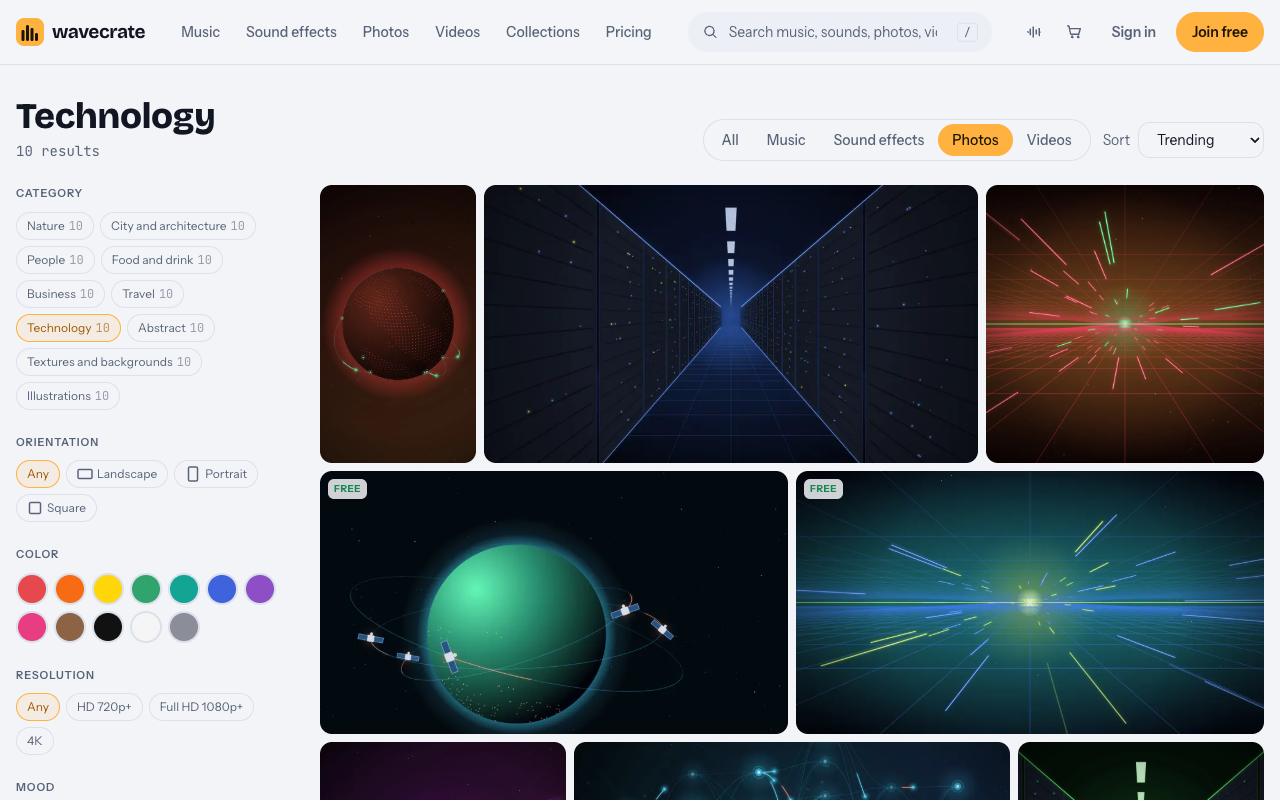
On Wavecrate, the photos browse page has Technology, Abstract and Textures and backgrounds categories, with filters for orientation, color, resolution and access. The Technology photos include Data tunnel in Blue, "a flight down a neon grid corridor toward a glowing horizon", and Network globe, Layer. The videos browse page has a Motion backgrounds category of short loops.
Still or moving: where motion belongs
Motion pulls the eye. That helps on a title card and hurts behind a chart. Use motion where nobody needs to read, and a still everywhere else:
- Waiting room before you start: a slow loop shows people the stream is live.
- Title and section slides: gentle motion is fine.
- Content slides and screen shares: go still; your audience is reading.
- Behind your camera: still, or very slow. Fast motion behind your head tires people over an hour.
Slow Gradient Flow shows the right pace: "Blue and violet gradients drifting slowly, for titles and presentations", 10 seconds, with no sound, so it repeats cleanly behind a holding slide.
Contrast and color
Put your real slide text on a candidate and step back. If the words blur into the pattern when you squint, pick something quieter.
- Keep one side calm, so text has a clean area.
- Go dark or go light, not middle. Mid-tone backgrounds make both black and white text hard to read.
- Test on a weak screen. Subtle gradients can band or wash out on a cheap laptop or projector.
- Filter by your brand color, so every result already fits your slide template.
Then match the style to the talk. A security or IT session reads well on a dark field with one accent color, which keeps diagrams clear. A results or sales session can open each section on a business picture, such as KPI dashboard in Blue, before you show your real numbers. Whatever you pick, use one or two backgrounds for the whole session: a new style on every slide looks like a template sampler, not a plan.
Size and files for slides and camera
Webinar slides and camera feeds are usually widescreen, so a landscape 1920 x 1080 file is a safe start. Each webinar platform sets its own rules for virtual backgrounds, and they change, so check yours before the day.
- Photos come as JPG in three sizes. City Skyline at Dusk, for example, offers 4000 x 2667, 1920 x 1280 and 1024 x 683. That is a 3:2 shape, so crop a little off the top or bottom for 16:9, and never stretch it. Some photos, such as Growth chart in Yellow at 3840 x 2160, are already 16:9.
- Videos come as MP4. Slow Gradient Flow offers 1920 x 1080 and 1280 x 720.
Previews carry a small watermark (a moving one on videos), so never use a preview in the live session. Licensed files are clean.
Which license a webinar needs
The pricing page table for photos and videos says:
- Free, only on items marked Free: websites, blogs, social media posts and monetized channels, with credit next to the picture or in the description.
- Standard: adds no credit line, apps, presentations and your own marketing. Photo pages list it at $9 and video pages at $29. Pro (listed at $99 a year, or $12 month to month, and not on sale yet) gives Standard on the whole catalog.
- Extended: adds paid advertising and TV broadcast, products for resale and client work. Photo pages list it at $39 and video pages at $99. Pro never includes it.
Notice that presentations start at Standard. A webinar is a presentation, and one for your company is also your own marketing. Paid licenses are not on sale yet (Wavecrate says purchases open soon), so the prices here are the listed prices for when sales open; items marked Free can already be downloaded with a free account.
Worked example: one picture, three uses
Say you run a 45 minute webinar for your own company about a new analytics feature, and your brand color is blue.
- For the waiting room, open Motion backgrounds, set color to blue and orientation to Landscape, hover the results, and pick a slow loop such as Slow Gradient Flow.
- For section slides, open Technology photos and pick Data tunnel in Blue, a landscape 4K still marked Free on the day this was written (read the page on the day you download, because items change).
- Crop it to 16:9 and keep the glowing horizon on the side away from your titles.
Now follow Data tunnel in Blue through three uses:
- The header of a blog post recapping the webinar, with a credit line under it: the Free license lists blogs, with credit.
- Your slides and camera background in the live webinar: a presentation and your own marketing, so Standard ($9 listed on that page) or Pro, even though the picture is marked Free. The loop needs Standard too ($29 listed).
- A webinar you run for a client, or a paid ad cut from the recording: client work and paid ads are Extended only ($39 listed for the photo).
Every download comes with a certificate and a code. Anyone can enter the code on the verify page to see who holds the license, for which item and what it covers, with no account.
Frequently asked questions
What size should a webinar background be?
A landscape file of 1920 x 1080 or larger suits widescreen slides and camera feeds. Check your platform's current limits for virtual backgrounds.
Are moving backgrounds fine in a professional webinar?
Yes, if the motion is slow and only where nobody needs to read, such as the waiting room and title slides. Use a still behind charts, screen shares and your camera.
Can I use a picture marked Free in my company webinar?
Presentations and your own marketing start at Standard, not under the Free license. The license it needs is Standard or Pro, and Extended for a client's webinar.
Can I use the same background on slides and behind my camera?
Yes, and it looks planned. Both are part of your presentation, which Wavecrate's table lists under Standard and Extended, never under Free.
Get started
Pick one calm loop for the waiting room and one still for your slides and camera, filter by your brand color, check the crop, and note that both need a license that covers presentations.
Browse Wavecrate: you can join free and download items marked Free now, paid licenses are not on sale yet (purchases open soon), and every download comes with a license certificate and a code anyone can check on its verify page.
Comments
No comments yet.
Sign in or make an account to comment.