Announce a New Feature to Customers With One Short Video
When you need to announce a new feature, a short video of it working often lands better than a paragraph about it. People see the button, the result and the time saved in under two minutes. This post covers the message and the script. If you want the recording steps for a wider update, read our post on a product update video of one to three changes. It shows how to record your screen and voice in Chrome and send the MP4 with its transcript, and it helps small teams that ship often. One thing worth taking from it: the transcript goes out with the video, so a customer who cannot play sound can still read what you said.
Cheap Recorder records your screen and voice in Google Chrome and gives you one MP4 on your own computer, with a transcript, so you do not need editing software to get a finished announcement.
Why a short video beats a long announcement email
A long email asks the reader to picture something they have never seen. A video shows it. The reader watches you click the new thing and sees what comes out.
A video also forces you to be brief. You cannot ramble on screen for ten minutes without it showing. That limit helps you and the customer.
It does not replace written notes. Keep a few lines of text in the email so people can decide in five seconds whether the video is for them. The video is for the people who want to see it.
How to announce a new feature: pick one feature and one reason
Choose one feature. If you shipped five things this month, make five videos or put the small ones in a written changelog. One video, one idea.
Then write one sentence that starts with the customer's problem, not your feature. Compare these two:
- Weak: "We added an export option."
- Better: "You can now get your invoices out as a spreadsheet without asking us."
That second sentence is your reason it matters. If you cannot write it, the feature may not be ready to announce yet.
Write a 5-line script before you record
Five lines are enough for a video under two minutes. Write them on paper, or in a note you keep on a second screen.
- Who it is for. "If you send invoices every month, this is for you."
- The old way. One sentence on what was annoying.
- The new way. Show the feature while you say what you are doing.
- The result. Open the thing it produced.
- What to do next. Where to find it, and whom to ask if it does not work.
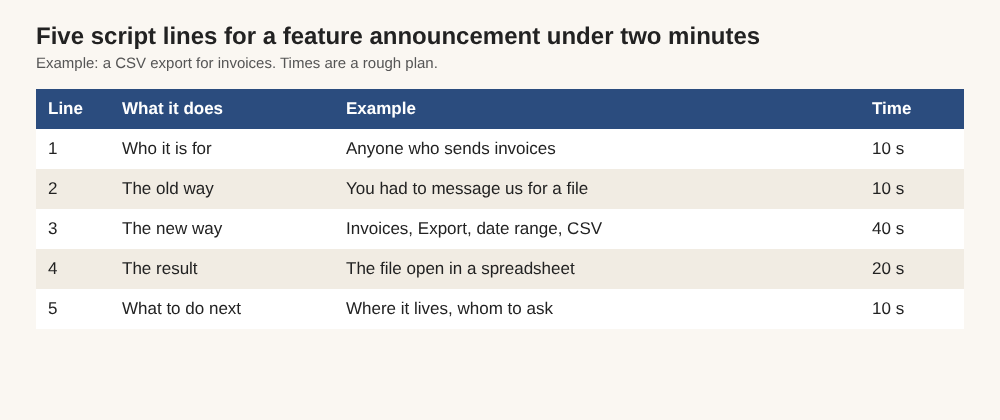
The five lines for the CSV export example, with a rough time for each.
Do not write full sentences to read aloud. Short notes keep your voice natural. You will say it better the second time anyway.
What to show on screen and what to leave out
Show the path a customer will take. Start where they start, click what they click and stop when they have the result. Skip the tour of the whole product.
Leave out three things:
- Anything private. Anything on the shared screen ends up in the file. Close tabs and apps you do not need and silence notifications first.
- Real customer data. Use a test account with made-up names.
- Your apologies. If you fumble a click, carry on or record again. Long explanations of why it took so long do not help the viewer.
One setting helps here. Under What to capture, choose A browser tab or A window instead of Whole screen. Sharing one tab or window keeps your other tabs, apps and private things out of the recording.
Record your screen and voice in Chrome
Here is the whole recording path in Cheap Recorder. The Free plan covers it.
- Open the recorder in Chrome. Under Where to save, press Choose folder... and pick a folder. Until you do, the Start recording button stays greyed out and the words next to it say choose a folder first.
- Type a name in Name this recording, for example
CSV export announcement. The name is used for the file and its folder. - Under What to capture, pick A browser tab or A window. Chrome opens its own sharing box. Choose what to share and press Share.
- In the Microphone tile, tick the microphone you speak into. Under Options, Live transcript is ticked by default. Check the language menu beside it, because it goes back to its default each time the page opens.
- Switch Record my webcam off if you want the screen alone, or leave it on to put your face in the corner. In the default layout you can drag the camera anywhere.
- Record a 30-second test first and play it back. It catches a wrong microphone before you spend ten minutes on a take.
- Press Start recording, follow your five lines and press Stop and finish.
Use Stop and finish rather than Chrome's own Stop sharing bar. Pressing the bar also finishes the recording, but the button is the cleaner way to end it. The file is already saved in your folder by then, because the recorder writes to it every second while you record. More on that in the guide to where recordings are saved.
One privacy note. While the live transcript is on, Chrome sends your microphone audio to Google to turn it into text. If a recording must not leave your computer in any form, untick Live transcript before you press Start recording.
Send the video with the transcript so people can skim
After you stop, the recording appears on the page with a player. From the card you can press Download MP4. With Live transcript ticked, you also get Captions .srt and Transcript buttons.
The recording's folder also holds a plain-text transcript file with the time of each line, named after your recording. It opens in any text editor, so it is easy to paste under the video in an email. That is the skim version for the reader who wants the gist without pressing play.
Two small things worth doing before you send:
- Read the transcript first. It is made from your voice as you speak, so check product names and numbers before you paste it under the video.
- Download first, close later. The card with the download buttons lasts only while the recorder page is open. The original file stays in your folder either way.
The guide to live transcript and captions covers how the files are made. If you want something more polished to hand over, the client demo publish page puts the video and its transcript in one page file. It is for Creator and up. You tick Also save every source separately before recording, and you send the whole recording folder zipped, not just the page.
A worked example: announcing a new export option
Say you run a small invoicing app and you have added a CSV export. Here is how the five lines might look.
1. This is for anyone who sends invoices and needs them in a spreadsheet. 2. Until now you had to message us and wait for a file. 3. Now open Invoices, press Export, pick the date range and choose CSV. 4. Here is the file opening in a spreadsheet, one row per invoice. 5. It is in the Invoices page today. Reply to this email if a column is missing.
Recording it:
- Name the recording
CSV export announcementand share the browser tab with your test account. - Do a 30-second test. Say your name and the first line, then play it back.
- Record the real take. It should run about 90 seconds.
- Stop and finish, then open the transcript and check that your product name came out right.
The email around the video is then short:
Subject: You can now export invoices as CSV You no longer need to ask us for a spreadsheet. The 90-second video below shows where to find it. The transcript is underneath if you would rather read.
Attach the MP4 or link to wherever you host it, and paste the transcript text below. Cheap Recorder keeps no copy of your recording, so hosting is your choice.
If you are announcing a few changes in one update, press M or Add marker at the start of each section while you record. Markers are written to files only when Also save every source separately is ticked. With the default single MP4, the notes show while you record but are not saved, so jot down the times you need.
Frequently asked questions
How long should a video to announce a new feature be?
Aim for under two minutes, with one feature in it. Five script lines usually fit that. If you need more time, you probably have more than one announcement.
Do I need editing software?
No. Cheap Recorder gives you one finished MP4 straight from the recording, and it is not an editing suite. Keep the script tight and re-record if a take goes wrong.
Can I send the transcript with the video?
Yes. With Live transcript ticked, your folder holds a plain-text transcript, and the card offers Captions .srt and Transcript downloads. The live transcript is on the Free plan.
Does the video need my webcam?
No. Switch Record my webcam off and the recording holds your screen and voice alone. Add the camera if you want customers to see who is talking.
What if I make a mistake while recording?
Stop and record again, or keep going if it is small. Cuts you make in the transcript change the transcript and captions, not the MP4 in a normal one-file recording.
Get started
Pick one feature, write five lines and record a 30-second test. Then record the real thing. The free plan needs no card, and Cheap Recorder keeps your recordings on your own disk. For the full process across one to three changes, see the product update video post, or sign up for the Free plan and try your first announcement today.
Screen recording that is cheap and easy.
Visit cheaprecorder.com↗
Comments
No comments yet.
Sign in or make an account to comment.