Answer a Support Ticket With a Short Screen Recording
You can answer a support ticket with a short screen recording when the fix is something the customer has to see. Text such as "click the gear, then the third tab, then the toggle on the right" breaks when the customer's screen looks different from the one you picture. A 60-second video shows the path. This post covers when video is the better reply, the setup in Chrome with Cheap Recorder, a five-beat script, and how to send the file with a written summary.
When to answer a support ticket with a recording
Video wins when the customer has to find something. Written steps depend on both of you using the same names for the same buttons. A recording removes that guess: the customer sees where the cursor goes and what the screen looks like when it works.
It also saves the second message. Many tickets turn into a loop of "I can't find it" and another explanation. One clear clip can close the ticket in one reply, and the customer can pause and replay it at their own speed.
Use a recording when:
- the answer takes more than three clicks;
- the customer says "I can't find" or "I don't see";
- the problem is a setting or a workflow, not a defect that needs a developer.
Stay with text when the answer is one sentence or one link, when the customer needs something to copy, or when answering would put private account details on screen. For a defect a developer must reproduce, a recording with the error in it is a different job, covered in bug report video: the click and the error in one browser tab.
Set up the recorder in about two minutes
Cheap Recorder runs in Google Chrome on macOS, Windows and Linux, so there is nothing to install. The Free plan is enough for everything below.
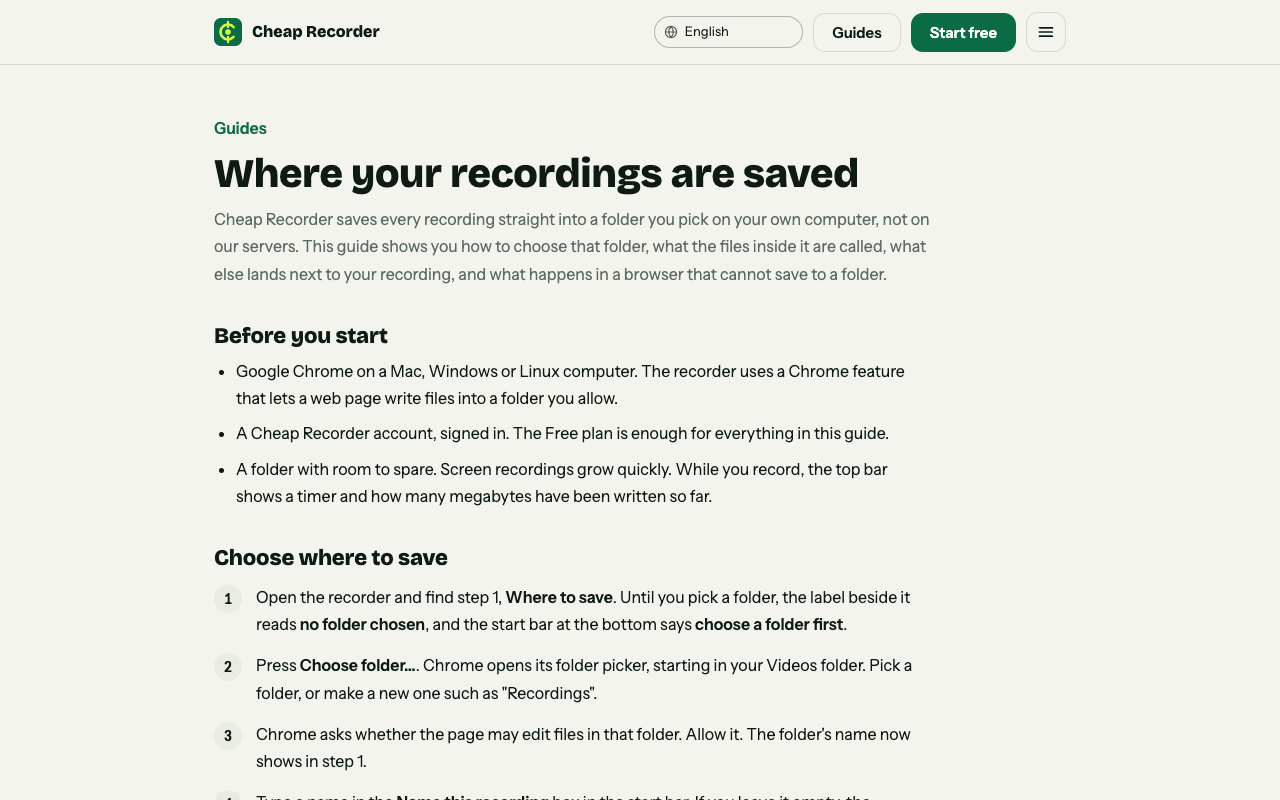
- Choose a folder. Under Where to save, press Choose folder... and allow Chrome to edit files in it. Until you do, Start recording stays greyed out and the note beside it says choose a folder first. The recorder does not remember the folder between visits, so you pick it again each time. The guide to where your recordings are saved shows each step.
- Name it with the ticket. Type something like
Ticket 4821 exportin Name this recording. The name is used for the file and its folder, so the clip is easy to find later. - Share one window or one tab. Under What to capture, choose A window or A browser tab, not Whole screen. Chrome opens its own sharing box; pick the window and press Share. Other tabs, apps and private things stay out of the file.
- Check the microphone. In Change or add microphones, tick the one you speak into. While you talk, its level bar should move. A headset or desk microphone close to your mouth beats a laptop one in a noisy room.
- Record a 30-second test. Say the first sentence of your reply, stop, and play it back. It catches a wrong microphone before the customer does.
Your own face is optional. For most support answers the screen and your voice are enough.
Five beats for a 60-second support video
You do not need a word-for-word script. You need five beats, in this order.
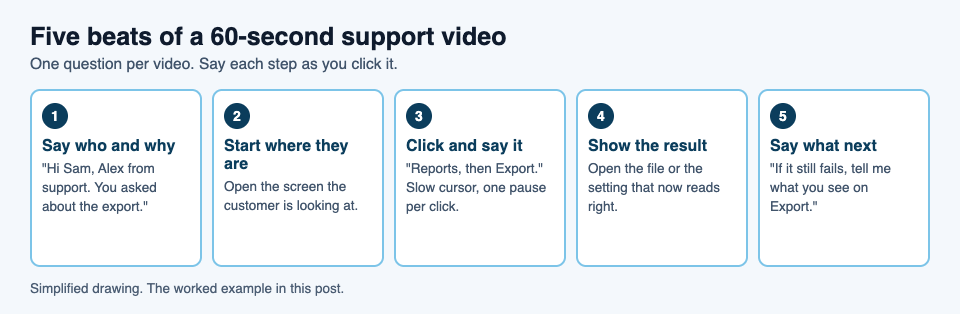
- Say who you are and what you are fixing. "Hi Sam, Alex from support. You asked how to export last month's report."
- Start where the customer is. Open the screen they are looking at, not one three screens in.
- Click slowly and say each step. "Reports in the left menu, then Export." Move the cursor to the target, then click, so your voice and your cursor stay together.
- Show the result. Open the exported file or the setting that now reads correctly, so the customer knows what success looks like.
- Say what happens next. "If it still fails, reply and tell me what you see on the Export screen."
A worked example, start to finish
Ticket 4821: "I can't find where to export last month's report." You have a browser tab open on the customer's view of your product.
- In the recorder, choose a folder and type
Ticket 4821 exportas the name. - Pick A browser tab and share the product tab.
- Record a 30-second test, say "Hi Sam, Alex from support", and play it back. The microphone bar moved and your voice is clear.
- Press Start recording and run the five beats. The whole take is about 50 seconds.
- Press Stop and finish. The recording appears with a player and is already saved in your folder.
- Watch it once at normal speed. If you stumbled on beat three, record it again; a second take is faster than any fix.
The reply then reads:
Hi Sam, you can export last month's report from Reports, then Export, and set the date range at the top. I recorded the steps in a 50-second video, attached. If the file still looks wrong, reply with what you see on the Export screen.
Keep it short and easy to follow
- One question per video. If a ticket has three problems, record three clips or answer two of them in text. A 60-second clip gets watched; a six-minute one gets skipped.
- Do the steps once first. You will find the surprise before the customer does.
- Stay on the shared window. Jumping between apps makes the clip harder to follow.
- Know what a window share leaves out. Chrome does not hand over a window's sound, and sound from other programs cannot be recorded this way. If your answer needs a sound, play it in a Chrome tab and share that tab; the guide on no sound in screen recording has the steps.
- End with the Stop and finish button. Chrome's own Stop sharing bar also ends the recording, but Stop and finish is the one the recorder expects.
Under Options, Live transcript is ticked by default, so you also get a plain-text transcript in the folder, and Captions .srt and Transcript on the recording card. You can paste the transcript under the video for people who would rather read. While it is on, Chrome sends your microphone audio to Google to make the text; untick it before you press Start recording if the audio must not leave your computer in any form. A transcript cannot be added afterwards. The live transcript and captions guide has the languages.
Send the file and write the reply around it
Cheap Recorder does not upload your recording. It is an MP4 in the folder you chose, so you send it the way you already send files from your help desk: attach it, or put it in your own file storage and paste the link.
Two buttons help. Download MP3 gives you audio only, and More formats... converts to another format. Convert and Download MP3 send the file to the Cheap Recorder server, which deletes its copy when it finishes; the original is never changed. The convert recording formats guide has the steps. The recording card lasts only while the recorder page is open, so download or convert what you need before you close the tab. The MP4 stays in your folder either way.
Then write the reply in four parts: one sentence that answers the question in words, the attachment or link with its length, the one detail the video cannot carry (an exact setting name or a limit), and an invitation to reply if it still fails. The sentence in words matters: some people never press play, and the text stays searchable in your ticket system.
Support work eats recording time. If you reply to many tickets a day, how many hours of screen recording a month you need shows how to count. The Free plan has 12 hours a month, and opening your name in the top right of the recorder shows how many minutes are left.
Common mistakes
- Sharing the whole screen. A notification or another customer's name can end up in the file. Share one window or tab.
- Starting too far back. Skip the tour and open the screen where the customer is stuck.
- Going too fast. You know the product and the customer does not. Pause for a second after each click.
- Skipping the written summary. Give the answer in text as well as video.
- Recording a call without saying so. If you ever record a call with the customer, tell them first; consent rules differ by place.
Frequently asked questions
How long should a support video be?
Aim for 30 to 90 seconds with one question answered. If you need more, split it into two clips so each stays easy to follow.
Can I record just one window so private things stay out?
Yes. Under What to capture, choose A window or A browser tab, pick it in Chrome's sharing box and press Share. Only that goes into the recording.
Do I need to install anything?
No. Cheap Recorder runs in Google Chrome on macOS, Windows and Linux. You choose a folder, press Start recording and press Stop and finish when you are done.
Where does the recording go?
Into the folder you chose, on your own computer, in a subfolder named after your recording. It is not uploaded, except when you use Convert or Download MP3.
Is the Free plan enough for support replies?
The Free plan includes recording, live transcript and captions, and 12 hours of recording a month on 1 device, with no card needed. Open your name in the top right of the recorder to see how many minutes are left.
Get started
Pick your folder, name the clip with the ticket number, share one window and say what you click. That is the whole method.
The free plan needs no card. Try Cheap Recorder in Chrome, and your recordings stay on your own disk.
Comments
No comments yet.
Sign in or make an account to comment.