Authentication design: build sign-in that holds up to attackers
Authentication design is the set of choices that decide who gets in, how they prove it, and what the app does when someone fails. OWASP defines it as checking that someone is who they claim to be, using authenticators such as a password, fingerprint or security token. This post walks through the choices the OWASP Authentication Cheat Sheet lists, then gives you one afternoon of checks to run on your own app.
Authentication design starts with who signs in
Before any password rule, decide what an account is. The sheet says a user ID exists to identify a user inside your system, and that IDs should ideally be randomly generated. A sequential ID such as 1042 invites someone to try 1043.
Let people use their email address as a username, but only after you have verified it at sign-up, and let them pick a different name if they prefer.
Then separate your people from your plumbing. OWASP says two things plainly: do not let sensitive accounts, the ones your backend, middleware or database use, sign in through any front-end screen, and do not run public access on the same authentication system you use internally. If a database account can type its password into your public form, an attacker can try it there too.
Set password rules that help, then handle them safely
Length matters most. The sheet calls a password under 8 characters weak when MFA is on, and under 15 characters weak when MFA is off. It also asks you to allow at least 64 characters so people can use passphrases, and never to cut a long password short without telling the user.
Drop the composition rules. OWASP says to allow every character, including unicode and spaces, with no demand for capitals, numbers or symbols. Such rules push people toward "Password1!".
Block bad passwords instead. Check new passwords against lists of common and previously breached ones.
Stop forced rotation. The sheet says to change credentials when a leak happens or when the authenticator changes, and to avoid asking for periodic changes.
Handle the secret with care. Compare what the user typed with the stored hash using the secure function your language or framework gives you. If you must write your own, it needs a maximum input length, explicit types on both values, and a constant-time result. Serve the login page and every signed-in page over TLS only, because a login form served over plain HTTP can be altered to send credentials somewhere else. For storage, see our post on password storage.
Give every sign-in case the same answer
An attacker who can tell "no such account" from "wrong password" can build a list of real accounts first, then guess passwords only for those. OWASP asks for a generic answer in login, password reset and sign-up, whether the ID was wrong, the password was wrong, the account does not exist, or the account is locked or disabled.
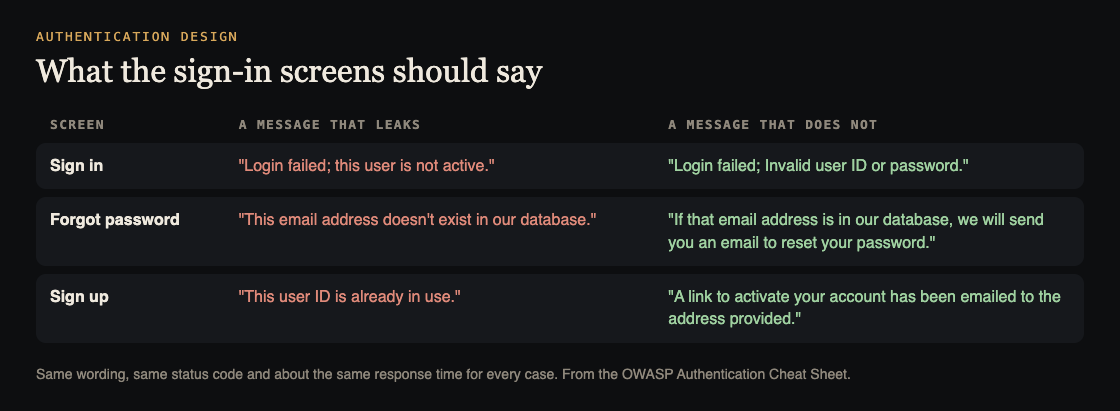
The message is not the only tell. The sheet names two more: the HTTP status code (a different code for "no such user" than for "wrong password" leaks the same way, even behind an identical error page) and the time the server takes. Its example: if the code exits early when the user does not exist, that case returns faster than a wrong password, so a stopwatch sorts the accounts. Run the same steps in every case.
Generic messages can confuse real users, so weigh that against how sensitive the app is; where you cannot use one, rate limits and a CAPTCHA make enumeration at scale harder. For the error side of this, see error handling.
Slow down guessing
The sheet names three automated attacks: brute force (many passwords against one account), credential stuffing (pairs leaked from another site) and password spraying (one weak password against many accounts). No single defense stops all three, but several together give reasonable protection.
MFA first. OWASP calls it the best defense against most password attacks and says to use it wherever you can. Our multifactor authentication post covers rollout.
Lockout, tied to the account. Count failed sign-ins against the account, not the source address, or an attacker simply spreads tries over many addresses. You choose a threshold, an observation window and a duration; an exponential lockout starts very short and doubles with each failure. Watch for the reverse attack: if anyone can lock your users out, lockout becomes a weapon. Let forgot-password still work on a locked account.
CAPTCHA as a helper. Treat it as defense in depth, since many can be solved by automation; ask only after a few failures.
Do not use security questions, either to sign in or to re-check someone. And when you verify a secret, check the whole secret, never selected characters of it.
Log it and read it. Log every failure, every password failure and every lockout, and have someone review them. For the other side of a login form, see login rate limiting and credential stuffing.
Ask again before risky actions
A signed-in session is not proof that the right person is at the keyboard. A laptop may be left open, or a request forged through a flaw like CSRF or XSS. The sheet says to ask for the current credentials before changing a password or email address, and before sensitive actions such as shipping an order to a new address.
It also lists moments to ask again: after account recovery, after suspicious activity such as an odd location or a new device, and before critical actions such as changing payment details. Use the current password or a passkey, never security questions. After the check, give the user a fresh session; the session management post explains why.
Changing an email deserves a flow of its own. The sheet's version for a user with MFA: confirm the session, ask for the new address and an MFA check, store it as pending, then send two time-limited links, a notice to the old address and a confirmation to the new one. Without MFA, add the current password and make the old address confirm too.
Know when to skip passwords
Sometimes the best sign-in is one you do not build. OWASP says OpenID Connect (OIDC) is for signing people in through another provider, while OAuth is for letting a program reach an API. If you use OIDC, check four things on every ID token: who issued it, who it is for, its signature and its expiry. When you link a provider's identity to an existing account, match on the issuer plus the subject, not on an email that happens to look the same, because the sheet says those profile details are not promised to be unique or stable. Use a maintained library.
Passkeys are the other path. They come from FIDO2, which pairs WebAuthn with a protocol for talking to the authenticator, and they use a local check such as a fingerprint or device PIN. Some passkeys sync across devices, and not every authenticator keeps its key in hardware.
A one-afternoon check of a small notes app
Say you run a small notes app with email and password sign-in. On a test copy, never on live users, make two test accounts and work through these steps.
- Compare two failures. Sign in with an email that has no account, then with a real email and a wrong password. Write down the message, the status code and the time for each. Repeat ten times and compare the averages. Any difference is a leak.
- Try the other two screens. Ask for a password reset for a real and a fake email, and sign up with an email that exists. Each pair should look identical.
- Test the password rules. Set a passphrase of more than 64 characters with spaces and an accented letter, then a short one, then a common one such as "Password1!". The first should work, and the other two should be refused.
- Test the limits. Make several wrong tries on one account from two networks. Check that the count follows the account, that a real user can still recover, and that the failures reach your logs.
- Try a risky action. Sign in, then change the email without giving the password. The app should ask for it, and the old address should get an email.
Write the results as pass or fail, one line each. A failed line is your fix list, ordered by how easy the leak is to use.
Frequently asked questions
Should I force users to change passwords every few months?
The sheet says to avoid periodic changes and to change credentials when a leak happens or the authenticator changes.
Is a long passphrase better than a short complex password?
For guessing, length helps more than symbols, which is why OWASP asks you to allow at least 64 characters and to drop composition rules.
Do generic error messages make my app harder to use?
They can. OWASP says the choice depends on how sensitive the app and its data are, and suggests rate limits or a CAPTCHA where you need clearer messages.
Get started
Run the five steps on your own app. The full source is the OWASP Authentication Cheat Sheet.
whitehatstoic tests web apps for weak spots and gives you a written report with fixes and a retest after fixes. No test can promise it finds every weakness, so treat a report as a strong check, not proof of safety. You pick a time and a topic on the booking page, and it confirms by email.
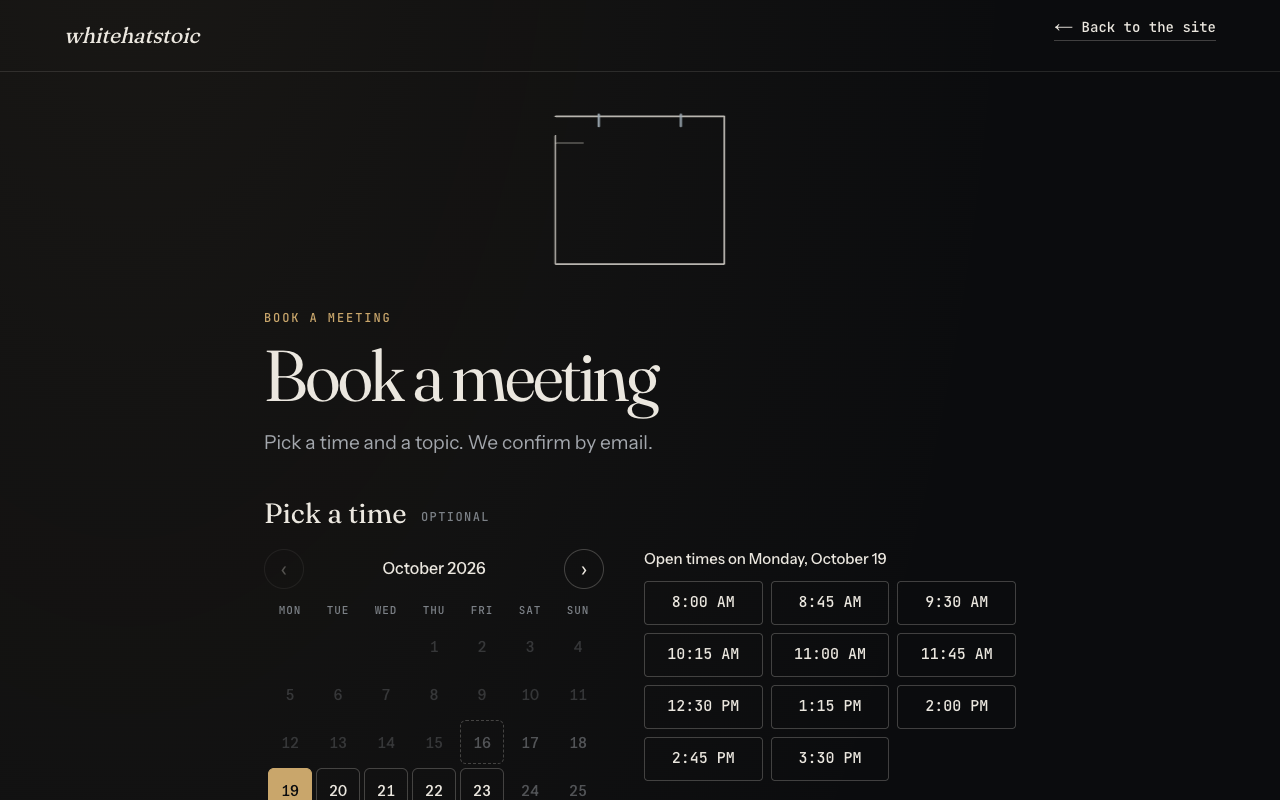
Want a second pair of eyes on your sign-in? Book a meeting with whitehatstoic: tell us the product, the deadline and your biggest worry, and we reply with a plan.
Comments
No comments yet.
Sign in or make an account to comment.