Background music for a Twitch stream: which license?
Background music for a Twitch stream is the music you keep low under your voice while you play, chat or work, and on a "starting soon" screen before you go live. It feels harmless because it is quiet. But Twitch treats it like any other music on your channel: you need the rights to share it there. This guide walks through what Twitch's own rules ask, what a license that names Twitch looks like, and how one streamer can set up a small, legal playlist.
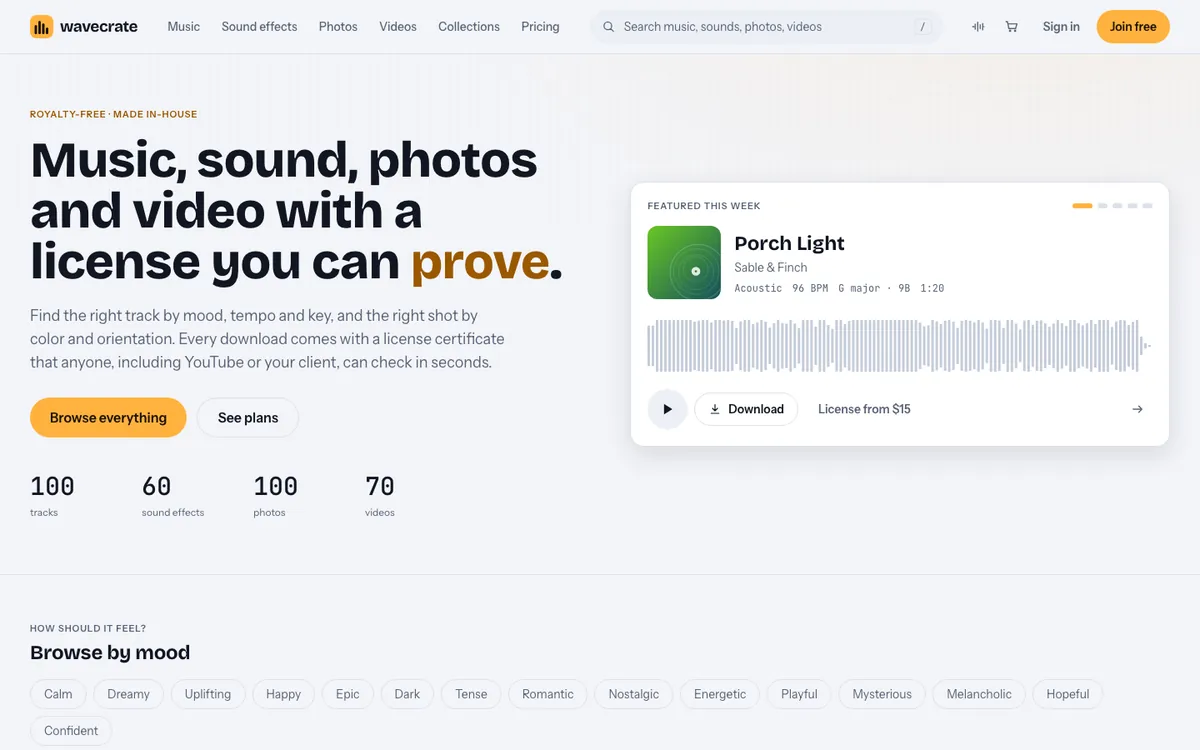
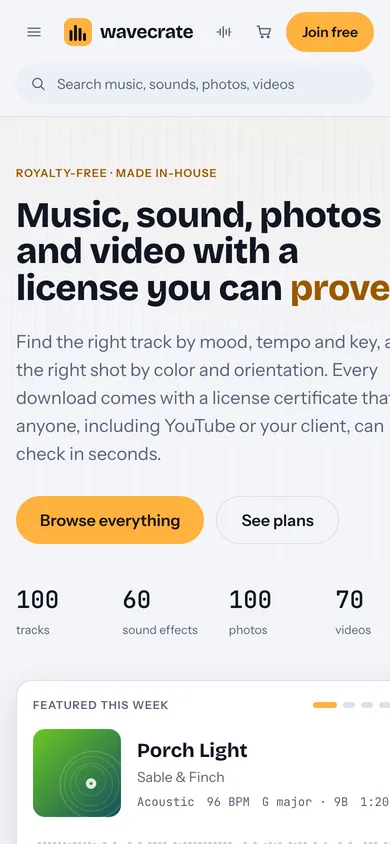
Wavecrate licenses royalty-free music, including calm tracks for streams, under licenses that name Twitch, and every download comes with a license certificate and a code anyone can check on its verify page.
What Twitch says about music on your channel
Twitch's Music Guidelines put it simply: only include music in your channel if you are sure you have the rights or authority to do so. Music you do not have rights to can lead to a takedown request from the rights holder, and that can lead to action against your channel, up to losing the account.
The guidelines also clear up a common mix-up. Paying for a music streaming service, or buying a CD or a record, "typically does not grant you rights to share that music on Twitch". What you bought is a personal license to listen at home. Sharing it with an audience is a different use.
What Twitch does allow is music licensed to you: music someone else owns, where you have secured a license to share it on Twitch from the people who hold the copyright. That covers your live stream and, per the same page, your VODs and Clips.
Background music for a Twitch stream: what the license must say
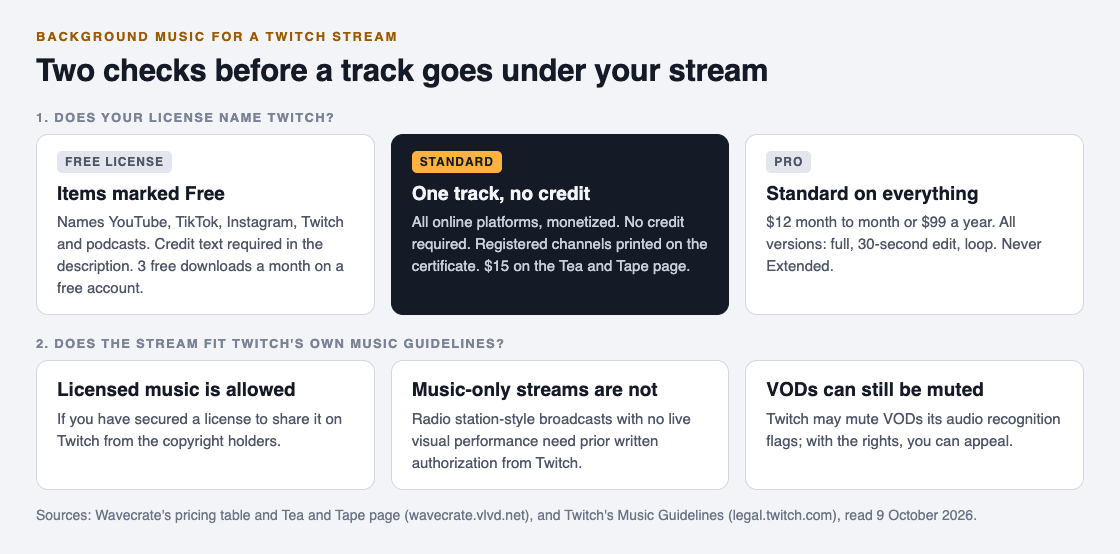
So the test for any track is short. Does the license name Twitch, or online streaming in general, and does it cover a channel that earns money?
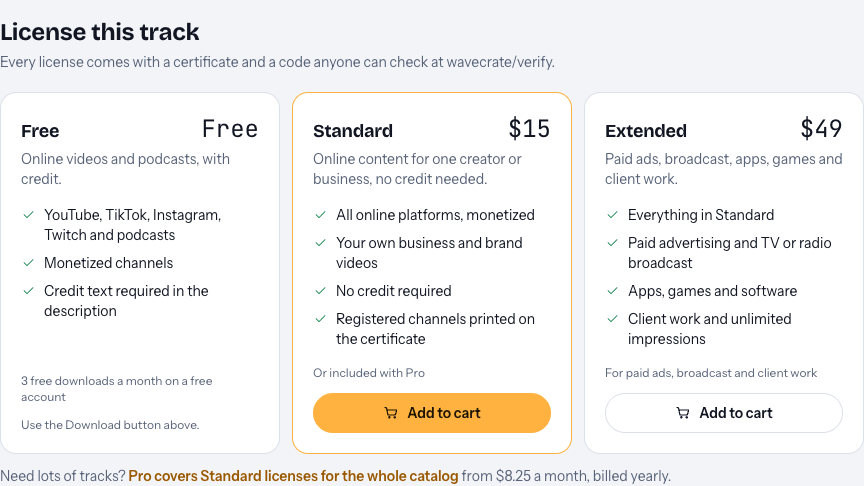
On Wavecrate's plans and licenses page, the table for music and sound effects answers both in the first two rows. All three licenses, Free, Standard and Extended, tick "YouTube, TikTok, Instagram, Twitch, podcasts" and "Monetized channels". The differences are further down:
- Free needs a credit line, and only items marked Free have it.
- Standard adds "No credit line needed" and "Your own business and brand content".
- Extended adds paid advertising, TV, radio and cinema, apps, games and software, and client work.
A normal stream on your own channel sits inside Free or Standard. Extended only matters if the music also goes into something like a paid ad or a game you sell.
One note on timing: paid licenses are not on sale yet (Wavecrate says purchases open soon), so any prices below are the listed prices for when sales open, while items marked Free can already be downloaded with a free account.
The credit line problem on a stream
Here is the catch with free music on Twitch. Wavecrate's Free license says "Credit text required in the description". On YouTube that is easy: every video has a description box. A live stream does not work quite the same way, and a VOD or Clip can travel without your channel page around it.
Wavecrate's pages do not say where a credit should sit on a Twitch stream, so this guide will not guess for you. If you use Free tracks, put the credit text you are given, as written, somewhere a viewer can find it, and keep the license code with it. If that feels shaky for a channel you depend on, Standard removes the question, because it needs no credit line at all.
Standard also prints your registered channels on the certificate. For a streamer, that means the certificate can name your Twitch channel, so anyone checking it sees that this license belongs to you and not just to the track.
One thing a license does not fix: music-only streams
Some streamers want to run a lo-fi radio channel: music playing over a still picture, all night, with no one on camera. Twitch's guidelines list "radio station-style broadcasts of recorded music without a live visual performance" among the uses you may not stream, unless you own the rights and have prior written authorization from Twitch.
That rule comes from Twitch, not from the music license. A license that names Twitch lets you share the track on your channel. It does not turn your channel into a radio station in Twitch's eyes. Use background music as background, under a stream that is about something else.
The same page lists DJ sets, karaoke and lip sync as uses that need the copyright holders' permission for that specific use. If your stream is a performance built around someone else's recording, read those sections before you go live.
A worked example: three nights a week, one quiet playlist
Say you stream cozy games on Monday, Wednesday and Friday. You want a calm track on your starting soon screen and a few quiet tracks under the chatty parts. You open Wavecrate's music page, pick the Lo-fi genre (10 tracks on 9 October 2026), and set the mood to calm.
One result is Tea and Tape: dusty drums under soft electric piano, 82 BPM, instrumental, marked Free. Its page shows three versions: the full track at 1:10, a 30 second edit, and an 8 bar loop at 0:23.
Here are the three ways to cover it; only the first is open today:
- Free, with credit. Join free, download Tea and Tape as one of your 3 free downloads that month, and show the credit text. Good for testing whether the track fits your stream.
- Standard, per track. Tea and Tape's page lists Standard at $15: no credit, all online platforms, monetized, with your registered channels on the certificate. You keep it per track, with no subscription.
- Pro, for a rotating playlist. Pro is listed at $12 month to month or $99 a year, is not on sale yet, and gives Standard licenses on the whole catalog, every version included. Content you publish while subscribed stays covered after Pro ends.
The loop version matters for the starting soon screen: an 8 bar loop repeats cleanly for as long as you need, so you are not cutting a full track mid-phrase. Pro includes every version; for Free and Standard, look at what the item page offers.
Whichever you choose, keep each license code in one note next to your stream setup. Remember the license gives you the right to use the track, not the track itself: on its pricing page Wavecrate says it keeps the copyright.
If a VOD gets muted or a claim arrives
Twitch says it may mute VODs and delete Clips when its audio recognition system detects copyrighted audio. If you have the rights to the music, the guidelines point you to an appeal.
That is where the license code helps. Wavecrate's pricing page says to send the platform your license code or certificate link. The verify page shows who holds the license, for which item, what it covers and the registered channels, and a reviewer can check it without an account. Neither page promises how a review ends; the code simply gives the reviewer something to check.
Frequently asked questions
Can I play my music streaming subscription on Twitch?
Twitch's Music Guidelines say a streaming subscription typically gives you a personal license for private playback, not the right to share the music on Twitch. Check that service's own terms before you try it.
Does Wavecrate's Free license cover Twitch?
Yes, on items marked Free. Their Free license names YouTube, TikTok, Instagram, Twitch and podcasts, including monetized channels, and needs credit text.
Can I run a 24 hour lo-fi radio stream with licensed music?
Not without more. Twitch's guidelines rule out radio station-style broadcasts with no live visual performance, unless you own the rights and have prior written authorization from Twitch.
Do I need Extended for a stream?
Not for a normal stream on your own channel. Extended is for paid ads, broadcast, apps, games and client work, and Pro never includes it.
Get started
Browse Wavecrate: you can join free and download items marked Free now, paid licenses are not on sale yet (purchases open soon), and every download comes with a license certificate and a code anyone can check on its verify page.
Open the music page, choose a calm mood and a slow tempo, and listen to two or three tracks under your own voice before you pick. The plans page shows which license fits your channel.
Comments
No comments yet.
Sign in or make an account to comment.