Balance audio levels between speakers in an interview recording
When you balance audio levels between speakers in an interview, the goal is simple: neither voice makes the listener reach for the volume knob. How you get there depends on one thing. Are both voices on one mixed track, or does each voice have its own file? This post walks through both cases and shows how to set up the next recording so the problem mostly goes away.
If you want the setup steps for recording each person on their own file, our guide to recording a podcast with separate tracks covers microphones, the call tab and the test recording before an episode. Cheap Recorder runs in Google Chrome and records your microphone, the other side of a call, your screen and your webcam to a folder on your own computer. It can also save every voice as its own file, which is what makes balancing easy.
Why one voice ends up louder in a two-person interview
Two people almost never reach the microphone at the same level. The usual causes are:
- Distance. One person leans in and the other sits back. A small change in distance makes a large change in level.
- Different microphones. A USB desk microphone and a laptop's built-in microphone pick up a voice very differently.
- Different voices. Some people project. Some people trail off at the end of each sentence.
- The call path. On a remote interview, the guest's voice passes through their microphone, their room and the call app before it reaches you. Your own voice goes straight to your microphone.
None of these is a fault. You just have to correct for them, either after the recording or before it.
First check: are both voices on one track or on their own tracks?
Open the recording's folder and look at what you have. In Cheap Recorder, the default is one MP4 with your microphone and the call mixed together. If you ticked Also save every source separately under Options before recording, the folder also holds a Separate sources folder. Inside it you find one WebM file per ticked microphone, named after the microphone and starting with audio_, plus audio_meeting_far_end.webm for the other side of a call.
That difference decides your path:
- One mixed track: you can only shape the whole sound. You cannot turn one person down without turning the other down too.
- Separate tracks: you set each voice on its own, then mix them.
If you are not sure where your files went, the guide on where recordings are saved explains the folder names and what each file is.
Balance audio levels between speakers on one mixed track
With both voices in one track, you can only shape the whole sound. A compressor in your audio editor turns down the loud parts once they pass a threshold, so the louder voice comes down toward the quieter one. Then you raise the whole file to a comfortable level.
Start gentle and listen. Heavy settings make breaths and room noise jump up in the pauses, because they lift everything under the quiet voice too.
Be honest with yourself about the result. If one person is far louder, a single track can only get you partway. That is why the rest of this post is about recording each voice on its own file.
Balance separate tracks: set each voice on its own
This is the easy case. Here is a worked example.
Say you recorded a remote interview with a USB microphone for you and the guest on a Google Meet tab, with Also save every source separately ticked. Your Separate sources folder holds one audio_ file named after your microphone and audio_meeting_far_end.webm for the guest.
- Open both files in your audio editor, each on its own track, lined up at the start.
- Play a stretch where you talk back and forth, and raise or lower one track until neither voice makes you reach for the volume.
- Check a second stretch later in the interview. People often get louder as they relax.
- Export the mix as your finished episode.
Because each voice is on its own file, turning the guest up does not touch your voice at all.
Clean up the leftovers: clipping, mic spill and quiet stretches
Clipping
If a speaker was so loud that the recording distorted, turning them down will not remove the distortion. It only makes it quieter. The fix is at recording time. While you record, each ticked microphone in Cheap Recorder has a level bar that moves with its sound, so watch it during your test and back off if a voice slams the top.
Mic spill
When two people sit in the same room, each microphone hears the other person faintly. That spill makes balancing harder, because raising your quiet guest also raises a faint copy of you on their track. Sit a little apart, speak close to your own microphone, and wear headphones so no microphone picks up a speaker. In your editor, you can lower each track during the stretches where only the other person is talking.
Quiet stretches
Compression and normalization raise the floor as well as the voice. After balancing, listen to the pauses. If you hear hiss or room hum, a gentle noise reduction or a gate on each track helps. Do it lightly, or voices start to sound watery.
Stop it next time: record every voice on its own track
Most of the work above disappears if you set up the recording well. This table matches what you hear to its usual cause:
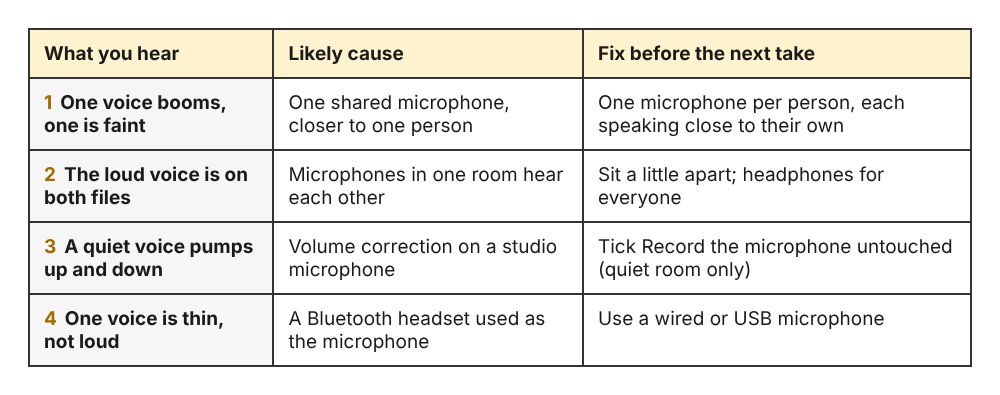
Four common level problems and the fix for each.
Then set up the recorder in Cheap Recorder:
- Tick Also save every source separately under Options before you start. You still get the usual MP4, and each source is saved as its own WebM file too.
- One microphone per person in a room, all plugged into the same computer. Some plans limit how many microphones you can record at once, and the start bar tells you if you tick too many. Wired or USB microphones work best. Microphones with clearly different names are easier to tell apart in the folder.
- Avoid Bluetooth headsets as microphones. They drop to a low-quality mode when used that way. The microphone list shows wired or bluetooth beside each name.
- For a remote guest, press Pick the call tab... in the Call audio tile, choose the call's tab in Chrome's sharing window and tick Share tab audio. The far end is then saved as its own file. Everyone on the far end comes from one Chrome tab, so two remote guests share one track. For separate tracks, each remote guest has to record themselves.
- Think about Record the microphone untouched. By default Chrome corrects echo, noise and volume on the microphone. Leave the option unticked for calls and laptop microphones. Ticking it suits a studio microphone in a quiet room.
- Record a thirty-second test. Have everyone say their name, stop, open the folder and check there is one
audio_file per person. Play it back and compare levels before the real episode.
If a voice is missing from the test entirely, the guide on fixing no sound in a recording goes through the microphone and tab audio checks. For call-specific setup, see recording a Google Meet call. And always tell people you are recording.
Frequently asked questions
Can I lower one voice on a recording where both speakers share a track?
Not cleanly. A compressor can pull the louder voice down toward the quieter one, but any change to the volume applies to both people at once. Separate tracks are the only way to set each voice on its own.
Should I tick Record the microphone untouched?
Only for a studio microphone in a quiet room. Left unticked, Chrome corrects echo, noise and volume, which helps laptop microphones, calls and noisy rooms.
Does normalizing fix one loud speaker?
Not on its own. Normalizing moves the whole file up or down, so the gap between the two speakers stays. Balance each voice on its own track first, then set the overall level.
Why can a remote guest sound quieter than the host on a call recording?
The guest's voice goes through their own microphone, their room and the call app before it reaches your computer, while your voice goes straight into your microphone. With Also save every source separately ticked, the guest lands in audio_meeting_far_end.webm, so you can raise that track alone.
Get started: record your next interview with separate tracks in Cheap Recorder
Open the recorder in Chrome, choose a folder, tick your microphones and Also save every source separately, pick the call tab if your guest is remote, and do a thirty-second test. The separate tracks guide has the full checklist.
The free plan needs no card. Try Cheap Recorder in Chrome, and your recordings stay on your own disk.
Screen recording that is cheap and easy.
Visit cheaprecorder.com↗
Comments
No comments yet.