Bokeh backgrounds for a holiday greeting: make cards that glow
Bokeh backgrounds for a holiday greeting turn ordinary string lights into soft circles of color that make a card feel warm before anyone reads a word. This guide shows you how to shoot that glow with a camera or phone, how to build it on a computer when you have no camera, and how to lay out and export the finished greeting so the text stays sharp and the lights still look soft. You will also see how to use a ready-made bokeh clip and what its license covers.
What bokeh backgrounds for a holiday greeting are and why they suit the season
Bokeh is the blur a lens gives to points of light that sit outside the focus area. A tiny bulb across the room becomes a round, glowing disc. Put a hundred bulbs back there and you get a field of soft circles.
That look fits a holiday greeting for three reasons:
- It reads as celebration. Fairy lights, candles and city windows already mean "holiday" to most people.
- It stays out of the way. Blurred light has no hard edges, so your message sits on top without competing.
- It works in any tradition. Change the color and the same technique fits Christmas, Hanukkah, Diwali or New Year.
Wavecrate, the stock library used later in this guide, has ready-made bokeh clips and photos for when you cannot shoot your own, and every download comes with a license certificate and a code.
Gear and light sources: fairy lights and candles
You do not need studio lights. You need small, bright points of light and a dark room.
- Fairy lights. Warm white strings give the classic gold glow. Multicolor strings give a playful card. Bunch them loosely on a chair or tape them to a wall.
- Candles. They give a warmer, softer disc than LEDs. Group several at different depths for circles of different sizes.
- A dark backdrop. Black fabric or an unlit corner behind the lights keeps the circles saturated.
Place the lights at least two or three meters behind your subject. Distance is what turns a bulb into a big, creamy circle.
Camera settings for creamy bokeh: aperture, focus distance and lens choice
Three things control bokeh. Get them right and the rest is easy.
Aperture
Use the widest aperture your lens allows, which means the smallest f-number. f/1.8 or f/2.8 gives large, soft circles. At f/8 the circles shrink and turn into sharper points.
Focus distance
Focus close. If you are shooting a background with no subject, set focus to the closest distance your lens allows and point it at the lights far away. Everything will melt into discs. If you want an ornament or a mug in the foreground, get close to it and keep the lights far behind.
Lens choice
A 50mm f/1.8 is the cheapest way into strong bokeh. Longer lenses, like 85mm, make the circles even larger. The number of aperture blades decides the shape: more blades give rounder circles when you stop down a little.
A worked example: dark room, warm fairy lights draped three meters away, 50mm lens at f/1.8, manual focus at its closest setting, ISO 400, shutter at 1/100. Check the screen. If the lights look blown out, use a faster shutter speed, such as 1/200, until the discs hold their color.
Custom shapes: stars, hearts and snowflakes
The shape of a bokeh disc follows the shape of the opening the light passes through. Change that opening and every circle changes with it.
- Cut a circle of black card slightly larger than the front of your lens.
- Punch or cut a small shape in the middle: a star, heart or snowflake about 1 to 1.5 cm across.
- Tape the card over the lens like a cap.
- Shoot at your widest aperture with the lights well out of focus.
Keep the shape small and simple. Fine snowflake arms often blur into a blob, so a chunky six-point design works better. The card blocks some light, so raise ISO or slow the shutter a step.
Creating bokeh backgrounds digitally when you have no camera
You can build bokeh in almost any image editor. Make a new dark canvas. Use a soft round brush at low opacity and dab circles of different sizes in two or three colors. Add a Gaussian blur to a duplicate layer and lower its opacity for depth. Vary size and brightness so it does not look like a grid.
If you would rather start from finished footage, a motion background saves time. On Wavecrate, the videos browse page has a Motion backgrounds category and filters for orientation, color, resolution, mood and length. One clip there, Drifting Golden Bokeh, is described as "Warm out-of-focus lights drifting slowly upward." Its page, read on 11 October 2026, lists it as 1920 x 1080, Full HD, 10 seconds long at 30 fps, with no sound and black as the main color. It comes as a Full HD mp4 and an HD 720p mp4.
For a still card, the Abstract photos had two bokeh pictures on the same day, both Premium: Festive Pink Bokeh, "pink and violet bokeh circles, ideal behind party and celebration text," a 3000 by 3000 square, and Golden Bokeh Lights, "out-of-focus warm golden lights on a dark background." Both pages listed Standard at $9 and Extended at $39.
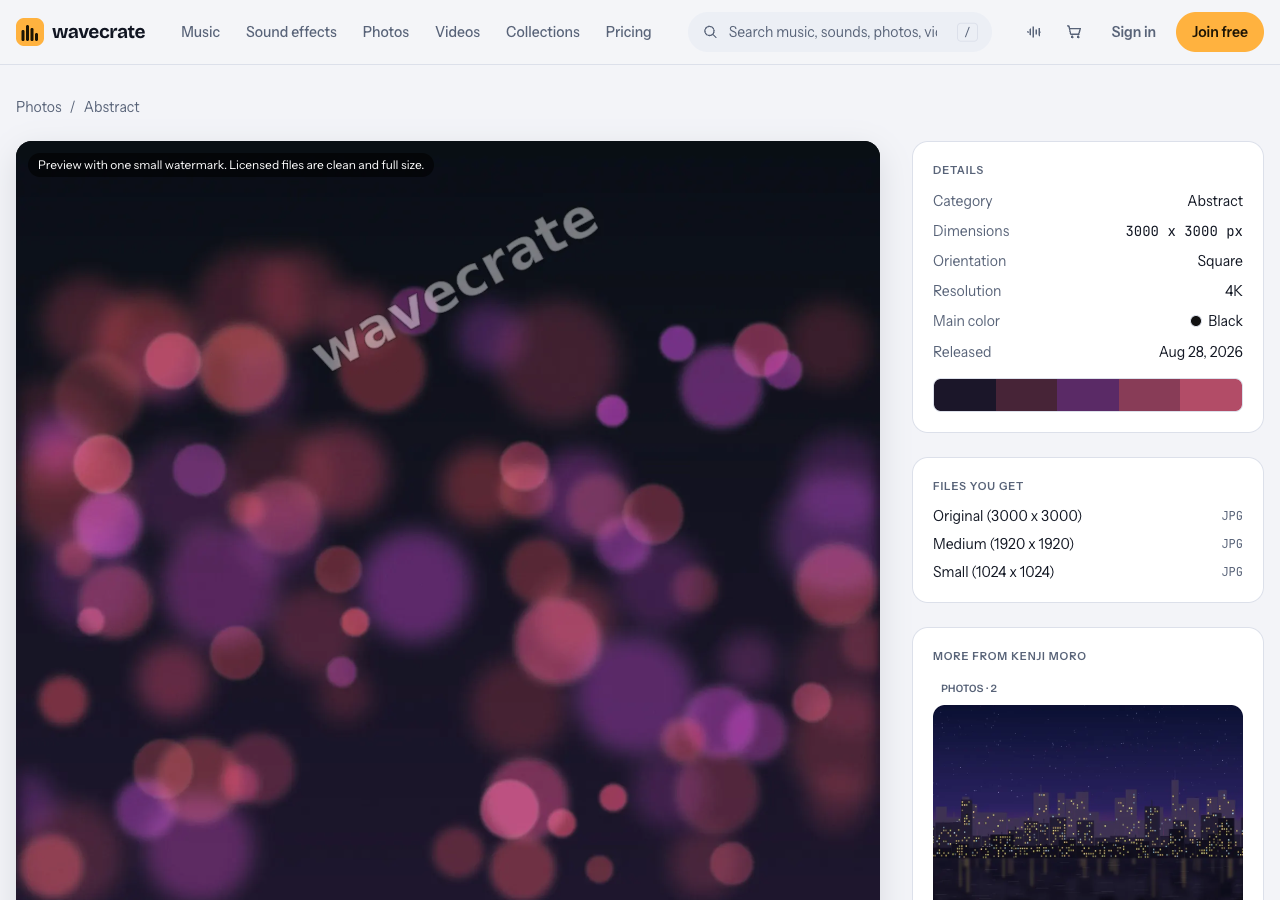
Festive Pink Bokeh, read on 11 October 2026.
Laying out your holiday greeting so text stays readable over bokeh
Bokeh is soft, but bright discs behind thin letters still make text hard to read. Use these rules:
- Find the dark zone. Most bokeh frames have a quieter area. A clip with black as its main color, like Drifting Golden Bokeh, gives you room for light text.
- Add a scrim. Put a semi-transparent black rectangle or gradient behind the text at 30 to 50 percent opacity. The lights still show through.
- Pick heavy type. A bold sans serif or a thick script survives a busy background. Hairline fonts disappear.
- Match one color. Pull a gold or cream from the lights for the headline. It ties the text to the glow.
- Keep it short. One headline, one line of message, your name. Save the longer note for the inside or the email body.
Exporting for print and social media without losing the glow
Glow dies in two places: heavy compression and the wrong color space. Plan each export on its own.
Export at 300 pixels per inch at the final card size. Bokeh is mostly smooth gradients, which show banding in low-quality files, so save a high-quality JPEG or PNG. Ask your printer for a proof. Glowing screen colors often print darker, so lift the brightness slightly.
Social media
For a feed post, a 10-second clip like Drifting Golden Bokeh gives your text a calm, moving backdrop, since its lights drift slowly upward behind the words. For stories, which run vertical, use the orientation filter on the videos page to look for portrait clips, or crop with care so the dark zone stays behind your words.
Licensing bokeh backgrounds for a holiday greeting: one picture, three uses
The trap is a picture marked Free in a business greeting. Take Drifting Golden Bokeh, marked Free when read, through three uses, using its page and the license table on the pricing page:
- A personal greeting on social media. The Free license covers websites, blogs and social media posts, with credit text next to the picture or in the description. A free account gets 3 free downloads a month.
- Your business's greeting to customers. A holiday email or post from your shop is your own marketing, and a printed card is print. Both start at Standard (listed at $29 on this page, no credit), which covers print up to 500,000 copies. The Free license does not tick either.
- Cards for sale or for a client. Greeting card templates or printed cards you sell are "products for resale", and a card you design for a paying client is client work. Both need Extended (listed at $99 on this page).
Paid licenses are not on sale yet: Wavecrate says purchases open soon, so the prices above are the listed prices for when sales open. Items marked Free can already be downloaded with a free account.
Pro, listed at $99 a year or $12 month to month and not on sale yet, covers Standard licenses only, never Extended. Items can change between Free and Premium, so read the page on the day you download.
Every download comes with a license certificate and a code. Anyone can enter that code on the verify page to see the licensee, the item and the license type.
Frequently asked questions
Can I use a Free bokeh picture on my shop's holiday card?
Not on the Free license. On Wavecrate a business greeting is your own marketing and a printed card is print, both Standard; cards you sell need Extended.
Can I get a bokeh effect with a phone camera?
Yes. Use portrait mode, or get the phone very close to a foreground object with the lights far behind it. Tapping to focus on the close object pushes the background out of focus.
How do I keep bokeh from looking busy behind my message?
Put a dark scrim behind the text, use fewer and larger light circles, and place words over the darkest part of the frame. Bold type also helps.
Get started
Shoot your own lights tonight with the settings above, or start from a motion background and spend your time on the message. Open the videos page, filter by Motion backgrounds and color, preview a clip, then lay your greeting over its darkest area.
Browse Wavecrate: you can join free and download items marked Free now, paid licenses are not on sale yet (purchases open soon), and every download comes with a license certificate and a code anyone can check on its verify page.
Comments
No comments yet.
Sign in or make an account to comment.