Bug report video: the click and the error in one browser tab
A bug report video works best when it holds one thing: the tab where the bug lives, from the click to the error. No other windows, no notifications, no hunting for the moment. This post goes one step further than our general guide to screen recording for bug reports: it shows how to record a single Chrome tab with its sound, show the click and then the error in one take, and mark the error so the developer can jump straight to it.
Why one tab makes a better bug report video
Most web bugs happen inside one page. When you share your whole screen, the developer has to find that page among your other windows, and your email or chat may show up in the file. When you share one tab, the video is the page and nothing else.
Sharing one window or one browser tab instead of the whole screen keeps other tabs, apps and private things out of the recording. That matters for bug reports, because a ticket is often seen by more people than you expect.
One tab also gives you the page's sound, which a window share does not. If the bug is a sound that cuts out, plays twice or never plays, the tab is the only kind of share that can carry it.
The three parts of the take: start, click, error
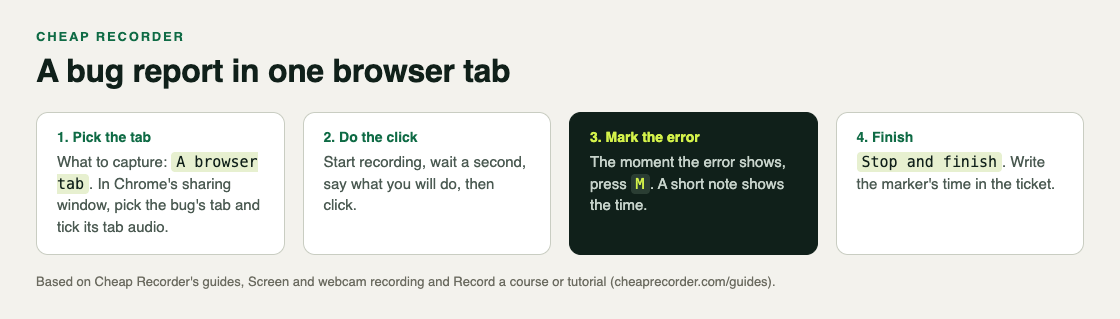
One tab, one take: pick the tab, do the click, mark the error, finish.
- The start. Show the page before anything goes wrong, for a second or two. If the address matters, read it aloud.
- The click. Move the pointer slowly to what you are about to click, say what it is, then click. A fast pointer is hard to follow on playback.
- The error. Stop moving. Let the page do what it does. When the error shows, leave it on screen for a few seconds and read it aloud word for word.
If the bug needs several steps, record all of them. The step you skip because it felt obvious is often the cause.
Set up the tab and its sound
- Open the page with the bug in its own Chrome tab, and get it to the state just before the first step.
- Open the recorder in another tab. Under Where to save, press Choose folder... and allow Chrome to edit files there.
- Type a clear name in Name this recording, such as the ticket number and a few words. The name is used for the file and its folder, and the folder also gets the date and time.
- Switch off Record my webcam. With the webcam off, the file holds the tab alone.
- Under What to capture, choose A browser tab. Chrome opens its own sharing box: pick the bug's tab, tick the tab-audio option if the page makes any sound you need, and press Share. The preview appears at the bottom of the recorder page.
- In the Microphone tile, tick the microphone you speak into.
- Read the note beside Start recording. When it says ready to record, you can start.
Leave the bug's tab open for the whole take. If it closes, Chrome stops sharing its sound. The post on recording a Chrome tab with audio covers the sharing box in more detail.
Mark the error so nobody has to hunt for it
While you record, press M or Add marker the moment the error appears. A short note on the recorder confirms the time. Two things to know:
- Markers are not added while you are typing in a text box. If the bug happens in a form, click out of the field first, or use the Add marker button on the recorder page.
- With the default single MP4, the marker notes show but are not saved. Markers are written to files only when Also save every source separately is ticked before you start. For a bug report, the simplest habit is to read the time from the note and write it in the ticket.
Then press Stop and finish on the recorder. Do not press Chrome's own Stop sharing bar: it also finishes the recording, often before the error has had its few seconds on screen.
Worked example: a Save button that plays an error sound
Say a settings page in your team's web app plays a short alert sound and shows "Could not save" when you press Save with a long display name. Here is the whole take.
- You open the settings page in its own tab and name the recording
Ticket 512 save fails long name. - You switch off Record my webcam, choose A browser tab, pick the settings tab and tick its tab audio.
- You press Start recording, switch to the settings tab and wait a second.
- You say: "I paste a display name of about 60 characters, click out of the field, then press Save."
- You press Save. The alert sound plays and "Could not save" appears. You press
M; the note shows 0:21. You read the message aloud and stay still for three seconds. - You say what you expected: "The name should save, or the page should say it is too long." Then you press Stop and finish.
Your ticket needs three lines: what happens, what you expected, and "the error and its sound are at 0:21 in the attached recording". The developer hears the alert in the file, because the tab's sound was shared, and sees exactly what you typed.
Hand it over: the MP4, the transcript or a GIF
The recording is an MP4 with H.264 video and AAC sound, in its own folder on your computer, ready to attach to the ticket. If Live transcript was on, a plain-text transcript with the time of each line sits beside it; paste the lines around the error into the ticket so the error text is searchable. While the live transcript is on, Chrome sends your microphone audio to Google to turn it into text, so untick it before you start if you will read out anything private.
For a bug that shows in a few seconds and has no sound worth hearing, a GIF can play right inside a ticket. Use Convert on the recording's card and pick GIF: you get a silent, looping clip at 12 frames a second and 640 pixels wide, which grows very large for anything long. Convert sends the file to the Cheap Recorder server, which deletes its copy when it finishes, and the card only lasts while the recorder page is open. The guide to converting recordings lists every format, and the post on screen recording to GIF shows how to keep the clip short.
If a teammate appears on screen or you record a call, tell them you are recording.
Frequently asked questions
Why is my bug report video silent?
A tab's sound is recorded only when you choose A browser tab and tick the tab-audio option in Chrome's sharing window. A shared window gives no sound, and on a Mac a whole-screen share has none either.
Why did pressing M do nothing?
Markers are not added while you are typing in a text box. Click out of the field first, or press Add marker on the recorder page.
Can I record one tab without showing my other tabs?
Yes. Choose A browser tab under What to capture and pick only the tab with the bug. Other tabs, apps and private things stay out of the recording.
Can I record bug report videos on the free plan?
Yes. The Free plan includes recording, the live transcript and captions, and 12 hours of recording a month on one device, with no card needed.
Get started
Next time something breaks, open the bug in its own tab, share that tab with its sound, and mark the error as it happens. Start free with Cheap Recorder in Chrome; no card is needed, and your recordings stay on your own disk.
Comments
No comments yet.
Sign in or make an account to comment.