Cancel a screen recorder plan and keep every recording
If you want to cancel a screen recorder plan, the worry is always the same: what happens to the videos? With Cheap Recorder the answer is short. The home page says that if you cancel, your files are already on your disk, so you keep everything, and the plan simply stops renewing. But a few useful things are made by the recorder page, not saved in your folder, so there is a short list to do first. This post covers what you keep, what to make before you cancel, and a worked example you can copy.
Why you keep your files when you cancel a screen recorder plan
Cheap Recorder writes every recording to a folder you pick on your own computer. The pricing section says it plainly: every plan writes your recordings to a folder on your own disk, and Cheap Recorder hosts no files. Your recordings are not kept in an online library that depends on your plan.
The where recordings are saved guide answers the two questions people ask next:
- Does Cheap Recorder keep a copy? No. The one exception is converting: the file is sent to the server, converted, and deleted as soon as that finishes.
- What if I delete my account? Recordings on your computer are not touched.
The convert guide adds one detail: the only time a recording leaves your computer is when you press Convert or Download MP3, and the original in your folder is never changed.
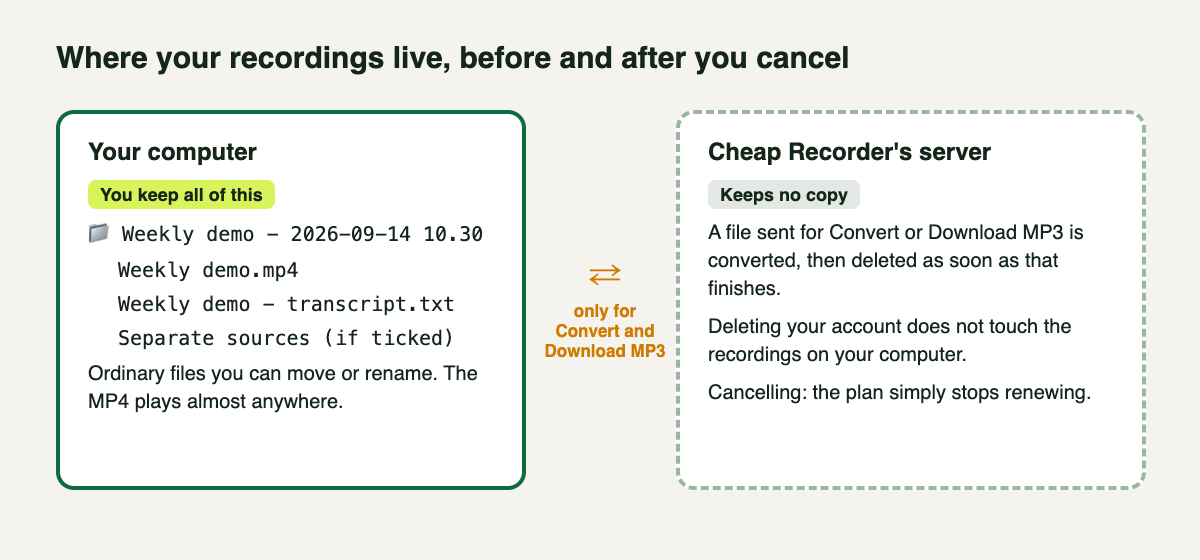
Your recordings live on your computer. The server only sees a file during Convert or Download MP3.
What is already in your folder
Open the folder you chose under Where to save. Each recording has its own folder, named with what you typed and the date and time it began, for example Weekly demo - 2026-09-14 10.30. Inside:
- The recording, such as
Weekly demo.mp4, an MP4 with H.264 video and AAC sound that plays almost anywhere. A sound-only recording is an M4A file instead. - The transcript, such as
Weekly demo - transcript.txt, if the live transcript was on and heard speech. It is plain text with times and speaker names and opens in any text editor. - Converted copies you already made, such as
Weekly demo.mp3. - A
Separate sourcesfolder, if you ticked Also save every source separately, with each voice, the webcam and helper files.
These are ordinary files. You can move them, rename them or copy them to another drive, and none of that depends on a plan.
What is not in your folder until you make it
This is the part to get right before you cancel a screen recorder plan. Some files come from the recorder page, on request, not from the recording itself.
Caption files
Caption files are not saved in the folder. You get a .srt by pressing Captions .srt on the recording's card. The card lasts only while the recorder page is open; after a reload it is gone, though the recording and transcript stay in the folder. If you renamed speakers or cut words, press Save captions first, then download, so the file has the change. The live transcript guide covers the card in full.
Converted copies
An MOV for an editor, or an MP3 for a podcast feed, comes from Convert on the card. Converting uses the recording exactly as it was made, so words you crossed out in the transcript stay in the copy. For a long recording, keep the tab open and the computer awake until the progress row says the file is downloading.
Finished demo videos
If you recorded with every source saved separately, run bash finalise.sh in the Separate sources folder on a computer with ffmpeg installed. It makes a finished demo.mp4 with your transcript cuts applied and your markers as chapters, and turns each microphone's file into a WAV. On plans that include batch export, Add an export-all script to the folder puts finalise-all.sh in your save folder, which does the same for every recording in there made that way. The site does not say which plans include it, so check before you cancel.
Worked example: a podcaster leaving Creator
Say you record a weekly podcast on Creator, with every voice saved separately, and you have decided to cancel. Here is the order that keeps everything.
- Look at your plan. Open your name in the top right. It shows your plan and how many recorded minutes are left this month.
- Finish this week's episode on the open page. While its card is still there, press Save captions if you edited the transcript, then Captions .srt, then Download MP3 if your feed needs one.
- Make the finished files. In each episode's
Separate sourcesfolder, runbash finalise.sh. If your plan includes batch export, add the export-all script once and runfinalise-all.shinstead. - Copy the whole save folder to a second drive. Keep the folder names as they are; they already sort by name and date.
- Spot-check the copy. Play the oldest episode and the newest, and open one transcript file in a text editor.
- Cancel. The plan stops renewing. Your files, on both drives, are untouched.
The site does not say which features or recorded minutes remain after a paid plan ends, so do anything that needs a paid feature, like the export-all script, while the plan is still active.
Sending work to clients after you cancel
Cheap Recorder hosts no files, so there are no share links on its server to stop working. A client demo page, publish.html, is a file in your recording's folder. It plays the MP4 one folder up, so you always send the whole folder, zipped. Our post on how to zip a screen recording folder so the demo page opens walks through it, including a one-minute test of the zip.
If you want to keep recording for less
Cancelling is not the only choice. The Free plan covers recording, the live transcript and captions, with 12 hours of recording a month on 1 device and no card needed. Creator is $12 a month billed monthly, or $4.99 a month billed yearly, with 80 hours a month; Business is $40 a month, or $19.99 a month billed yearly, with 250 hours. Both have a 7-day free trial. Whichever you pick, recordings still go to your own folder.
Frequently asked questions
Are my recordings deleted if I cancel Cheap Recorder?
No. The home page says your files are already on your disk, so you keep everything, and the plan simply stops renewing.
Does deleting my account delete my recordings?
No. The where-saved guide says recordings on your computer are not touched when you delete your account.
Why is there no .srt file in my recording's folder?
Caption files are made in the recorder page and downloaded from the card with Captions .srt. Download them while the page is still open, before you cancel.
Does Cheap Recorder keep a copy of my videos?
No. A file sent for Convert or Download MP3 is deleted on the server as soon as the conversion finishes.
Get started
Want recordings that stay yours whatever plan you are on? Start on the Free plan in Chrome, pick a folder, and press record.
The free plan needs no card. Try Cheap Recorder in Chrome, and your recordings stay on your own disk.
Comments
No comments yet.
Sign in or make an account to comment.