Coaching session recap email: what to include after a call
A coaching session recap email is the short note you send after a call. It says what you covered, what the client decided and what happens before the next session. Write it the same day, keep it to the parts the client will act on, and work from the real words of the call rather than your memory. If you also record your sessions, the post on recording a coaching session in Chrome and sending the client a transcript covers the recording itself, and this post covers the email.
Cheap Recorder records your voice, your screen or webcam and the other side of a call in Chrome as one file on your own computer, with a transcript, so you have the actual words to write your recap from. Below: what goes in the email, a template, and how a transcript makes it faster to write.
Why a recap email matters after a coaching session
Clients leave a good session feeling clear. Two days later, most of that clarity has faded. A recap email puts the agreements in writing while they still make sense.
It helps you too. You see what you promised, you spot a thread that went nowhere, and you start the next session with something concrete to open on. It also shows the client that you listened.
What to include in a coaching session recap email
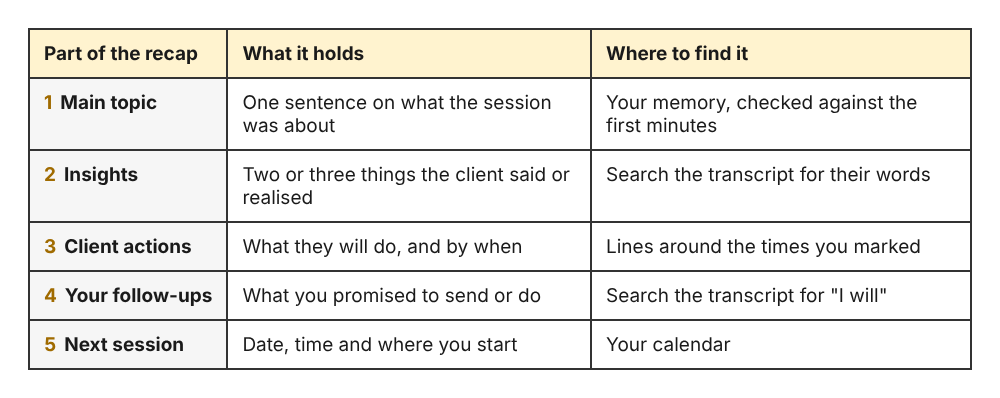
Keep it to the parts the client will act on. A useful recap has five pieces.
- The main topic. One sentence on what the session was really about, in the client's words where you can.
- Key insights. Two or three things the client said or realised. Quote them if they were sharp.
- Action items. What the client will do, by when. Be specific: "send the draft to Sam by Thursday", not "work on the draft".
- Your own follow-ups. Anything you promised, such as a book, a worksheet or an introduction.
- The next session. Date, time, and what you will start with.
Leave out the full story of the call. The client was there. They need the decisions, not a replay.
A simple recap email template you can copy
Change the wording to suit your voice. The order is what matters.
Subject: Recap of our session on [date]: next steps Hi [Name], Thanks for today. We spent most of the session on [topic]. What stood out 1. [Insight in one line] 2. [Insight in one line] Your next steps 1. [Action] by [date] 2. [Action] by [date] What I will do 1. [Your follow-up] by [date] Our next session is on [date and time]. Tell me if any of the above looks wrong. [Your name]
The last line before your name matters. It gives the client an easy way to correct you, which saves a misunderstanding from growing.
Write the recap while the session is still fresh
Block ten minutes right after the call. Do not start the next task first. Your memory of tone, emphasis and half-finished thoughts fades fast, so the sooner you write, the more of it you keep.
Write the action items first, because they are the part that causes the most trouble if you get them wrong. Then add the insights. Then read the whole thing once as the client would.
Use a recording and transcript to catch what you missed
Even good note takers miss things while they are coaching, because listening and writing compete. A recording lets you listen fully during the call and check the details afterwards.
Here is a workflow that works with Cheap Recorder in Chrome.
- Under Name this recording, type something like
Priya session 04. The name is used for the file and its folder, and the folder also carries the date and time, so your sessions sort in order. - Check that Live transcript is ticked under Options and that the language menu shows the language of the call. The menu lists 25 languages and goes back to its default every time the recorder page opens. If the transcript was off, you cannot add one to that recording afterwards.
- If the coaching call is in a Chrome tab, such as Google Meet, press Pick the call tab..., choose that tab, and tick Share tab audio. Your microphone and the other side are mixed into one recording. Wear headphones so the client's voice does not come back through your microphone.
- Record a 30-second test first and play it back. It catches a wrong microphone or a muted tab before it costs you a session.
- During the call, press
Mor Add marker when the conversation moves to a new topic or the client says something you want to find again.
One caveat on markers. They are written to a markers list and a chapters file only if you ticked Also save every source separately before recording. With the default single MP4, the marker note shows on screen but is not saved, so jot down the times yourself. The guide to recording a course or tutorial covers markers in more detail.
When you press Stop and finish, the recording is already in your folder. If the transcript heard speech, the folder also holds a plain-text file such as Priya session 04 - transcript.txt, with the time of each line. It opens in any text editor, so you can search for the client's exact phrase and paste it into your recap. The guide to the live transcript and captions explains the other downloads on the recording card.
Two practical notes. The transcript comes from what Chrome hears on your microphone, so a headset or desk microphone close to your mouth gives better text than a laptop microphone in a noisy room. And each transcript line is labelled with the loudest sound source, such as your microphone or Meeting for the far end of a call. On plans that include speaker detection you can type the client's real name into a Speaker box and press Save captions, and the lines then start with that name.
Get consent and be clear about what you send
Ask before you record, and ask on the record. Say you are recording, say why (to give an accurate recap) and say who will see it. Rules about recording calls differ depending on where you and your client are, and some places need everyone's agreement, so always tell people.
Be honest about where the words go. Cheap Recorder does not upload your recording. It is written to the folder you picked on your own computer. But the live transcript works by Chrome sending your microphone audio to Google to turn it into text. Say that if your client asks. If a session must not leave your computer in any form, untick Live transcript before you press Start recording and write the recap from the recording and your notes.
Decide in advance what you will share. You can send only the recap, or offer the transcript as well. Either is fine as long as the client knows what to expect. For where the files live and what stays on your disk, see where recordings are saved.
How long the recap should be and when to send it
Aim for something the client can read in a couple of minutes. A good rule of thumb is roughly 150 to 250 words: one line of context, two or three insights, and no more than three action items. If you have five action items, the client will probably do none of them. Pick the ones that matter most.
Send it the same day if you can, and within 24 hours at the latest. The client is still thinking about the call, and the email lands while the motivation is high. If you need more time, send a two-line message saying the full recap is coming.
Frequently asked questions
Should I send the full transcript or just a recap?
Send the recap by default, because it is shorter and focused on action. Offer the transcript only if you have told the client you are recording and they want the full text. A transcript is long and can include things said in passing that the client would rather not see again.
How soon after the session should I send the recap?
The same day is best, and within 24 hours is a good limit. The longer you wait, the more the client forgets and the more you rely on your own memory. A recording and transcript make a late recap more accurate, but they do not replace sending it promptly.
Do I need my client's permission to record a coaching session?
Rules depend on where you and your client are, and some places need everyone's agreement. The safe habit is to tell your client you are recording and why, and to get a clear yes before you press record.
What if the client wants to change the action items?
Let them. The recap is a draft of what you both agreed, which is why the template ends by asking them to say if anything looks wrong. Reply with the corrected list and keep the new version as the one you both follow.
Get started
Write your next recap from the real words of the session. Try Cheap Recorder in Chrome. The Free plan includes recording, the live transcript and captions, 12 hours of recording a month on one device, and needs no card. Your recordings stay on your own disk. For the full recording workflow with markers, read how to record a coaching session in Chrome and send the client a transcript.
Screen recording that is cheap and easy.
Visit cheaprecorder.com↗
Comments
No comments yet.
Sign in or make an account to comment.