Computer memory vs storage: what is the difference?
The question of computer memory vs storage comes down to one word: power. Memory (RAM) is the fast, temporary workspace your computer uses for whatever it is doing right now, and it forgets everything when the power goes off. Storage (an SSD or a hard drive) is the slower, lasting place where your files and programs stay between sessions. This guide explains both in plain terms, shows how they work together, and walks through one example you can try in a browser tab.
Computer memory vs storage: the short answer
Think of a desk and a filing cabinet. The filing cabinet holds everything you own, even when you go home for the night. The desk holds only the papers you are working on today. It is much quicker to reach, but it is smaller, and you clear it off when you are done.
Storage is the filing cabinet. Memory is the desk. When you open a program, your computer pulls it out of storage and lays it on the desk so the processor can work with it quickly. When you turn the computer off, the desk is wiped clean. The filing cabinet keeps everything.
That one difference, temporary versus permanent, explains most of what you will read below.
What computer memory (RAM) does
RAM stands for random access memory. It holds the code and data for every program that is open right now: your browser tabs, your music player, the document you are typing, a game you are playing. The processor reads from and writes to RAM constantly, so RAM has to be fast.
RAM is volatile. That means it needs power to keep what it holds. Cut the power and everything in RAM is gone. This is why unsaved work disappears when a laptop battery dies.
RAM is not the fastest memory in your computer. The processor has its own small, very fast memory built right next to it, called a cache. Tank City Reboot opens its CACHE stage with this line: "A CPU cache keeps recently used data next to the core, because main memory is much slower to reach." So there is a ladder of speed: cache, then RAM, then storage. Each step down is bigger and slower.
For how that small, fast memory decides what to keep, read how a CPU cache works.
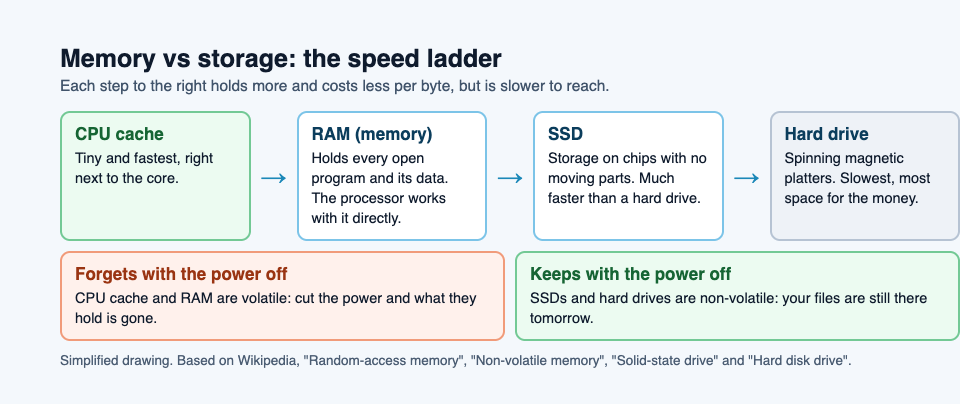
Each step down holds more and costs less per byte, but is slower to reach.
What storage (SSD and HDD) does
Storage holds everything your computer keeps between sessions: the operating system, your installed programs, photos, documents, saved games and downloads. Storage is non-volatile. It remembers what it holds with the power off.
There are two common kinds:
- SSD (solid state drive): stores data on memory chips with no moving parts, so it reaches your files much faster than a hard drive.
- HDD (hard disk drive): stores data on spinning magnetic platters, read by heads on a moving arm. It is slower, but it gives you a lot of space for the money.
Some setups spread data across several drives at once. Tank City Zero Day has an upgrade card named for this, and its line is accurate: "RAID stores data across several disks, so one can fail without losing anything." Keeping a second copy matters too. The first game's Backup power-up card puts it simply: "A backup is a copy of your data kept somewhere else, so you can restore it after a loss." For how to do that well, see what a backup is and how to restore one.
Memory vs storage side by side: speed, size, cost and volatility
Here is how the two compare on the four things that matter most.
- Speed: RAM is far faster than any SSD, and an SSD is far faster than a hard drive. The processor works directly with RAM, never directly with storage.
- Size: A typical computer has far more storage than RAM, often around a hundred times more.
- Cost: For the same amount of space, RAM costs more than an SSD, and an SSD costs more than a hard drive.
- Volatility: RAM forgets everything when the power goes off. Storage keeps it.
Data moves between the two over shared connections inside the computer. Tank City Reboot's DATA BUS stage opens with: "A bus is the set of shared lines that carries data between the processor, memory and devices." Every time you open a file, it travels from storage to memory along these lines.
How memory and storage work together when you open a program or game
Here is a worked example you can follow along with. Open Tank City Reboot in your browser and watch what happens at each step.
- The page loads. Your browser downloads the page and holds it in RAM. The game itself does not load yet. The page loads a game only when you press Play or Full screen.
- You press Play. The game's code and art are pulled into RAM. Your browser may also keep a copy in its cache on storage, so it can reach it faster next time.
- You play. Everything that changes from moment to moment lives in RAM: where your tank is, where every malware tank is, which walls have broken, your current score. The processor reads and updates this many times a second.
- You set a new best score. Each game remembers your best score in that browser. The browser keeps that number in its own saved data on your device, not only in RAM, because it has to survive after you close the tab.
- You close the tab. The browser frees the RAM the game was using. Your current run is gone. Your best score stays in storage.
- You come back tomorrow. The game reads your best score back out of storage and shows it in the side panel.
This is also why the best score does not follow you to another device on its own. Playing never needs an account, and unless you sign in, the page says it plainly: your best score stays on this device.
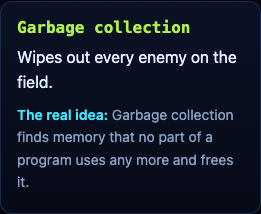
Freeing memory is a real job. Many programs do it automatically, and the first game has a power-up named for that process. Its card reads: "Garbage collection finds memory that no part of a program uses any more and frees it." In the game, picking it up wipes out every enemy on the field at once, which is a fair picture of clearing out what is no longer needed. The garbage collection post explains how programs do it.
How much memory and storage do you actually need?
The answer depends on what you do. Light use (web, email, documents, browser games) needs the least. Many tabs, video calls and photo edits need more memory to switch smoothly. Video editing, large games and virtual machines make use of plenty of both.
A good rule: buy RAM for how many things you run at once, and buy storage for how much you keep. They solve different problems, so more of one does not make up for a lack of the other.
Signs you need more RAM or more storage
The symptoms look alike at first, so it helps to sort them out.
Signs you are short on RAM
- Switching between open programs or tabs is slow.
- Browser tabs reload when you return to them.
- The computer slows down as you open more things, then speeds up when you close some.
- Your system's activity or task monitor shows memory close to full.
Signs you are short on storage
- You see "disk almost full" warnings.
- Updates fail or ask you to free up space.
- You cannot save or download new files.
- The whole system feels sluggish even with few programs open.
Heat can cause slowdowns that look like either problem. The COOLANT stage in Tank City Reboot explains it: "When a chip gets too hot, it lowers its own clock speed to cool down. This is called thermal throttling." If your laptop is hot and slow, see what thermal throttling is before you buy more memory or storage.
Frequently asked questions
Is RAM the same as storage?
No. RAM is fast, temporary memory that holds what is open right now and is cleared when the power goes off. Storage is slower, permanent space that keeps your files and programs between sessions.
Does more storage make a computer faster?
Not by itself. Extra space only helps if your drive was nearly full, but moving from a hard drive to an SSD makes loading and starting up much faster.
Is 8GB, 16GB or 32GB of RAM enough in 2026?
It depends on how many things you run at once. Light browsing and documents need the least, everyday multitasking benefits from the middle option, and heavy work like video editing or virtual machines makes the most use of the largest.
Why is my computer slow when storage is almost full?
Your system needs free space for updates, temporary files and moving data out of RAM when memory runs short. When the drive is nearly full, those jobs slow down or fail, and everything feels sluggish.
Get started
The quickest way to see memory and storage in action is to play something small that runs in a browser tab. Tank City Reboot is a pair of tank games set inside a computer. Your antivirus tank guards the CPU core, and every stage, enemy and power-up is named for a real computing idea, with a one-line explanation on the page. Play a stage, set a best score, close the tab, then come back and check that it is still there. That number survived because it went to storage.
When you want more, try Tank City Zero Day, where upgrades like Cache and RAID are named for the same ideas covered above.
Play Tank City Reboot: it is free, plays in your browser on a computer or a phone, and needs no account.
Comments
No comments yet.
Sign in or make an account to comment.