Conference presentation video requirements: a speaker's checklist
Conference presentation video requirements change from event to event, but most speaker packs ask for the same things: an MP4 file, a sharp picture of your slides, clear sound, a running time inside your slot, and captions or a transcript. This checklist takes each requirement in turn so you can read your organiser's spec and know what to do about every line. For the recording itself, our post on recording a pre-recorded conference talk with a transcript walks a speaker through a full session in Chrome, from slides in a tab to the files you send. It is worth reading for one habit: a short test take before the real one catches most problems.
Cheap Recorder records your slides, your voice and your webcam in Google Chrome as one MP4 on your own computer, with a live transcript and an .srt caption file you can send along with it.
Conference presentation video requirements most organisers set
Every event writes its own spec, so read yours first. Most ask for some mix of these:
- The talk as a single video file, often MP4.
- A target resolution, often 1080p, and sometimes a frame rate.
- A maximum running time, and sometimes a maximum file size.
- A caption file, a transcript, or both.
- A rule about your camera: visible in a corner, side by side with slides, or not at all.
- A deadline and an upload link.
Copy each line of the spec into a note before you record. You will tick them off at the end.
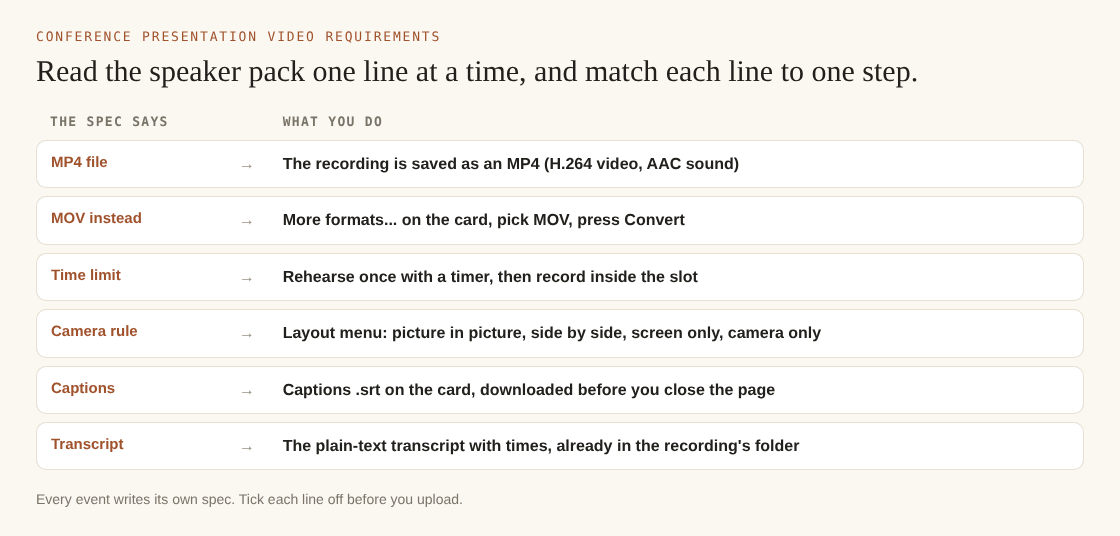
Six common lines in a speaker pack, and what to do about each.
File format, resolution and frame rate: MP4 at 1080p explained
MP4 is the safe default because almost every player and upload site can open it. Cheap Recorder saves your talk as an MP4 with H.264 video and AAC sound, the pairing that plays almost anywhere. In the rare case the browser cannot record MP4, it saves a WebM instead, and you can convert that to MP4 afterwards.
Name the recording before you start. The name in Name this recording becomes the file name and the folder name, so Smith - Keynote rehearsal gives you a file the organiser can recognise.
1080p means a picture 1920 pixels wide and 1080 tall. Specs ask for it because slides stay readable on a big screen at that size. Before you send anything, open the file in your video player's info panel and confirm the resolution and frame rate match what the spec asks for. If the event wants something larger, the Creator plan includes 4K (2160p) export.
If the organiser asks for MOV instead, open More formats... on the recording card and pick MOV. When the picture is already H.264, MP4 and MOV conversion copies it as it is and only redoes the sound, so it takes seconds and loses no quality. Convert sends the file to the Cheap Recorder server, which deletes its copy as soon as the conversion finishes. Your original stays untouched in your folder. The convert guide lists every format.
Time limits, file size and the limits on your side
A 20-minute slot means 20 minutes, not 21. Rehearse once with a timer, then record. The recorder shows a timer while you record, and the counter beside it shows how many MB have been written so far.
Two limits on your side are worth knowing:
- Your monthly minutes. The Free plan gives 12 hours of recording a month. Open your name in the top right to see how many are left. If they run out mid-recording, the recording stops, so check before a long take.
- Disk space. In Chrome the recorder writes your talk to the folder you picked every second while you record. Pick a folder on a drive with room to spare.
Audio quality: microphone, room and a 30-second test
Viewers forgive a soft picture. They leave when the sound is bad. Three things decide your audio.
The microphone. In the Microphone tile, open Change or add microphones and tick the one you speak into. Press Rescan if you just plugged it in. A headset or desk microphone close to your mouth beats a laptop's built-in one, and it also gives a cleaner transcript, since the transcript is made from what Chrome hears on your microphone. On a Mac, a Bluetooth headset used as a microphone drops into a low-quality mode that sounds like an old phone line, so use a wired or USB microphone for your voice.
The room. Close the door, silence notifications, and close apps you do not need. If you use a studio microphone in a quiet room, tick Record the microphone untouched under Options to turn off Chrome's echo, noise and volume correction. With a laptop microphone or a noisy room, leave it unticked.
The test. Record 30 seconds, press Stop and finish, and play it back with headphones on. You will hear a wrong microphone, a hum or a muted tab before it costs you a full take. The no-sound guide covers what each microphone message means.
If a slide plays a video with sound, share your slides as A browser tab and tick the tab-audio option in Chrome's sharing window.
Slides and webcam: layout rules many events expect
Some events want your face in a corner. Some want slides only. Some leave it to you. Whatever the rule, Cheap Recorder's Layout menu in the Preview heading covers the usual choices:
- Picture in picture, bottom right (the default). Drag the camera anywhere and set its size with the Size slider, from 12% to 50% of the picture's width.
- Side by side. Your slides fill the left two thirds, kept whole and never stretched, and the camera sits in a fixed place on the right.
- Screen only and Camera only.
Which layouts your plan has is listed under What you can do on this plan, in the menu under your name. The preview is the recording, so what you see is exactly what the file holds. Move the camera off any slide text before you press Start recording.
Share the single browser tab with your slides, not the whole screen. Other tabs, apps and private messages then stay out of the file. If your background is busy, press Blur in the Webcam box. None and Blur are on every plan. When you finish, press Stop and finish, not Chrome's own Stop sharing bar. The screen and webcam guide has more on placing the camera.
Captions and transcripts: why accessibility rules require them
Captions let deaf and hard-of-hearing attendees follow your talk. They also help anyone watching in a second language or with the sound off. That is why many events ask for them, and some have accessibility policies that make them a condition of acceptance.
Cheap Recorder makes them while you speak. Live transcript is ticked by default under Options. Before each recording, check the language menu beside it. It lists 25 languages, it resets every time the page opens, and Chrome listens for one language per recording. While the live transcript is on, Chrome sends your microphone audio to Google to turn it into text.
After you stop, the card offers Captions .srt and Transcript. A plain-text transcript with times is also saved in the recording's folder. The .srt file is not saved there, so download it before you close the recorder page. On plans that include speaker detection, each line is labelled with the sound source that was loudest, such as your microphone's name. Type your own name in the Speaker box and press Save captions, and each line starts with it. To see whether your plan has this, check What you can do on this plan in the menu under your name.
The captions are not drawn into the video. The organiser loads them into their player, and you can fix a misheard word in the .srt with any text editor first. Leave the numbers and time lines alone. See the live transcript and captions guide for the details.
A pre-submission checklist before you upload your talk
- Play the MP4 from start to end. Check the sound in both ears.
- Confirm the running time is inside your slot.
- Check resolution and frame rate in your player's info panel against the spec.
- Check the camera does not cover slide text.
- Open the .srt and read it for misheard names and terms. Fix them, save, and keep the time lines intact.
- Rename the files the way the organiser asked.
- Send the video, the captions and the transcript, then note the date you sent them.
Frequently asked questions
Do conferences accept MOV or WebM files instead of MP4?
Some do, but MP4 is the format most specs name, so ask before sending anything else. If an event wants MOV, Cheap Recorder's Convert turns an H.264 MP4 into MOV in seconds with no loss in quality.
Should my webcam be visible in a pre-recorded presentation?
Follow the event's rule first. If there is none, a small camera in a corner helps people connect with you, and in Cheap Recorder you can size it from 12% to 50% of the picture's width.
Can I edit out mistakes after recording?
Cheap Recorder is not a timeline editor. In a normal one-file recording, cutting words in the transcript changes the transcript and captions but not the MP4. For a cut video, tick Also save every source separately before you record, cut words, press Apply edits and rewrite files, then run bash finalise.sh with ffmpeg installed to get demo.mp4.
Get started: record your talk with captions in Chrome
Open your organiser's spec next to the recorder, choose a folder, name your talk, and record a 30-second test. Then record the real thing and download the MP4 and the .srt before you close the page. For the full session from start to finish, read how to record a pre-recorded conference talk with a transcript.
The free plan needs no card. Try Cheap Recorder in Chrome, and your recordings stay on your own disk.
Screen recording that is cheap and easy.
Visit cheaprecorder.com↗
Comments
No comments yet.