Customer feedback round-up video: record one in Chrome
If you want to record a customer feedback round-up video for your product team, you need three things: a short list of themes, a few real quotes, and a way to capture your screen and voice without fuss. This post walks through all three. It uses Chrome and Cheap Recorder, and the example is a five-minute video you could send at the end of a month.
Why a customer feedback round-up video works
A written summary of feedback loses the sound of the customer. A video lets you show the ticket, point at the screen where the user got stuck, and say in your own voice how big the problem feels. It also takes less time to watch than a long document takes to read, and people can watch it when it suits them.
It works well for teams that do not share a calendar. If you already send a weekly team update video, a feedback round-up follows the same habit: one person records, everyone else watches when they can.
What to include in a customer feedback round-up
Keep it narrow. A product team cannot act on thirty items. Aim for three to five themes, and for each one cover:
- What people said. One or two real quotes, word for word.
- How often. A count you can back up from your own tickets or notes. Do not round up to sound bigger.
- Where it hurts. The screen or step in the product where it happens.
- What you suggest. One next step the team can say yes or no to.
End with a short list of things you heard that you are not pushing yet. That keeps the main themes clear and still gives the team a record.
Gather and group feedback before you hit record
Do the grouping first. Recording while you still sort is how a five-minute video becomes fifteen.
- Export or copy the feedback from the last period: support tickets, call notes, survey answers, chat messages.
- Put similar items together under a plain label, such as "Export is slow" or "Cannot find billing".
- Count each group. Sort from most to least common.
- Pick the top three to five. Choose one or two quotes for each.
- Open each ticket or page you plan to show, in its own browser tab, in the order you will talk about it.
If your notes come from customer calls you recorded yourself, tell people you are recording. Depending on where you and they are, you may need everyone's agreement.
A simple script structure for a 5-minute round-up
You do not need to read from a script, but you do need an order. This one fits in five minutes:
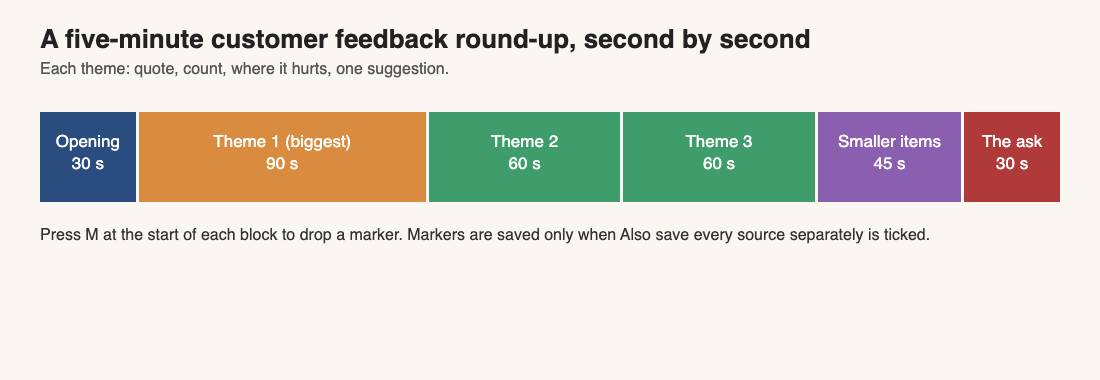
- Opening (30 seconds). Say the period you covered and how many pieces of feedback you looked at.
- Theme 1 (90 seconds). The biggest one. Quote, count, where it happens, your suggestion.
- Themes 2 and 3 (60 seconds each). Same pattern, faster.
- Smaller items (45 seconds). A quick pass through what else came up.
- The ask (30 seconds). Say what you want from the team and by when.
A line you can adapt: "This month I read 42 pieces of feedback. Three themes cover most of them. The first is slow exports, mentioned 14 times. Here is what one customer wrote." Use your own numbers, of course.
How to record your screen and voice in Chrome with Cheap Recorder
Cheap Recorder runs in Google Chrome on macOS, Windows and Linux. Nothing to install. Here is the setup for this kind of video.
- Choose a folder. Under Where to save, press Choose folder... and allow Chrome to edit files in it. Until you do, Start recording stays greyed out and the note beside it says choose a folder first.
- Name the recording. Type something like
Feedback round-up Octoberin Name this recording. That name is used for the file and its folder, together with the date and time. - Pick what to capture. Under What to capture, choose A browser tab or A window instead of Whole screen. Chrome opens its own sharing box. Pick the one you want and press Share. Sharing one tab or window keeps your other tabs, apps and private things out of the recording.
- Check your microphone. In the Microphone tile, make sure the one you speak into is ticked. The level bar should move when you talk. A headset or desk microphone near your mouth beats a laptop microphone in a noisy room.
- Decide on your face. Switch Record my webcam on if you want to be seen. In picture in picture the camera sits bottom right by default, and you can drag it elsewhere so it does not cover a quote. Leave the webcam off for a screen and voice recording only.
- Record a 30-second test. Play it back to catch a wrong microphone or a muted tab.
- Start recording, then Stop and finish. Use Stop and finish rather than Chrome's own Stop sharing bar. The file is already in your folder when you finish.
Close tabs and apps you do not need and silence notifications first. Anything on the shared screen ends up in the file, and a customer's name in a pop-up is hard to take back.
Mark each theme as you go
Press M or Add marker at the start of each theme. A short note confirms the time. Be aware of one limit: with the default single MP4, the marker notes show while you record but are not saved. If you tick Also save every source separately under Options before you start, the recording's Separate sources folder gets a markers list and a chapters file. Otherwise, jot the times down yourself.
Show real quotes, tickets and data on screen
The screen is the reason to use video, so use it. For each theme:
- Open the ticket or message with the quote and read it aloud. Then leave it on screen for a few seconds.
- Show the product screen where the problem happens. Click through the steps the customer took.
- If you have a count, show the sheet or filter that produced it, so nobody has to take your word for it.
Before you share the video, remove or hide anything private, such as email addresses or account names, from the tabs you will show. A good habit is to prepare a clean copy of each quote in a notes tab rather than showing the live inbox.
The same approach works for a product walkthrough for a new teammate, where you also click through real screens while you explain them.
Share the video and get the product team to act on it
Recordings are written to your own computer, so sharing is up to you. You can download the MP4 from the card after Stop and finish, or send the file from your folder. The card, with its download buttons, only lasts while the recorder page is open, but the original stays in your folder.
A few ways to make it count:
- Send the transcript with it. If Live transcript was ticked under Options, the folder holds a plain-text transcript with times, and you can download Captions .srt or Transcript from the card. A reader who cannot watch right now can still skim it.
- Put the ask in the message, not only the video. Write one line: "Please reply by Friday with which of the three themes goes in the next cycle."
- Name the owner. Say in the video, and in the message, who decides.
- Follow up with a short video. After a release that fixes something you raised, a release notes video closes the loop for the team.
If the video goes to someone or another team who will not open the files directly, a publish page is available on Creator and up. Tick Also save every source separately before recording, and the Separate sources folder holds a publish.html with a player, chapters from your markers, and the transcript with times. Send the whole recording folder zipped, not just the page.
If teammates are in other time zones, the same advice as in this design review video guide applies: say the decision you need, and give a date that works for them.
Want to compare tools before you pick? See how Cheap Recorder compares with other recorders.
Frequently asked questions
How long should a customer feedback round-up video be?
Five minutes is a good target: three to five themes at about a minute each, plus an opening and a clear ask. If you need more time, split it into two videos.
Can I record just my screen and voice, without my face?
Yes. Turn off Record my webcam, pick a tab, window or screen, and make sure your microphone is ticked. The result is an MP4 with your screen and voice.
Do I need an account or a paid plan?
You need a free account, and the Free plan covers recording, live transcript and captions, with 12 hours of recording a month on 1 device and no card needed. The publish page is on Creator and up; Creator is $12 a month billed monthly.
Where does the recording go?
It is written to the folder you choose on your own computer, about once a second while you record. Nothing is uploaded, unless you use Convert or Download MP3, which send the file to the Cheap Recorder server and delete it there when finished.
Does the live transcript leave my computer?
While Live transcript is on, Chrome sends your microphone audio to Google to turn it into text. If a recording must not leave your computer in any form, untick Live transcript before you press Start recording.
Get started
Group your feedback, open your tabs in order, and record a 30-second test. Then record the real thing in one take. If you stumble, keep going and say the line again. A clear five-minute video from you beats a polished one that never gets made.
The free plan needs no card. Try Cheap Recorder in Chrome, and your recordings stay on your own disk.
Comments
No comments yet.
Sign in or make an account to comment.