Design review notes template for clear, usable feedback
A design review notes template is a short, fixed set of fields that turns spoken opinions into feedback a designer can act on. Each note names the screen, says what is wrong, says why it matters, and gives a priority. If you also record the review, the template becomes a list you fill in from the transcript instead of from memory. For the recording side, see our post on recording a design review in Chrome. It shows how to share the design tab, say the screen name before each comment, and turn the timed transcript into a feedback list. This post covers the other half: what the list should look like.
Cheap Recorder records a Chrome tab together with your voice and saves the result on your own computer as an MP4, with a transcript of what was said. That gives you the raw material for the template below.
What a design review notes template should capture
Most review feedback fails in the same way. A comment like "this feels off" tells the designer nothing. They have to guess which screen, which element and what you wanted instead.
A useful template forces five things into every note:
- Where: the screen or flow name, and the element on it.
- What: what you see, stated as a fact.
- Why: the reason it is a problem, for a user or for the business.
- Ask: what you want changed, or a question if you do not know yet.
- Priority: must fix, should fix, or nice to have.
Add the date and the people in the review at the top of the page, for when someone asks who agreed to what.
A simple design review notes template you can copy
Paste this into a doc, a ticket or a note. Repeat the block for each comment.
- Review: project name, version or link, date
- Attendees: who spoke, and who made the final call
- Screen: exact name, as it appears in the design file
- Element: the button, field, heading or area
- Comment: one sentence on what you see
- Reason: why it matters
- Requested change: the action, or an open question
- Priority: must, should or could
- Time in recording: where to hear it again
- Decision: accepted, rejected or needs discussion, and who owns it
The time field is optional if you review live with no recording. With a recording, the designer can jump to the moment when a comment is unclear.
How to word a comment so the designer can act on it
Good wording is mostly about order. Say the observation first, then the reason, then the ask.
- Weak: "The form is confusing."
- Better: "On the Checkout screen, the Promo code field sits above the card number. People may enter the code in the card field. Move it below the total."
A few habits help:
- Describe the problem, then suggest the fix. The designer may find a better fix than yours. If you only give the fix, they lose the problem.
- Use the screen's real name. "The second screen" breaks as soon as someone reorders the flow.
- One comment, one change. If a note contains "and also", split it in two.
- Say what is working. One line of "keep this" stops a good decision from being undone in the next round.
Sort comments by screen and by priority
Raw notes arrive in the order people thought of them. The designer needs them in the order they will work.
Group first by screen, in the same order as the flow. This lets the designer open one frame and fix everything on it in one pass. Inside each screen, sort by priority, with must-fix items at the top.
Then add a short summary above the list. Three lines is enough: how many must-fix items, which screen has the most, and what the next review will check. A reader who stops after the summary still knows where things stand.
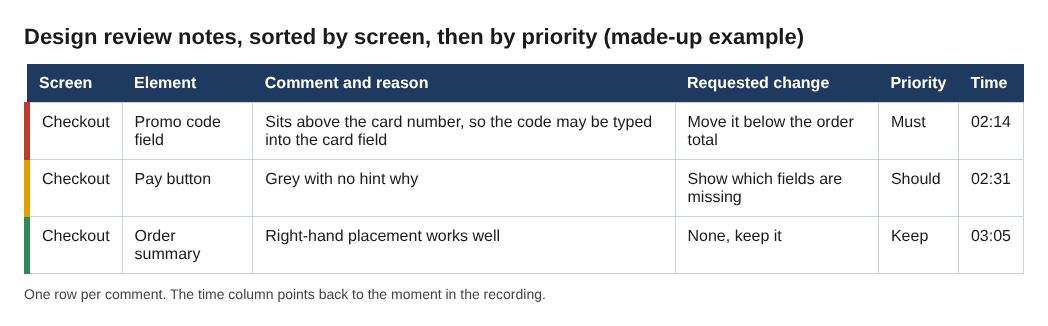
The same three notes as a sorted table, one row per comment.
If two comments disagree, put both under the same element and mark the decision as "needs discussion".
Fill the template faster from a recording
Typing notes during a review splits your attention. You either listen or you write. A recording removes that trade-off, and the transcript does the first pass of the writing for you.
Here is the idea in short. In Cheap Recorder you choose A browser tab under What to capture and pick the tab with your design in it. Sharing one tab instead of the whole screen keeps your other tabs and private things out of the file. Leave Live transcript ticked under Options (it is on by default), and the recorder saves a plain-text transcript file next to the MP4, with the time of each line. It is a file on your disk, and you can paste from it into your template. The guide to where recordings are saved explains the folder layout, and the screen and webcam guide covers the tab picker.
Two details make the transcript far easier to turn into notes:
- Speaker names. Each line is labelled by the loudest sound source. Above the transcript there is one Speaker box per label. Type a real name, press Save captions, and the lines start with that name. On plans that include speaker detection, this tells you who said what.
- Markers. Press
Mor Add marker during the recording to mark a moment. One catch: with the default single MP4, marker notes show on screen but are not saved. Tick Also save every source separately before you start if you want a markers list written to the folder. See the course guide for how markers work.
The transcript comes from what Chrome hears on your microphone. A headset or desk microphone close to your mouth beats a laptop's built-in one in a noisy room. If the microphone is silent or wrong, this fix-it post for a Chrome microphone that is not working helps. Also record a 30-second test first and play it back.
One thing to know before you start. While the live transcript is on, Chrome sends your microphone audio to Google to turn it into text. If a review must not leave your computer in any form, untick Live transcript under Options before you press Start recording. You will then have the video but no transcript.
Example: one screen, three comments, one decision
Say the reviewer says the screen name before each comment, as the earlier post suggests. The transcript might read like this. The names and lines are made up, and the exact layout of your file may differ; the point is that each line has a time, a name and your screen label.
00:02:14 Priya: Checkout screen. The promo code field is above the card number. 00:02:31 Priya: Checkout screen. The Pay button is grey until the form is complete, but there is no hint why. 00:03:05 Sam: Checkout screen. Keep the order summary on the right. That works well.
Filled into the template, with the screen name doing the sorting:
- Screen: Checkout
- Comment 1 (must): The promo code field sits above the card number, so people may type the code into the card field. Requested change: move it below the order total. Time: 02:14.
- Comment 2 (should): The Pay button is grey with no explanation. Requested change: show which fields are missing. Time: 02:31.
- Comment 3 (keep): The order summary on the right works well. No change. Time: 03:05.
- Decision: Comments 1 and 2 accepted, owned by the designer, due before the next review. Comment 3 noted as a keep.
Saying the screen name out loud is what makes this fast. The label is already in the transcript, so you sort by searching for it instead of hunting for context.
Send the notes and close the loop
A list that nobody answers is not finished feedback. Send the notes the same day, while the review is fresh. Keep the message short: the summary, the sorted list, and a date for the next look.
Share the transcript file if the designer wants the exact words. It is plain text, opens in any text editor, and pastes easily into an email or ticket. If they want to hear a comment, give them the MP4 and the time. Recordings are ordinary files in your folder, so you can send them like any other file.
In the next review, walk the must-fix list first and mark each item fixed, rejected or still open in the Decision field.
Frequently asked questions
What should a design review notes template include?
At minimum: the screen name, the element, a comment, the reason, the requested change and a priority. Add the date, the attendees and the decision owner at the top of the page.
Do I need to record the review to use the template?
No. The template works with live note taking. A recording helps because you can listen instead of typing, and you can fill the template afterwards from a transcript with times.
How do I tell who said which comment?
Each transcript line is labelled by the loudest sound source, and you can type real names into the Speaker boxes. On plans that include speaker detection, the saved captions and transcript then start each line with that name.
Is the transcript saved on my computer?
Yes. With the live transcript on, a plain-text transcript file is saved in the recording's folder next to the MP4. Chrome does send your microphone audio to Google to produce the text, so untick Live transcript if the audio must stay on your computer.
Get started
Copy the template above into your own doc. Then run your next review with a recording: share the design tab, say the screen name before each comment, and fill the template from the transcript. The full walkthrough for recording a design review covers the recording steps.
The free plan includes recording, live transcript and captions, with 12 hours of recording a month and no card needed. Try Cheap Recorder in Chrome, and your recordings stay on your own disk.
Screen recording that is cheap and easy.
Visit cheaprecorder.com↗
Comments
No comments yet.
Sign in or make an account to comment.