Echo in a screen recording of a call? Find the cause, fix it
You record a call, play it back, and the other person's voice comes through twice, or with a hollow ring behind it. Echo in a screen recording of a call nearly always has one of three causes, and each one has a simple fix. This guide shows how to tell them apart by ear, where to look in Cheap Recorder, and how to catch the problem in a one-minute test before the call that matters.
How a call gets into your recording
It helps to know the two ways sound reaches the file. Your voice comes from your microphone, through the Microphone tile. The other people's voices come from the call's Chrome tab, through the Call audio tile: you press Pick the call tab..., choose the call's tab, tick Share tab audio and press Share. Cheap Recorder keeps only that tab's sound and mixes it with your microphone into one recording.
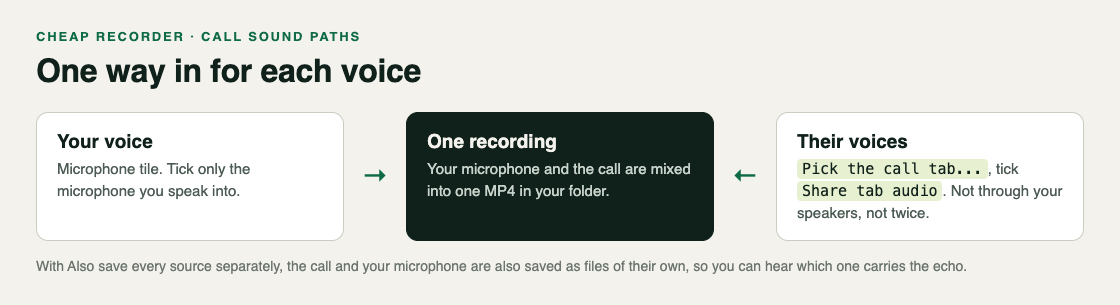
Each voice should arrive by exactly one way. Echo is what you hear when a voice finds a second way in. That is why the call has to be open in a Chrome tab: the recorder takes its sound straight from the tab, not from your speakers.
The three causes of echo in a screen recording
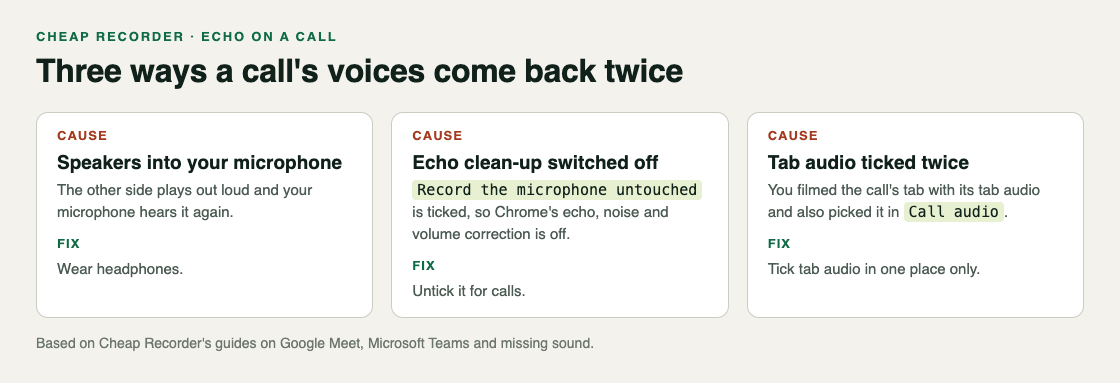
1. The call plays out loud into your microphone. Without headphones, the other people's voices come out of your speakers and back into your microphone. The file then holds them twice: once clean from the tab, and once more, fainter and roomier, through your microphone. The fix is headphones.
2. The echo clean-up is switched off. By default Chrome cleans up echo, noise and volume on your microphone. Under Options, Record the microphone untouched turns all of that off. It suits a studio microphone in a quiet room, but on a call it lets the other side echo back in. Leave it unticked for calls.
3. The call's tab audio is ticked twice. Some people film the call's tab with A browser tab, so the recording shows faces and shared slides. Chrome offers tab audio in that sharing window too. If you tick it there and also pick the tab in Call audio, the other people's voices go into the file twice. Leave tab audio unticked when you film the tab, and let Call audio carry the sound.
Tell the causes apart by ear
Play your recording back in the player on the page and listen to one sentence from the other person.
- A faint, roomy copy behind their voice, which gets louder when you turn your speakers up, points to cause 1 or 2. The sound is travelling through the air into your microphone.
- Their voice at full strength twice, with no room sound, points to cause 3. Two clean copies came from the tab.
- Your own voice sounding doubled can mean more than one microphone is ticked. A webcam, a monitor or a headset can each have its own microphone, and microphones in one room hear each other faintly. Open Change or add microphones and tick only the one you speak into.
You can also catch cause 1 while you record, before you ever play anything back. Each ticked microphone in the list has a level bar that moves with its sound. Stay quiet while the other person talks and watch your bar. If it jumps along with their voice, your microphone is hearing the call from your speakers, and that sound is going into the file. Put headphones on and watch again: the bar should sit still until you speak.
If you still cannot tell, tick Also save every source separately under Options for a short test. The other side of the call is then saved in a file of its own, next to your microphone's file, which starts with audio_. Play your microphone's file on its own. If you can hear the other people in it, their voices are reaching your microphone through the air, and headphones will fix it.
A worked example: a test call before a client call
Say you have a client call in Google Meet at ten and want a clean recording to share with your team. At a quarter to ten you run a one-minute test with a colleague.
- You open the Meet call in one Chrome tab and Cheap Recorder in another, and choose a folder under Where to save.
- In the Microphone tile you open Change or add microphones and tick only your USB microphone. The laptop's own microphone stays unticked.
- Under Options you check that Record the microphone untouched is unticked.
- In Call audio you press Pick the call tab..., choose the Meet tab, tick Share tab audio and press Share. The tile says on followed by the tab's name.
- You want the slides in the picture, so under What to capture you choose A browser tab and pick the Meet tab again. In that sharing window you leave tab audio unticked.
- You leave your headphones on the desk, on purpose, record one minute of chat and press Stop and finish. On playback your colleague's voice has a faint ring behind it: cause 1.
- You put the headphones on and record another minute. The ring is gone, and each voice comes through once.
At ten you tell the client you are recording, then press Start recording. Recording calls may need everyone's agreement depending on where you and they are, so always say so first.
The full call setup is in the post on recording a Google Meet call and the post on recording a Teams meeting.
When the sound is wrong in other ways
Echo has a close cousin: a voice that is clear but thin, like an old phone line. On a Mac, a Bluetooth headset used as a microphone switches into a low-quality mode. Keep the headset on to listen, and tick a wired or USB microphone for your voice. The post on picking the right microphone covers this in more detail.
If a voice is missing altogether rather than doubled, that is a different problem with its own checks. The guide to a screen recording with no sound walks through them in order.
Frequently asked questions
Why do the other people's voices sound twice in my recording?
Usually the call's tab audio was ticked in two places: once when filming the tab and once in Call audio. Tick tab audio in one place only.
Do I need headphones to record a call?
They are the simplest way to stop echo. Without them, the call plays from your speakers and back into your microphone.
Should I tick Record the microphone untouched for a call?
No. It turns off the echo, noise and volume correction, which is what lets the other side echo back in. Keep it for a studio microphone in a quiet room.
Does this work for Microsoft Teams calls too?
Yes. A Teams call open in a Chrome tab is recorded the same way, through Call audio, and the same three causes and fixes apply.
Get started
The free plan needs no card, includes 12 hours of recording a month and covers recording a Meet call. Try Cheap Recorder in Chrome, run a one-minute test call with headphones on, and your recording lands in a folder on your own disk.
Comments
No comments yet.
Sign in or make an account to comment.