Feature request demo for a product manager: record one in Chrome
A feature request demo is a short video that shows a product manager the problem on a real screen, then the change you want. A written ticket says what you want. A video shows the exact click, the exact label and the moment you get stuck. This post gives you a plan with four blocks, a worked example, and the steps to record it in Chrome with Cheap Recorder.
Why a feature request demo beats a written ticket
"The export is confusing" can mean ten things. When the product manager watches you do the task, there is only one thing it can mean.
A video also carries how much the problem hurts. Four repeated clicks and a sigh say more than a priority tag. And it is quick for you: talking through a workflow takes two minutes, while writing it up with screenshots takes much longer.
What a product manager needs from a feature request demo
A product manager is deciding whether to spend a team's time. Give them five things:
- The ask. One sentence, said in the first 20 seconds.
- The problem as it happens. The real screen with the real steps, nothing skipped.
- The change you want. Described plainly. You do not have to design it.
- Who it affects and how often. You, your team or your customers; daily or once a month.
- What done looks like. One sentence on how you would know it worked.
Keep it to one request per video. Three unrelated requests are three videos, because each one then becomes its own ticket that can be filed, discussed and said yes or no to. If you have many requests from customers to bring together, record a customer feedback round-up video instead.
The four blocks of a three-minute demo
Write four lines in a note before you press record. They become the four blocks of the video.
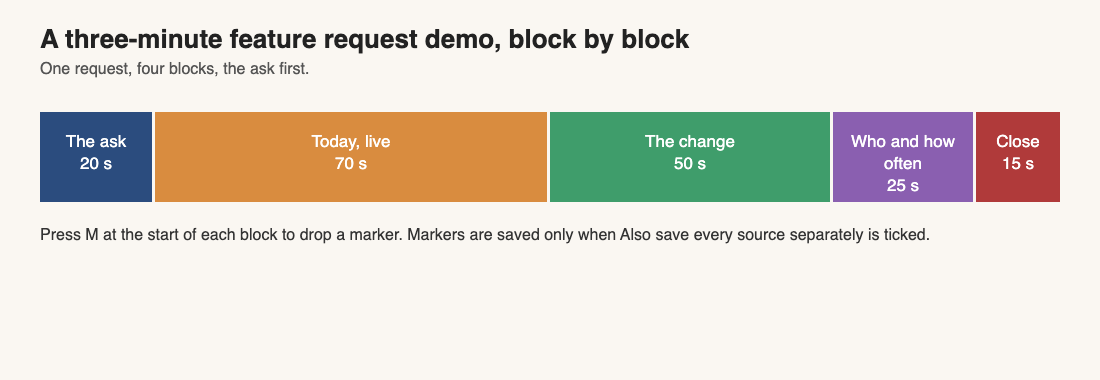
- The ask, 20 seconds. Who you are, what you were trying to do, and the request in one line.
- Today, live, about 70 seconds. Do the task the way you do it now, and say what you expected at each step.
- The change, about 50 seconds. Stay on the same screen and point to where a button or option would sit.
- Who and how often, then a close, about 40 seconds. Who it affects, how often, and one sentence on the result.
A worked example: a made-up bulk export request
This example is made up, so no number in it is a real one. Say you work in finance operations, and the reports tool in your company app only exports one report at a time.
"Hi, I'm Dana from finance operations. I'd like a way to export several reports at once. Here is how I do it today. I open the reports page, open report one, press Export, wait, and go back. I repeat that for each of the eight month-end reports, so it is about forty clicks and it takes me around fifteen minutes."
Then the change, over the same screen:
"What I would like is a checkbox next to each report and one Export selected button at the top. One click, one file. This happens at every month-end and my whole team of four does it. If it existed, we would each save the fifteen minutes. We would know it worked when one click gives us all eight."
Notice what is there: one request, the real steps, a count of clicks, who it affects, and a way to tell it is done. Use only numbers you have really seen, and do not round up to make the case bigger.
How to record a feature request demo in Chrome
Cheap Recorder runs in Google Chrome on macOS, Windows and Linux, and saves the recording to a folder on your own computer. You need a free account to record, and the free plan needs no card. The steps:
- Open the recorder and sign in. Start recording stays greyed out until it can start, and the words beside it say why.
- Choose a folder. Under Where to save, press Choose folder... and allow Chrome to edit files in it. The recording is written there about once a second as you record.
- Name the recording something a product manager can find later, such as
Feature request - bulk export. The name is used for the file and its folder. - Pick what to capture. If the problem lives in one web app, choose A browser tab, pick the tab in Chrome's sharing box and press Share. Anything on the shared screen ends up in the file, so close other tabs and silence notifications first.
- Decide on your webcam. A face is optional. To leave it out, switch Record my webcam off. If you keep it, the picture in picture layout puts it bottom right, and you can drag it to a corner that does not cover the part of the screen you are about to show.
- Speak and watch the level bar. Each ticked microphone has a bar that moves with its sound. If it stays flat, check the microphone's own mute switch.
- Check Live transcript under Options. It is ticked by default. Pick the language before you start, because the menu goes back to its default each time the page opens.
- Record a 30-second test and play it back to catch a wrong microphone or a muted tab.
- Press Start recording, say the ask, and go through your four blocks.
- Press Stop and finish. Chrome's own Stop sharing bar also finishes the recording, so use Stop and finish instead.
To mark the blocks, press M, or Add marker, at the start of each block. A short note confirms the time, and the marker is not added while you are typing in a text box. Markers are saved only when Also save every source separately is ticked under Options before you record. With the default single MP4, the notes show while you record but are not saved, so jot down the times if you want them in your ticket.
Tips for a short, clear feature request demo
- Use test data. If your example shows real customer data, switch to a demo account or pick a record that is safe to show.
- If you stumble, pause and say the line again. The transcript can cut filler words on plans that include it, but in a normal one-file recording the cuts change the transcript and captions, not the MP4, so aim to get it right in the take.
Send the video with a short written note
A video alone is not a complete request. Send it with a few lines so the product manager can triage it without watching first:
- Title: the request in a few words.
- Summary: two sentences on the problem and the change.
- Who it affects and how often.
- The file: the MP4.
The recording is an ordinary MP4 with H.264 video and AAC sound, so it plays almost anywhere. Attach it to the ticket or upload it wherever your team keeps files. If Live transcript was ticked and Chrome heard speech, the folder also holds a plain-text transcript with the time of each line, such as Feature request - bulk export - transcript.txt, which you can paste into the ticket so the request is searchable. Captions are different: the .srt file is not saved in the folder, so press Captions .srt on the card while the recorder page is open.
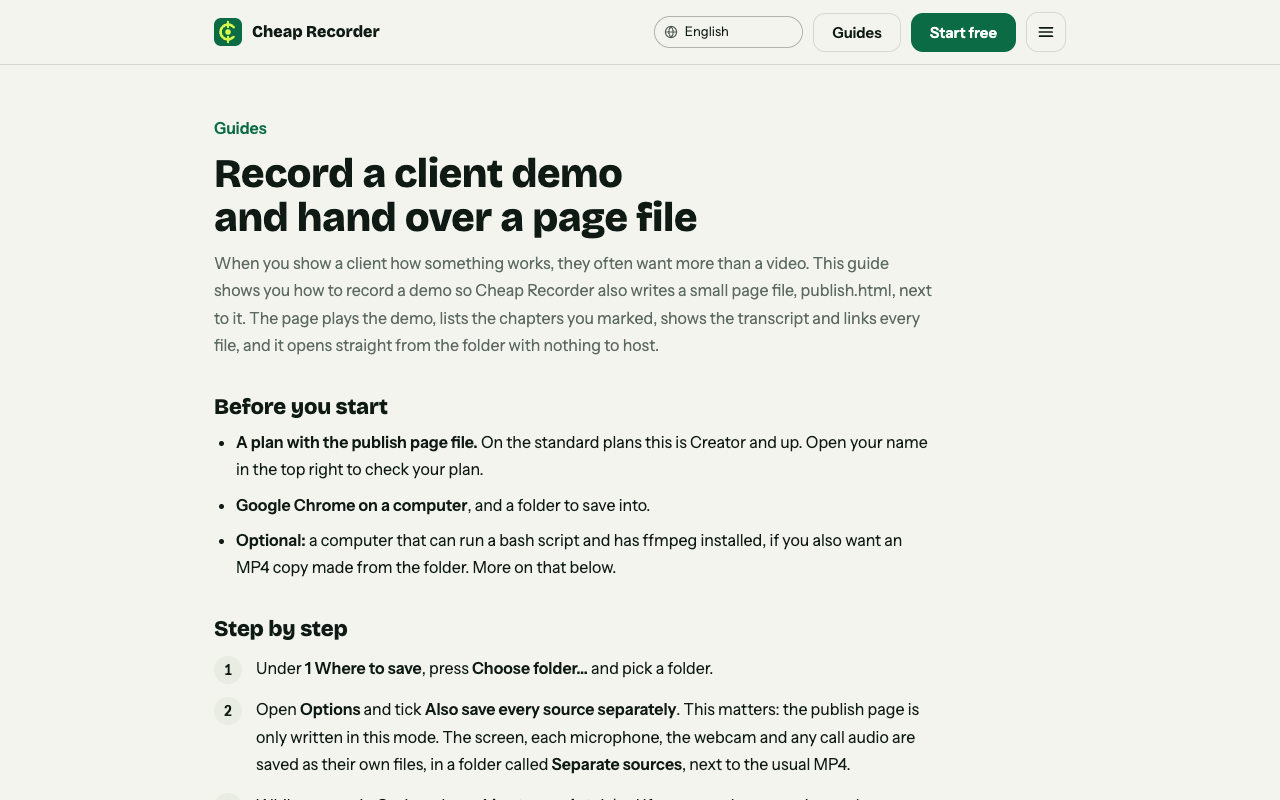
If you would rather hand over one page that plays the video with its chapters and transcript, tick Also save every source separately before you record. On Creator and up, the Separate sources folder then holds a publish.html that opens from the folder with nothing to host. Zip the whole recording folder and send that, not just the page. The page cannot be added afterwards if the option was not ticked, and in that mode the card does not offer Download MP4 or Convert. The client demo guide has the full steps.
A note on privacy: the recording stays in your own folder and Cheap Recorder keeps no copy, except for Convert and Download MP3, which send the file to the server and delete it when the conversion finishes. While Live transcript is on, Chrome sends your microphone audio to Google to turn it into text. If a demo must not go through that, untick Live transcript before you start. Tell anyone who appears or speaks in the video that you are recording.
Frequently asked questions
How long should a feature request demo be?
Two to four minutes is a good target. Show one problem and one change, and record other requests as separate videos.
Do I need to show my face?
No. Switch Record my webcam off and record just your screen and voice. If you keep it on, the picture in picture layout puts the camera bottom right and you can drag it elsewhere.
Is the free plan enough for a feature request demo?
For recording, yes. The free plan has recording, live transcript and captions, 12 hours of recording a month and needs no card. The publish page needs Creator or above.
Does the product manager get a transcript?
If Live transcript was ticked and Chrome heard speech, a plain-text transcript with times is saved next to the MP4. You can paste it into the ticket.
Get started
Write your four lines, close the tabs you do not need and record a 30-second test. Then record the real demo and send it with your note.
The free plan needs no card. Try Cheap Recorder in Chrome, and your recordings stay on your own computer.
Comments
No comments yet.
Sign in or make an account to comment.