Green screen webcam in Chrome without an extra app
A green screen webcam setup swaps the wall behind you for a clean picture, so a spare room or a busy office stops showing in your videos. With Cheap Recorder you do it in Chrome with no extra app: hang a green cloth, choose a picture, tick one box and record. This guide covers which plan has it, how the green screen tick differs from blur, the setup in order, and how to light the cloth for clean edges.
Which plan has the green screen
None and Blur are on every plan. The background pictures, Your image and the green screen tick appear on plans that include green screen, which on the standard plans is Creator and up. Creator is $12 a month billed monthly, or $4.99 a month billed yearly on the first yearly bill, and it has a 7-day free trial.
To check your own account, open the menu under your name in the top right and look under What you can do on this plan. If the pictures are missing, your plan does not include green screen, and None and Blur still work.
Green screen tick or person finder: what is the difference
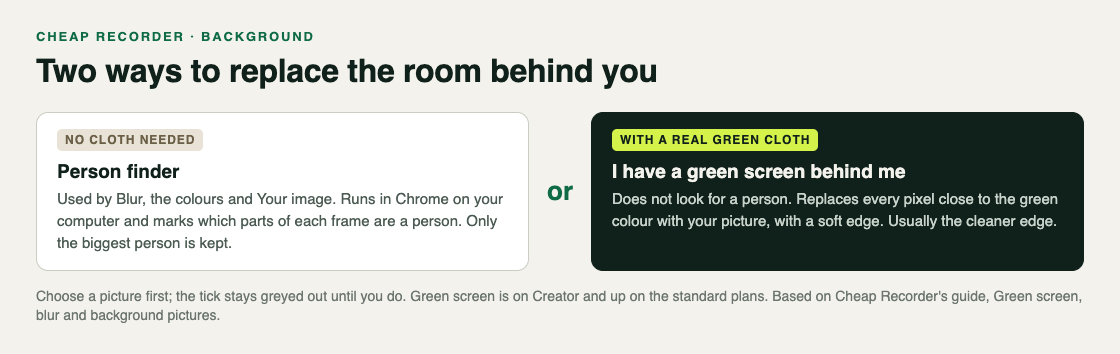
Cheap Recorder has two ways to replace the room behind you, and they work in different ways.
- The person finder is what Blur, the built-in colours and Your image use when the tick is off. It runs in Chrome on your computer and marks which parts of each frame are a person. Everything else becomes the soft room or the picture. It needs no cloth.
- The green screen tick, I have a green screen behind me, does not look for a person at all. It replaces every pixel close to the green colour with your picture, with a soft edge so hair does not look jagged.
With a real green cloth, the tick usually gives cleaner edges than the person finder. Without a cloth, leave the tick off and let the person finder do the work. The finder keeps its edge a touch inside your outline and smooths it from one frame to the next so it does not flicker. If someone walks behind you, only the biggest person in the frame is kept.
Set up a green screen webcam recording, step by step
- Open the recorder in Chrome and make sure Record my webcam is on. The Background buttons are greyed out while the webcam is off.
- Find Background in the Webcam box.
- Choose a picture first: one of the built-in colours, Studio, Midnight, Dawn, Ocean or Forest, or Your image to use a file from your computer.
- Tick I have a green screen behind me. It stays greyed out until a picture is chosen, because it needs something to put in place of the green.
- Look at the preview. If the edges are rough, move, relight or smooth the cloth until they are clean.
- Press Start recording. Set the background before you start, because the recording keeps the one that was on when you pressed Start.
Your own picture stays on your computer. Cheap Recorder trims it to fill a 1280 by 720 frame without stretching it and keeps it in this browser only. It is not uploaded. To swap it later, press Use a different picture... under the buttons. The green screen and blur guide on cheaprecorder.com lists every choice.
Light the cloth, not just your face
The tick cuts on colour, so anything that changes the colour of the cloth makes a rough edge. Most green screen problems are fixed in the room, not in the settings.
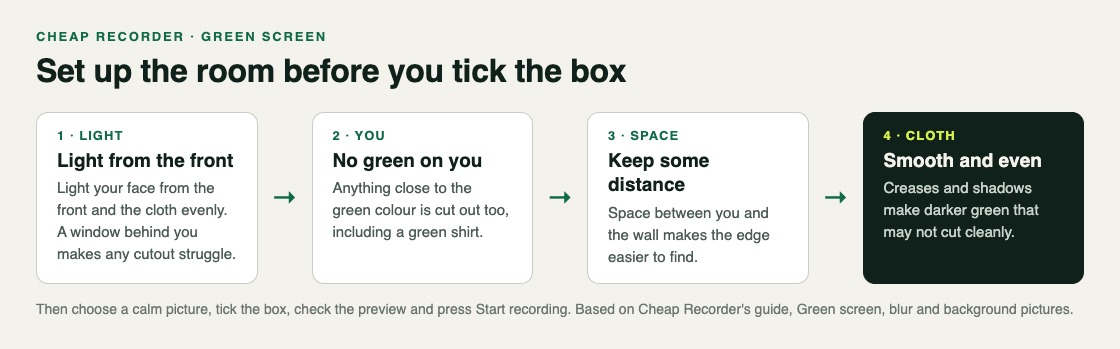
- Smooth the cloth. Creases and shadows make darker green that may not be cut cleanly.
- Light it evenly, and light your face from the front. A window behind you makes you darker than the room, and any cutout struggles with that.
- Keep some distance from the wall. Space between you and what is behind you makes the edge easier to find.
- Avoid green clothes. Anything close to the green colour is cut out too, including a green shirt.
- Choose a calm picture. A busy background pulls attention from what you show on screen.
A worked example: a course intro with a green cloth
Say you record a short intro for each lesson of an online course and want the same clean backdrop every time.
- You hang a green cloth a step behind your chair, pull it smooth, and put a lamp in front of you so your face and the cloth are both lit.
- You wear a dark blue shirt, not the green one.
- In Cheap Recorder you press Your image and choose the course's title card, then tick I have a green screen behind me.
- For the part where you show slides, you pick Picture in picture from the Layout menu and drag the camera to a corner. The Size slider sets it from 12% to 50% of the picture's width, and the position and size are remembered for next time.
- You name the recording Lesson 01 intro, record a 30-second test, and play it back to check the edge around your hair and shoulders.
- The edge is clean, so you record the real intro. For the next lesson you name it Lesson 02 intro, which keeps the files in order, and check the preview again before you press Start.
The post on recording a tutorial with webcam and screen covers the rest of a lesson setup.
When it goes wrong
- The pictures and the tick are missing. Your plan does not include green screen. None and Blur still work.
- The tick is greyed out. Choose a picture first.
- The webcam background could not start on this browser. The person finder could not load, and the choice went back to None. Check your connection, reload the page and try again in an up-to-date Chrome.
- That file is not a picture this browser can open. Save the image as a JPEG or PNG and choose it again.
- Your picture is used for this visit only. Chrome had no room to keep it. It works now, but you will need to choose it again next time.
- Parts of your shirt disappear. It is close to the green colour. Change it.
Want the camera on its own for editing elsewhere? Tick Also save every source separately under Options, and you also get the plain webcam file and a copy with the background applied. For a video with only your face and no screen, the post on recording your webcam in Chrome shows the setup.
Frequently asked questions
Do I need a green cloth to replace my background?
No. Blur, the built-in colours and Your image work without one, using a person finder that runs in Chrome. A real green cloth with the green screen tick usually gives cleaner edges.
Is the green screen on the Free plan?
No. None and Blur are on every plan; the pictures and the green screen tick are on plans that include green screen, which is Creator and up on the standard plans.
Is my background picture uploaded?
No. Your image is trimmed to fill a 1280 by 720 frame, kept in this browser only and not uploaded.
Can I change the background during a recording?
Set it before you start. The recording keeps the background that was on when you pressed Start recording.
Get started
The free plan needs no card, and Creator has a 7-day free trial if you want the green screen. Try Cheap Recorder in Chrome, and your recordings stay on your own disk.
Comments
No comments yet.
Sign in or make an account to comment.