Record your webcam in Chrome without sharing your screen
Some videos need only you: a weekly update for your team, a welcome message for a new client, a short answer to a question that is easier to say than to type. To record your webcam in Chrome for these, you do not need to share your screen at all. In Cheap Recorder you choose Webcam only, and the file holds just your camera and your microphone. This guide shows the steps, how to set the camera and background before you start, and what to do when the camera does not appear.
Why record just your webcam
Most recorders start by asking which screen to share. That makes sense for a tutorial, but for a talking video it adds risk and no value. A shared screen can show a notification, a private tab or a document you forgot to close.
With Webcam only, there is nothing to tidy. No screen is shared, so nothing from your computer can end up in the file. The Layout menu is hidden too, because there is only one picture: your camera. You look at the lens, you talk, and you stop.
If you do want your face over a screen, that is a different setup with its own choices of layout and size. The post on recording a tutorial with webcam and screen covers it.
How to record your webcam in Chrome, step by step
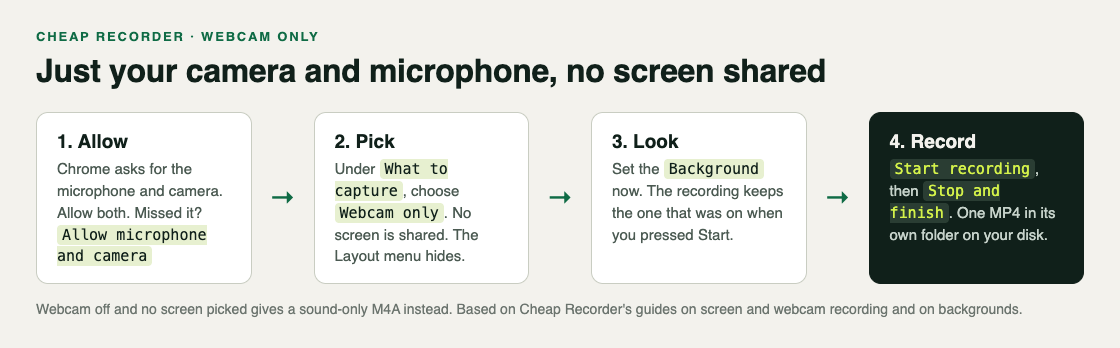
- Allow the camera and microphone. Open the recorder and sign in. When Chrome asks, allow both. The recorder turns them on by itself. If you said no by mistake, press Allow microphone and camera in the Microphone box.
- Choose where to save. Under Where to save, press Choose folder... and let Chrome save there. Each recording gets its own folder inside it, named with the recording's name and the date and time it began.
- Pick Webcam only. Under What to capture, choose Webcam only, beside the screen choices. Check that Record my webcam is on.
- Check your microphone. The Microphone tile shows the microphone it found. To use another, open Change or add microphones and tick the one you speak into. Its level bar should move when you talk.
- Set the background. Do this now, not later. More on this below.
- Name it and record. Type a name in Name this recording, press Start recording, and press Stop and finish when you are done.
The Your recording card opens with a player and a Download MP4 button. The file is already in its folder, on your own disk. If Start recording is greyed out, read the short note beside it. It says what is missing, such as choosing a folder first.
Get the camera right before you press Start
With only one picture in the file, how that picture looks matters more than usual. Three things are worth a minute.
The frame. The camera is never stretched. If its shape does not match the space it fills, it is trimmed evenly from both sides. That means a face in the middle stays in the middle, so sit centred and leave a little room above your head.
The light. Light your face from the front. A window behind you makes you darker than the room, which looks gloomy on its own and makes any background effect struggle to find your edges.
The background. Background sits in the Webcam box. The buttons are greyed out while the webcam is off, so switch it on first. Set the background before you start: the recording keeps whichever one was on when you pressed Start recording.
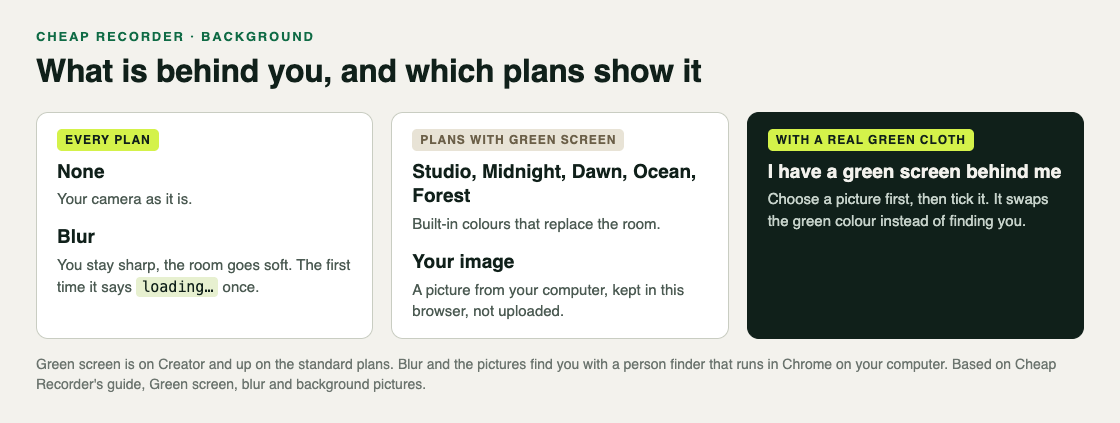
- None shows your camera as it is.
- Blur keeps you sharp and softens the room. The first time you press it, it says loading... while the part that finds you in the picture downloads. Chrome keeps it after that.
- Studio, Midnight, Dawn, Ocean and Forest replace the room with a colour, and Your image puts a picture from your computer behind you. These appear on plans that include green screen, which is Creator and up on the standard plans.
Blur and the pictures find you with a person finder that runs in Chrome on your computer. A picture you choose with Your image is kept in this browser only and is not uploaded. If you own a real green cloth, the green screen and blur guide explains the tick for it and how to get clean edges.
A worked example: a three-minute weekly update
Say you send your team a short video every Friday instead of a long written update. You want your face and voice, a tidy look, and a file you can drop into the team chat.
- You sit facing the window, not with your back to it, and put the laptop on a few books so the camera is at eye level.
- In Cheap Recorder you choose a folder called Team updates, pick Webcam only, and press Blur. It says loading... once, then your room goes soft in the preview.
- You check the Microphone tile. You use a USB microphone, so you tick it under Change or add microphones and watch its level bar move as you say a few words.
- You name the recording Test and record 30 seconds. You play it back: your voice is clear and the blur holds around your shoulders. A 30-second test at the start of a session catches a wrong microphone before it costs you a whole take.
- You name the real one Update 2026-10-09, write three bullet points on a sticky note beside the camera, and record. At the end you press Stop and finish.
- The card shows the recording. You press Download MP4 and post the file in the team chat. The same file is already in its own folder inside Team updates.
If you tick Live transcript under Options, you also get Captions .srt and Transcript on the card, which helps teammates who watch without sound. While the live transcript is on, Chrome sends your microphone audio to Google to turn it into text, so leave it off if that does not suit the content.
When the camera or sound goes wrong
If the webcam box says no camera found, Chrome could not open a camera. Check that no other app, such as a video call, is using it. Check that Chrome is allowed to use the camera in your computer's privacy settings. Then turn Record my webcam off and on again.
If your voice sounds thin and you are on a Mac with a Bluetooth headset, that is the headset's low-quality microphone mode. Use the headset to listen and a wired or USB microphone for your voice.
If the file comes out as an M4A with no picture, the webcam was off. With the webcam off and no screen picked, Cheap Recorder makes a sound-only recording. That is useful on purpose, and the post on recording audio only in Chrome covers it, but for a video message switch Record my webcam back on.
To find the file later, the post on where recordings are saved explains the folder names and what sits inside each one.
Frequently asked questions
Can I record my webcam without sharing my screen?
Yes. Choose Webcam only under What to capture, and Cheap Recorder records only your camera and microphone with no screen shared.
Is my webcam video uploaded anywhere?
No. The recording is written to the folder you picked on your own computer. It leaves your computer only if you use Convert, which sends the file to the Cheap Recorder server and back.
Can I change the background halfway through?
Set it before you start. The recording keeps the background that was on when you pressed Start recording.
Does it work on Windows and Linux?
Yes. Cheap Recorder runs in Google Chrome on macOS, Windows and Linux.
Get started
The free plan needs no card and includes 12 hours of recording a month. Try Cheap Recorder in Chrome, choose Webcam only, and your video lands in a folder on your own disk.
Comments
No comments yet.
Sign in or make an account to comment.