How do you use a gamepad in browser games? A 4-step checklist
How do you use a gamepad in browser games? You connect the pad to your computer, open the game page, click the game so it has focus, and press a button on the pad so the page can see it. That last press is the step most people miss. This guide walks through a short checklist that works for any browser game, then uses the two Tank City Reboot games as a worked example you can follow today.
What a gamepad is, and why a browser can read one
A gamepad is a video game controller you hold in two hands, with your thumbs doing most of the work. It has buttons and often one or more sticks. They are mainly made for game consoles, but modern ones are also widely used on personal computers.
A web page reads a gamepad through a browser feature called the Gamepad API. An API is a set of commands one program offers to another; this one lets a page ask the browser which pads are connected and what their buttons and sticks are doing. It has worked across the main browsers since March 2017, so a current browser can read your pad without any extra software.
The browser only passes the pad along, though. Each game decides for itself whether to listen to it, and which button does what. So the first thing to check is the game's own controls or How to play section. If it does not mention a gamepad, the game may not support one at all.
How do you use a gamepad in browser games: the 4-step checklist
Here is the whole process. Each step fixes a different reason the pad might seem dead.
- Connect the pad to your computer. Do this before or after you open the page; either works.
- Press a button so the page sees it. The browser does not tell a page about your pad until you use it while that page is open.
- Give the game focus. Click or tap the game itself, so your input goes to the game and not to the rest of the page.
- Check the mapping, and keep a fallback. Make sure the buttons do what the game says, and keep the keyboard or touch controls ready if they do not.
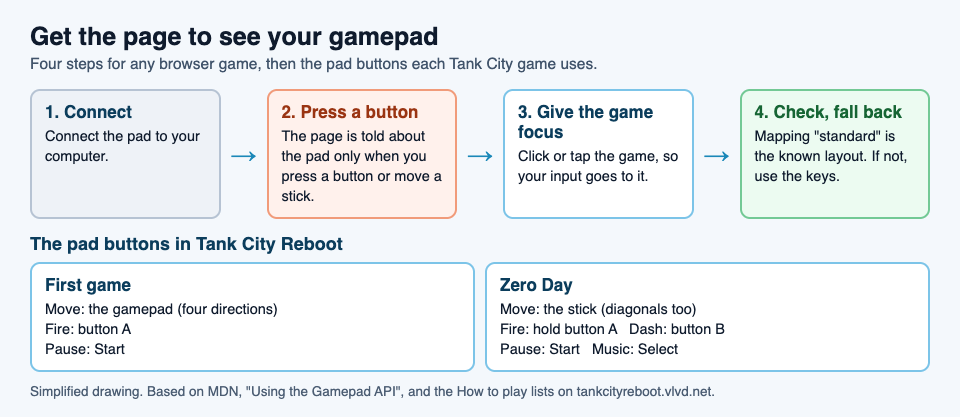
The next three sections explain steps 2 to 4, because those are where most problems live.
Step 2: why you have to press a button first
When a pad is already connected as a page loads, the browser waits. It tells the page about the pad only when you press a button or move a stick. In Firefox the rule is spelled out: pads are shown to a page only when you use one while the page is visible.
The reason is privacy. If any site could quietly list the controllers on your computer, it could use that list as one more clue to recognise you from visit to visit. This is called fingerprinting. Waiting for a press means a page learns about your pad only when you are actually using it there.
So a pad can be fully connected to your computer and still look absent to the game. If nothing happens, press a face button once with the game page in front, then try again.
Step 3: give the game focus
A web page has many parts that can take your input: the page itself, links, buttons and the game area. The part that receives your keys right now is said to have focus. Many browser games only react once they have it.
The fix is simple: click or tap the game before you play. On some sites the game does not even load until you press a Play button, so look for one first. If your keys scroll the page instead of moving your tank, the game does not have focus yet.
Step 4: check the mapping, then fall back if you need to
Pads from different makers report their buttons in different orders. To smooth this over, the browser knows one common layout, called the standard mapping, and remaps a pad to it when it can. When it cannot, the order is whatever the pad reports, and a game may read the wrong buttons.
You can see which case you have. Open your browser's developer console on the game page, press a button on the pad, then type navigator.getGamepads() and press Enter. Look at each pad's mapping value:
"standard"means the browser has remapped the pad to the known layout, so a game written for that layout should read it correctly.- An empty value means there is no known layout for this pad, so the buttons may not match the game's instructions.
If the list is empty even after a button press, the browser cannot see the pad at all. Try another browser, or reconnect the pad.
Whatever happens, keep a fallback. A good browser game also takes keys, and many take touch input on a phone. If the pad will not cooperate, you can still play with the keyboard while you sort it out.
Worked example: playing Tank City Reboot with a gamepad
Tank City Reboot is a free site of two original tank games that play in your browser, on a computer or a phone, with nothing to install and no account needed to play. They need WebGL 2, which a current Chrome, Edge, Firefox or Safari has; this post explains what WebGL is. The page under the first game says it plainly: "Click the game, then play with the arrow keys and Space. A gamepad works too."
Here is the checklist applied to the first game, step by step:
- Connect your pad and open Tank City Reboot.
- Press Play. The page loads the game only when you press Play or Full screen.
- Click the game to give it focus. While it has focus, the arrow keys and Space do not scroll the page.
- Press a button on the pad so the page sees it.
- Move with the pad, and fire with button A. Your tank moves in four directions.
- Press Start to pause. The game shows PAUSED; press Start again to resume.
Those buttons come straight from the game's How to play list on the page:
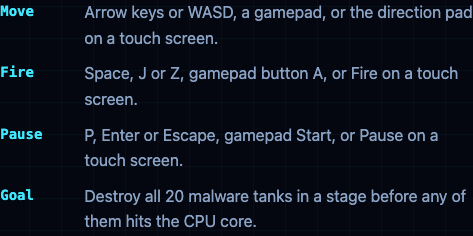
If button A does not fire, go back to step 4 and check the mapping. Your fallback is right there too: Space, J or Z fire, the arrow keys or WASD move, and P, Enter or Escape pause.
The second game: Zero Day on a pad
Tank City Zero Day is the faster second game: eight-way moves, dashes, upgrades and a boss every fifth wave. It uses more of the pad:
- Move: the gamepad stick, diagonals too.
- Fire: hold button A.
- Dash: button B. You cannot be hit mid-dash, which works like the invincibility frames in many action games.
- Upgrade: after each wave, pick one of three upgrades with up and down, then press Fire.
- Pause: Start.
- Music: Select turns the soundtrack on or off.
The same checklist applies: press Play, click the game, press a button. On a phone or tablet you do not need a pad at all, because a touch pad with a direction pad, Fire and Pause appears once the game loads. For every key, button and touch control side by side, see the full tank game controls guide, and for what to practise once the pad works, read these tank game tips for beginners.
Frequently asked questions
Do all browser games support a gamepad?
No. The browser can read your pad, but each game decides whether to listen to it. Check the game's controls or How to play section first.
Why does my gamepad do nothing when the page opens?
The browser does not tell a page about a pad until you press a button or move a stick while the page is open. Click the game, press a button, and try again.
Why are my buttons in the wrong places?
Your pad may not be using the standard mapping, the one common layout the browser knows. Run navigator.getGamepads() in the console, check the mapping value, and try another browser if it is empty.
Which buttons does Tank City Reboot use?
In both games you move with the pad, fire with button A and pause with Start. Zero Day adds button B to dash and Select to turn the music on or off.
Get started
Connect your pad, open the game, press Play, click the game and press a button. If a button misbehaves, check the mapping, and keep the keyboard as your fallback.
Play Tank City Reboot: it is free, plays in your browser on a computer or a phone, and needs no account.
Comments
No comments yet.
Sign in or make an account to comment.