How to prove a music license on YouTube, step by step
If you want to prove a music license on YouTube, the time to get ready is before you upload, not after a claim lands. A license only helps when you can show it fast: a document or code that names you, the track and what you are allowed to do. This guide explains what YouTube treats as a real reason to dispute, the exact steps in YouTube Studio, and how to keep your proof in one place so a claim takes minutes instead of days.
Why you may need to prove a music license on YouTube
Most music trouble on YouTube starts with Content ID. Copyright owners who meet YouTube's criteria submit their audio and video files, and every upload is scanned against them. When there is a match, the video gets a Content ID claim. Depending on the owner's settings, the claim can block the video, run ads on it, or track its views, and that can differ from one country or region to another.
A claim is not the same as a strike. YouTube's help page on copyright claims says you will not receive a copyright strike for videos that contain active claims, and that claims usually do not affect your channel. Still, a claim can take your ad money or hide your video in some places, so it is worth answering when you hold a real license.
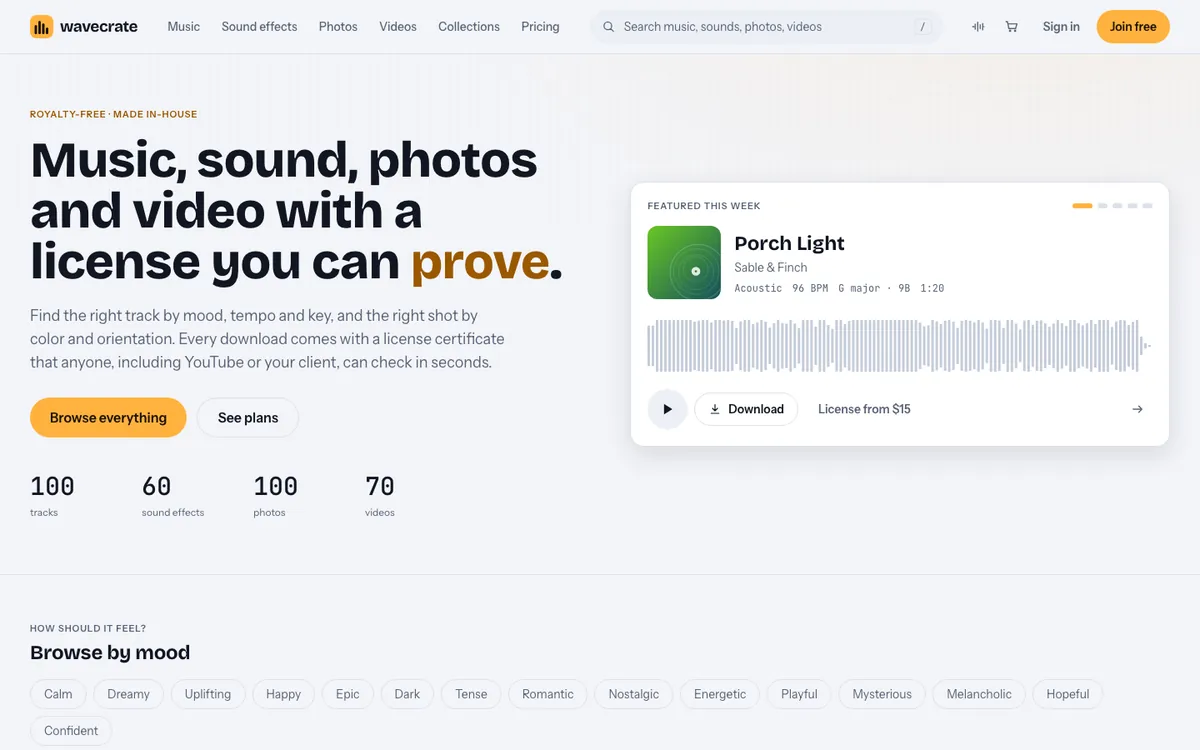
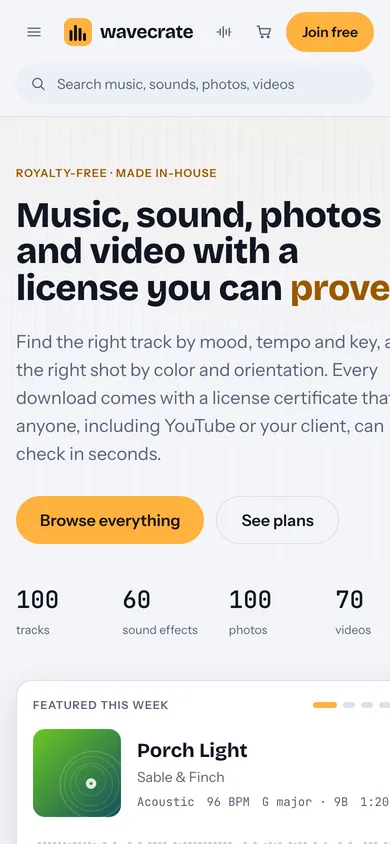
Wavecrate, the music library used as the example in this guide, gives every download a license certificate and a code anyone can check, which is the kind of proof a claim reviewer can confirm quickly.
What counts as proof, and what does not
YouTube's page on disputing a copyright claim says you can dispute if you have all the necessary rights to the content in your video. It also lists three things that are not legitimate reasons to dispute:
- Giving credit to the copyright owner.
- Owning a copy of the video or song.
- Choosing not to monetize the video.
So a credit line in your description is not proof by itself, and neither is the file sitting on your drive. What helps is a license that names you, names the track, and says what the license covers. YouTube adds that it cannot make ownership decisions, because it does not know what content was properly licensed. The person who claimed your video reviews your dispute, so your proof has to make sense to them.
Set up your proof before you upload
Here is a worked example with Wavecrate, where every download comes with a license certificate and a code anyone can check.
- Join with the name you want on the license. The sign-up page asks for a name that is printed on your licenses, so use the name or business a reviewer would expect.
- Pick the license that matches the use. For a video on your own channel, an item marked Free can use the Free license with credit text in the description, or you can use Standard with no credit. A paid ad needs Extended. The plans and licenses page has the full table. Paid licenses (Standard, Extended and Pro) are not on sale yet, and Wavecrate says purchases open soon; the prices shown are the listed prices for when sales open, and items marked Free can already be downloaded with a free account.
- Keep the code and the certificate. With Standard, your registered channels are printed on the certificate. With Pro, they are printed on every certificate.
- Paste the code in your video description. Wavecrate's home page suggests exactly this: anyone can check the code on its verify page. If you used the Free license, add the credit text it asks for too.
- Write down where it went. A short note per video (video title, track, license type, code) means you never hunt through emails when a claim arrives.
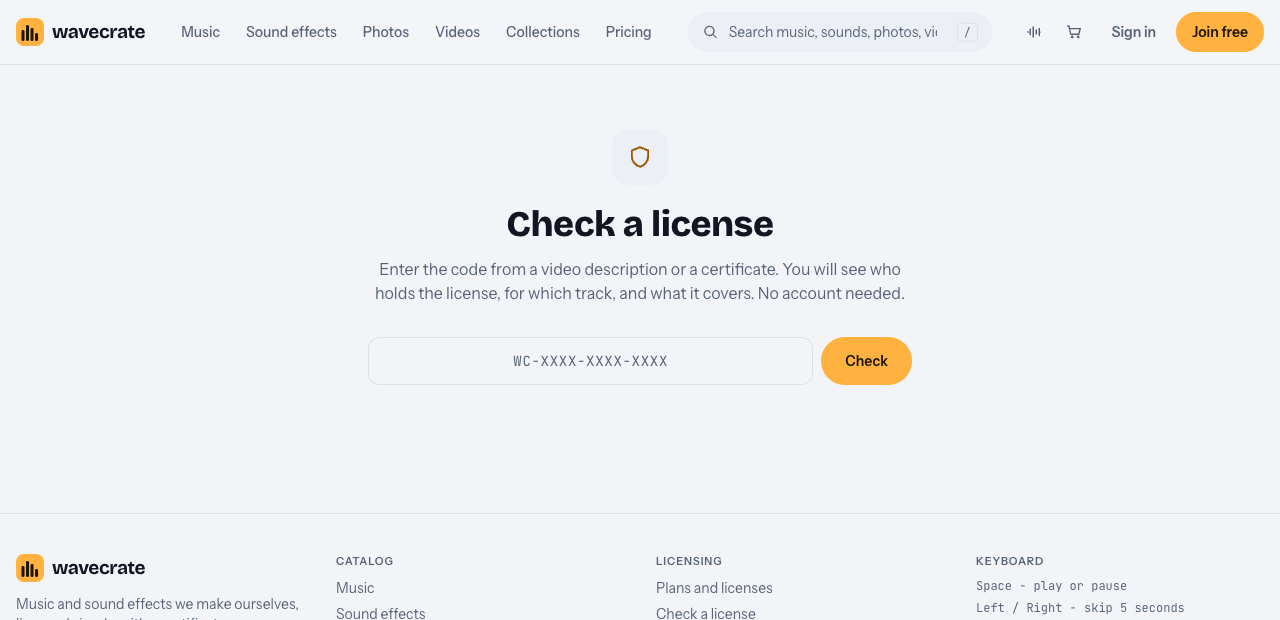
The verify page asks for the code from a video description or a certificate. It shows who holds the license, for which track, and what it covers, and nobody needs an account to use it.
When a claim arrives: the steps in YouTube Studio
YouTube emails you when a video gets a claim. To see it in YouTube Studio:
- Sign in to YouTube Studio and choose Content from the left menu.
- Use the filter bar to pick Claims, then find the video.
- In the Restrictions column, hover over the claim and click See details.
- Under Content used, look at who the Claimant is and which part of the video is claimed.
Before you dispute, check that the claimed part really is the track you licensed. YouTube notes that a video can collect claims from different claimants for different segments. If the claim is for something you did not license, you can leave it, or remove the claimed part with Erase song or Trim out segment.
Dispute the claim with your license
If the claim is on the track you licensed, the dispute steps continue from the same page: under Content used, find the claim, then choose Take action and Dispute. In the dispute, give the license code or the certificate link and say which license you hold. Wavecrate's pricing page says the verify page shows the licensee, the item, the license type and your registered channels, so a reviewer can confirm the license without contacting Wavecrate.
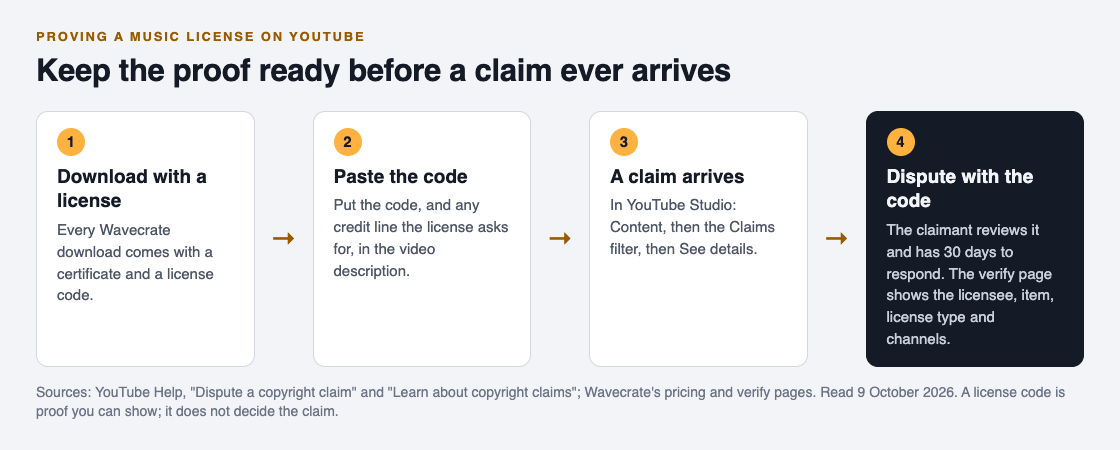
After you submit, the claimant has 30 days to respond. They can release the claim, reinstate it, submit a copyright removal request, or let it expire, in which case it is released. A license code makes your case easy to check. It does not decide the outcome, and YouTube is clear on two more points: only dispute when you are confident you have the rights, because repeated or malicious disputes can bring penalties, and a dispute cannot be cancelled once it is sent.
Keep the license matched to the video
Proof only works if the license covers what the video does. Three things to watch:
- Paid promotion. If you run the video as a paid ad, it needs Extended. Pro gives Standard licenses only.
- Pro ending. Wavecrate says videos you published while subscribed stay covered. New downloads after Pro ends need a free download, a single license, or Pro again.
- The credit line. With the Free license, the credit text is part of the deal. Keep it in the description of every video that uses the track.
Frequently asked questions
Is a credit line enough to prove a music license on YouTube?
No. YouTube lists giving credit to the copyright owner as not a legitimate reason to dispute a claim. You need a license that covers your use; credit may be one of its conditions.
Will a license certificate stop Content ID claims?
Not by itself. Claims are made automatically when an upload matches a file in Content ID, and the claimant reviews any dispute. A certificate and code give the reviewer something clear to check.
How long does a claimant have to answer a dispute?
YouTube gives the claimant 30 days. If they do not respond in that time, the claim expires and is released from your video.
Can someone check a Wavecrate license without an account?
Yes. The verify page takes the code from a video description or a certificate and shows who holds the license, for which track, and what it covers.
Get started
Browse Wavecrate: you can join free and download items marked Free now, paid licenses are not on sale yet (purchases open soon), and every download comes with a license certificate and a code anyone can check on its verify page. Pick a track, keep its code with your video notes, and your proof is ready before anyone asks for it.
Comments
No comments yet.
Sign in or make an account to comment.