How-to video for a help centre article, recorded in Chrome
A how-to video for a help centre article does one thing: it shows the reader the exact clicks the text describes. You do not need a studio. You need the written steps you already have, a quiet minute and a recorder that saves the file on your own computer. This post walks through it in Chrome with Cheap Recorder.
Choose the article that needs a video
Do not film the whole help centre. Pick the article readers open and then still write in about.
Good candidates have three things in common:
- The task has a clear start and a clear finish.
- The steps cross several screens, so words alone are slow to follow.
- The task takes a few minutes at most. A longer job is two articles with a video each.
Finish one article before you start the next. A shipped video for one article beats ten half-recorded ones.
Turn the written steps into a spoken script
Your article is most of the script already. Copy its numbered steps into a plain document and add one spoken sentence for each. Say what you are about to click, then click it. Keep the written article complete, so it still works for readers who skim or watch with the sound off.
Here is a made-up example for an article called "Reset a teammate's password":
- "This takes about a minute. I will reset a password from the admin page."
- "Open Settings, then Team."
- "Find the person and press the three dots next to their name."
- "Choose Reset password. They get an email with a link."
- "That is all. If the email does not arrive, see the article on email delivery."
Read it aloud once with a timer. If you trip over a line, shorten it. Add a spoken warning at any step where people usually go wrong, because that is the part they came to watch.
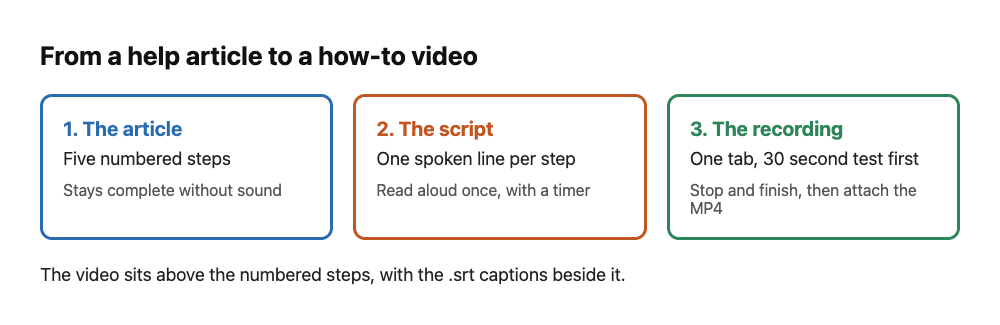
One article, five steps, five spoken lines, one recording.
Get the screen ready before you record
Anything on the shared screen ends up in the file. Close the tabs and apps you do not need and silence notifications. If the product shows real customer names, use a demo account.
Cheap Recorder can share a whole screen, a window or one browser tab. For a how-to, one tab or one window is usually best, because it leaves your other tabs and apps out of the file. If the task lives in a web app, share that tab.
For sound, use a headset or a desk microphone close to your mouth rather than a laptop microphone in a noisy room. If a recording ends up silent, the no sound guide covers the usual causes.
Record a how-to video for a help centre article in Chrome
Open the recorder in Google Chrome on macOS, Windows or Linux. The Free plan includes recording, live transcript and captions, and 12 hours of recording a month on 1 device, with no card needed. A one-minute help video uses a tiny part of that.
- Choose a folder. Under Where to save, press
Choose folder...and allow Chrome to edit files there. The recorder does not remember the folder between visits, so you pick it each time. - Name the recording after the article. In
Name this recording, type something likeHelp - Reset password. The name is used for the file and its folder, and the folder also gets the date and time. - Pick what to capture. Under What to capture choose A browser tab or A window. Chrome opens its own sharing box. Pick one and press Share.
- Check the language. Live transcript is ticked by default under Options. The language menu goes back to its default each time the page opens, so check it before every take.
- Check the microphone. Tick the microphone you speak into and watch its level bar move while you talk.
- Press Start recording. If it is greyed out, read the note beside it. It names one reason at a time, so fix it and read the note again.
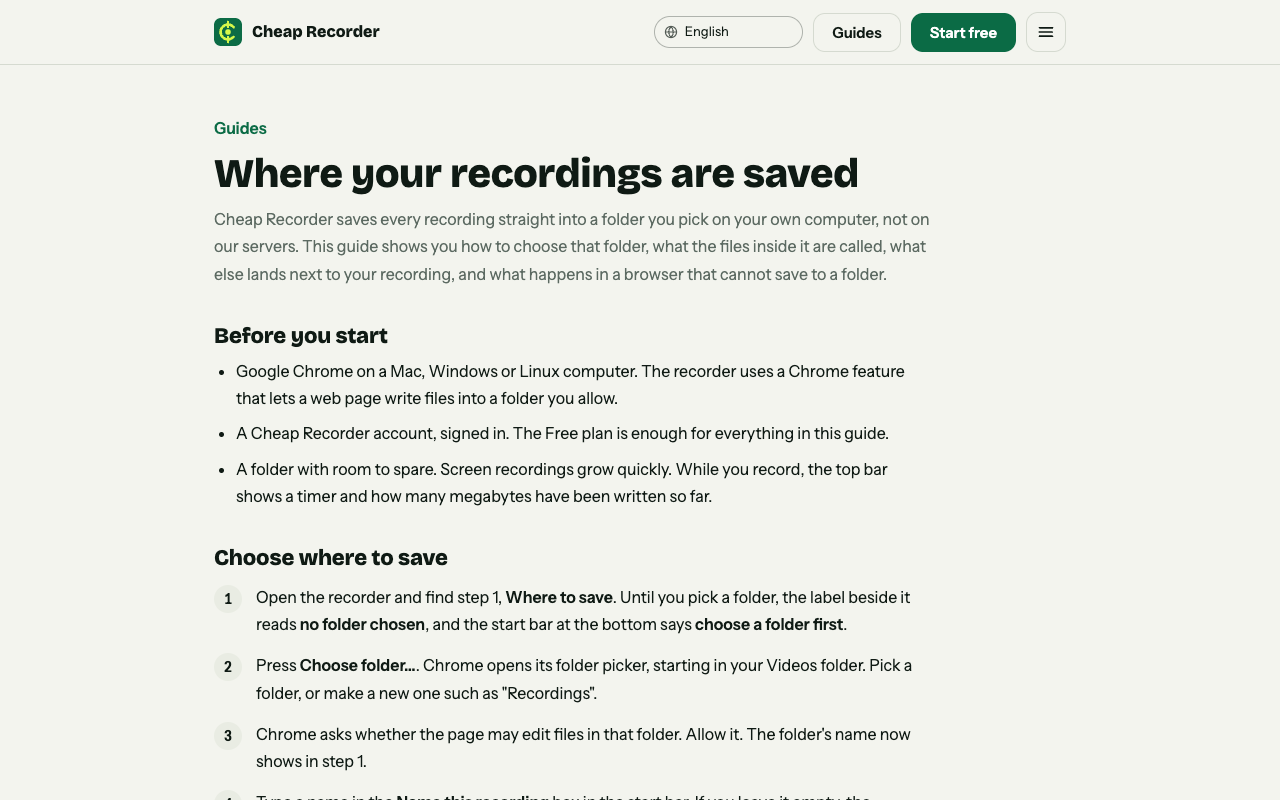
The guide on where recordings are saved shows the folder and the files you get.
Before the real take, record 30 seconds and play it back. It catches a wrong microphone or a muted tab, and costs you a minute instead of a full re-record.
Then follow your script. Press M or Add marker at the start of each step if you want chapters. With the default single MP4 the marker notes show while you record but are not saved. To keep them, tick Also save every source separately under Options before you start.
Press Stop and finish when you are done. Do not use Chrome's own Stop sharing bar, because that also ends the recording. The MP4 is already in your folder, with H.264 video and AAC sound, and the page shows a player.
Add captions and keep the file small
Many readers watch help videos with the sound off. While the recorder page is open, the card has Captions .srt. It is plain text, so you can fix a wrong word in any text editor, and it is made in the page, not saved in your folder. Download it before you close the tab. The transcript, a file ending in - transcript.txt, is in your folder with times and speaker names.
While the live transcript is on, Chrome sends your microphone audio to Google to turn it into text. If a recording must not leave your computer in any form, untick Live transcript before you press Start recording.
For a one-click step, you can turn the recording into a GIF. A GIF is silent, 640 pixels wide and runs at 12 frames a second, so keep it to a few seconds. The convert guide has the steps. Convert and Download MP3 send the file to the Cheap Recorder server, which deletes it when done. The original in your folder never changes.
Attach the video to the article
Cheap Recorder does not host your video. Upload the MP4 wherever your help centre keeps media. Put it near the top, under the short intro and above the numbered steps, and give it a title that matches the article. Upload the .srt next to it if your host takes captions.
If you would rather hand over one page than a file, the publish page is another route on Creator and up. Tick Also save every source separately before recording, and the folder gets a publish.html with a player, chapters and the transcript. Send the whole recording folder, zipped, not only the page. The publish page guide explains it, and zip a screen recording folder so the demo page opens covers the zipping.
Fixing a mistake and keeping videos current
If a take goes wrong, record it again. A one-minute video is cheap to redo, and that is the best reason to keep them short.
For small slips there is a route. On plans that include cutting words from the transcript, Remove filler words marks words like um and you know. Word timings are estimates, so watch the result before you share it. The filler words guide says what saving changes.
Screens change, and a video of an old menu is worse than none. Build a small habit:
- Name each recording after its article, so you can find it when the product changes. Naming recordings so every take stays in order has a pattern that works.
- When a release changes a screen, re-record the same day you update the text.
- Tell your support team which articles have videos, so they send the right link. Answering a support ticket with a short screen recording uses the same one-minute routine.
If anyone else appears or speaks in a recording, tell them before you start. Recording people may need their agreement, depending on where you are.
Frequently asked questions
How long should a help centre how-to video be?
As long as the task, ideally a few minutes or less. If the task needs more, split it into two articles with a video each.
Does Cheap Recorder upload my video?
No. The recording is written to a folder on your own computer. The exceptions are Convert and Download MP3, which send the file to the server and delete it there when done.
Can I add captions to the video?
Yes. With Live transcript ticked, press Captions .srt on the card while the recorder page is open, then upload the file next to the video on a host that takes captions.
Does the Free plan cover a help video?
Yes. The Free plan includes recording, live transcript and captions, and 12 hours of recording a month on 1 device, with no card needed.
What if I make a mistake while recording?
Stop and record it again. A one-minute take takes a minute to redo.
Get started
Pick one article, write five spoken lines and record a 30 second test today. When it sounds right, record the real take and put it at the top of the article.
The free plan needs no card. Try Cheap Recorder in Chrome, and your recordings stay on your own disk.
Comments
No comments yet.
Sign in or make an account to comment.