How to write a tutorial for a tool you built
If you want to know how to write a tutorial for a tool you built, start with a warning: you are the worst person to test it. You know every flag, every default and every quirk. The reader knows none of them. A good tutorial closes that gap one step at a time.
This guide walks through a method you can reuse. The worked example is a small command line tool called Pruneline, which cuts old lines out of log files. It is made up for this post, so there is nothing to install, and the steps apply to any tool you ship.
The trouble is memory. You no longer remember what it was like to not know. You skip a step because it feels obvious. You use a word from your own code and assume it is common. You run the tutorial on your own machine, where everything is already installed and configured.
The result looks fine to you and fails for a stranger at step two. The rest of this post is a set of habits that stop that from happening.
Pick one reader and one outcome
A tool usually does many things. A tutorial should do one. Decide who is reading and what they will have when they finish.
For Pruneline, a weak goal is "learn Pruneline". A strong goal is: "A developer with a folder of app logs will delete every line older than seven days, and check the result."
Write that sentence first and put it at the top of the tutorial. It tells the reader whether they are in the right place. It also gives you a rule for later: if a step does not serve that outcome, it goes.
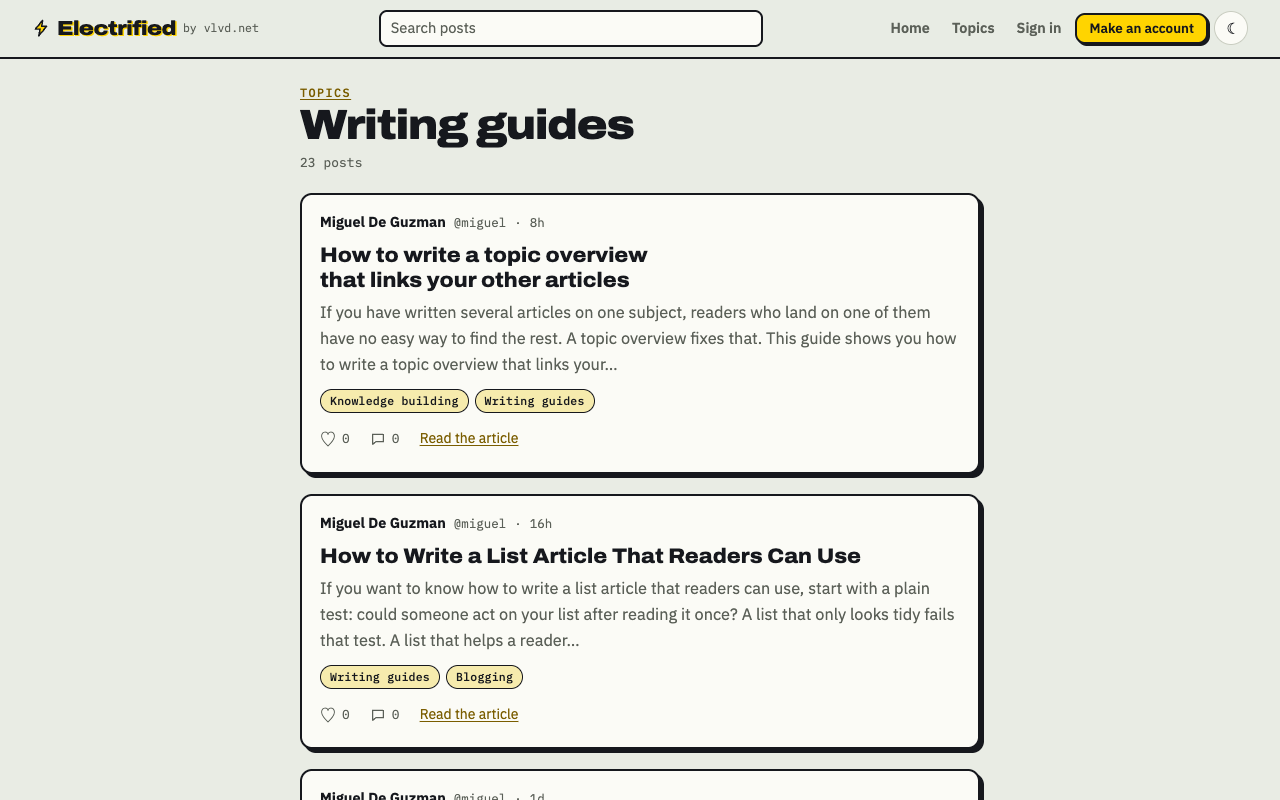
Other uses of the tool can get their own tutorials. If you want to tie them together, a short overview page works well. This guide on writing a topic overview that links your other articles shows how.
List what the reader needs before step one
Most failed tutorials fail before the first step. The reader lacks a version, a permission or a file you took for granted. Put a short "Before you start" list at the top. Be exact.
- The operating system you tested on.
- The runtime and its version number.
- How to install your tool, as one command they can copy.
- Any sample file they need, and where to get it.
For Pruneline that might read: "You need a terminal on macOS or Linux, Python 3.11 or newer, and a folder with at least one .log file. If you do not have one, the next step creates a sample."
Then give them the sample. A tutorial that depends on the reader's own messy data is hard to follow. A tutorial with a file you provide is repeatable, and you can describe the exact output they should see.
Write a tutorial for a tool you built from a clean setup
Do not write the tutorial from memory. Write it while you do the task, on a machine or account that has never seen your tool. A fresh virtual machine, a container or a new user account all work.
Follow this loop:
- Start from the clean setup.
- Do one step exactly as written.
- Copy the command and the output into your notes at once.
- If anything surprised you, add a line to the tutorial.
Keep each step to one action. "Install the tool and make a config file and run it" is three steps. Number them separately so the reader can tell where they got stuck.
A step for our example looks like this:
Step 2. Run a dry run. Type
Pruneline --older-than 7d --dry-run app.log. Nothing is deleted. The tool prints how many lines it would remove.
Notice what it has: the exact command, the effect, and a note on what the tool prints. Name the file, the flag and the unit. Do not write "run it with the right options".
Show results after every step
Readers need proof that they are on track. After each step, say what they should see. It can be a line of output, a new file or a changed number.
For the dry run above, add: "You should see something like 412 lines would be removed (a made-up number). Your number may differ, but it should not be zero. If it is zero, your file has no lines older than seven days. Go back to the sample file in the setup list."
That last sentence matters. It names the most likely mistake and says where to go. You know the common mistakes better than anyone, since you have hit them all. Put the top two or three next to the step where they happen.
Check that the tool's output in your tutorial is real. Paste it from your own run. Do not retype it, and do not tidy it up. If the tool prints a warning on a clean setup, show the warning and say it is harmless, or fix the tool.
Cut what you know but the reader does not
Once the steps work, read them again as a stranger. Look for three kinds of problems.
- Private words. If you call a setting "the window" in your code but the docs call it "retention", use the word the reader will see on screen.
- Skipped jumps. Did you say "open the config" without saying where it lives? Add the path.
- Side stories. The history of why you built the tool is interesting to you. Move it to an about page. This guide to writing an about page for your project explains what to put there.
Cut anything that is not needed to reach the outcome. Advanced options can go in a closing "Where to go next" list, with one line each. Do not teach them in the main path.
If you find yourself explaining the same thing in several places, you may have a question readers keep asking. That deserves its own post. See how to write a post that answers a question you keep getting asked.
Test the tutorial with a newcomer
Your own clean-setup run catches broken commands. It does not catch confusion. For that you need someone who has never used the tool.
Ask one person to follow the tutorial while you watch. Rules for the session:
- Do not talk them through it. If you have to speak, the text has a gap.
- Write down every pause, every question and every wrong turn.
- Note the step number each time.
- Fix the text, not the person.
One session with one newcomer often shows more problems than ten re-reads by you. If you cannot find anyone, wait a few days and then follow the tutorial yourself, from the top, on a fresh setup. The distance helps a little.
Publishing your tutorial on Electrified
When the tutorial works, you need somewhere to put it. On Electrified you get your own page at /@handle, and your articles live there. Choose Article in the editor. An article has a title of up to 140 characters and as many sections as it needs. Start a section with ## and a heading, which maps neatly onto your numbered steps.
Some details that help with a tutorial:
- The body box has Write and Preview tabs, and the preview looks like the published page. Check how your commands and lists look before you publish.
- Inline code with backticks works, so commands stand out from the text.
- Use Save draft while you test. A draft is seen only by you, and not by search engines, until you publish.
- Add up to 5 topics, separated by commas. Each topic links to a page of every post about it, so readers of one tutorial can find the next.
Screenshots can be added to an article, but the editor has no picture button. Pictures are uploaded through the site's images API with a personal token, in PNG, JPEG or WebP, at most 2 MB each. A token can only save and edit drafts. You publish from the site yourself.
If you plan a run of tutorials, one per task, a feed helps readers keep up. Your posts appear at /@handle/feed.xml. Guides like this one sit together on the writing guides topic page.
Frequently asked questions
How long should a tutorial for my own tool be?
As long as the steps need and no longer. If it takes more than about ten steps to reach the outcome, split it into two tutorials with two outcomes.
Should I explain why each step works?
Give one short sentence when the reason changes what the reader does, such as why a dry run comes first. Leave deeper explanations for a separate post, so the main path stays quick.
What if my tool changes after I publish?
Rerun the tutorial from a clean setup after each release. Edit the article and save the changes; a published post keeps its address.
Can I use a list format for the steps?
Yes. Numbered lists suit steps well, and the editor reads them. For tips on making lists readers can use, see how to write a list article that readers can use.
Get started
Pick the one task a new user most needs to finish with your tool. Write its outcome in one sentence, run it on a clean setup, and note every step as you go. Then give it to a newcomer.
Make an account on Electrified: write about your product, topic or idea on your own page, one article at a time, and let readers follow along.
Comments
No comments yet.
Sign in or make an account to comment.