How to write an article that explains what your app does
An article that explains what your app does has one job: a stranger reads it and can then say, in their own words, what the app is for. To get there, lead with the problem your reader already has, say what your app does in one sentence, then show one person finishing one task with it. How it works, the price, privacy and the link to try it come after that. This guide walks through each part with a made-up app, so you can copy the shape for your own.
The example app is called Splitkettle, a made-up name for this example. Splitkettle splits shared bills between housemates and shows each person what they owe. Keep your own app in mind as you read, and swap in your details at each step.
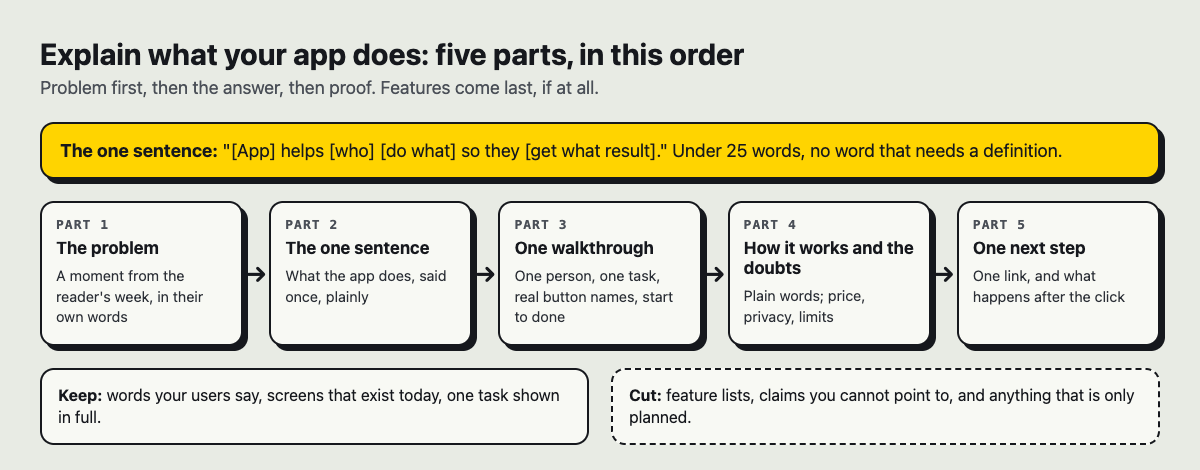
The five parts, in the order a new reader needs them.
The order for an article that explains what your app does
Many app articles open with the app. "Splitkettle is a powerful, intuitive platform for shared expenses." The reader has not decided they care yet, so the sentence tells them nothing they can use.
The second common slip is the feature list. Ten bullet points, each one true, none of them tied to a moment in the reader's life. A feature list answers "what can it do?" before the reader has asked.
The fix is to reverse the order. Problem first. Then the one-line answer. Then proof. Then the doubts. Then one next step. If your app is brand new and you are announcing it, the guide to a product launch post people actually read covers the day-one version; this article is the one that keeps explaining the app after launch day.
Start with the problem your reader already has
Write the opening as if you are describing the reader's week back to them. Be specific enough that they recognise it.
Weak opening for Splitkettle:
Splitkettle offers bill splitting, recurring expenses, reminders and export to spreadsheet.
Stronger opening:
You paid the electricity bill three weeks ago. Two housemates paid you back. One said "I'll send it Friday" and you do not remember which Friday. You do not want to ask again.
The second version names a moment, a feeling and a cost. The reader now wants the answer. To find your own version, reread the messages people sent you when they first asked about your app, or the words they used when they told a friend about it. The problem is usually sitting there, in their words, not yours.
Write a one-sentence summary and test it
Right after the problem, give the answer in one sentence. Use this shape:
[App] helps [who] [do what] so they [get what result].
For Splitkettle: "Splitkettle helps people who share a home split bills and see who owes what, so nobody has to keep track in their head."
Now test it. Read the sentence to someone who has never heard of your app and ask them to say back what it does. If they repeat it in their own words, it works. If they say "so it is like a budgeting app?", the sentence is too vague. Fix the "who" or the "what" and try again.
Three more checks:
- No word in it needs a definition. Cut "platform", "solution" and "seamless".
- It describes the result, not the screen.
- It is under 25 words.
Show one walkthrough: a person, a task, and the result
This is the part that lets a reader picture using the app. Pick one person and one task, and walk through it step by step. Not every feature. One path from start to done.
For Splitkettle, it might read like this:
- Sam pays the 90 dollar electricity bill and opens Splitkettle.
- Sam adds the bill and picks the three housemates who share it.
- Splitkettle shows that each of the three owes 30 dollars, and sends each one their amount.
- When Priya pays, Sam taps "Settled". The list now shows who still owes.
Notice what the walkthrough does. It uses a named person, numbers that add up and a clear end. Write yours with the real button labels from your app, so a reader who tries it sees the same words on screen. If your app has two very different kinds of user, write a second short walkthrough later, or a second article. Do not mix them in one.
Explain how it works in plain words
Some readers want to know what happens behind the button. Give them a short section, two or three paragraphs, in the words you would use with a friend.
Instead of "Splitkettle uses an event-driven ledger with eventual consistency," write: "Every bill and every payment is saved as a line in one shared list. Each person's phone reads the same list, so everyone sees the same balance."
A good test: if a sentence only makes sense to someone who builds software, cut it, or move it to a separate technical post and link to it. Your explainer is for the person with the problem.
Answer the doubts: price, privacy and limits
By this point the reader is interested and starting to look for reasons to say no. Name those reasons yourself and answer them.
Price
Say what it costs, plainly, in one place. If there is a trial or a limit, say what happens when it ends. If you have not decided on a price yet, say that instead of leaving the reader to guess.
Privacy
Say what data you keep, why, and who can see it. Only describe what you have actually built. If you are not sure how something works in your own app, check it before you write the line, not after.
What it does not do
Say where your app stops. Splitkettle, in this example, does not move money; it only keeps the list. A reader who learns that from your article is not let down later.
Why change from what they use now
Your reader already has a way of handling the problem, even if it is a group chat and a notes file. Compare against that, not against another company. For Splitkettle: "A group chat works until someone scrolls past the message. Splitkettle keeps the balance in one place that does not scroll away." Be honest about where the old way is fine.
End with one clear next step
Close with one action. Not "download it, follow us, join the community and read our docs." Pick the one thing a ready reader should do next, and give it one link.
Then click that link yourself, on your phone, signed out. A link that fails at the end wastes every paragraph above it. If it goes to a sign-up page, say what the page will ask for, so there are no surprises.
Before you publish, read the article top to bottom once more and ask: if someone reads only the first paragraph, can they say what the app does? If not, rewrite the opening.
Frequently asked questions
How long should an article explaining my app be?
Long enough to cover the problem, the one sentence, one walkthrough, how it works and the main doubts, and no longer. If a section does not help the reader understand or decide, cut it.
Should I include screenshots?
One or two real screenshots of the walkthrough help a reader follow along, as long as they show the app as it is today. On Electrified, an article can show pictures uploaded to the site (PNG, JPEG or WebP, up to 2 MB each); the editor has no picture button, so pictures are uploaded through the site's images API with a personal token.
Will the article make my app rank on Google?
No one can promise that. Write for the phrase people actually type, put it in your first paragraph and one heading, and answer the question well. Do not count on links inside posts for search credit, since most writers' links on Electrified carry rel="nofollow ugc".
Where should I publish an article about my app?
Somewhere you can keep writing about it over time. The guide on where to publish an article about your product if you have no blog compares the kinds of place you can use.
Get started
Electrified is a site to write and be read, and posts are not limited to any one subject, so you can write about your own app there. Make an account with your name, a handle, your email and a password, and your page lives at /@handle, with its own Atom feed at /@handle/feed.xml.
A simple way to publish this article:
- Open the editor and choose Article. Give it a title (up to 140 characters) and start each section with
##and a heading, using the five parts above. - Use the Preview tab to check it. It looks like the published page.
- Add up to five topics, separated by commas, such as your app's category and the problem it solves. Each topic links to a page of every post about it, like the Promote your work topic page. The topics page shows what people already write about.
- Click Save draft. Only you can see a draft, and search engines never do. When you are happy, click Publish. A published post keeps its address, so the link you share keeps working.
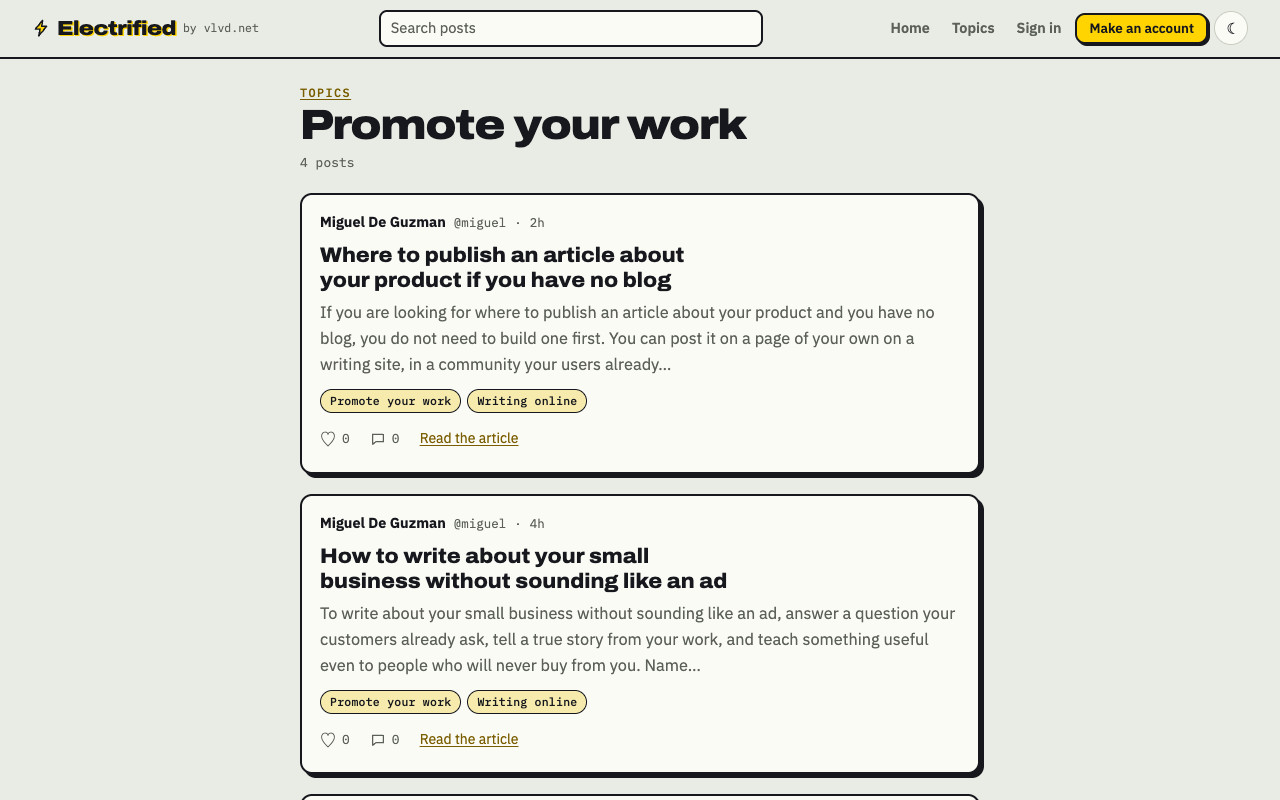
A topic page collects every post filed under that topic.
If you use a writing assistant, you can make a personal token in Settings so it can save and edit drafts for you. It cannot publish; you press Publish yourself.
Make an account on Electrified: write about your product, topic or idea on your own page, one article at a time, and let readers follow along.
Comments
No comments yet.
Sign in or make an account to comment.