How to write release notes people want to read
To write release notes people want to read, write them for the person who uses your product, not for the team that built it. Say what changed for that person first, put anything they must act on at the top, describe each change as a before and an after, and leave internal work out. This guide shows you how, with a template you can copy and a worked example for a made-up app.
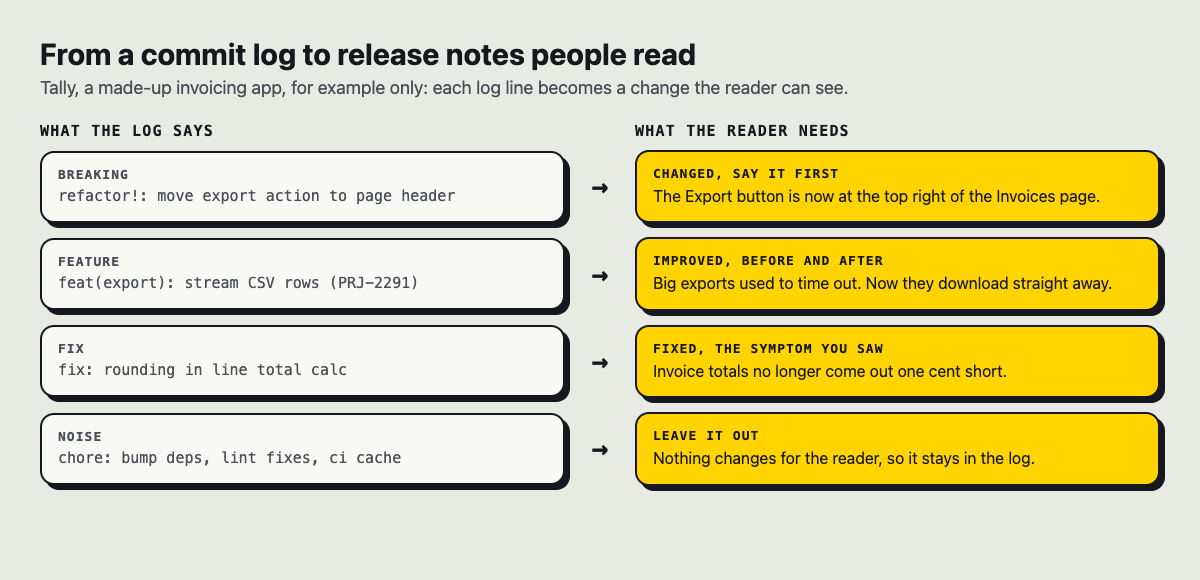
Each log line becomes a change the reader can see, or it stays in the log.
Why release notes get skipped
Here is a line you may have seen in release notes: "PRJ-2291 refactor sync handler. Bump dependency. Misc fixes." It made sense to the person who wrote it. To a customer, it says nothing.
Three things make release notes easy to skip:
- The reader cannot tell what changed for them. Ticket numbers and internal names hide the point.
- Everything looks equally important. A moved button sits in the same flat list as a typo fix.
- Nothing tells the reader what to do. The notes describe work but never say "try this" or "you no longer need to do that".
Fix those three and your notes become something people open on purpose.
Know who reads your release notes
Before you write a line, name your reader. Many products have two or three kinds:
- Everyday users want to know what is easier now and whether anything moved.
- Admins want to know about settings, limits and anything that could break the way their team works.
- Developers using your API want exact names, versions and anything being retired.
Pick the main reader for each release and write for them. If a change matters only to developers, give it a short section of its own at the end. Then read each entry and ask: would my main reader care about this sentence? If not, move it or cut it.
Lead with what changed for the reader
The first words of every entry say what the reader can now do, or what problem is gone. The ticket number, if you keep it at all, goes at the end.
Compare these two, both about the made-up app in this guide's example:
- Weak: "Implemented CSV streaming in export service (PRJ-2291)."
- Strong: "Big exports no longer time out. They now download straight away."
The second tells the reader what changed and what they will see. The same rule applies to the top of the whole post. Open with one or two sentences that sum up the release: "This release fixes big exports and adds a dark theme. The Export button has moved." A reader who stops there still got the news. It is the same idea as opening a product launch post or an article that explains what your app does with the answer.
Sort changes by what the reader must do
People scan release notes, so give them sections their eyes can land on. Four cover almost every release, in this order:
- Changed or removed: anything that could surprise someone, such as a moved button or a retired feature. It goes first because it is the part a reader may have to act on.
- New: things you could not do before.
- Improved: things that already existed and now work better.
- Fixed: problems that are gone.
Leave out any section with nothing in it. Inside each section, put the change that touches the most people first and the rare edge case last.
Write release notes in plain words, as a before and after
The clearest way to describe a change is to show the old state and the new one. The reader already knows the before: they lived it.
Give each entry this shape:
- What you can do now, in one short sentence.
- Before: what used to happen.
- After: what happens now.
- Where to find it, if that is not obvious.
A few rules keep it plain:
- Use the names on the screen. If the button says Export, do not call it "the download module".
- Keep sentences short, one idea each.
- Use a number only when you measured it. A measured "2 seconds instead of 8" beats "much faster"; a guessed number is worse than none.
- Write "you", not "the user".
- Skip words like "seamless" and "robust". Say what it does instead.
Small fixes can be one line: "Fixed: the date picker no longer jumps to January when you open it in December." That is a full, useful entry.
Add pictures, links and one next step
A screenshot of a new screen can save a paragraph. Use one for anything visual, such as a new layout or a moved setting, and skip it for fixes the reader cannot see.
Links let you keep the notes short. If a feature needs more than three sentences, write a separate guide and link to it; how to write a how-to guide with a worked example walks through that format.
End with one next step, not five. Pick the change you most want people to try and point at it: "Open Settings, then Appearance, and switch on the dark theme." One action gets done; a list of options gets skimmed.
A release notes template and a worked example
Here is a template to copy. Fill in the brackets and delete any section you do not need.
[Product] [version or date]: [the biggest change in one line] [Two sentences: what this release does for you, and anything you need to know right away.] Changed or removed: [what moved or went away, where it is now, what to do instead]. New: [what you can do now]. Before: [old state]. After: [new state]. Find it in [place]. Improved: [what works better]. Before: [old state]. After: [new state]. Fixed: [the symptom the reader saw, now gone]. Try this first: [one action, with the exact steps].
Now the template filled in for Tally, a made-up invoicing app (it is not a real product):
Tally, October update: big exports fixed, and a dark theme Exports of any size now download straight away, and you can switch Tally to a dark theme. The Export button has moved to the top of the Invoices page. Changed: the Export button is now at the top right of the Invoices page. It used to sit at the bottom of the list, below every invoice. New: a dark theme. Before: Tally had only a white background. After: you choose light or dark. Find it in Settings, then Appearance. Improved: big exports. Before: files over 50,000 rows often timed out. After: they download straight away. Fixed: invoice totals no longer come out one cent short when a line has three decimal places. The date picker no longer jumps to January when you open it in December. Try this first: open Invoices, click Export at the top right, and download last year's invoices in one file.
Notice what is missing: no ticket numbers, no dependency bumps, no "various improvements". Every line is something a Tally user would notice.
Frequently asked questions
How long should release notes be?
As long as the changes your reader will notice, and no longer. A small release might be three lines; a big one might run a few hundred words, with links to separate guides for anything that needs more.
What is the difference between release notes and a changelog?
A changelog is usually a full record of every change, often written for developers. Release notes are a chosen summary for users that says what changed for them and what to do about it.
Should release notes mention bug fixes?
Yes, if a user could have run into the bug. Describe the symptom they saw, not the cause in the code, and keep small fixes to one short list at the end.
Can I edit release notes after I publish them?
Yes. On Electrified, a published post has a Save changes button and keeps its address, so links people already shared still work.
Get started
Electrified is a site to write and be read, and anyone can make an account and write about their product there. If your product already has a changelog page, keep it: an article on Electrified is a place to explain a release in more depth, under your name, next to your other posts.
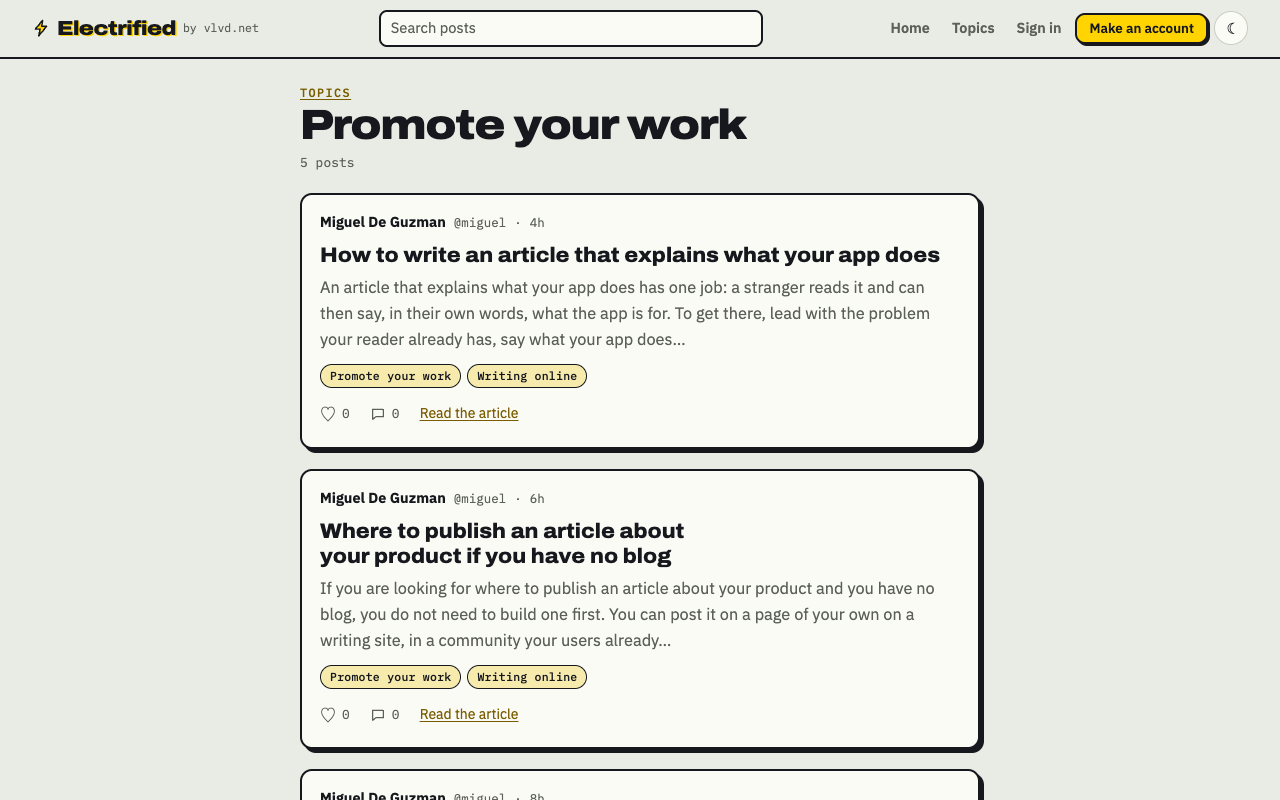
Each topic on a post links to a page of every post about it, like this one.
Signed in, open the editor and choose Article. Each section of the template becomes a heading: start a line with ## to make one. The editor also reads lists, **bold** and > quotes, and the Preview tab shows the post as it will look when published. A few details suit release notes:
- Drafts stay private. Save a draft while the release is still in testing; only you can see it until you publish it.
- Topics group your updates. Each post can carry up to 5 topics of your choosing, such as your product's name, and each topic links to a page of every post about it, like Promote your work.
- Your page has its own feed. Every writer gets a page at
/@handleand an Atom feed at/@handle/feed.xml, so anyone who follows you in a feed reader gets each new post there. Miguel's feed is one example. - Short notices work too. For a small patch, a note of up to 500 characters may be all you need.
- Screenshots are uploaded through the site's images API with a personal token (PNG, JPEG or WebP, up to 2 MB), since the editor has no picture button. A token can only save and edit drafts; publishing is always done by you on the site.
Make an account on Electrified: write about your product, topic or idea on your own page, one article at a time, and let readers follow along.
Comments
No comments yet.
Sign in or make an account to comment.