Name screen recordings so every take stays in order
If you record the same lesson five times, you want to open the folder and see take 1 through take 5 in a clean line, not scattered between last week's demo and a file called Recording. This guide shows you how to name screen recordings so every take stays in order, using a simple pattern that any file manager on macOS, Windows or Linux sorts correctly. It also shows how Cheap Recorder builds its folder names, so you can work with that pattern instead of against it.
Why default names fall out of order when you name screen recordings
Most naming trouble comes from three habits.
- No name at all. In Cheap Recorder, if you leave Name this recording empty, the recording is simply called Recording. Ten of those in a folder tell you nothing.
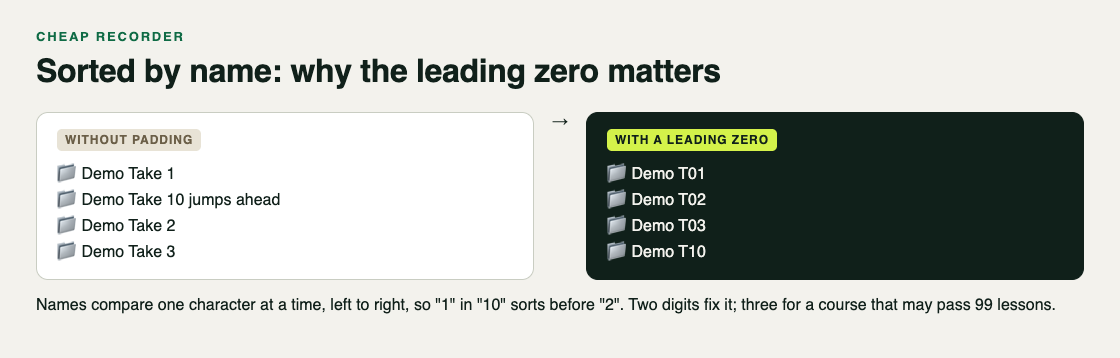
- Numbers without padding. A file manager sorting by name reads left to right, one character at a time. "Take 10" starts with "Take 1", so it lands before "Take 2".
- Dates written the local way. A name like 10-09-2026 sorts by day first, so October 9 sits next to September 10 of another year.
Fix those three, and the sort order looks after itself.
The naming pattern that sorts every take correctly
Here is a pattern that works for courses, demos and repeated takes:
Project S02 T03
That reads as project, scene 2, take 3. Put the part that changes least on the left and the part that changes most on the right. Everything for one project groups together, then each scene, then each take inside the scene.
In Cheap Recorder, the name you type in Name this recording is used for both the recording's file and its folder. The recorder then adds the date and time the recording began, taken from your own clock. So if you type Onboarding S02 T03 and start at 2:05 in the afternoon on 10 October 2026, you get a folder like this:
Onboarding S02 T03 - 2026-10-10 14.05
Inside it sits Onboarding S02 T03.mp4. The guide to where recordings are saved covers the folder setup step by step, and where screen recordings are saved shows what lands in each folder.
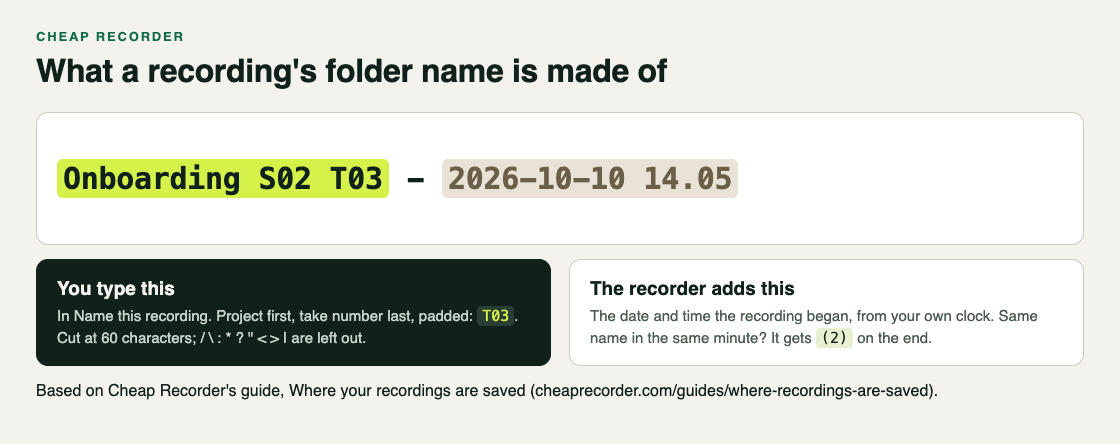
Because the date is already added for you, you do not need to type it. Sort the folder by name to group a recording's takes. Sort by date to see everything in the order you made it.
Use zero padded take numbers and ISO dates
Zero padding means writing 03 instead of 3. If you might ever pass take 9, pad to two digits. If a course could pass 99 lessons, pad to three: Lesson 003.
The course guide gives the same advice: number your names, for example Lesson 03, so the files stay in order. You can read the full lesson workflow in the course and tutorial guide.
For dates, use year, month, day, in that order, with leading zeros: 2026-10-10. This is the ISO style. It sorts correctly as plain text because the biggest unit comes first. Cheap Recorder already writes the folder date this way, followed by the time with a dot between hours and minutes (14.05).
A worked example for one afternoon of recording:
- Type
Pricing tour S01 T01and record. - Press Stop and finish. The card shows saved to and the folder's name.
- Change only the last number:
Pricing tour S01 T02. Record again. - Move to the next scene:
Pricing tour S02 T01.
Sorted by name, the folder list now reads in exactly the order you shot it.
If you reuse the exact same name twice within the same minute, the recorder adds (2) to the end of the second folder name, so nothing is overwritten. Still, a fresh take number is clearer than relying on that.
Add project, scene and status without breaking the sort
You can add more detail, as long as it goes to the right of the parts that sort. Good additions:
- Language or audience:
Onboarding S02 T03 ES - Status after review:
Onboarding S02 T03 keep - Version for a client:
Acme demo v02 T01
Two limits apply to names you type in Cheap Recorder:
- Length. Names are cut at 60 characters. Keep the project word short, such as "Onb" or "Pricing", so the take number never falls off the end.
- Characters. The name keeps spaces, accents and any alphabet. Only
/ \ : * ? " < > |are left out. So "Q3 review: final!" becomes "Q3 review final!". Avoid those characters and what you type is what you get.
If you record lessons in more than one language, putting a language code at the end keeps each version next to its siblings. The post on transcribing a screen recording in Spanish, Hindi or Filipino covers the transcript side of that.
Rename a folder of old recordings in a few minutes
Cheap Recorder files are ordinary files on your disk, so you can rename them with your normal tools. One rule first: finish any downloads or conversions from the recording card before you rename or move anything, because the card reads the file from where it was saved.
On macOS
Select the recording folders in Finder, right click, and choose Rename. Use Replace Text to swap "Recording" for your project name, or Format to number them in sequence. Then fix any single digit numbers by hand.
On Windows
Select the recording folders in File Explorer and press F2. Windows names them in sequence with the number in brackets. For finer control, rename the few single digit files by hand to add the leading zero.
When you rename an old recording, rename its folder too, so the folder and the MP4 inside still match.
Keep takes in order when you add webcam or transcript files
A good name pays off most when a take has more than one file. Here is what lands in a Cheap Recorder folder and how it sorts.
- The recording:
Onboarding S02 T03.mp4, an MP4 that plays almost anywhere. If you record sound only, with no screen and no webcam, it is an M4A instead. - The transcript: if Live transcript was on and heard speech, you get
Onboarding S02 T03 - transcript.txt, plain text with a time on each line. It starts with the same name, so it sits right next to the video. - Converted copies: if you use Convert, the new file keeps the name with a new ending, such as
Onboarding S02 T03.mov, and is saved in the same folder. See the convert guide for formats. - Captions: caption files are not saved in the recording's folder; Captions .srt on the card downloads one. Move it in yourself so it stays with its take.
If you tick Also save every source separately under Options before recording, each microphone gets its own file starting with audio_ and named after the microphone, and you also get the plain webcam file and a copy with the background applied. These live inside the recording's own folder, so a clear folder name is what keeps them tied to the right take.
If a take ended sooner than you expected, the folder time tells you when it began; what ends a screen recording early covers the usual reasons.
One more habit: Cheap Recorder does not remember your save folder between visits, so you choose it again each session. Chrome's picker normally reopens where you were last time. Pick the project folder each time and every take lands in the same place.
Frequently asked questions
Should the date or the project name come first?
Put the project name first. Cheap Recorder adds the date and time to the end of each folder name for you, so sorting by name groups each project, and sorting by date shows everything in the order you recorded it.
Why does take 10 show up before take 2?
Sorting by name compares characters from left to right, and "1" comes before "2". Write take numbers with a leading zero, such as T02 and T10, and they sort correctly.
Which characters should I avoid in file names?
Avoid / \ : * ? " < > |. Cheap Recorder leaves those out of the name, while spaces, accents and other alphabets are kept, and names are cut at 60 characters.
How do I mark the best take without renaming everything?
Add a word like "keep" to the end of that one take's folder and file name, after the take number, so it still sorts in place. Finish any downloads or conversions from the card first, since the card reads the file from where it was saved.
Get started
Open the recorder in Chrome, press Choose folder... and pick your project folder, then type a padded name like Lesson 03 T01 in Name this recording. Record, press Stop and finish, bump the take number, and record again. The Free plan includes recording, live transcript and captions, with 12 hours of recording a month.
The free plan needs no card. Try Cheap Recorder in Chrome, and your recordings stay on your own disk.
Comments
No comments yet.
Sign in or make an account to comment.