Narrate a slide deck one slide at a time in Chrome
To narrate a slide deck in Chrome without one long take, record each slide as its own short file. A cough on slide 11 then costs you 40 seconds, not the whole talk. This post shows the routine with Cheap Recorder: a script per slide, a number in every file name, and a redo that touches one slide only.
Why record a deck one slide at a time
One long take punishes every mistake. A wrong number near the end means starting again, or living with it.
Slide by slide, a few things get better:
- Redos are cheap. A slide you talk over for 40 seconds takes 40 seconds to redo.
- Files stay in order. Cheap Recorder uses the name you type for the file and its folder, so numbers keep them sorted.
- Updates are small. When one slide changes next quarter, you record that slide again and leave the rest.
- Viewers can jump. Someone who wants slide 5 opens slide 5.
The trade-off is plain: you end up with a folder of short MP4s, not one video. If you want one file, join the clips in your own video editor. For many decks, a numbered folder is enough.
What you need before you start
- Google Chrome on macOS, Windows or Linux.
- Your deck open in a Chrome tab, or in a window.
- A microphone you can keep at the same distance for every slide.
- An account. The Free plan has 12 hours of recording a month on 1 device and needs no card, which covers a lot of slides.
Open the recorder and press Choose folder... under Where to save. Until a folder is chosen, Start recording stays greyed out and the note beside it says why, for example choose a folder first.
The recorder page: choose a folder, what to capture and your microphone before the first slide.
Write two to four sentences for each slide
Do not write an essay. Write a few sentences per slide in the words you would say out loud, on a page you can glance at. Start with the point of the slide, then say what you want the viewer to remember. If one slide needs more than about a minute, split it into two slides.
Here is a made-up example for a three-slide quarterly update:
- 01 title: "This is the Q3 update for the support team. It takes about three minutes: tickets, then what changes."
- 02 tickets: "We closed more tickets than last quarter. Billing questions are still the biggest group."
- 03 next steps: "Two changes for Q4. A shared answer library, and a weekly look at the slowest tickets."
How to narrate a slide deck, one recording per slide
Here is the routine. Do a 30-second test before the first real slide; the post on a 30-second test recording before a talk says what to check on playback.
- Pick your microphone. Open Change or add microphones, tick the one you speak into and press Rescan if you just plugged it in. Its level bar moves while you record. If it stays still, check the microphone's own mute switch.
- Choose what to capture. Pick a browser tab if your deck is in a tab, or a window if it is an app. Chrome opens its own sharing box; pick the deck and press Share. Sharing one tab or window keeps your other tabs and private things out of the file.
- Name the recording. In Name this recording, type something like
Q3 update 01 title. The name becomes the file name and the folder name. - Go to the slide you are about to narrate.
- Press Start recording, wait a beat, then say your lines.
- Press Stop and finish. The recording appears on the page with a player and is already saved in your folder.
- Change the name to
Q3 update 02 tickets, go to the next slide and repeat.
Use the recorder's own Stop and finish button, not Chrome's sharing bar, so you finish on purpose and not by accident.
Add your face if you want to
Turn on Record my webcam and choose a layout in the Preview heading. Picture in picture, bottom right is the default. Drag the camera where you want it and set its size from 12% to 50% of the picture's width. Position and size are remembered, so every slide gets the same camera spot. What you see in the preview is what the file holds. The screen and webcam guide has the details.
Redo one slide without touching the rest
This is the reason to work this way. Say slide 4 went badly.
- Go back to slide 4 in your deck.
- Type the same name,
Q3 update 04 response times, or a new one. - Record it again and press Stop and finish.
Each recording gets its own folder, named with the date and time it began and the name you typed. If you record twice with the same name in the same minute, the second gets (2) on the end. Sort by name to group the takes of one slide, or by date to see them in the order you made them. Move or rename the takes you do not want. See where recordings are saved for what lands in each folder.
Keep your voice the same from slide to slide
Clips made at different times can sound like different people. A few habits help:
- Record in one session if you can. Same room, same microphone, same distance.
- Wear headphones. They stop your speakers feeding back into the microphone.
- Pick one microphone setting and keep it. Record the microphone untouched (under Options) turns off echo, noise and volume correction. It suits studio microphones in a quiet room; leave it unticked for a laptop microphone or a noisy room.
- Glance at the level bar on the first slide, then keep your distance the same.
- Pause for a breath before you speak, so clips are easy to join later.
If you stumble often, redo the slide. In a normal one-file recording, cutting words changes the transcript and captions, not the MP4, so the filler words guide will not remove an um from the video.
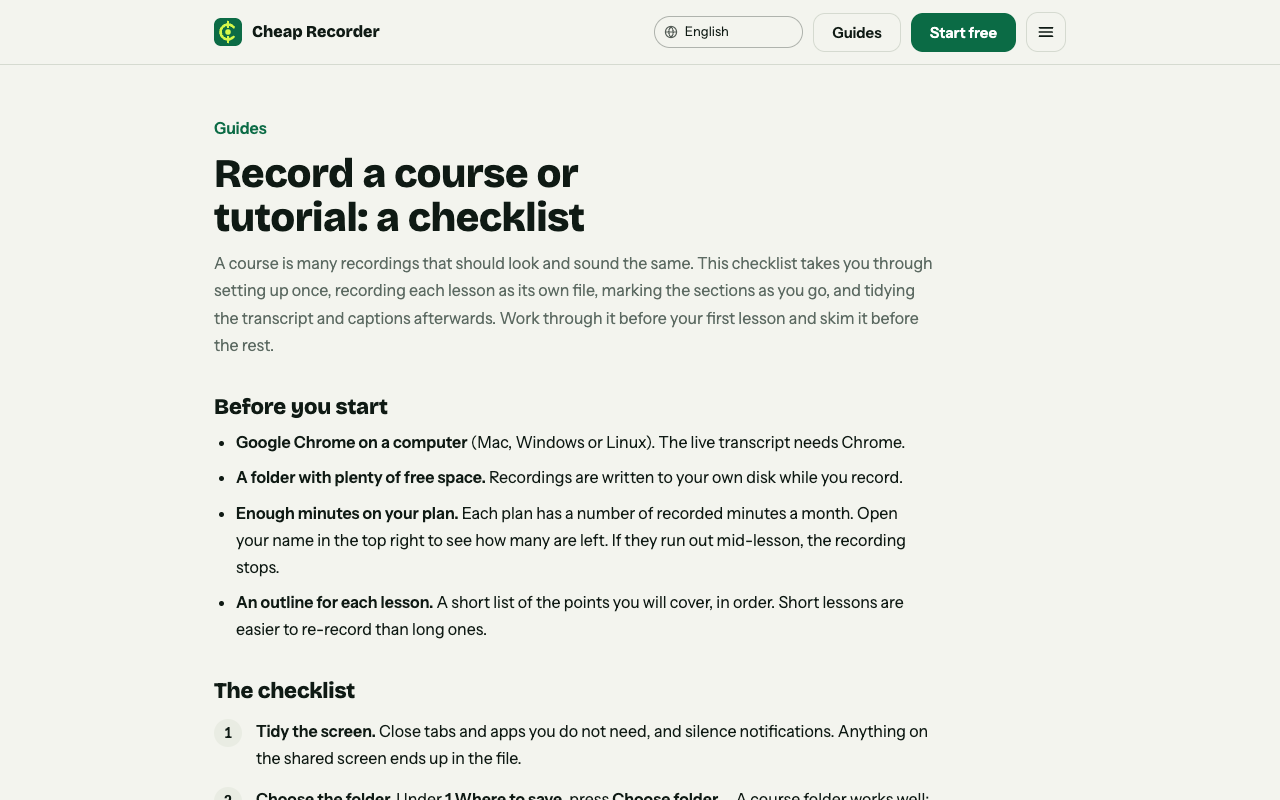
The course guide on cheaprecorder.com covers numbered names and chapter markers.
Share or present the finished deck
You now have a folder of numbered MP4s that play almost anywhere.
- Send the folder. Zip it and share it; the numbers mean people open the clips in order.
- Present from the clips. Play each one while you show its slide.
- Join them yourself. Drop the clips into your own video editor in name order.
- Share captions. With Live transcript ticked, press Captions .srt on the card to download an .srt file. It is made in the page and is not saved in the folder, so download it while the recorder page is open.
While Live transcript is on, Chrome sends your microphone audio to Google to turn it into text. Untick it if a recording must not go anywhere. The menu for the transcript language goes back to its default each time the page opens, so check it before every session.
Converting a clip with More formats... sends the file to the Cheap Recorder server, which deletes its copy when it finishes. The original in your folder is never changed. For a longer course, the course and tutorial guide covers numbering and markers.
Frequently asked questions
Can I narrate a slide deck on the Free plan?
Yes. The Free plan includes recording, live transcript and captions, 12 hours of recording a month and 1 device, with no card needed.
Does Cheap Recorder join the slide clips into one video?
No. You get one file per recording. Share the numbered folder, or join the clips in your own video editor.
What if I make a mistake in the middle of a slide?
Press Stop and finish and record that slide again, with the same name or a new one. Only that clip is affected.
Are my recordings uploaded?
No. They are written to the folder you pick on your own computer. Only Convert and Download MP3 send a file to the Cheap Recorder server, which deletes its copy when it finishes.
Why is Start recording greyed out?
Read the note beside the button. It gives the reason, such as choose a folder first. Fix that and read the note again, because the next reason may appear.
Get started
The free plan needs no card. Try Cheap Recorder in Chrome, name your first clip 01 and record your first slide. Tell anyone who appears or speaks that you are recording.
Comments
No comments yet.
Sign in or make an account to comment.