Notification Pings for a Podcast App Trailer: A Guide
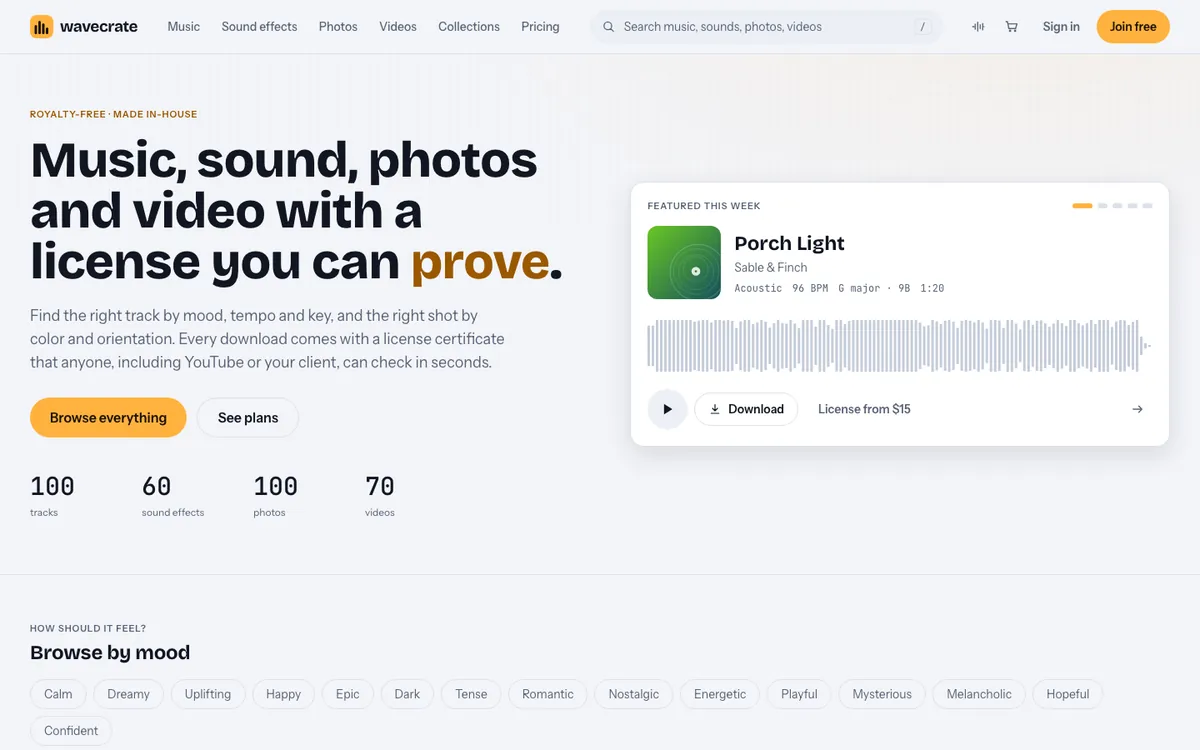
If you are searching for notification pings for a podcast app trailer, you are probably trying to solve one problem: the viewer should hear a small, clean sound and instantly think "that's my phone telling me a new episode is out." This guide covers which pings to use, how to place them, and where to find short interface sounds on Wavecrate.
Why notification pings for a podcast app trailer matter
A podcast app does something quiet. It saves episodes, tracks your place and tells you when something new arrives. A trailer has maybe 30 to 60 seconds to show that. Screens do part of the work. Sound does the rest.
A ping tells the viewer an event just happened without a word of voiceover. It also makes the trailer feel like real life. A short chime next to an on-screen banner reads as true right away.
Used badly, pings turn into noise. So treat each one as a line of dialogue: it needs a reason to be there. Wavecrate shows each ping's license on its page.
What a notification ping should say in under three seconds
Every ping carries one message. Decide which message before you pick the sound.
- "Something new." A bright, short, rising tone. Used for a new episode.
- "Done." A soft, resolved tone that lands on a pleasant note. Used for a finished download.
- "Don't forget." A gentle, low-pressure chime. Used for reminders.
- "Something went wrong." A short, lower buzz. Only use this if your trailer shows a problem the app solves.
Keep each sound to about one or two seconds. Gentle Notification runs 0:01 and Success Chime runs 0:02. That is the right size. A ping longer than that starts to sound like a jingle, and a jingle fights your music.
Pick the right ping moments: new episode, download done, and reminders
Most podcast app trailers need three ping moments. You can build a whole 30 second spot from them.
New episode
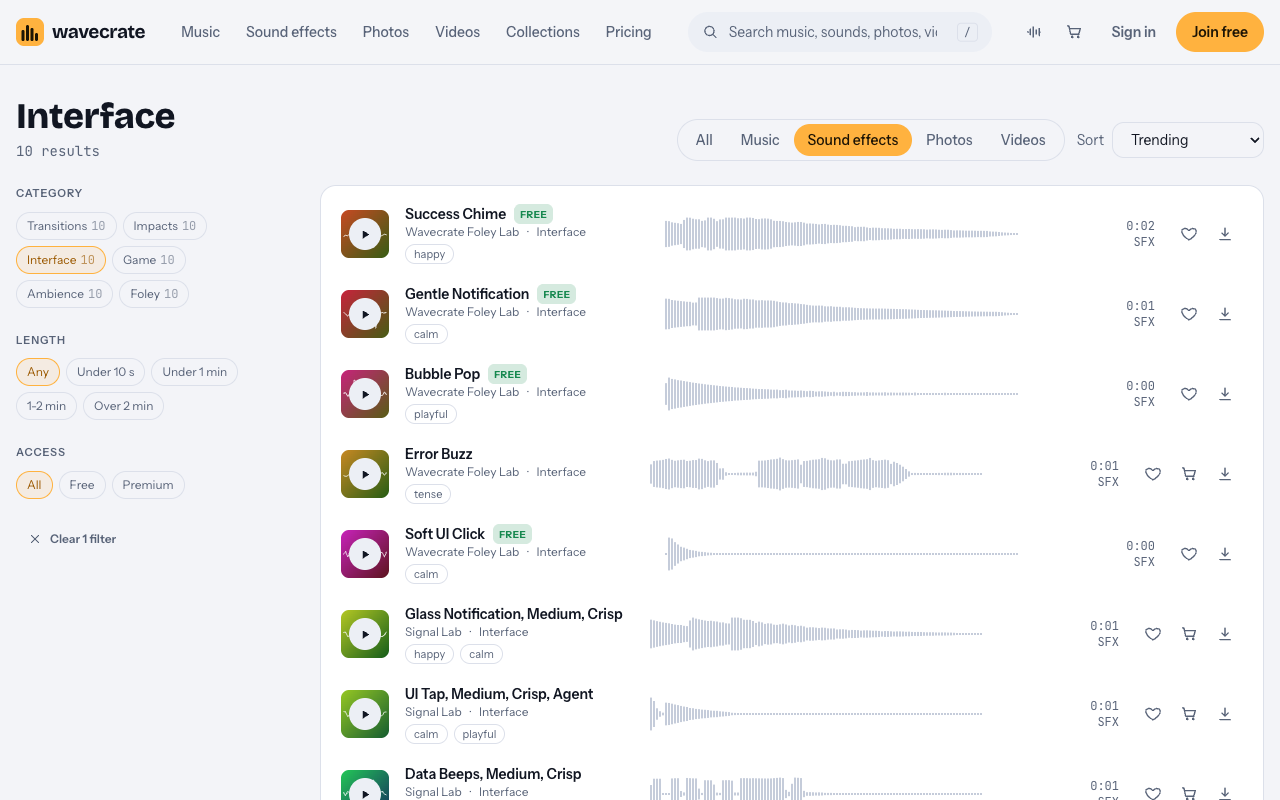
This is your hero ping. It is the first thing a viewer should connect with the app. On the interface sounds page, Glass Notification, Medium, Crisp is described as "a clean two or three note notification tone." It is by Signal Lab, runs 0:01, and is Premium. The item page lists Standard at $5 and Extended at $19. A two or three note tone has a small shape of its own, which suits an alert you want people to remember.
Download done
Success Chime is described as a sound "for win and complete moments." It is marked Free, runs 0:02 and is by Wavecrate Foley Lab. A finished download is a small win, so this fits. Keep it softer than your new episode ping, because it is a confirmation, not an announcement.
Reminders
Gentle Notification is described as "for alert and chime moments." It is marked Free and runs 0:01. The name says what it is for. A reminder should never sound urgent, and the title of the sound already points the right way.
Success Chime and Gentle Notification sit together with Soft UI Click, Bubble Pop, Error Buzz and Air Cut Whoosh in the Interface sound kit collection, described as "Clicks, pops and chimes for apps, games and explainers." It lists 6 items (read on 2026-10-17). Glass Notification is not in that collection. You find it on the interface sounds page instead. If you want every ping from one set, use Gentle Notification for the new episode moment too and keep all three from the kit. Pings from one collection tend to sound like they belong to the same app.
Design the sound: pitch, length and volume under the voiceover
You do not need to edit the sounds much, but three choices matter.
Pitch. Pick pings that sit above the voice. A male or female narrator usually lives in the middle of the range. A ping with some brightness cuts through without needing to be loud. A very low buzz will blur with the voice.
Length. Cut it short. If the sound has a long tail, fade the tail early. You want the viewer to hear the ping, then hear the next word, with no overlap.
Volume under the voiceover. Set the voiceover level first. Then bring the ping up until it is clear but clearly below the voice, or place it in a gap between words. In most trailers the best approach is to put the ping in a pause. The narrator stops for half a second, the ping lands, the narrator continues. That way you never fight the voice at all.
If your music is also running, keep the ping out of the way of the beat. A ping that lands off the beat sounds like an accident. One that lands on the beat sounds designed.
Show the notification on screen so viewers can read it
Make the banner appear on the same frame as the ping, or a frame or two before it. Hold the banner long enough to read: aim for at least one to two seconds on screen, even though the sound itself is shorter. Use plain words in the banner text, such as an episode title and a show name, not a paragraph.
Check the text size on a phone-sized screen. If the banner is unreadable at small size, the viewer will hear a ping and see a blur, and the effect is lost.
Time pings to the story beats of your trailer
A simple trailer has three beats. Here is a worked example for a 30 second spot.
- 0:03. The hook. The voiceover says, "Your favorite show just dropped." Pause. New episode ping (Glass Notification) as the banner slides in.
- 0:12. The benefit. The voiceover says, "Save it before you leave the house." A tap on screen, then a finished download. Success Chime lands as the progress bar completes.
- 0:22. The reminder. The voiceover says, "And we'll nudge you when you've left off mid-episode." Gentle Notification lands softly with a "Continue listening" banner.
- 0:27. The close. No ping. Let the logo and music finish clean.
Ending without a ping gives the call to action room.
When you audition sounds on Wavecrate, the keyboard shortcuts help: Space plays or pauses, and / jumps to search. You can try a handful of pings against your cut quickly.
Mistakes that make trailer pings feel fake or annoying
- Too many pings. Three or four in a 30 second trailer is plenty. More starts to sound like a phone buzzing in a pocket.
- Mismatched sounds. A chime from one family, a pop from another and a buzz from a third will sound like three different apps. Stay in one collection where you can.
- Ping with no banner. The viewer hears something and looks for it. If nothing appears, the moment feels like a mistake.
- Long tails over speech. A ring that runs under a sentence makes the sentence harder to follow.
- Using the error buzz for no reason. Error Buzz is described as "for wrong and fail moments." It is Premium. Only use it if your trailer shows a problem and the app fixing it.
- Ignoring the license. See the next section.
A word on licenses
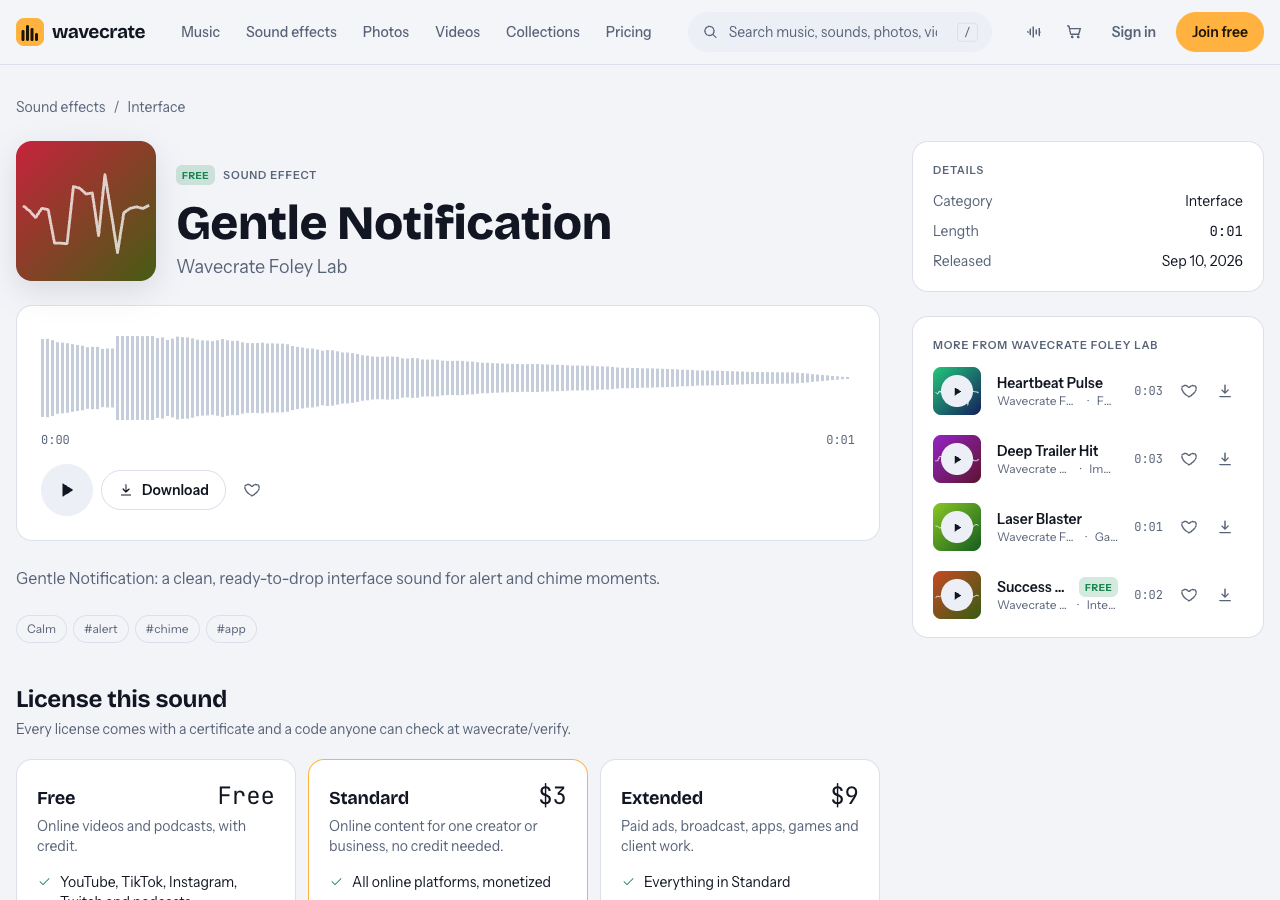
Items marked Free carry a Free license for online videos and podcasts, with credit. The credit text must go in your description, and a free account gets 3 free downloads a month. Standard and Extended licenses need no credit.
For sound effects, the pricing table lists "Paid advertising," "Apps, games and software" and "Client work" as Extended only. Paid licenses are not on sale yet: Wavecrate says purchases open soon, so the prices here are the listed prices for when sales open, while items marked Free can already be downloaded with a free account. Standard on a sound effect, such as Gentle Notification listed at $3 or Glass Notification listed at $5, covers your own business and brand content. If you plan to run your trailer as a paid ad, or you are making it for a client, look at Extended (listed at $9 for Gentle Notification and $19 for Glass Notification). Pro, listed at $99 a year or $12 month to month and not on sale yet, covers Standard licenses only, never Extended. Playing the same ping inside the app itself is a different use from a video about it, and the table lists "Apps, games and software" as Extended. Read the pricing page before you decide.
Every download comes with a certificate and a code. You can paste the code in your video description, and anyone can check it on the verify page, no account needed. You get a license to use the sound. Wavecrate keeps the copyright.
Frequently asked questions
How long should a notification ping be in a trailer?
One to two seconds at most. Gentle Notification runs 0:01 and Success Chime runs 0:02, which is about the right size. Trim any tail that runs into the voiceover.
How many pings should a podcast app trailer have?
Three or four in a 30 second spot. One for a new episode, one for a finished download and one for a reminder covers the story. Leave the ending without a ping.
Can I use a free sound effect in my trailer?
Only items marked Free have a Free license, and it covers online videos and podcasts with credit in your description. Check the item page for the license card. Paid ads or client work need Extended.
Where do I find notification sounds on Wavecrate?
Open the interface sounds page, or the Interface sound kit collection for a matched set. You can also filter to free downloads to see what is marked Free.
Get started
Pick three pings, one per beat, and drop them into your rough cut before you touch the music. You can join free to get 3 free downloads a month and a license for everything you download.
Browse Wavecrate: you can join free and download items marked Free now, paid licenses are not on sale yet (purchases open soon), and every download comes with a license certificate and a code anyone can check on its verify page.
Comments
No comments yet.
Sign in or make an account to comment.