Podcast intro and outro: record each as a separate take
A podcast intro and outro are the two short pieces of speech you reuse in every episode, so they are worth recording once and recording well. The Cheap Recorder blog post on this shows two short scripts, a quick microphone test, plain file names and the sound-only M4A you end up with. It helps anyone starting a show who wants clean files without an editing suite. Here is how it works in Chrome, with one thing worth knowing: the recorder's own Stop and finish button, not Chrome's sharing bar, is the one to use to end each take.
Why record the podcast intro and outro as separate takes
Your intro and outro do different jobs, and you will want to change them at different times. The intro might stay the same for a year. The outro might change every month when you have a new offer or a new place to send listeners.
If you record both in one long take, any change means a re-record of everything or a careful cut. If you record each on its own, you replace one file and leave the other alone.
What a good podcast intro and outro need to say
Keep both short. Listeners came for the episode, not for the wrapper.
The intro
- The name of the show.
- Who it is for, in one phrase.
- What they will get, in one sentence.
The outro
- A thank you.
- One thing you want them to do next, such as subscribe or reply with a question. Pick one, not three.
- Where to find you or the next episode.
Write two short scripts you can read in under 30 seconds
Write the words down before you press record. Reading from a page keeps your pace even and stops you from rambling. Aim for something you can read aloud in under 30 seconds, and read it once out loud before you record to catch any phrase that trips your tongue.
Here is an example for a made-up show about home gardens.
Intro: Welcome to The Weekly Garden, the show for people who grow food in small spaces. Each week I talk to one grower about one thing that worked and one thing that did not. Let's get started.
Outro: Thanks for listening to The Weekly Garden. If this helped, send it to a friend who has a balcony and a plan. New episodes come out every week. See you next time.
Run a quick microphone test before you record
A short test saves you from finding out later that you recorded a whole session on the wrong microphone. Record about 30 seconds, stop, and play it back before you do anything else.
Open the recorder in Chrome and look at the Microphone tile. Open Change or add microphones and tick the one you actually speak into. If you just plugged one in, press Rescan. Each microphone shows wired or bluetooth beside its name. While you record, each ticked microphone has a level bar that moves with its sound, so the test take is the moment to watch it. If your bar stays still while you talk, check the microphone's own mute switch and your computer's sound settings.
Two settings are worth a thought:
- Record the microphone untouched (under Options) turns off echo, noise and volume correction. It suits a studio microphone in a quiet room. With a laptop microphone or a noisy room, leave it unticked.
- Bluetooth headsets are a poor choice for your voice. They drop to a low-quality mode when used as a microphone, and a wired or USB microphone works best.
The guide on fixing no sound in a screen recording goes through the common microphone problems in more detail.
Record the intro, then the outro, in Chrome
You want a sound-only recording, so you will not share a screen or use the camera. Here is the order that works.
- Choose a folder. Under Where to save, press Choose folder... and pick a folder on your computer. Chrome then asks if the page may edit files in that folder. Allow it. Until you do, Start recording stays greyed out and the note beside it says choose a folder first. The recorder does not remember the folder between visits, so you pick it each time.
- Name the take. Type
Intro 01in Name this recording. - Switch off Record my webcam and do not pick a screen, window or tab. That tells the recorder you want sound only.
- Tick your microphone in the Microphone tile.
- Press Start recording. If the button is grey, read the note beside it. It shows one reason at a time. Fix that one, then read the note again, because fixing one reason can bring up the next. When it reads ready to record, you can go. Once the recording is running, glance at the level bar and check that it moves when you talk.
- Read your intro. Pause a beat before you start and a beat after you finish, so the ends are clean.
- Press Stop and finish. The take appears on the page with a player and is already saved in your folder.
Now change the name to Outro 01 and do it again. Same steps, same microphone, same room. Keeping the setup identical makes the two takes sound like they belong together.
The Free plan covers all of this, with 12 hours of recording a month and no card needed.
Name your files so you can find each take later
The name you type becomes the name of the recording's file and its folder. The folder also gets the date and time the recording began, from your own clock. So Intro 01 recorded on 19 October 2026 at 10:30 lands in a folder like Intro 01 - 2026-10-19 10.30.
A few details help you stay tidy:
- Numbers keep takes in order. Intro 01, Intro 02 and so on sort the way you expect.
- If you record the same name twice in the same minute, the second folder gets (2) on the end, so nothing is overwritten.
- Spaces, accents and any alphabet are fine. A few characters are dropped from names:
/ \ : * ? " < > |. Names are cut at 60 characters.
Sort the folder by name to group the takes of one piece together. Sort by date to see everything in the order you made it. You can also move or rename the files yourself later, as they are ordinary files. Finish any downloads or conversions from the card first, because the card reads the file from where it was saved. The guide on where recordings are saved has the full picture.
What you get: a sound-only M4A file for each take
When you record with no screen and no webcam, the recorder saves an M4A audio file with AAC sound, not an MP4. Inside the folder for Intro 01 you will find Intro 01.m4a. If the live transcript was on and heard speech, you also get a plain-text file called Intro 01 - transcript.txt, with the time of each line.
After you press Stop and finish, the card on the page shows the first download button as Download M4A. It hands over the original file with no upload. The file is already in your folder, so the download is a convenience.
Need a different format? MP4, MOV, WebM and GIF need a picture, so for a sound-only take you choose MP3, M4A or WAV. Download MP3 is the shortest route to an MP3. For WAV, open More formats..., pick it, and press Convert. Convert and Download MP3 send the file to the Cheap Recorder server and the server deletes its copy as soon as it finishes. Your original is never changed. A file made with Convert is also saved in the recording's folder next to the original, so you keep both. The card, and so Convert, lasts only while the recorder page is open, so convert before you close the tab. More on this is in the guide to converting recording formats.
If you later record a full episode with a guest, the guide on podcast separate tracks shows how to keep each voice in its own file.
Frequently asked questions
How long should a podcast intro and outro be?
Short enough to read aloud in under 30 seconds each. The intro names the show and what listeners get. The outro thanks them and asks for one action.
Why record the intro and outro as separate takes?
You can replace one without redoing the other. A mistake in the outro does not cost you a good intro.
What file format does a sound-only recording use?
An M4A audio file with AAC sound. Switch off Record my webcam and do not pick a screen. You can convert it to MP3 or WAV afterwards.
Do I need to pay to record these takes?
No. The Free plan includes recording, a live transcript and 12 hours of recording a month, with no card needed.
Does my voice get uploaded when I record?
Recordings are written to a folder on your own computer and are not uploaded. The exceptions are Convert and Download MP3, which send the file to the server for conversion. With the live transcript on, Chrome sends your microphone audio to Google to turn it into text. Untick Live transcript before you start if the recording must not leave your computer in any form.
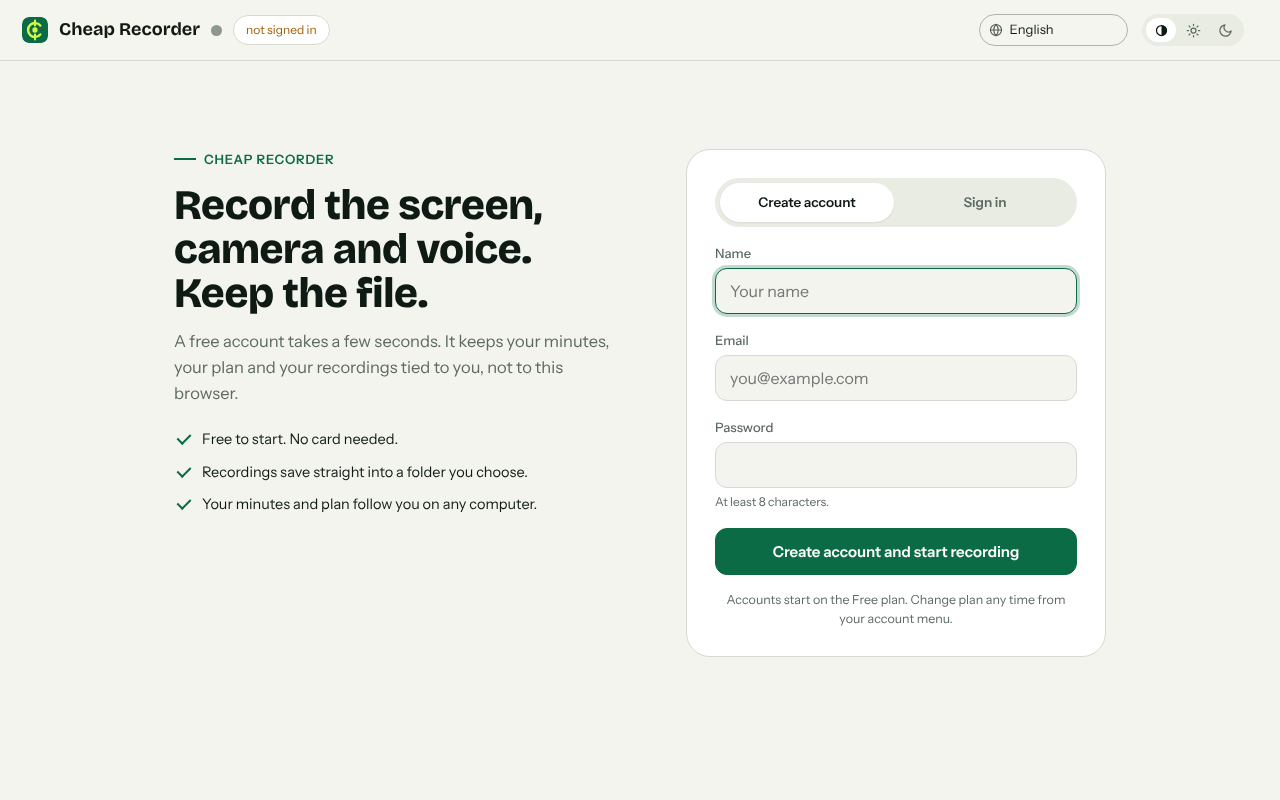
The page you open first: a free account, no card needed.
Get started
Write your two scripts, run a 30-second test, then record Intro 01 and Outro 01 one after the other. The steps are in the blog post too. Try Cheap Recorder on the Free plan in Chrome; no card is needed and your recordings stay on your own computer.
Comments
No comments yet.
Sign in or make an account to comment.