Policy walkthrough video for staff: record one in Chrome
A policy walkthrough video for staff explains a written policy in a few minutes of plain speech, with the policy itself on screen. It does not replace the policy. It helps people who skim a ten-page document, and it gives them something to replay when a rule comes up in real life. This post follows one worked example, an expenses policy, and uses only Chrome and Cheap Recorder.
Why a policy walkthrough video helps
Most staff read a policy once, if at all. They remember that it exists, not what it says. A short video does three things a document cannot do on its own.
- It says why each rule is there, in your own voice.
- It shows where to find the form, the tool or the person the rule refers to.
- It can be replayed in the moment, when someone has a receipt in hand and a doubt in mind.
Keep the written policy as the official text, and say so in the video. The video explains it; it does not change it. If your policy has legal or contractual weight, ask the person who owns it to watch the video before you share it.
The same recording habit works for other first-week jobs, such as a first-day checklist video or a customer onboarding walkthrough. This post is about walking people through rules rather than clicks.
What you need before you record
- Google Chrome on macOS, Windows or Linux. Cheap Recorder runs in Chrome and saves one MP4 on your own computer.
- A microphone close to your mouth. A headset beats a laptop microphone in a noisy room.
- The policy open in one browser tab, at a zoom level where the text is easy to read.
- A free account. The Free plan covers recording, live transcript and captions, and 12 hours of recording a month, with no card needed.
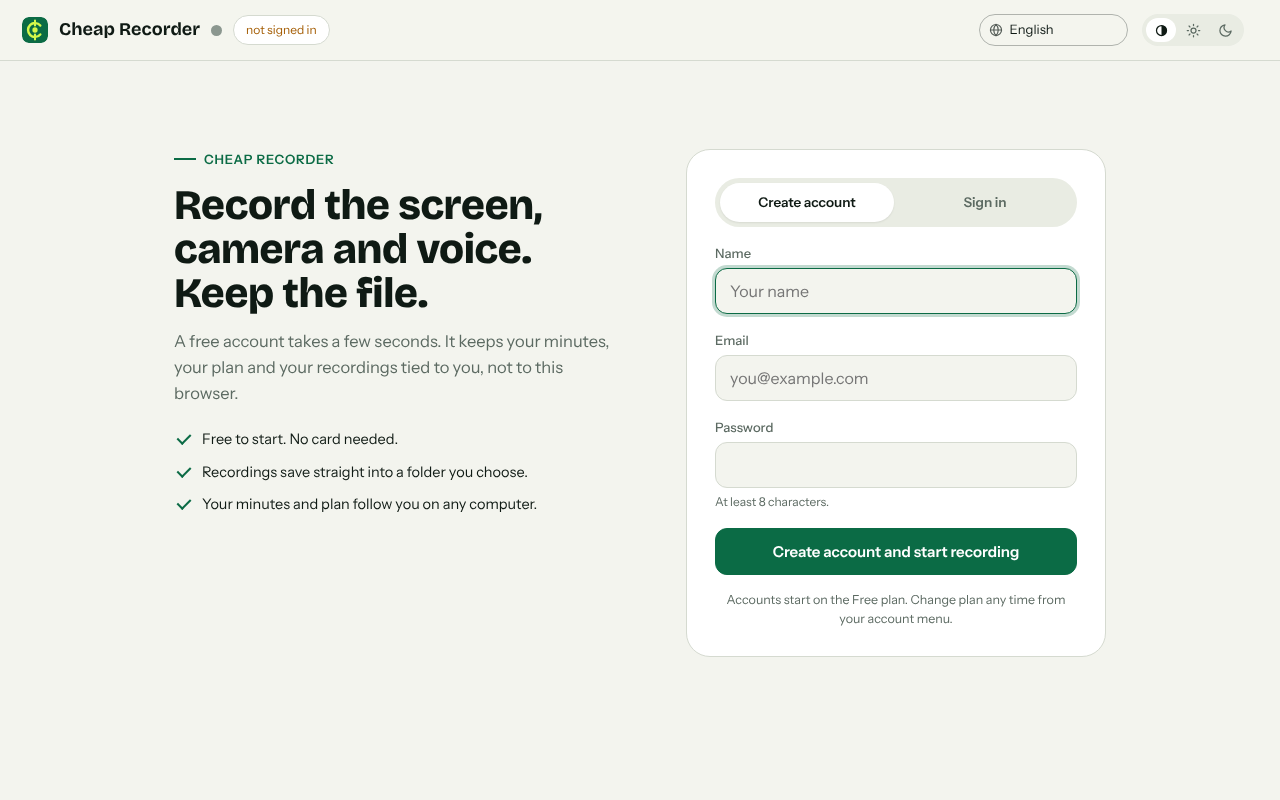
The recorder's page at cheaprecorder.com/app: create a free account, choose a folder, then record.
Open the policy in a clean tab. Anything on the shared tab ends up in the file, so check that it holds no comments, names or tracked changes you do not want staff to see.
Plan a policy walkthrough video in five parts
Do not read the policy aloud from top to bottom. Plan five short parts instead.
- Who and why. Who the policy covers and what problem it solves, in two sentences.
- The rules. Three to five rules, each in plain words with the reason behind it.
- An example. One case that follows the rules from start to finish.
- The exception. What to do when the rules do not fit, and who to ask.
- Where it lives. Where the written policy is kept and the date of the version you explained.
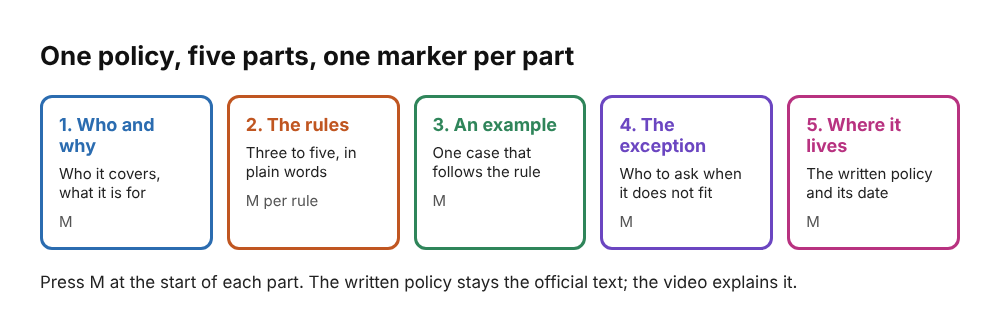
One policy, five parts, one marker per part.
If the policy has more than five rules, pick the ones people get wrong most often and point to the document for the rest. A video that tries to cover everything gets skipped.
A worked example: an expenses policy
Say your company has a travel and expenses policy. Your five parts might go like this.
- Who and why. "This covers everyone who spends company money. It exists so you get paid back fast and finance can close the month."
- The rules. Receipts for every claim. Claims filed within 30 days. Flights booked through the company portal. Meals only while travelling for work.
- An example. A made-up trip: Sam flies to a client meeting, keeps the boarding pass and the taxi receipt, and files both from the expenses tool the next day.
- The exception. "If a receipt is lost, tell your manager before you file, not after."
- Where it lives. "The full policy is in the shared drive under Finance, and this video explains the version dated 1 October."
These numbers and names are invented for the example. Use your own policy's real rules, and never add a rule the document does not contain.
How to record the video in Chrome
Open cheaprecorder.com/app in Chrome, sign in, then:
- Choose a folder. Press Choose folder... and allow Chrome to edit files in it. Until you do, the start bar says choose a folder first.
- Name the recording. Type something like Expenses policy - walkthrough in Name this recording. The name is used for the file and its folder.
- Share the policy tab. Choose a browser tab in Chrome's sharing box and press Share. Sharing one tab keeps your other tabs, chat and private things out of the video.
- Check the microphone. Its level bar should move when you talk. If it stays still, check the microphone's own mute switch.
- Keep Live transcript ticked under Options and check the language before you start. A transcript cannot be added to a recording afterwards.
- Record a 30-second test and play it back to catch a wrong microphone or a muted tab.
- Press Start recording and talk through your five parts. Scroll the policy slowly so the rule you are speaking about is on screen.
- Press Stop and finish. The recording is already saved in your folder.
A face in the corner is optional for a policy video. A policy can feel cold, and a small camera picture helps it sound like a colleague. The screen and webcam guide explains how to place it.
Mark each part with a marker
Press M or Add marker at the start of each part, and again at each rule in part two. A policy video is something people jump around in: someone with a question about lost receipts wants part four, not the introduction.
Markers are written to files only if you tick Also save every source separately before recording. With the default single MP4 the markers show while you record but are not saved, so write down the times you need.
When the box is ticked and you are on Creator or up, the Separate sources folder gets a publish.html with a player, one chapter per marker and the transcript. It opens from the folder with nothing to host. You cannot add it after recording, so decide before you press Start recording. The publish page guide has the details.
Speak so people remember the rules
Give the reason first, then the rule
"Finance closes the books on the fifth, so file within 30 days" is easier to remember than "file within 30 days". A rule with a reason gets followed more often than a bare instruction.
Say the rule once, then show it
Say the rule, then point at the line in the document. Staff see where it comes from and know where to look later.
Keep it short
Aim for a few minutes. If you find yourself explaining twenty rules, split the policy into two videos, one for the rules everyone must know and one for the rest. Name them so they sort in order, for example Expenses 01 and Expenses 02.
Do not fix every slip
If you say a wrong word, correct yourself and carry on. If you state a wrong rule, stop, re-record that part and keep the take that matches the document. A policy video has to be right before it is polished.
Share the video next to the written policy
Your recordings are ordinary files in your own folder, so you can put them wherever your team keeps the policy. Cheap Recorder keeps no copy of them, except while a Convert runs.
Put the MP4 on the same page as the written policy, and say which version of the policy the video explains. When the policy changes, re-record the part that changed or the whole video, and save it under the same name so nobody finds an old copy.
With Live transcript on, the recording's folder holds a plain-text transcript with times. Paste it under the video so people can search for a rule by its words. Press Captions .srt on the card to download a caption file; it is not saved in the folder, so download it while the recorder page is open.
If staff must confirm they watched it, ask for a reply by email or in chat. Cheap Recorder does not track who watches a video. For recording a spoken handover in the same way, see the handover video before you go on leave.
Frequently asked questions
Does a policy walkthrough video replace the written policy?
No. The written policy stays the official text. The video explains it and points to it, and it should say which version it covers.
How long should a policy walkthrough video be?
Keep it to the few rules people most often get wrong, which for many policies is a few minutes. A longer policy is easier to follow as two or three short videos.
Can I record only the policy tab and keep the rest of my screen private?
Yes. Choose a browser tab as what to capture. Only that tab ends up in the file, but everything inside it is recorded, so check it for comments and names first.
Will staff get captions?
If Live transcript is ticked under Options, you can download a Captions .srt file from the card after recording. Captions are not drawn into the video, and a transcript cannot be added afterwards if it was off.
Do I need to install anything?
No. Cheap Recorder runs in Google Chrome on macOS, Windows and Linux, and saves the recording as an MP4 in a folder you pick.
Get started
Pick the one policy your staff ask about most, write five parts for it and record a 30-second test. The Free plan needs no card. Try Cheap Recorder in Chrome, and your recordings stay on your own disk. Tell people when they are being recorded.
Comments
No comments yet.
Sign in or make an account to comment.