Practice run before a client demo: a one-minute test
A practice run before a client demo, one minute long, is the cheapest insurance you can buy. You record the first sixty seconds of your demo, watch it back, and fix what is wrong before anyone else sees it. This post shows you exactly what to record, how to score it, and which problems it catches, using Cheap Recorder in Chrome as the worked example.
Why a practice run before a client demo beats a full rehearsal
Most demos do not fail in the middle. They fail in the first minute. The microphone is the wrong one. The wrong tab is shared. A chat notification pops up with a private message. The client hears you twice.
A full rehearsal takes thirty minutes, so you skip it when you are busy. A one-minute test takes five minutes, including the fix. You will actually do it, every time.
The one-minute test: what to record and why sixty seconds is enough
Record three things, in order:
- Your spoken opening. Who you are, what you will show, and why the client should care.
- Your first click. Move from the start screen to the first real feature.
- One sentence that reacts to what appears on screen.
Sixty seconds is enough because almost every setup problem shows up straight away. A bad microphone sounds bad in second one. A wrong screen share is wrong in second one. A camera covering a button is visible on the first click. You are not testing your whole script. You are testing the pipe the script goes through.
Step 1: Check your setup (audio, camera, screen share, and tabs)
Do this before you press record. It takes two minutes.
- Close what you do not need. Anything on the shared screen ends up in the file and on the client's screen. Close spare tabs and apps, and silence notifications.
- Share a tab or a window, not the whole screen. In Cheap Recorder, under What to capture, choose A browser tab or A window. Chrome opens its own sharing box, you pick the one with your product, and press Share. Other tabs and private things stay out of the picture.
- Pick the right microphone. Open Change or add microphones and tick the one you speak into. Each one is labelled wired or bluetooth. While you talk, its level bar should move.
- Place your camera. With Record my webcam on, the preview is the recording. In picture in picture you drag the camera where you want it and set its size with the Size slider, from 12% to 50% of the picture's width. Put it where it will not hide a menu you need to click.
- Choose a folder. Under Where to save, press Choose folder... and allow Chrome to edit files there. The recorder does not remember the folder between visits, so do this each time.
If Start recording is greyed out, read the note beside it. It names one reason at a time, such as choose a folder first. Fix it, then read the note again, because fixing one reason can bring up the next.
Step 2: Record your opening and first click with a cheap screen recorder
Here is the exact workflow in Cheap Recorder.
- In Name this recording, type something like Acme demo test 01. The name becomes the file and folder name, so numbering keeps your takes in order.
- Press Start recording.
- Press M (or Add marker) as you begin your opening. A short note confirms the time.
- Say your opening out loud, at full volume, as you would to the client.
- Press M again just before your first click, then click.
- Say one sentence about what appeared.
- Press Stop and finish. Do not use Chrome's own Stop sharing bar. It also ends the recording, and you want the habit of using the recorder's button.
The recording appears on the page with a player, already saved in your folder as an MP4. Its folder is named with the name you typed plus the date and time, for example Acme demo test 01 - 2026-10-12 09.45.
One thing to know about markers. With the default single MP4, the marker notes show while you record but are not saved. Glance at the times or jot them down. If you want them kept, see the longer run below.
Live transcript is ticked by default under Options. Leave it on for this test. It gives you a written record of your opening to check, though note that while it is on, Chrome sends your microphone audio to Google to turn it into text.
Step 3: Watch it back and score it with a five-point checklist
Play the recording once, start to finish. Score each point as pass or fail. Anything that fails gets fixed and re-recorded.
- Voice. Is it clear, steady and the right volume? Not thin, not echoing, not doubled?
- Screen. Is it the right tab or window, with nothing private visible?
- Camera. Is your face lit and in frame, and is the camera clear of the area you click?
- Sound from the product. If your demo plays sound, can you hear it?
- Opening. Read the transcript. Did you say what you meant to say, in under thirty seconds, without a long false start?
Five passes means you are ready. One fail means one fix and one more minute.
Common problems the one-minute test catches (and quick fixes)
The level bar stayed still
The wrong microphone is ticked, or it is muted. Check the microphone's own mute switch and your computer's sound settings. If you plugged it in after opening the page, press Rescan.
Your voice sounds thin, like an old phone line
On a Mac, a Bluetooth headset used as a microphone drops into a low-quality mode. Use it to listen and use a wired or USB microphone for your voice.
No sound from the product
Sound only comes with the screen pick when Chrome shares it. Choose A browser tab and tick the tab-audio option in Chrome's sharing window. Sharing a window does not carry its sound, and on a Mac a whole-screen share has none either. The no sound in a screen recording guide covers every case.
The client's voice comes through twice
If your demo happens on a call and you film the call's tab with tab audio and also pick it with Pick the call tab..., the voices go in twice. Tick tab audio in one place only. Wear headphones, and leave Record the microphone untouched unticked for calls so Chrome keeps cleaning up echo.
The camera hides a button
Drag it to another corner, shrink it with the Size slider, or switch the Layout menu to Side by side where your plan includes layouts. The screen and webcam recording guide walks through each layout.
When to run a longer practice run instead
The one-minute test checks your setup. Some demos need more. Run a longer practice when:
- The flow is new, or the product changed since your last demo.
- Several people will speak, and you need each voice clear.
- You plan to send the client a recorded version afterwards.
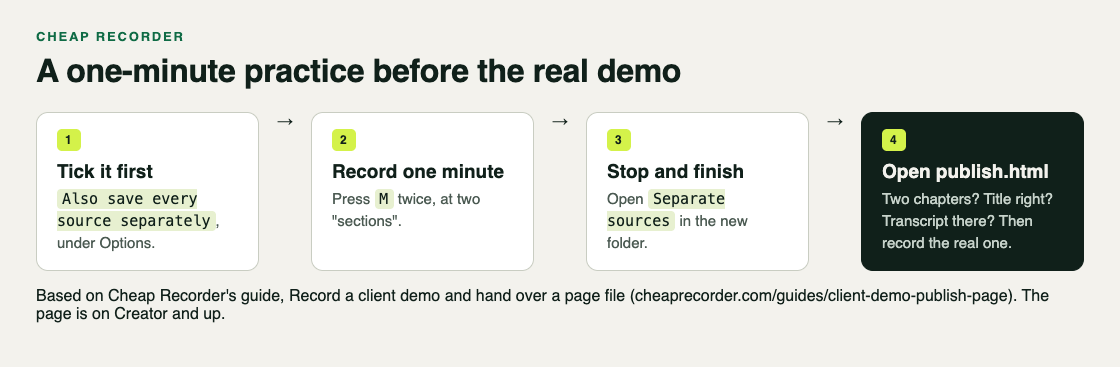
For that last case, Cheap Recorder's publish page is worth testing first. On Creator and up, tick Also save every source separately under Options before you record. You cannot add it afterwards. The recording's Separate sources folder then holds a publish.html page with a player, the transcript with times and speaker names, a Files list, and one chapter for each marker you pressed. The guide's own advice is simple: before a real demo, record a one-minute practice with two markers and open its publish.html. If it says No chapters were marked., you know your marker habit needs work before the real thing.
If you trim words from the transcript, run bash finalise.sh in the Separate sources folder on a computer with ffmpeg installed. It makes demo.mp4 with your cuts and markers as chapters. The client demo publish page guide has the full steps. The client demo post walks through a whole demo page.
Frequently asked questions
How long before a client demo should I do a practice run?
Do it on the same computer, in the same room, within the hour before the demo. That way the microphone, tabs and lighting you test are the ones you will use.
Should I practice the whole demo or just the opening?
Practise the opening every time, because that is where setup problems show. Practise the whole demo only when the flow is new or you plan to share a recorded version.
What should I record during a demo practice run?
Record your spoken opening, your first click, and one sentence reacting to the screen. Include your webcam and any product sound so you can check all of them at once.
Get started
Open Cheap Recorder in Chrome, choose a folder, share your product's tab, and record sixty seconds. Score it against the five points, fix what failed, and walk into the demo knowing the first minute works.
The free plan needs no card. Try Cheap Recorder in Chrome, and your recordings stay on your own disk.
Comments
No comments yet.
Sign in or make an account to comment.