Record a webinar practice run and watch it back in Chrome
A webinar goes better when you have given it once already, out loud, start to finish. The simplest way to record a webinar practice run is to use the recorder in Chrome: share your slides, talk through the whole thing as if people were there, then watch it back. This post sets out a run you can repeat before every webinar, and a short list of what to look for when you play it.
Why record the run instead of just rehearsing
When you rehearse in your head or mutter through the slides, everything feels fine. When you watch yourself, you see a slide that stays up for two minutes, a sentence you start three times, and a chat pop-up in the corner of the shared window.
A recording also gives you something to compare. Take one tells you what to fix. Take two tells you whether you fixed it.
Cheap Recorder runs in Google Chrome on macOS, Windows and Linux and saves the recording as an MP4 on your own computer, with a transcript. The Free plan includes recording, live transcript and captions, 12 hours of recording a month and 1 device, with no card needed.
Set the run up like the real webinar
A rehearsal only tells you something if it matches the day. Before you press record:
- Open your slides in a Chrome tab or one window, the way you will share them.
- Use the microphone you will use on the day. A wired or USB microphone is the safer choice, because a Bluetooth headset used as a microphone can drop into a low-quality mode.
- Close the tabs and apps you do not need and silence notifications.
- Have your notes and a clock where you will have them live.
- Sign in first. You need an account to record, and a connection to start, because there is no offline mode.
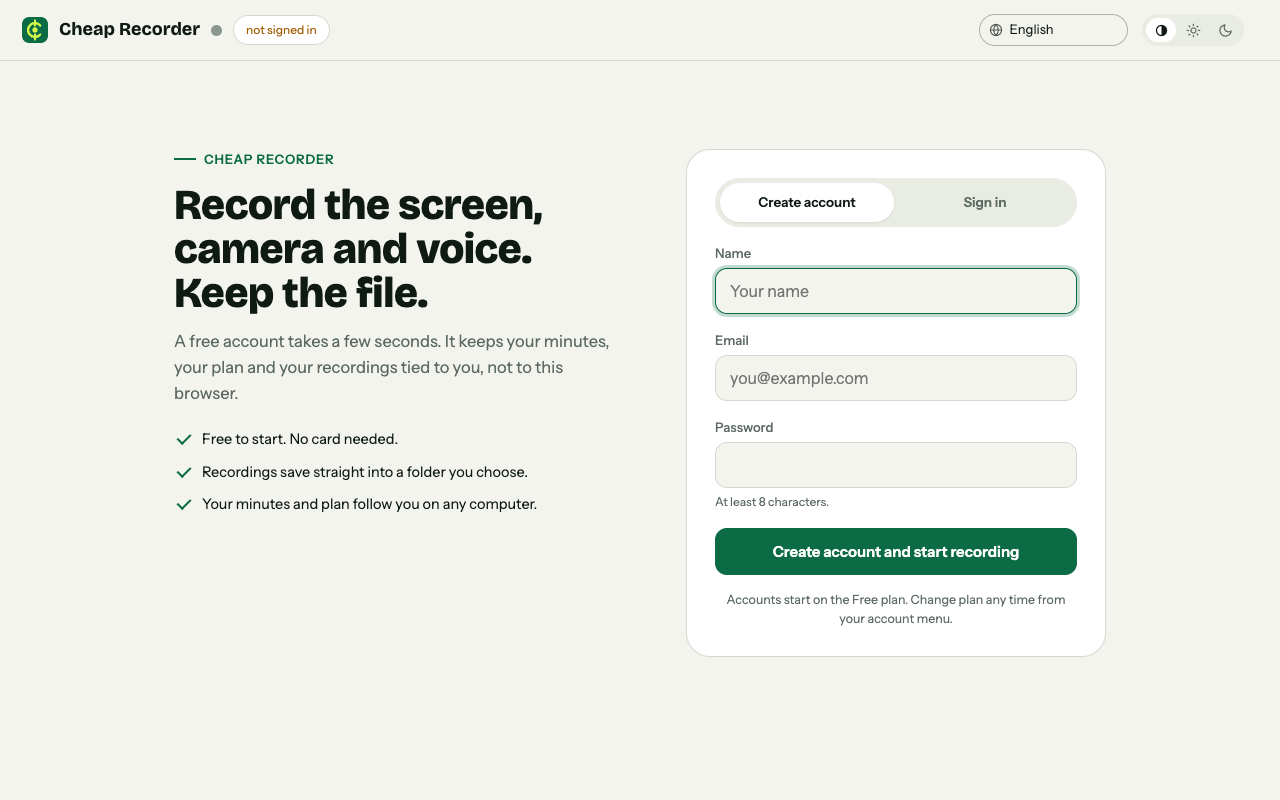
The recorder's page at cheaprecorder.com/app: create a free account, then choose a folder and record.
How to record a webinar practice run in Chrome
- Open cheaprecorder.com/app/ in Chrome and sign in. Allow the microphone when Chrome asks.
- Press Choose folder... and pick a folder. Chrome asks whether the page may edit files there; allow it. The recorder does not remember the folder, so you choose it again on each visit.
- In Name this recording, type
Webinar practice 01. The name is used for the file and its folder, and the number keeps your takes in order. - Under What to capture, pick a browser tab or a window rather than the whole screen, so your other tabs and apps stay out of the file. Choose your slides in Chrome's sharing box and press Share.
- Look at the preview. It is what the file will hold.
- Read the note beside the start button. It should say ready to record. If it names a reason, such as choose a folder first, fix that and read the note again.
- Press Start recording and give the whole webinar, including the opening, the pauses where you would take questions and the close.
- Press Stop and finish. Do not end it with Chrome's own Stop sharing bar. That also finishes the recording, but not the way you planned.
The recording is already saved in your folder when you stop, and the page shows a player. Chrome writes the file to disk as you go, so a long run does not fill your computer's memory.
Give each section a time budget
This is what turns a run into a rehearsal. Before you start, write down how long each part should take. For a 45-minute webinar it might look like this:
- Welcome and agenda: 3 minutes.
- Part one, the problem: 10 minutes.
- Part two, a demo: 15 minutes.
- Questions: 12 minutes.
- Close and next step: 5 minutes.
These numbers are an example, not a rule. Use your own. Then press M or Add marker as you start each part, so you have a time for each. A short note confirms the time. Markers are saved to files only if you tick Also save every source separately before you record; with the default single MP4 the note shows while you record but is not saved. If you do not tick it, jot the times on paper instead.
If you want to practise slide by slide, narrating a slide deck one slide at a time covers that way of working.
Watch it back and read the transcript
Your files are in the folder you chose, in a subfolder named after the recording. The MP4 plays in almost any player. Next to it is the transcript, a plain text file with times and speaker names that opens in any text editor. Live transcript is ticked by default under Options. Check the language menu beside it before you start, because Chrome listens for one language per recording and the menu returns to its default each time the page opens.
Watch the run once straight through without stopping. Then work through this list:
- Pace. Open the transcript and compare the times with your budget. Which part ran long? Which one did you rush?
- Slides. Did any slide stay up while you talked about something else? Did you read a slide word for word?
- Sound. Is every word clear at a steady volume? Does your voice sound thin?
- Screen. Is anything in the shared window that should not be there, such as a chat pop-up or a bookmarks bar?
- Repeated words. Scan the transcript for the same filler or false start coming back.
The transcript is the fastest way to find these. A page of text takes seconds to scan, and a 45-minute video takes 45 minutes. One caution: Chrome gives a time for each line, not each word, so treat the times as a guide to which part ran long, not as exact to the second.
On plans that include it, Remove filler words marks the ums, ahs and similar words in red in the transcript. For a rehearsal that is a quick count of your habits. You are reading for patterns, not making a finished video.
Fix two things, then record take two
After take one you will have a long list. Pick two things. Pace and one slide is a common pair. Write them on the first slide's notes, record Webinar practice 02 and compare the two transcripts. If the part that ran 15 minutes now runs 11, you have your answer. A list of twelve fixes you never act on is worse than two that you check.
If you will also use your webcam on the day, switch it on for the run. Where the camera sits in the preview is where it sits in the file, so you can check the framing and your light.
Common problems on a practice run
No sound from a video in your slides
Sound from what you share comes with the recording only when Chrome shares it. Choose A browser tab and tick the tab-audio option in Chrome's sharing window. A window share hands over no sound, and on a Mac a whole-screen share has none. Keep that tab open for the whole run. The guide on no sound in a screen recording has the full steps.
Your microphone bar does not move
Each ticked microphone has a level bar that moves with your voice. If it stays still, check the microphone's own mute switch, then open Change or add microphones and press Rescan.
Start recording is greyed out
Read the note beside the button. It shows one reason at a time, so fix it and read the note again. For a quick check of your setup before the full run, see the 30-second test recording before a talk.
Frequently asked questions
Can I record a webinar practice run on the free plan?
Yes. The Free plan includes recording, live transcript and captions, with 12 hours of recording a month on 1 device and no card needed. A rehearsal and a retake fit well inside that.
Where is my practice recording saved?
In the folder you pick under Where to save, on your own computer. Cheap Recorder keeps no copy of your recordings, apart from while you convert one to another format. The where recordings are saved guide explains the folder.
Do the markers I press appear in the MP4?
No. Markers are written to files only when you tick Also save every source separately. With the default single MP4, the note shows while you record but is not saved, so write the times down.
What if my connection drops during the run?
You need a connection to start a recording, because your plan is checked with the server. If it drops once you are recording, the recording keeps writing to your folder.
Is the practice run safe to share with a colleague?
It is an MP4 on your computer, so you decide who gets it. The transcript is a plain text file you can paste into an email. Note that Chrome sends your microphone audio to Google to turn it into text, so untick Live transcript if a rehearsal must not leave your computer in any form.
Get started
The free plan needs no card. Try Cheap Recorder in Chrome, record your first practice run today, and your recordings stay on your own disk.
Comments
No comments yet.
Sign in or make an account to comment.