Record an italki Lesson in Chrome: Consent and Setup
If you want to record an italki lesson, ask your tutor first, then record it in Google Chrome with the lesson open in a Chrome tab. This post covers the consent step, the Chrome setup and the settings that matter for a call. For the full review workflow, the post Record a language lesson in Chrome and review it afterwards shows how to record both voices, mark corrections and turn the transcript into a study list. This article is the shorter, setup-first version.
For a lesson you want to review later, Cheap Recorder runs in Chrome, captures your microphone and the sound of the lesson tab, and saves one MP4 (or an audio-only M4A) with a transcript to a folder on your own computer.
Can you record an italki lesson?
Cheap Recorder can capture a lesson's sound only from a tab that is open in Chrome. If your lesson runs in a separate desktop app, it cannot take that app's sound this way. Open the lesson in Chrome and check that it works with a short test before you plan around it.
Whether you may record is a separate question. Look at italki's own rules and at what your tutor is comfortable with. The next section covers that.
Ask your tutor for consent before you press record
Recording a call may need everyone's agreement, depending on where you and your tutor are. Always tell people you are recording. Do not rely on a silent recorder.
Send a short message before the lesson. Something like this works:
Hi Ana. I would like to record our lesson on my own computer so I can review your corrections afterwards. The file stays with me and I will not share it. Is that okay?
Say what you will do with the file. Tutors tend to say yes faster when they know it is for your own study. If they say no, respect it and take written notes instead. Say it again at the start of the lesson, out loud, so the agreement is on the recording itself.
What to set up in Chrome before the lesson starts
Do this ten minutes early, not when the tutor is already waiting.
- Choose a folder. Under Where to save, press Choose folder... and allow Chrome to edit files there. The recorder does not remember the folder between visits, so you choose it each time. Until you do, Start recording stays greyed out and the note beside it says choose a folder first.
- Name the recording. Type something like
Spanish Lesson 03in Name this recording. The name is used for the file and its folder, and the folder also gets the date and time, so your lessons sort in order. - Pick your microphone. Open Change or add microphones, tick the one you speak into and press Rescan if you just plugged it in. A headset or desk microphone close to your mouth gives a better transcript than a laptop microphone in a noisy room.
- Set the transcript language. The menu next to Live transcript under Options lists 25 languages. Chrome listens for one language per recording, and the menu goes back to its default every time the page opens. Check it every lesson.
- Wear headphones. Without them, your tutor's voice comes out of your speakers and back into your microphone, and you get echo or doubled voices.
If Chrome does not seem to hear your microphone, fix that first. The post Chrome microphone not working: fix it before you record walks through the usual causes.
One thing worth knowing about the language menu: because Chrome listens for one language per recording, a lesson that jumps between your language and your tutor's may give an odd transcript. Pick the language you expect to hear most, and treat the transcript as a guide rather than a record.
Capture your voice and your tutor's voice together
This is the step people skip. Your microphone only hears you. To get your tutor, use the Call audio tile.
- Open the lesson in a Chrome tab.
- In Cheap Recorder, press Pick the call tab...
- In Chrome's sharing window, choose the lesson tab.
- Tick Share tab audio. Some Chrome versions word it Also share tab audio.
- Press Share.
The recorder keeps only that tab's sound, and mixes it with your microphone into one recording. Leave the lesson tab open for the whole lesson. If the share ends partway, you see Meeting audio sharing stopped., your tutor goes silent from that point, and picking the tab again does not add them back to a running recording.
Do not also tick the tab-audio option when you pick a browser tab under What to capture. If you share the same tab's sound in both places, your tutor's voice goes into the file twice.
If you only want audio, switch off Record my webcam and do not pick a screen. You then get an M4A audio file instead of an MP4. That is often all a language lesson needs.
Before the real lesson, record 30 seconds, say a sentence, play it back and check you can hear both of you. The no sound in a screen recording guide covers what to check if one side is missing.
Mark corrections while the lesson is happening
When your tutor corrects you, press M (or Add marker). A short note confirms the time. Do it at the moment of the correction, then keep talking. Markers are not added while you are typing in a text box, so click out of any text field first.
There is one catch. With the default single MP4, the marker notes show while you record but are not saved. To keep them, tick Also save every source separately under Options before you start. Then the recording's folder gets a markers list and a chapters file. You cannot add this option afterwards.
That option also saves your tutor's side as its own file, audio_meeting_far_end.webm, next to your microphone's file. Separate files take more room than a single MP4, so pick a folder with plenty of free space.
If you would rather not tick it, jot down the timer reading when a correction happens. That works fine too.
Use the transcript to build a short study list
After you press Stop and finish, the recording is already saved in your folder. If the live transcript caught speech, the folder also holds a plain-text file, for example Spanish Lesson 03 - transcript.txt, with the time of each line. On the card you can also press Captions .srt or Transcript to download those files.
Each line is labelled with the sound source that was loudest as it was spoken. Your microphone's name marks your lines, and Meeting marks the other side of a call picked with Pick the call tab... On plans that include speaker detection, you can type real names into the Speaker boxes above the transcript, such as Ana for the tutor, then press Save captions. The lines then start with the name. The live transcript and captions guide explains this in more detail.
A study pass can be short, and a table like the one below is enough. Work through the file with your markers or your jotted times beside it:
- Search the transcript for the moments you marked.
- Copy each corrected sentence into a note, with your wrong version above and the right version below.
- Pick no more than five items. Five you actually review beat thirty you never open.
- Listen to the audio around each time once, out loud, and repeat the corrected sentence.
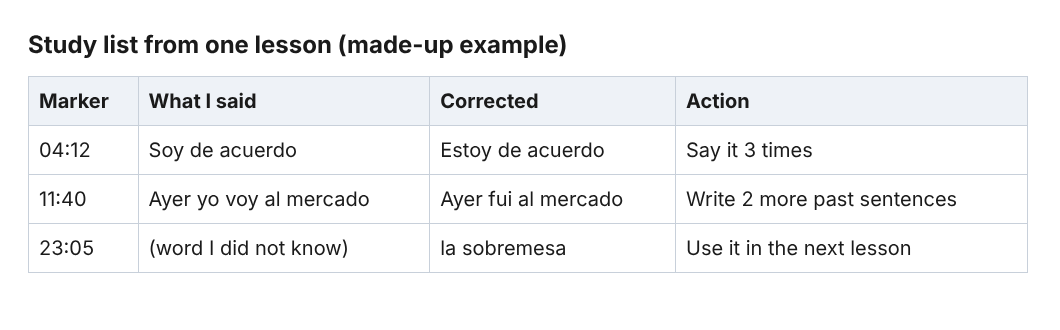
A made-up five-minute study list built from three markers.
For example, a list for one lesson might read: "estoy de acuerdo, not soy de acuerdo", then two vocabulary words your tutor used, then one verb tense to practise. That is a ten minute review.
Speech recognition makes mistakes, and caption times are per line, not per word. If a line looks wrong, trust your ears and the audio, not the text. The .srt file is plain text, so you can fix a wrong word in any text editor.
Keep your lesson recordings private on your own computer
Recordings are written to the folder you chose, about once a second while you record. They are not uploaded. The exceptions are Convert and Download MP3, which send the file to the server to be converted. It is deleted there as soon as that finishes, and the original in your folder never changes.
The transcript is the part to think about. The transcript is made by Chrome's own speech recognition, which Google may process on its servers. An AI button sends the transcript only when you press it. If a lesson must not leave your computer in any form, untick Live transcript before you press Start recording. You still get the recording. The where recordings are saved guide explains the folder layout and the privacy page lists what the service collects.
Tell your tutor this too. It is part of the consent conversation.
Frequently asked questions
Can I record a lesson on my phone with this?
Cheap Recorder runs in Google Chrome on macOS, Windows and Linux, so use a computer. The lesson also has to be open in a Chrome tab for the recorder to capture its sound.
Do I need my tutor's permission?
Ask first. Recording calls may need everyone's agreement depending on where you both are, so always tell your tutor you are recording and say what the file is for.
Why is my tutor missing from the recording?
Your microphone only picks up you. Use Pick the call tab..., choose the lesson tab and tick Share tab audio. If the share ends during the lesson, the other side stays silent from then on.
Does it cost anything?
The Free plan includes recording, live transcript and captions, with 12 hours of recording a month on 1 device and no card needed.
Can I get the transcript in my language?
The language menu next to Live transcript lists 25 languages. Chrome listens for one language per recording, so choose it before you start.
Get started
Ask your tutor, then do a 30-second test recording in Chrome. If you want the longer walkthrough of marking corrections and turning the transcript into a study list, read Record a language lesson in Chrome and review it afterwards.
The free plan needs no card. Try Cheap Recorder in Chrome, and your recordings stay on your own disk.
Screen recording that is cheap and easy.
Visit cheaprecorder.com↗
Comments
No comments yet.
Sign in or make an account to comment.