Record Google Slides with your webcam in Chrome
To record Google Slides with your webcam, the job is small: share the tab your deck is in, put your camera in a corner, talk, and press stop. In Chrome, Cheap Recorder saves one MP4 on your own computer, with your slides, your face and your voice together.
This post goes through it in order, then gives you a worked example you can copy for your first take. Google's own help page for presenting covers the Slides side; I opened it for this post and quote only what it says.
What you need
- Google Chrome on macOS, Windows or Linux.
- A camera and a microphone. A headset or a desk microphone close to your mouth beats a laptop microphone in a noisy room.
- Your deck, open in its own Chrome tab.
- The recorder, open in another tab. The Free plan covers recording, the live transcript and captions, with 12 hours a month on 1 device and no card.
Tell the people who will watch, or the people in the room, that you are recording. It is the right thing to do and it avoids surprises.
Record Google Slides with your webcam: share the tab and place the camera
Share the Slides tab, not the whole screen
Under What to capture you choose Whole screen, A window or A browser tab. For a deck, choose A browser tab. Chrome opens its own sharing box, you pick the Slides tab there and press Share, and the preview appears at the bottom of the page.
A tab share keeps your other tabs, your apps and anything private out of the recording. A whole-screen share records everything on show, so close what you do not need and silence notifications either way.
Switch the camera on and place it
Turn on Record my webcam. When Chrome asks, allow the camera and the microphone. Then open the Layout menu in the Preview heading:
- Picture in picture, bottom right is the default. You can drag the camera anywhere, nudge it with the arrow keys, and set its size with the Size slider from 12% to 50% of the picture's width.
- Side by side puts the slide on the left and the camera in a fixed place on the right. The drag handle and the Size slider are hidden.
- Screen only and Camera only leave one of the two out.
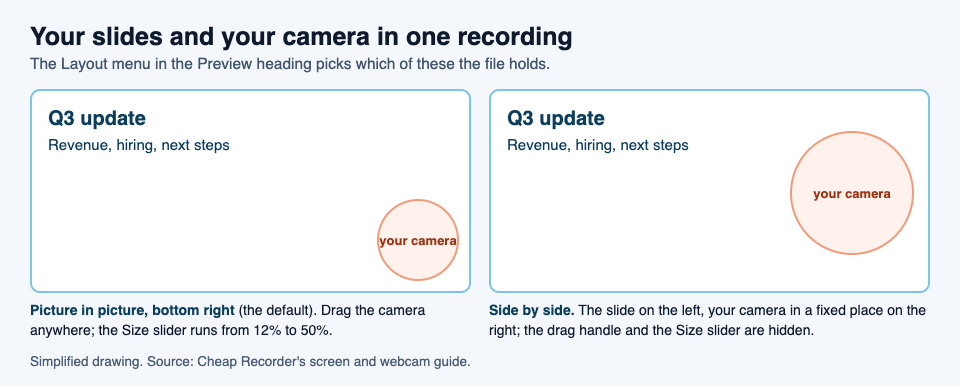
The preview is the recording: where the camera sits in the preview is where it sits in the file. Look at your own slides for something in the corner, such as a logo or a page number, and move the camera or the slide's footer before you start. Chrome keeps the position and size for next time.
Set the background, the sound and the folder
Background and sound
In the Webcam box, None and Blur are on every plan. The first time you press Blur the word beside Background reads loading... while the part that finds you downloads. Set it before you press Start recording, because the file keeps the background that was on at that moment. Light your face from the front; a window behind you makes the blur struggle.
In the Microphone tile, open Change or add microphones and tick the one you speak into. While you record, each ticked microphone has a level bar. If it stays still while you talk, check the microphone's own mute switch and the computer's sound settings.
If your deck plays a video with sound, that sound is recorded only when you shared the tab with its tab-audio option ticked in Chrome's sharing window. A window share gives no sound, and on a Mac neither does a whole-screen share. Keep the Slides tab open for the whole recording; if it closes, the sound stops.
Folder, name and start
- Under Where to save, press Choose folder... and allow Chrome to edit files in it. The recorder does not remember the folder, so you choose it every visit. Until you do, Start recording is greyed out and the note beside it says why.
- Type a name in Name this recording, for example Q3 update. It names the file and its folder; leave it empty and the recording is called Recording.
- Check that Live transcript is ticked under Options and that the language menu shows the language you will speak. The menu goes back to its default every time the page opens, so look at it each time.
- Press Start recording when the note beside it reads ready to record.
Present, then stop with the right button
Go to your Slides tab. Google's help page says to click Slideshow in the top right, and that you get the best results presenting with Google Chrome. The slideshow fills the screen; change slides with the arrow keys or the arrows at the bottom, and press Esc to leave full screen.
If you read from speaker notes, Google's page says to open the arrow beside Slideshow, choose Presenter view, then Speaker notes. Whether your notes window stays out of the file depends on what you shared, so check it in the practice run below instead of trusting it on the real take.
When you are done, go back to the recorder tab and press Stop and finish. Do not use Chrome's own Stop sharing bar: it also ends the recording, but Stop and finish is the button made for it. The recording appears on the page with a player and it is already saved in your folder.
A worked example: a five-slide update
Say you are sending a short Q3 update to a team in another time zone. Here is one way to do it.
- Open the deck in one tab and the recorder in another. Close everything else.
- In the recorder, choose a folder, name the recording Q3 update, pick A browser tab, share the deck's tab, switch on Record my webcam and press Blur.
- Press Start recording and record a 30-second test: say your name, advance one slide, and press Stop and finish. Play it back. You are listening for a muted microphone, a camera sitting on top of a logo, and notes that appear where they should not.
- Fix what the test showed. Then record the real take: about a minute a slide is plenty for five slides.
- Stop and finish, play the card's player once, and send the MP4 from your folder.
The practice run costs a minute and saves a retake of the whole talk. The folder is named Q3 update with the date and time the recording began, and the MP4 inside is called Q3 update, so a second take does not overwrite the first.
After the recording, and when it goes wrong
What you have
- Send the file. It is an MP4 on your own disk, so you attach it or upload it wherever you like.
- Captions. With Live transcript on, the card offers Captions .srt and Transcript. The .srt is not saved in the folder, so download it from the card while the page is open. The plain-text transcript with times is in the folder.
- Chapters. Press M or Add marker as you start each new section of a long deck. The markers are saved only when Also save every source separately was ticked before you started.
- Privacy. The recording is not uploaded. While the live transcript is on, Chrome sends your microphone audio to Google to turn it into text, and the AI button sends the transcript when you press it. See the privacy page.
When it goes wrong
- Start recording is greyed out. Read the note beside it. It names one reason at a time, so fix it and read it again.
- No camera found. Check that no other app, such as a video call, is using the camera and that Chrome may use it in the computer's privacy settings. Then turn Record my webcam off and on again.
- No sound from a video in the deck. The tab-audio option was not ticked, or you shared a window. The no sound guide goes through it.
- It stopped before you did. Either the month's recorded minutes ran out or Chrome's Stop sharing bar was pressed. Your name in the top right shows how many minutes are left.
For the camera on its own, the screen and webcam guide above has the full layout options.
Frequently asked questions
Can I record Google Slides with my webcam on the free plan?
Yes. The Free plan includes recording and the live transcript, with 12 hours a month on 1 device and no card.
Where does my face appear?
By default in the bottom right corner. Drag it anywhere, size it from 12% to 50% of the picture's width, or choose Side by side.
Will the sound from a video in my slides be recorded?
Only if you shared the browser tab and ticked its tab-audio option in Chrome's sharing window. A window share gives no sound.
Is the recording uploaded?
No, it is written to a folder on your computer. Convert and Download MP3 send a copy to the server and delete it when done, and the live transcript sends your microphone audio to Google through Chrome.
Can I use another browser?
Use Chrome. The recorder runs in Google Chrome, and a browser that cannot save to a folder keeps the whole recording in memory until you stop.
Get started
Open your deck, record the 30-second test and play it back. If it looks and sounds right, record the real one. Start free in Chrome, and your recordings stay on your own computer.
Comments
No comments yet.
Sign in or make an account to comment.