Rehearse a Speech on Camera: Read It Back in 3 Passes
To rehearse a speech so it gets better between takes, record it once and read your own transcript back. You will see the order of your points, where you spent too long and how you finished, none of which is easy to judge while you are speaking. This post is a three-pass routine for that read-back. The wider walk-through is in practice a speech on webcam and read the transcript back, which also covers filler words.
Cheap Recorder records your webcam and voice in Chrome as one MP4 on your own computer, with a live transcript you can read afterwards, and that transcript is what the three passes work on.
Why a transcript beats watching the video
Watching yourself is uncomfortable, and most people watch the first minute, wince and stop. A transcript is quicker to read than the take is to watch, and you can search it, scroll it and mark it up. Reading also takes your voice and face out of the way, so you judge the words and their order instead of how you look.
The transcript is not a perfect record. It comes from what Chrome hears on your microphone, so a headset or a desk microphone close to your mouth gives it better material than a laptop's built-in one. Treat it as a map of the talk, not a script.
Rehearse a speech: set up one take
- Open the recorder in Chrome and press Choose folder.... Until you pick a folder, Start recording stays greyed out and the note beside it says why.
- Under What to capture, choose Webcam only. It records just your camera and microphone, with no screen shared. If your talk uses slides, the screen and webcam guide explains the other layouts.
- In Name this recording, type something like
Speech take 01. The name is used for the file and its folder, so a numbered name keeps your takes in order. - Under Options, check that Live transcript is ticked (it is by default) and that the language menu shows the language you will speak. The menu goes back to its default every time the recorder page opens, so check it before every take.
- Press Start recording, give the talk from start to finish without stopping to fix mistakes, then press Stop and finish.
Write your plan on paper first: the numbered points, in order, and your closing sentence word for word. The passes below compare the transcript against that plan.
Pass 1: is everything in the right order?
When the take ends, the recording's folder holds your MP4 and a plain-text transcript, for example Speech take 01 - transcript.txt, with the time of each line. Open it in any text editor and put your paper plan beside it.
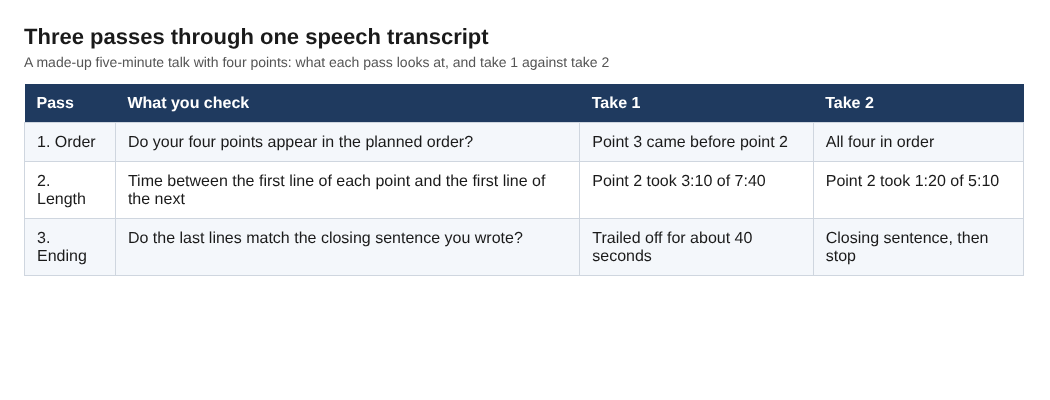
Go through the plan point by point and find the line where each one starts. Ask three questions:
- Did every point appear?
- Did they come in the planned order, or did you jump ahead and come back?
- Does each point start with its main claim, or with a wind-up before the claim?
A point that arrives late or twice usually means the plan is not memorised yet, or that two points are really one. Note it on the plan. Do not rewrite the whole talk. One fix per pass is enough.
Pass 2: where did you spend your time?
Now use the times. Subtract the time of the first line of one point from the first line of the next, and write the result beside each point. The transcript gives a time per line, not per word, so your figures are close, not exact, which is plenty for this job.
Compare them with what you planned. If a point you meant to cover in one minute took three, read its lines again. The usual causes are a second example you did not need, a side story, or saying the same thing in two ways. Cut one of them from the plan.
If you want times in the recording itself, press M or Add marker at the start of each point while you speak. A short note confirms the time. With the default single MP4 the marker notes show while you record but are not saved, so jot the times down if you need them.
Pass 3: did you land the ending?
Go to the last lines of the transcript and read them against the closing sentence you wrote on paper. Endings go wrong in two ways: you stop early without saying it, or you say it and keep talking. In a transcript the second one is easy to see, because there are several lines after your closing sentence.
The fix is to learn the closing sentence word for word, say it, and stop. Then press Stop and finish after a moment of quiet rather than mid-sentence.
Record take two and compare
Change only what the passes showed. Name the next recording Speech take 02, check the language menu again and give the whole talk once more. Then run the same three passes and compare the numbers: order, time per point and ending.
If take 2 fixed the thing you worked on, move to the next problem. If it did not, the plan is the problem, not you, so change the plan and record take 3. Because each folder is named after the recording, with the date and time, sorting by name keeps your takes together.
A worked example: a five-minute talk, two takes
The numbers below are made up to show the method. They are not a result from a real person.
Say you plan a five-minute talk for a team offsite, with four points and a closing sentence. Take 1 runs 7 minutes 40 seconds. Reading the transcript:
- Pass 1: point 3 came before point 2, and you went back to it with "oh, and before that".
- Pass 2: point 2 took 3 minutes 10 seconds. The lines show two examples where one would do.
- Pass 3: after your closing sentence there were about 40 seconds of "so, yeah" and thanks.
You swap points 2 and 3 on the plan so the order matches how you naturally think, cut the second example from the long point, and write "Thank you, that is all" as the last line. Take 2 runs 5 minutes 10 seconds: all four points in order, point 2 at 1 minute 20 seconds, and the talk ends on the closing sentence.
Frequently asked questions
How many times should I rehearse a speech on camera?
Two takes show you whether a change worked, and a third confirms it. Change one thing between takes so you know what made the difference.
Does the transcript get every word right?
No. It comes from Chrome's speech recognition, and caption timings come per line, not per word. Use it to check order, length and ending, and watch the video once if a line looks wrong.
Do I need to share my screen to practise a talk with slides?
No. Webcam only records just your camera and microphone. If you want your slides in the recording too, pick a screen choice under What to capture and see the screen and webcam guide for the layouts.
Does my rehearsal video leave my computer?
Recordings are written to the folder you pick on your own computer. While the live transcript is on, Chrome sends your microphone audio to Google to turn it into text. If a recording must not leave your computer in any form, untick Live transcript before you press Start recording.
Get started
The Free plan includes recording and the live transcript, with 12 hours of recording a month and no card needed, which is far more than a few rehearsal takes need. Open Cheap Recorder in Chrome, record take 1 and read it back in three passes. For a fuller rehearsal routine, including filler words, read practice a speech on webcam and read the transcript back.
Screen recording that is cheap and easy.
Visit cheaprecorder.com↗
Comments
No comments yet.
Sign in or make an account to comment.