Release notes video for your team after a launch, in Chrome
A launch is out and the chat thread about it is already long. A release notes video is a few minutes of your screen and your voice that shows what changed and tells each team what to do about it. You can record one in Google Chrome with Cheap Recorder, and the finished MP4 is saved in a folder on your own computer.
This post is about the video that comes after the written notes, for colleagues in support, sales and operations. If you are writing the notes themselves, that is a different job. Here the goal is that each person watches, knows what changed and knows what is theirs to do.
What a release notes video is for
The written changelog stays the record. The video does the part text does badly: it shows how the product looks now. A moved button or a changed flow takes one sentence to say and one second to show.
It also lets you say the context out loud: why you made the change, what to tell a customer who asks, and which part is still rough. Those are the lines teammates otherwise ask about one by one in the thread.
Keep it short. Three to six minutes is enough for most releases. If the launch is bigger than that, make two videos instead of one long one.
Sort the changes by who has to act
A launch video made in the order the code was merged is hard to use. Sort by the person watching instead. Support needs to know which help centre screenshots are now wrong. Sales needs the new thing worth showing in a call. Everyone needs to know what is broken and where to ask.
Write one line per change and one line for who acts. Here is a made-up example for version 4.2:
- Headline: version 4.2 is live, mostly for customers on the team plan.
- New invite screen: show the Invite button, the role picker and the confirmation. Support: the help centre screenshots are out of date.
- Date filter on search: show it finding last week's items. Sales: use it in demos.
- Known issue, slow export on large accounts: show it, do not hide it. Support: here is what to tell a customer.
- Questions: name the channel.
That list is your script. You do not need word-for-word text, only the order and the one line each team needs to hear.
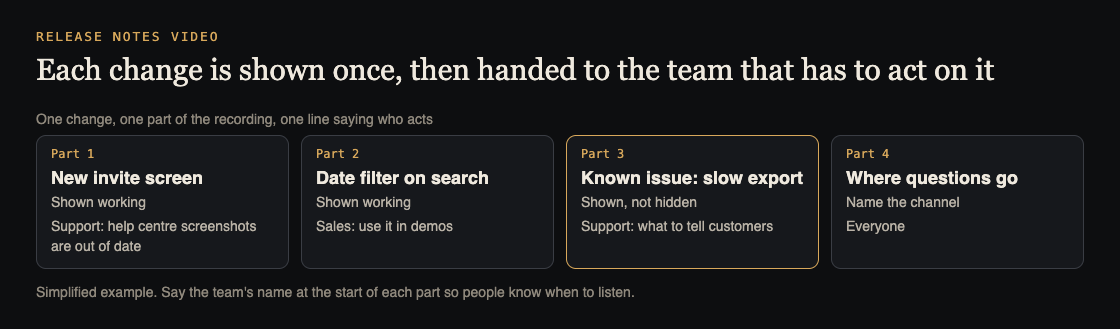
One change, one part of the recording, one line saying who acts.
Set up before you press record
This takes two minutes and saves a second take.
- Share one browser tab or one window, not the whole screen. Anything on the shared screen ends up in the file, so this keeps your other tabs and apps out of it.
- Close what you do not need and silence notifications. A chat pop-up will be in the video for good.
- Use a demo or staging account with tidy data, so no real customer names appear.
- Keep the script off the shared screen. Put it on paper or a second display, not in the tab you share.
- Tick the microphone you speak into. In the Microphone tile, open Change or add microphones and watch its level bar move when you talk.
If other people will be visible or audible in the video, tell them they are being recorded first.
Record the release notes video in Chrome
- Open Cheap Recorder in Google Chrome and sign in. The Free plan needs no card.
- Under Where to save, press Choose folder... and pick a folder. Chrome asks whether the page may edit files there; allow it. Until you do, Start recording is greyed out and the words beside it say to choose a folder first. The recorder does not remember the folder, so you choose it again each visit.
- In Name this recording, type something like
Release 4.2 notes. The name becomes the file and folder name, with the date and time. - Under What to capture, choose A browser tab or A window, then pick it in Chrome's sharing box and press Share.
- Decide on your face. Leave Record my webcam on for a corner camera, or switch it off for screen and voice only.
- Check the language menu next to the live transcript. It goes back to its default each time the page opens.
- Record a 30-second test, play it back, and fix the microphone if it is wrong.
- Press Start recording and work down your list.
- Press Stop and finish. Do not end it with Chrome's own Stop sharing bar.
The recording is written to your folder about once a second while you record, so a long take is not held in memory. When you stop, it appears on the page with a player, already saved. The course and tutorial guide has the same checklist for longer series.
Mark each change while you record
Press M or Add marker at the start of each part. A short note confirms the time. Markers are not added while you are typing in a text box.
There is one catch. Markers are saved to files only when Also save every source separately is ticked under Options, and you have to tick it before you start. With the default single MP4, the notes show on screen while you record but are not saved. If you want chapters, tick it first.
Markers are worth the trouble here because a release video has several parts for different readers. A marker per part lets support jump straight to the invite screen and skip the search filter.
Show the change, then say who it is for
- Click through the real flow. Do not say there is a new role picker. Open it and choose a role.
- Pause after each click so people can read the screen.
- Say the team's name first. "Support, this one is for you" tells the right viewer to listen.
- Show before and after when something replaced something else.
- Do not skip the known issue. A rough edge you name costs you a sentence. One a customer finds first costs you a thread.
If you also run a regular update, keep the launch video in the same place as the weekly team update video. If a change means a help centre article needs a new walkthrough, a how-to video for a help centre article covers that. Someone who joined after the launch is better served by a product walkthrough for a new teammate.
Send it so people use it
The MP4
The MP4 has H.264 video and AAC sound and plays almost anywhere. Find it in the recording's folder, or press Download MP4 on the card, and drop it in your team's chat or shared drive. A clear name like Release 4.2 notes keeps it sorted beside older ones. In your message, say who should watch what: "Support, watch the first three minutes. Sales, the second part."
The transcript
If the live transcript was on and heard speech, the folder holds a plain text transcript with the time of each line. Paste it into the launch thread so people can search it. Captions .srt and Transcript on the card download the caption file and the formatted transcript, but caption files are not kept in the folder, so download them while the recorder page is still open.
While the live transcript is on, Chrome sends your microphone audio to Google to turn it into text. If a recording must not leave your computer in any form, untick Live transcript before you start.
A page with chapters
On Creator and up, ticking Also save every source separately gives the recording's Separate sources folder a publish.html page. It has a player, one chapter for each marker, the transcript with times and a list of files. A teammate clicks a chapter's time and the player jumps to that part. Send the whole recording folder as a zip, not just the page, and note that this mode has no Download MP4 or Convert on the card. The client demo guide explains the page, and zipping the folder so the page opens covers the sending.
You cannot add the page afterwards if you did not tick the option, so decide before you record.
Frequently asked questions
How long should a release notes video be?
Three to six minutes suits most launches. If there are more changes than that, split them into two videos or lead with the ones that affect the most people.
Do I need a paid plan to record one?
No. The Free plan includes recording, the live transcript and captions, 12 hours of recording a month and 1 device. The publish page with chapters needs Creator, which is $12 a month, or $4.99 a month billed yearly.
Can I record only my voice and one browser tab?
Yes. Choose A browser tab under What to capture and switch Record my webcam off. You get an MP4 with your screen and voice.
Where does the recording go?
To the folder you choose on your own computer. Cheap Recorder keeps no copy, except during Convert or Download MP3, which send the file to its server to be converted and delete it as soon as that finishes.
What if the video stops early?
Either the month's recorded minutes ran out, or Chrome's own Stop sharing bar was pressed, which finishes the recording. Open your name in the top right to see how many minutes are left.
Get started
Take your last launch, write one line per change and one line for who acts, and record a first take. Try Cheap Recorder free in Chrome, and the file stays on your own disk.
Comments
No comments yet.
Sign in or make an account to comment.