Screen recording in Safari or Firefox: why long takes need Chrome
If you are trying screen recording in Safari or Firefox with Cheap Recorder, the first thing to look at is step 1 on the recorder page. In Google Chrome, the recording is written to a folder on your computer about once a second while you talk. In a browser that cannot write to a folder, the whole take waits in the browser's memory until you press Stop and finish. That is fine for a one-minute clip, and a poor bet for an hour-long lesson. This post shows how to tell which case you are in, what still works, and how to set up a long take in Chrome.
Screen recording in Safari or Firefox: what step 1 tells you
Cheap Recorder is made for Google Chrome on macOS, Windows and Linux, and recording, the transcript, captions and export work the same on all three. Some other browsers do not let a web page write into a folder at all. You do not need to know which ones: the recorder checks for you.
Open the recorder and read step 1. If the browser cannot save to a folder, it says:
This browser cannot write to disk; the file downloads at the end. Use Google Chrome for long recordings.
You will also see Choose folder... greyed out. You can still record. When you press Stop and finish, the recording downloads to your usual downloads folder, and the card for it says downloaded instead of saved to.
If step 1 shows no such note and Choose folder... can be pressed, the recorder can write to a folder in that browser, and the rest of this post is about why that matters.
Why long takes need Chrome: memory versus your folder
The difference is where your recording sits while it is still running.
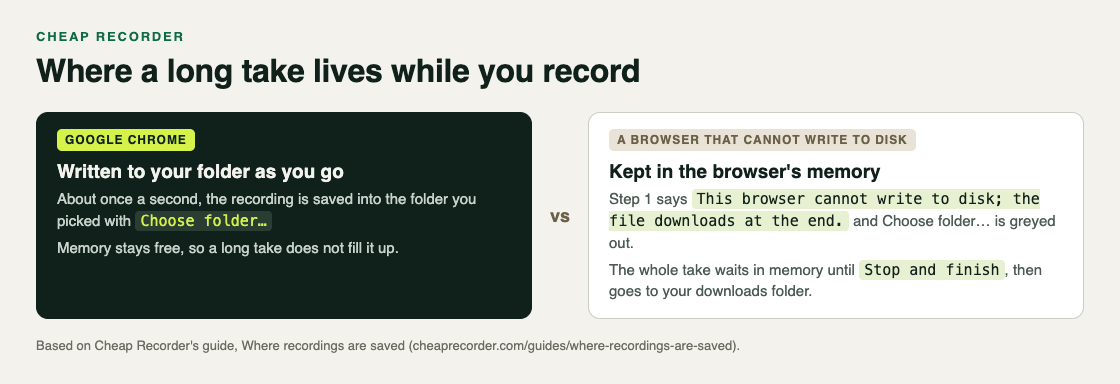
Chrome writes the take to your folder as you go; a browser that cannot write to disk keeps all of it in memory.
- In Chrome, the recorder writes the recording into the folder you picked as you go, about once a second, instead of holding the whole thing in memory. That is why a long recording does not fill up your computer's memory.
- In a browser that cannot write to disk, every second of the take stays in the browser's memory. Nothing reaches your downloads folder until you press Stop and finish.
For a short clip you will not notice. For a long one, think about what has to go right: the tab has to stay open, the browser has to keep running, and the computer has to keep enough free memory for an ever larger recording, all the way to the end. In Chrome you can watch the take land on disk: the counter by the timer shows how many MB have been written so far.
What else only works in Chrome
Saving to a folder is the big one, but two more things are worth knowing before you record outside Chrome.
- The live transcript. It needs Google Chrome. In other browsers the option is greyed out and says Live transcript needs Google Chrome. While it is on in Chrome, Chrome sends your microphone audio to Google to turn it into text, so untick it if your words must not leave your computer.
- Sound from a tab. To record what a page plays, you choose A browser tab and tick the tab-audio option in Chrome's own sharing window. A shared window gives no sound, and on a Mac a whole-screen share has none either. The post on recording a Chrome tab with audio walks through it.
The file itself is the same kind either way: an MP4 with H.264 video and AAC sound, or a WebM in the rare case the browser cannot record MP4. If you get a WebM, this post explains why and how to convert it.
Worked example: moving a one-hour lesson to Chrome
Say you record a weekly lesson of about an hour, and last week you opened the recorder in another browser and saw the step 1 note. Here is the setup in Chrome, in the order the recorder asks for it.
- Open the recorder in Chrome and sign in. When Chrome asks, allow the microphone and the camera.
- Open Change or add microphones and tick the microphone you speak into. Each one shows wired or bluetooth beside its name; on a Mac, a Bluetooth headset used as a microphone sounds thin, so pick a wired or USB one. The recorder remembers this choice in Chrome.
- Under Where to save, press Choose folder..., pick your lessons folder, and allow Chrome to let the page edit files there. The recorder does not remember the folder between visits, so you choose it each time, but Chrome's picker normally reopens where you were last.
- Under What to capture, pick A browser tab or A window if the lesson lives there, so other apps and notifications stay out.
- Type
Lesson 03in Name this recording. The name is used for the file and its folder, and the number keeps lessons in order. - Read the note beside Start recording. It gives one reason at a time, such as choose a folder first, and reads ready to record when you can start.
Then record a 30-second test, play it back, and only then record the hour. Once you start, glance at the MB counter by the timer: if it climbs, the take is landing in your folder.
Before a long take: three checks
- Minutes. Each plan has a number of recorded minutes a month. Open your name in the top right to see how many are left; if they run out mid-recording, the recording stops.
- Sleep. The recorder asks Chrome to keep the display awake while recording, but Chrome cannot always do it, so check your computer's sleep settings too. The post on a screen that went to sleep has the steps.
- The right Stop. Chrome's own Stop sharing bar finishes the recording. Use Stop and finish on the recorder when you are done.
A running recording counts as activity, so you are not signed out after 15 minutes idle in the middle of a lesson.
When another browser is fine
You do not have to switch for everything. If you only need a quick clip, a browser that cannot write to disk still records, and the file downloads when you stop. The note in step 1 is the recorder's own advice: Use Google Chrome for long recordings. Keep the clip short, press Stop and finish, and check your downloads folder for the file.
Whichever browser you use, tell people on screen or on a call that you are recording them.
The guide to where recordings are saved shows the folder names and what lands in each folder.
Frequently asked questions
Can I use Cheap Recorder in Safari or Firefox?
Cheap Recorder is made for Google Chrome. If a browser cannot save to a folder, step 1 says so, Choose folder... is greyed out, and the recording downloads when you press Stop and finish.
Why does the recorder say to use Chrome for long recordings?
In Chrome the recording is written to your folder about once a second, so a long take does not fill up your computer's memory. In a browser that cannot write to disk, the whole take stays in memory until you stop.
Why is the live transcript greyed out?
The live transcript needs Google Chrome; elsewhere the option is greyed out and says Live transcript needs Google Chrome. Open the recorder in Chrome to use it.
Does the free plan cover a long recording?
The Free plan includes recording, the live transcript and captions, and 12 hours of recording a month on one device, with no card needed. Creator has 80 hours a month.
Get started
Open Chrome, pick a folder, record a 30-second test, then record the real take. Start free with Cheap Recorder; no card is needed, and your recordings stay on your own disk.
Comments
No comments yet.
Sign in or make an account to comment.