Screen went to sleep during a long recording? Keep it awake
If your screen went to sleep during a long recording, you can keep it awake next time by changing a few settings before you press record. Most computers dim, lock or sleep after a few minutes with no mouse or keyboard input, and a 90-minute lesson or demo can easily hit that timer. This post explains why it happens, what Cheap Recorder already keeps safe on your disk, and the exact settings and tools that keep a Mac, a Windows PC or a laptop on battery awake until you finish.
Why your screen went to sleep during a long recording, and how to keep it awake
Your operating system watches for input. If you stop touching the mouse and keyboard, it starts a countdown. First it dims the display, then it turns the display off, then it may lock the screen or put the whole computer to sleep. A long recording often has stretches where you talk without touching anything. You explain a slide. You wait for a build to finish. You listen to someone on a call. To the computer, that looks like nobody is there.
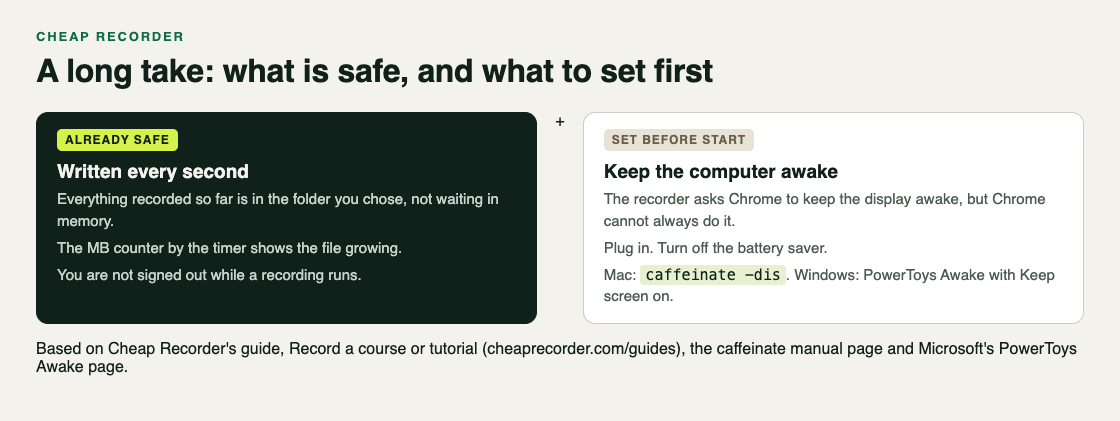
Cheap Recorder runs in Google Chrome, and while you record it asks Chrome to keep the display awake. Chrome cannot always do it, so treat the request as a helpful extra, not a promise, and set your computer up so it does not depend on it.
One thing you do not need to worry about: being signed out of the recorder. A running recording counts as activity, so you are not signed out after 15 minutes idle while you record.
What happens to the recording when the display goes dark
Cheap Recorder writes your recording to a folder you choose on your own computer, and it writes every second while you record. That matters here. Everything captured before the screen went dark is already in that folder, not waiting in memory to be saved at the end. The counter beside the timer shows how many MB have been written, so you can glance at it and see the file growing.
A dark display and a sleeping computer are not the same thing. If only the display turns off, the computer may keep running. If the whole computer goes to sleep, nothing is captured while it sleeps, because nothing is running. What happens when it wakes depends on your operating system, Chrome, and what was shared. A lock screen or sleep may interrupt Chrome's screen share. Separately, pressing Chrome's own Stop sharing bar finishes the recording, so avoid it. In every case, the part written before that moment is in your folder.
Two related cases look similar but have different causes:
- The recording stopped and the screen was fine. The month's recorded minutes may have run out. Open your name in the top right to see how many are left.
- Your voice stopped but the picture kept going. A USB or Bluetooth microphone may have disconnected. See what the file keeps when a microphone drops out.
One more warning. If you use a browser that cannot save to a folder, the recording is held in the browser's memory and downloaded only when you press Stop and finish. A sleep or crash there is much riskier. Use Chrome for anything long.
Keep a Mac awake: settings and caffeinate
System Settings
On recent versions of macOS, open System Settings and look under Lock Screen for when the display turns off while inactive, on battery and on power, and set a long time for the session. Check when the screen saver starts there too.
Write down what you changed so you can put it back after the recording.
caffeinate in Terminal
macOS includes a command called caffeinate that keeps the computer awake for as long as it runs. Open Terminal and type:
caffeinate -dis
The -d keeps the display from sleeping, -i stops idle sleep, and -s stops system sleep, which works only on power, not battery. Leave the Terminal window open and press Control+C when you finish. If you want it to stop by itself, add a time in seconds. For a two-hour session:
caffeinate -dis -t 7200
This changes nothing permanently. When the command ends, your normal settings apply again.
Keep Windows awake: power settings and PowerToys Awake
Power settings
On Windows 11, open Settings, then System, then Power & battery, and expand the screen and sleep section. Set the screen to turn off after a long time or Never, and do the same for sleep. Set both the plugged in and the battery values if your laptop shows both.
You can do the same from a terminal; the values are in minutes. These two commands give you three hours while plugged in:
powercfg /change monitor-timeout-ac 180
powercfg /change standby-timeout-ac 180
Use -dc instead of -ac for battery, and set them back to your usual minutes afterwards.
PowerToys Awake
Microsoft's PowerToys includes a tool called Awake. Pick keep awake indefinitely or for a time interval, and turn on Keep screen on, because by default the displays still turn off while the computer stays awake.
Keep Linux and laptops on battery from dimming or locking
Cheap Recorder runs in Chrome on Linux too. Open your desktop's power settings and turn off screen blanking and automatic suspend for the session. Whichever method you use, test the whole setup before relying on it.
Laptops on battery need extra care:
- Plug in. Battery savers often dim the screen, slow the computer and shorten timeouts no matter what else you set.
- Turn off low power or battery saver modes for the session.
- Watch the lid. Closing a laptop lid usually puts it to sleep.
A pre-recording checklist for sessions over an hour
- Plug in the power cable and turn off any battery saver.
- Start your keep-awake tool:
caffeinate -dis, PowerToys Awake, or your changed power settings. - Silence notifications and close tabs and apps you do not need. Anything on the shared screen ends up in the file.
- Choose a folder with plenty of free space under Where to save. The recorder does not remember the folder between visits, so you pick it each time. See where recordings are saved.
- Name the recording, for example Lesson 03, so takes stay in order if you have to restart. More on that in naming screen recordings so every take stays in order.
- Check your minutes by opening your name in the top right. If they run out mid-recording, the recording stops.
- Record a 30-second test and play it back to catch a wrong microphone or a muted tab.
- Leave the computer alone for longer than your old screen timeout during the test, then check that the display stayed on and the MB counter kept rising.
- Stay online. Starting a recording needs a connection. If it drops mid-recording, the recording keeps writing to your folder. Details in screen recording without internet.
- End with Stop and finish, not Chrome's Stop sharing bar.
For a full lesson workflow, including markers and naming, see the guide to recording a course or tutorial.
Frequently asked questions
Does a screensaver stop a screen recording?
A screensaver that only covers the display may not end the recording, but it can end up in the file, and a lock screen may interrupt Chrome's share. Turn the screensaver off for the session so you do not have to find out.
Can I recover footage after the computer went to sleep?
Cheap Recorder writes your recording to your chosen folder every second, so what was captured before the sleep is already on your disk. Nothing is captured while the computer sleeps, so that stretch cannot be recovered.
Does closing the laptop lid end the recording?
Closing the lid usually puts a laptop to sleep, which pauses everything, including Chrome. Keep the lid open for the whole session unless you have set your computer to stay awake with the lid closed and tested it.
Will keeping the screen awake drain my battery fast?
A display that stays on uses more power than one that turns off, and recording also works the computer. Plug in for anything over an hour and turn your normal settings back on afterwards.
Get started
Cheap Recorder records your screen, voice and webcam in Chrome and writes the file to your own folder every second, so a long take is saved as it goes. The Free plan includes 12 hours of recording a month with no card, and Creator ($12 a month, or $4.99 a month billed yearly) gives you 80 hours. Set up your keep-awake tool and run a short test first.
The free plan needs no card. Try Cheap Recorder in Chrome, and your recordings stay on your own disk.
Comments
No comments yet.
Sign in or make an account to comment.