Software training video for new staff: record one in Chrome
A software training video for new staff does not need editing software or a studio. It needs one task, five written steps and about ten minutes. This post follows one worked example: teaching a new hire to create an invoice in your company's billing tool. The same steps work for any web app.
Why a software training video beats a live walkthrough
A new hire can pause, rewind and replay a video as many times as they need. A live walkthrough happens once, and most of it is forgotten by lunch.
A recording also saves you time. You explain the task once, and every new person after that gets the same clear version. When the tool changes, you re-record one short video instead of rewriting a manual.
The same idea works for other first-week jobs, such as a customer onboarding walkthrough or a first-day checklist video. This post is about the tool itself: how to show someone, click by click, how a piece of software is used.
What you need before you start recording in Chrome
- Google Chrome on macOS, Windows or Linux. Cheap Recorder runs in Chrome and saves one MP4 on your own computer.
- A microphone. A headset or desk microphone close to your mouth beats a laptop microphone in a noisy room.
- A folder with plenty of free space. The recording is written there as you go.
- A free account. The Free plan covers recording, live transcript and captions, and 12 hours of recording a month, with no card needed.
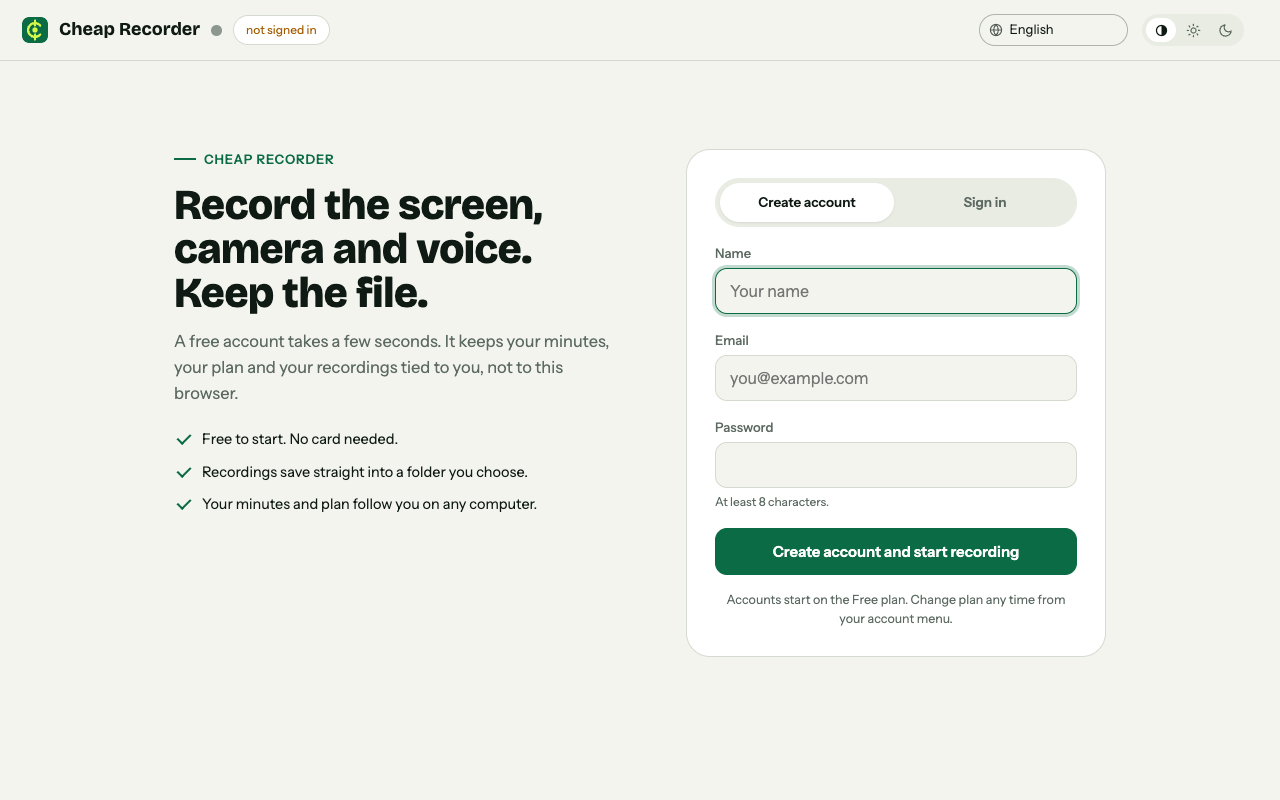
The recorder's page at cheaprecorder.com/app: create a free account, then choose a folder and record.
Also prepare the app you will show. Use a test account or demo data, so no real customer names or amounts end up in the file.
Plan the lesson: one task and five steps
Pick one task per video. "Create and send an invoice" is a task. "How to use the billing tool" is not.
Write the task as plain steps. For the invoice example:
- Say what the video covers and who it is for.
- Open the billing tool and click New invoice.
- Choose the customer and add one line item.
- Check the total and press Send.
- Say where to find the sent invoice and what to do if it fails.
You do not read the list word for word. It stops you losing your place. Note the one or two mistakes new people make most often, and say them out loud at the right step.
How to record a software training video step by step
Open cheaprecorder.com/app in Chrome, sign in, then:
- Choose a folder. Press Choose folder... and allow Chrome to edit files in it. Until you do, the start bar says choose a folder first.
- Name the recording. Type something like Billing 01 - Create an invoice in Name this recording. The name is used for the file and its folder, so numbering keeps a series in order.
- Pick what to capture. Choose a browser tab or a window, pick it in Chrome's sharing box and press Share. Sharing one tab instead of the whole screen keeps your other tabs, chat and private things out of the video.
- Decide on the camera. A small face in the corner helps new staff feel the lesson comes from a real colleague. The default layout is Picture in picture, bottom right, and you can drag the camera where it covers nothing important. To show only the screen, switch Record my webcam off.
- Check the microphone. Its level bar should move when you talk. If it stays still, check the microphone's own mute switch.
- Keep Live transcript ticked under Options and check the language before you start. A transcript cannot be added to a recording afterwards.
- Record a 30-second test and play it back to catch a wrong microphone or a muted tab.
- Press Start recording and follow your steps. Close other tabs and silence notifications first, because anything on the shared tab or window ends up in the file.
- Press Stop and finish. Use this button, not Chrome's own Stop sharing bar. The recording appears on the page with a player and is already saved in your folder.
Narration that new staff can follow
Say what you are about to do, then do it
"Now I click New invoice" works better than clicking in silence. The viewer's eyes know where to look before the cursor moves.
Move slowly
Pause for a second after each click. A new person is reading the screen for the first time while you are on your tenth run.
Mark each part
Press M or Add marker at the start of each section. A short note confirms the time. Markers are written to files only if you tick Also save every source separately before recording. With the default single MP4 the notes show while you record but are not saved, so jot down any times you need.
Do not fix every slip
If you say a wrong word, correct yourself and carry on. A natural recording is easier to watch than a stiff one, and a short video is cheap to re-record. If you want to tidy up filler words, the filler words guide explains what cutting words changes: on a normal one-file recording it changes the transcript and captions, not the MP4.
For more on recording yourself over a screen, see the screen and webcam guide. If your lesson starts from slides, narrating a slide deck one slide at a time covers that.
Split training into small videos by task
One long video about the whole tool is hard to use later. A new hire who forgets how to fix a wrong invoice does not want to scrub through twenty minutes.
Split by task instead. A set for the billing tool might be:
- Billing 01 - Create an invoice
- Billing 02 - Record a payment
- Billing 03 - Fix a wrong invoice
- Billing 04 - Run the month-end report
Because the name is used in the folder, numbered names sort in order.
Watch your recorded minutes too. Each plan has a number of recorded minutes a month, and if they run out mid-recording, the recording stops. Open your name in the top right to see how many are left.
Share and update the series
Share the files
Your recordings are ordinary files in your own folder, so you can put them wherever your team already keeps documents. Cheap Recorder keeps no copy of them, except while a Convert runs. Finish any downloads or conversions from the card before you move or rename a file, because the card reads the file from where it was saved.
Add a transcript and captions
With Live transcript on, the recording's folder holds a plain-text transcript with times, which pastes easily into a wiki page under the video. Press Captions .srt on the card to download a caption file. It is not saved in the folder, so download it while the recorder page is open. If several people talk, rename the Speaker boxes and press Save captions.
Hand over a page with chapters
On Creator and up, tick Also save every source separately before recording, and the Separate sources folder gets a publish.html with a player, one chapter per marker and the transcript. It opens from the folder with nothing to host. Zip and send the whole recording folder, not just the page. The publish page guide has the details, and you cannot add this after recording.
Update, do not rewrite
When a screen changes, re-record that one video and save it under the same numbered name. The rest of the set stays as it is. A similar habit is behind the handover video before you go on leave.
Frequently asked questions
How long should a software training video be?
Keep each video to one task. For many tasks that is a few minutes, and splitting by task makes each video easy to find and to re-record.
Can I record just one browser tab so private things stay out?
Yes. Choose a browser tab or a window as what to capture. Only that tab or window ends up in the file, but everything inside it is recorded, so use demo data.
Do I need to install anything?
No. Cheap Recorder runs in Google Chrome on macOS, Windows and Linux. The recording is saved as an MP4 in a folder you pick on your own computer.
Will the video have captions?
If Live transcript is ticked under Options, you can download a Captions .srt file from the card after recording. The captions are not drawn into the video, and a transcript cannot be added afterwards if it was off.
What if my staff will watch it in a language other than English?
Live transcript offers 25 languages, but you choose one before you start and Chrome listens for that one language for the whole recording. Check the menu before every recording, because it goes back to its default each time the page opens.
Get started
Pick the one task your next new hire will ask about first, write five steps for it and record a 30-second test. The Free plan needs no card. Try Cheap Recorder in Chrome, and your recordings stay on your own disk. Tell people when they are being recorded.
Comments
No comments yet.
Sign in or make an account to comment.