Sprint review demo for teammates who missed it, in Chrome
You ran the sprint review, and one person was out. They do not need the whole meeting. They need a sprint review demo they can watch in ten minutes: what shipped, what did not, and what you need from them. This post shows how to record that demo in Chrome with Cheap Recorder, with one marker per item so they can jump straight to the part that touches their work.
What a teammate who missed the review needs to see
A written recap says what was done. A demo shows it working. Someone who missed the review usually wants four things: what changed, how it behaves, whether it touches their area, and what is expected of them.
A live review rarely gives that cleanly. It has chatter, tangents and questions that only mattered to the people in the room. A short recording made for the absent person is easier to watch, and it works as a record for the rest of the team too.
If you already send a regular video, the same habit fits here. The weekly team update video post covers a standing update; this one is for a single review.
Write the running order before you press record
Give each part of the demo one line. Keep the list next to the recording, not on the shared screen. A good order for a sprint review demo:
- The sprint goal. One sentence.
- Each finished item. Shown working in the real product, not in slides.
- What did not finish. Say it plainly, and say why.
- Decisions from the live review. Anything the room agreed or changed.
- What you need from the viewer. A name, a task and a date.
The last line matters most. "Priya, please test the export on the reports page by Friday" gets an answer. "Let me know what you think" often does not.
Set up the recording in Chrome
Cheap Recorder runs in Google Chrome on macOS, Windows and Linux and saves one MP4 on your own computer, with a transcript. The Free plan covers recording, live transcript and captions, 12 hours of recording a month and 1 device, with no card needed. The publish page used later in this post is on Creator and up.
- Choose a folder. Under Where to save, press Choose folder... and allow Chrome to edit files in it. Until you do, Start recording stays greyed out and the note beside it says choose a folder first. You choose the folder again on each visit.
- Name the recording. Use something you can find later, such as
Sprint 14 review demo. The name is used for the file and its folder. - Pick what to capture. Under What to capture, choose A browser tab if the demo lives in one tab, or A window for a desktop app. Chrome opens its own sharing box; pick the tab or window and press Share. Close other tabs first, since what you share is what the file holds.
- Tick the tab-audio option if the demo makes sound. Sound comes with the screen pick only for a browser tab with the tab-audio option ticked in Chrome's sharing box. A shared window gives no sound.
- Check Options. If you want chapters, tick Also save every source separately before you start. Live transcript is ticked by default; leave it on, because a transcript cannot be added to a recording afterwards.
- Record a 30-second test and play it back. It catches a wrong microphone or a muted tab before the real take.
If you want your face in the corner, switch on Record my webcam. The screen and webcam guide covers the layouts.
Mark each item and record the sprint review demo
Press M, or Add marker, at the start of each part of your running order. A short note confirms the time. Markers are not added while you are typing in a text box, so click out of one first.
Markers are saved only when Also save every source separately is ticked. With the default single MP4 the notes show while you record but are not written anywhere, so write down times yourself if you skipped that tick.
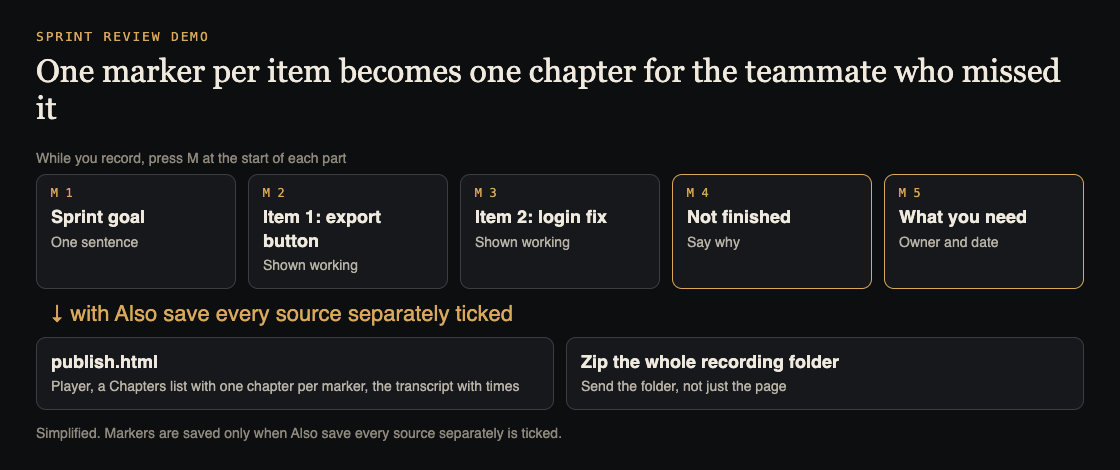
One marker per part of the running order becomes one chapter.
A made-up example: Sprint 14 had three items. You press M at the goal, M at the export button, M at the login fix, M at the unfinished search filter, and M at the ask. Five markers, about seven minutes of video.
Press Start recording and follow your list. Say what you are about to show before you show it: "Next, the new export button on the reports page." Then do the click once at a normal pace.
Name the owner for each item: "Dana built this, and she can answer questions about it." It tells the viewer who to ask.
When you finish, press Stop and finish. Use Stop and finish rather than Chrome's own Stop sharing bar, which also ends the recording. The recording appears on the page with a player and is already saved in your folder.
Record the live review or re-record it afterwards
You have two routes, and they can be combined.
Record the live review. If the review runs on Google Meet or Microsoft Teams in Chrome, press Pick the call tab... in the Call audio tile, choose the call's tab, tick Share tab audio and press Share. Your microphone and the call are mixed into one recording. Keep the call open in its tab for the whole meeting, since a stopped share cannot be added back to a running recording, and wear headphones so the call does not feed back into your microphone. The guides for Google Meet and Microsoft Teams go through it. Tell people you are recording: depending on where you and they are, recording a call may need everyone's agreement.
Re-record a clean version. After the review, run through your list alone. It is shorter, you set the pace, and you can restart if a click goes wrong. For the person who missed the meeting, this is usually the better file.
Keeping both is cheap: the live recording stays as the record, and the clean one goes to the person who needs the substance.
Send it with a transcript or a page with chapters
Pick the lightest option that works.
- The MP4 and the transcript. The MP4 plays almost anywhere. Beside it sits a plain-text transcript named after the recording, with the time of each line and speaker names, easy to paste into a message.
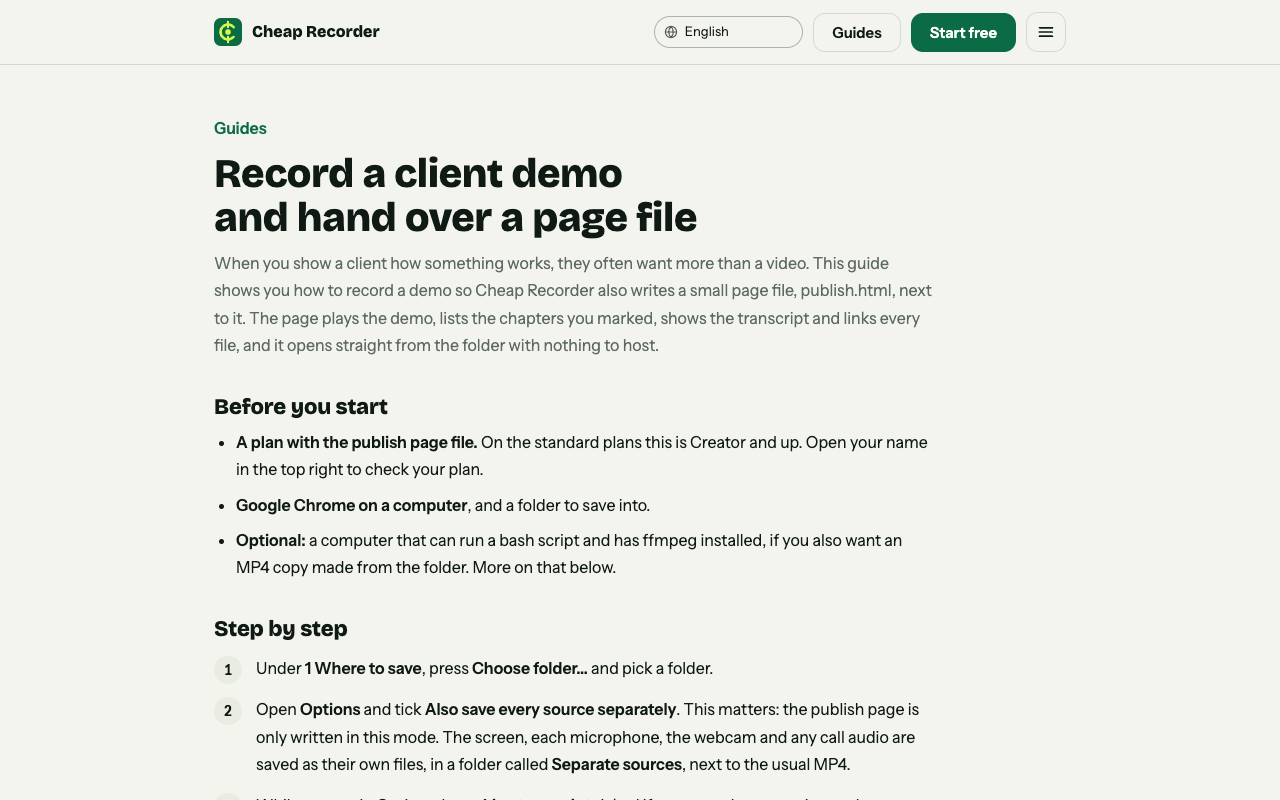
- A publish page (Creator and up). With Also save every source separately ticked, the recording's Separate sources folder holds publish.html. It shows the title and length, a player, a Chapters list with one chapter per marker, and the transcript with times. Clicking a chapter's time jumps the player there. Zip and send the whole recording folder, not just the page. The client demo guide walks through it.
- Captions for a video host. Captions .srt comes from the card, not from the folder, so download it while the recorder page is open. The file can be uploaded next to a video on YouTube or Vimeo.
Check names before you send. Each transcript line is labelled by the sound source that was loudest, such as the microphone's name. Type a real name in the matching Speaker box and press Save captions. Two people on one microphone share one label.
Check the transcript language menu before you start, too. It goes back to its default each time the recorder page opens.
One privacy point if the demo shows internal work: while the live transcript is on, Chrome sends your microphone audio to Google to turn it into text. The recording itself stays in your folder. The practice run before a client demo post explains why a short test run pays off.
A week of review demos, as a routine
- Review day, afternoon: write the five-line running order for whoever was out.
- Same day, 15 minutes: test, record, mark each item, stop and finish.
- Same day: fix the speaker name, zip the folder or attach the MP4, and send it with one sentence naming the ask and the date.
- Two days later: check whether the ask was answered. If it was not, point to the chapter for that item.
Frequently asked questions
Can I record a sprint review demo on the Free plan?
Yes. The Free plan includes recording, live transcript and captions, 12 hours of recording a month and 1 device, with no card needed. The publish page with chapters needs Creator or above.
Do I need to record the live meeting?
No. You can re-record a short clean demo afterwards. Record the live call only if you also want it as a record, and tell people you are recording.
Why are my markers missing?
Markers are saved only when Also save every source separately was ticked before you started. With the default single MP4 the notes show while recording but are not saved.
Can I add a transcript after recording?
No. If Live transcript was off, a transcript cannot be added to that recording later. It is ticked by default, so check it before you press Start recording.
Get started
Write the five-line running order, close the extra tabs and record a 30-second test. Then record the demo and send it with a clear ask.
The free plan needs no card. Try Cheap Recorder in Chrome, and your recordings stay on your own disk.
Comments
No comments yet.
Sign in or make an account to comment.