Swipe sounds for a photo slideshow video: pick, sync, mix
Swipe sounds for a photo slideshow video do one small job: they tell the ear that the picture just changed. A slideshow has no motion inside the frame, so the cut is the only moment where anything moves. A short sound on that moment makes the pacing feel chosen. This guide shows how to pick a swipe, where to place it and how to mix it, using the sounds in Wavecrate's Transitions category.
What a swipe is, and how it differs from a whoosh and a riser
Libraries use these words loosely, so here is a working split:
- Swipe: short and directional, about a second. It suits a quick slide or flick from one photo to the next.
- Whoosh: airier, with more body. It suits a bigger move, like a zoom.
- Swell or riser: grows over two to four seconds and ends on a cut. It builds towards one photo.
When photos change every two to four seconds, you mostly want the first kind. A long swell on every cut piles up into a blur.
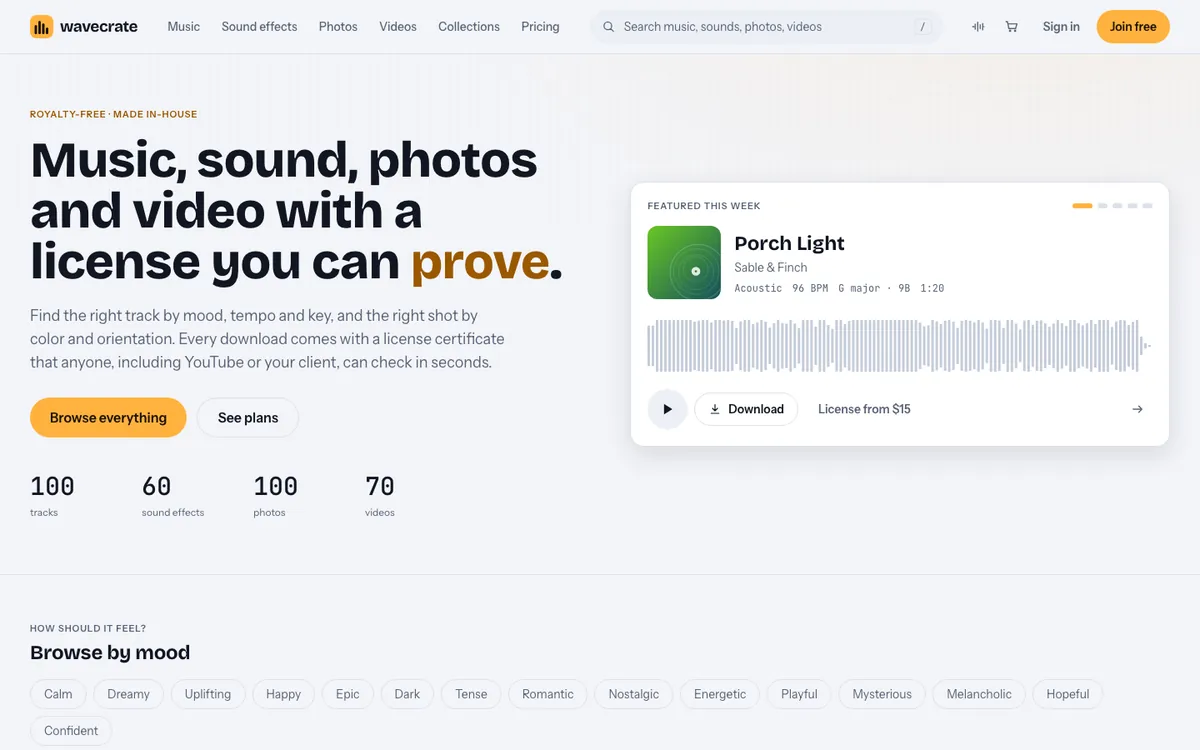
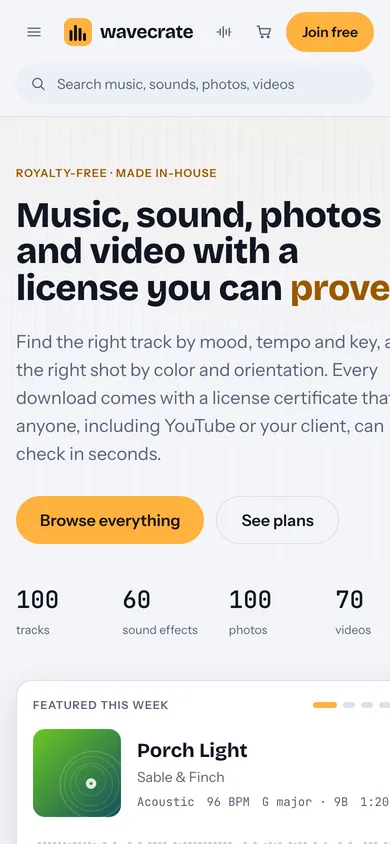
Wavecrate, the sound library used as the example in this guide, has a Transitions category of short sound effects, and every download comes with a license certificate and a code.
Swipe sounds for a photo slideshow video on Wavecrate
The Transitions category held 10 sound effects when this post was written, on 19 October 2026. Counts change, so open the page for the current list. These are the ones that fit a slideshow:
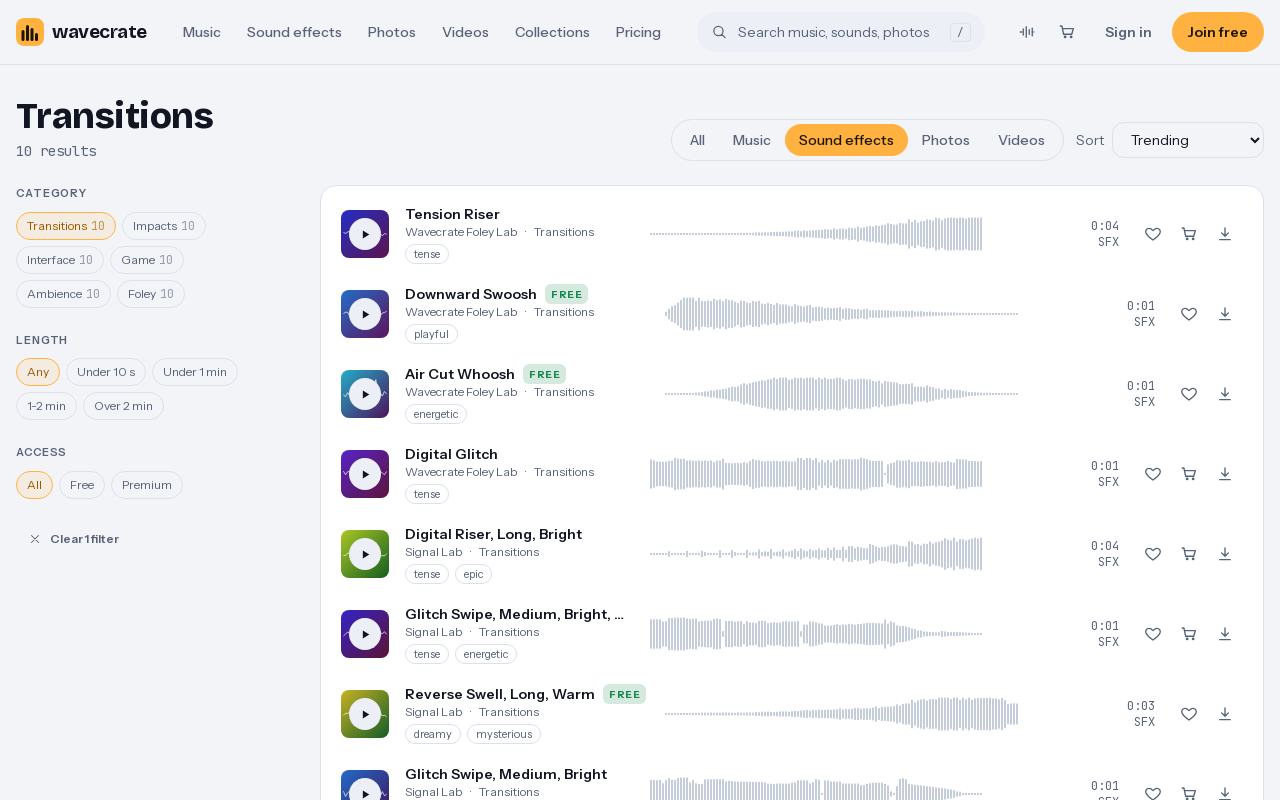
- Air Cut Whoosh (Wavecrate Foley Lab): one second, tagged energetic, transition, swipe and fast, marked Free that day. A first try for a slide or push.
- Downward Swoosh (Wavecrate Foley Lab): one second, tagged playful, transition and drop, also marked Free. It suits a photo that drops into place.
- Reverse Swell, Long, Warm (Signal Lab): three seconds, a reversed chord and reverb tail that swells into a hard stop, tagged dreamy and mysterious, marked Free. Its Medium sibling runs two seconds. Both fit a slow dissolve.
- Glitch Swipe, Medium, Bright (Signal Lab): one second, a stuttering, bit-crushed digital swipe that ends in a tape stop. It is Premium. Data Whoosh, Medium, Bright is also one second and Premium.
- Digital Riser, Long, Bright (Signal Lab): four seconds, tagged tense and epic. Save it for one reveal.
Items can change between Free and Premium without notice, so read the page of the sound on the day you download.
Match the sound to the transition style
Slides and pushes
Use a one second swipe with a clear start. Air Cut Whoosh is the plain choice. Downward Swoosh is the same length with a falling feel, so alternate the two and the cuts will not sound identical.
Dissolves and soft wipes
A hard swipe on a slow crossfade feels wrong. Use a swell instead, such as Reverse Swell, Long, Warm, and start it before the dissolve so it lands when the old photo is gone.
Tech and night shots
If the photos are city lights, circuit boards or gaming screens, a glitch swipe matches the look. Keep it for a short run of photos, because a glitch on a warm family photo clashes.
One big reveal
Use a four second riser once, before the last photo or a title card. On every cut it stops meaning anything.
A worked example: eight photos, three seconds each
You have eight photos. Each stays three seconds, and a one second slide transition sits between them. Follow these steps in your editor:
- Finish the picture edit first. Set the durations and the transitions before you add any sound.
- Find the crossing point. In a one second slide, the old and new photos cross near the middle, about half a second in.
- Put the loudest part of the swipe there. Look at the waveform, find the peak and line it up with the crossing point. Then slide the clip a frame or two either way.
- Play it at full speed. Judge by listening, not by a paused frame.
- Copy it across the cuts, then vary it. Use Air Cut Whoosh on most cuts and Downward Swoosh on two or three. Leave one cut silent.
- Add the swell on the last cut. Start Reverse Swell, Long, Warm about three seconds before the final photo is fully on screen.
To audition quickly on the site, press Space to play or pause and Left or Right to skip 5 seconds. Shift with Left or Right moves to the previous or next item. Because swipes are about a second long, you can step through the whole category in a few minutes.
Mixing tips
- Keep swipes under the music. They should be felt more than noticed. If a viewer can name the effect afterwards, it is too loud.
- Do not put one on every cut. A few silent cuts make the others count.
- Add tiny fades. A short fade in and out on each clip avoids clicks at its edges.
- Make room for a voiceover. Lower the swipes under speech, or move them into the gaps.
- Layer only on key photos. A swell under a short swipe adds weight once. On every cut the mix goes muddy.
Which license a slideshow needs
The license depends on where the slideshow is used. Paid licenses are not on sale yet: Wavecrate says purchases open soon, so the prices below are the listed prices for when sales open. Items marked Free can already be downloaded with a free account. On Wavecrate's pages:
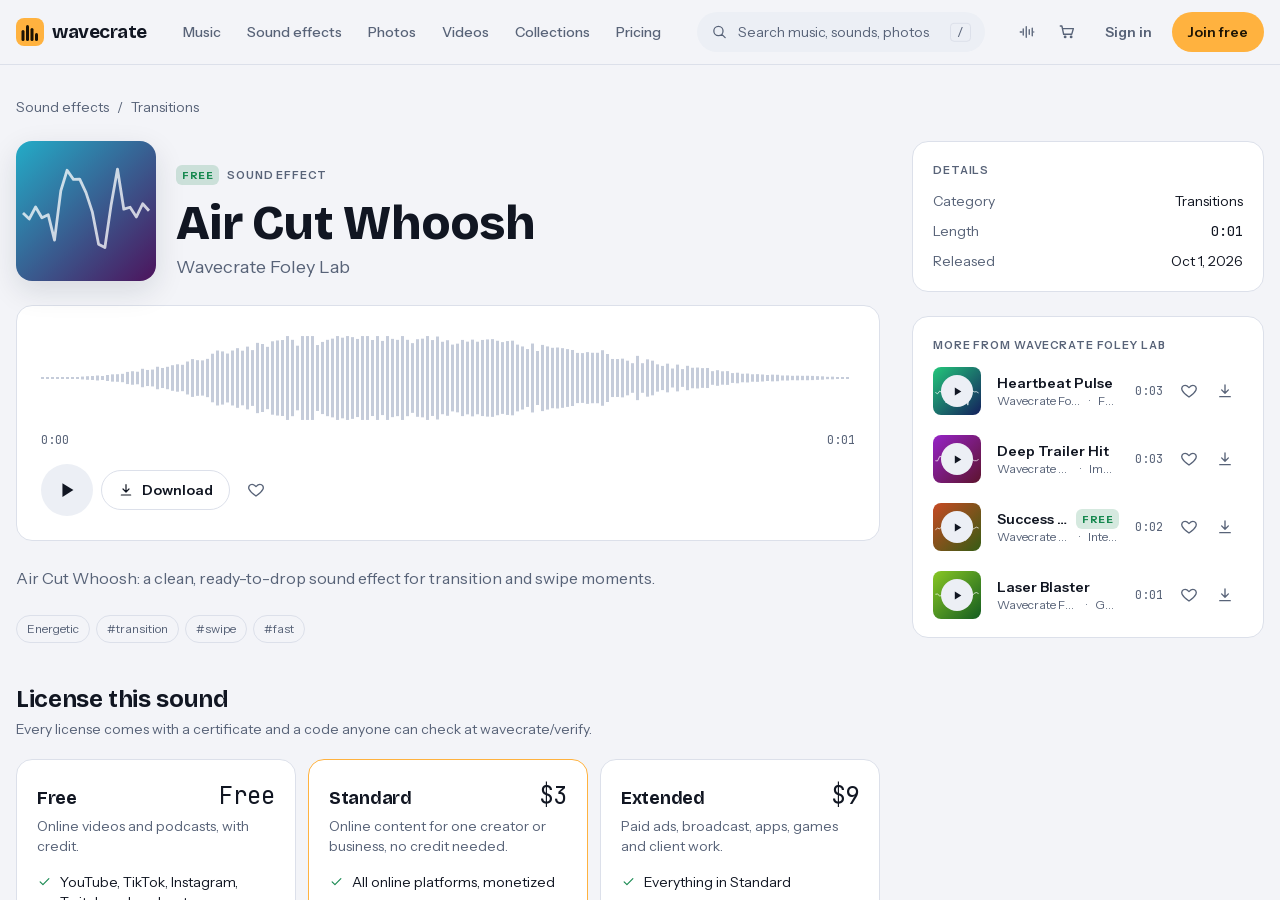
- Free: online videos and podcasts, with credit. The card for Air Cut Whoosh says credit text is required in the description, and a free account gets 3 free downloads a month. Items marked Free are the only ones this covers.
- Standard: online content for one creator or business, with no credit, including your own business and brand videos. Air Cut Whoosh and Downward Swoosh list Standard at $3. Glitch Swipe, Medium, Bright lists Standard at $5, so the listed price depends on the item.
- Extended: paid advertising, TV or radio broadcast, apps, games and software, and client work. Air Cut Whoosh lists Extended at $9.
A slideshow for your own shop is your own business content, so even a Free sound needs Standard there. A slideshow you make for a client, or one you pay to promote, needs Extended. Pro, listed at $99 a year or $12 month to month and not on sale yet, covers Standard licenses for the whole catalog, never Extended. The pricing page has the full table, and the site names no live screenings or events, so treat those as not covered.
Every license comes with a certificate and a code. Anyone can check the code on the verify page with no account.
Common mistakes
- A long sound on a short photo. If the sound outlasts the photo, they stack up.
- The peak at the start of the transition. The sound lands before the picture changes and feels early.
- The same level on every cut. It becomes a tick. Vary the sound and the level a little.
- Forgetting the credit line. With a Free sound, paste the credit text into the description as the card asks.
- One license for every use. A personal online slideshow and a client project sit in different rows.
Frequently asked questions
How long should a swipe sound be for a slideshow?
About a second for most photo changes. Keep two to four second swells for slow dissolves or one reveal.
Do I need a swipe on every photo?
No. Leave a few cuts silent, especially under a voiceover, so the effect does not become a tick.
Can I use a Free sound in a monetized slideshow?
The Free card for Air Cut Whoosh lists online videos and podcasts, with monetized channels, and asks for credit text in the description. Read the page of the sound you pick before you download.
When do I need an Extended license?
For paid advertising, TV or radio broadcast, apps, games and software, and client work. Standard covers online content and your own business and brand videos.
Get started
Browse Wavecrate: you can join free and download items marked Free now, paid licenses are not on sale yet (purchases open soon), and every download comes with a license certificate and a code anyone can check on its verify page. Pick one transition style, audition three or four swipes and put the peak on the crossing point. Then mix them low so the photos stay the focus. You can join Wavecrate free and browse the free items.
Comments
No comments yet.
Sign in or make an account to comment.