Textures and gradients for slides and social posts: a guide
A flat white slide looks like nobody tried, and text on a busy photo gets lost. Textures and gradients for slides and social posts sit between the two: they add color and depth while staying quiet enough for your words to lead. This guide shows how to pick one background family, size it for a slide and a Story, keep text readable, and choose the license that fits where the deck or post ends up.
Why textures and gradients work behind text
A background has three jobs: set a mood, tell one slide or post from the next, and stay out of the way. Gradients do this well because color changes slowly across the frame, so no single spot pulls the eye. Paper and grain textures add a little surface without adding shapes.
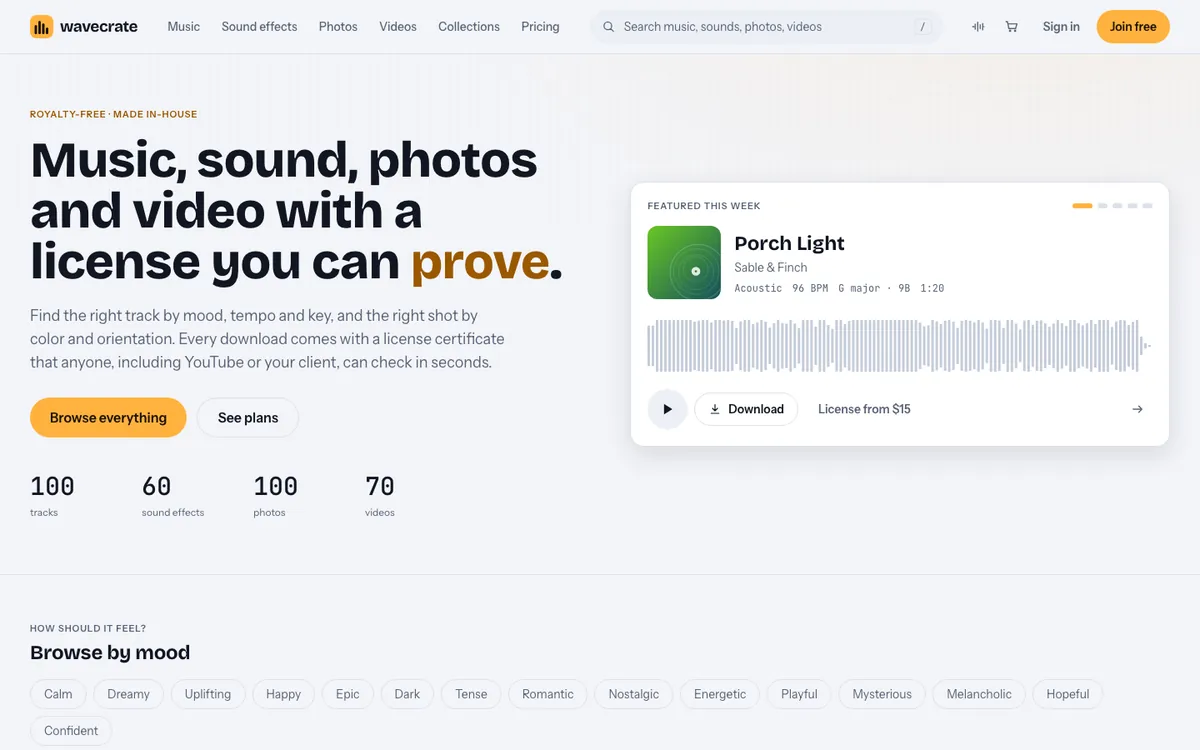
A landscape photo is different. A ridge or a skyline has edges, and edges compete with letters. So the rule is simple: use a photo when the picture is the message, and a texture or gradient when the words are the message. On Wavecrate, you can browse gradients and textures and read each one's license before you put it behind your words.
Where to find textures and gradients for slides and social posts
On Wavecrate, start at the collections page and open Backgrounds for designers: "Gradients, textures and motion loops to put behind titles, slides and social posts." On 10 October 2026 it held six items:
- Three photos: Pastel Gradient Background, Ocean Blue Fluid Gradient (marked Free) and Warm Paper Texture (marked Free)
- Three videos: Slow Gradient Flow (marked Free), Retro Neon Grid and Vertical Pink Gradient for Stories
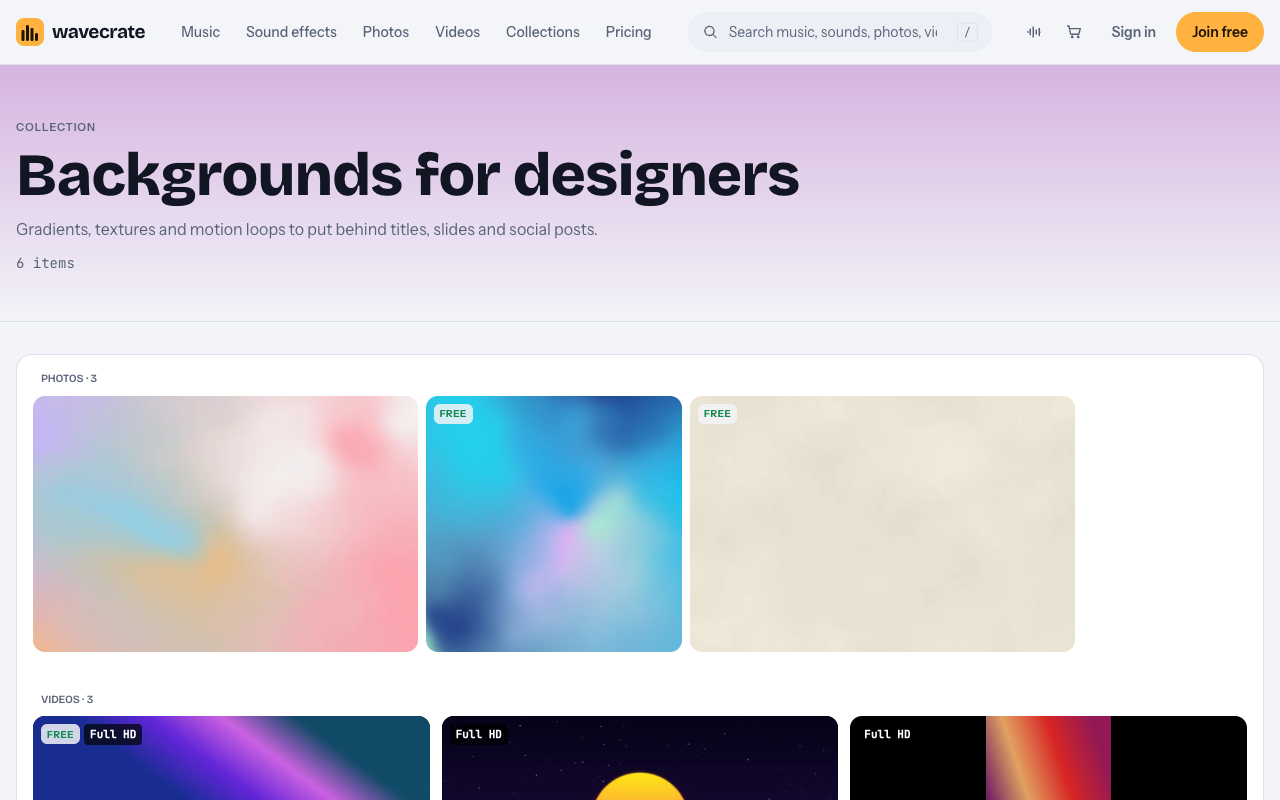
For more choice, the photos browse page has Textures and backgrounds and Abstract categories, with filters for orientation, color, resolution, mood and access (All, Free or Premium). Shapes differ: Pastel Gradient Background is a 4000 x 2667 landscape, while Ocean Blue Fluid Gradient is a 3000 x 3000 square, so check the details panel before you plan a crop.
Sizing one background for a slide and a Story
A widescreen slide is 1920 x 1080. A Story, Reel or Short is 9:16, or 1080 x 1920.
- Slide from a landscape still. A photo with a Medium file at 1920 x 1280 needs 100 pixels off the top and bottom. The 4000 x 2667 Original gives you room to move the crop.
- Story from the same still. A 9:16 crop at the Original's full height is about 1500 x 2667, larger than 1080 x 1920, so you can scale it down with no loss.
- Motion for a title slide. Slow Gradient Flow is 1920 x 1080, 10 seconds, with no sound, so it fits a widescreen slide as it is. Set it to loop and put the title on top.
- Motion for a Story. Vertical Pink Gradient for Stories is already 1080 x 1920 and needs no crop.
Cropping the deck and the post from the same file makes them match with no extra work.
Before you crop, decide where the text block goes on each format. On a slide it often sits on the left half; on a Story it sits in the middle band. Pick the calmest part of the gradient for each, then set the crop so that part lands under the words. A square picture such as Ocean Blue Fluid Gradient crops to a wide slide by cutting the top and bottom, and to a Story by cutting the sides, so one file can serve both.
Keeping text readable
- Check contrast at both ends of the gradient. A peach to lilac blend may look fine in the middle and wash out white text in one corner. Move the text, or use dark text on light gradients.
- Add a soft layer behind the text block, black or white and partly see-through, to flatten the color just enough.
- Keep motion for titles. A drifting gradient behind a title is fine; behind a paragraph it gets tiring.
- Leave the edges of a Story clear. Apps put buttons and captions near the edges and bottom, so keep words in the middle band.
- Use one background family per deck. Switching from warm paper to a neon grid halfway through reads as two different talks.
Preview files and licensed files
Photo previews carry one small watermark; video previews carry one small watermark that moves around, with no sound. Licensed files are clean, and photos are full size. Test layouts with a preview, but export the finished deck or post only from the licensed file.
Which license fits a deck or a post
The pricing page table for photos and videos says:
- Free, only on items marked Free: websites, blogs, social media posts and monetized channels, with credit text next to the picture or in the description. A free account gets 3 free downloads a month.
- Standard: adds no credit line, apps, presentations and your own marketing, and print up to 500,000 copies. Photo pages list it at $9 and video pages at $29. Pro (listed at $99 a year, or $12 month to month) gives Standard on the whole catalog.
- Extended: adds paid advertising and TV broadcast, products for resale (merchandise, templates, prints, packaging), unlimited print runs and client work. Photo pages list it at $39 and video pages at $99. Pro never includes it.
Paid licenses and Pro are not on sale yet: Wavecrate says purchases open soon, so these are the listed prices for when sales open. Items marked Free can already be downloaded with a free account.
Notice what the Free list leaves out: presentations. A Free gradient fits a social post with credit, but the same gradient behind your slides needs Standard.
Worked example: one background, three uses
Say your logo is teal, and on Monday you present a new service to your team and post a teaser the same day. You open Ocean Blue Fluid Gradient: teal and blue, 3000 x 3000, marked Free on the day this was written (read the page on the day you download, because items change).
- The teaser post, cropped square for a feed or 9:16 for a Story, with credit in the caption: a social post, so the Free license covers it.
- Your team deck, cropped to 1920 x 1080 from the square: a presentation, which starts at Standard (listed at $9 on that page) or Pro, even though the picture is marked Free.
- A slide template pack you sell with the gradient built in, or a deck you design for a client: products for resale and client work are Extended only (listed at $39 on that page).
You get a license to use the file; Wavecrate keeps the copyright. Every download comes with a certificate and a code: save both next to the file, so anyone who asks can enter the code on the verify page and see who holds the license, for which item and what it covers.
Frequently asked questions
Can I use a Free gradient in a work presentation?
Presentations are listed from Standard, not under the Free license. A deck needs Standard or Pro.
What size should a background be for a 16:9 slide?
1920 x 1080. A 1920 x 1280 Medium photo needs a small crop, and Full HD loops such as Slow Gradient Flow are already that size.
Do I need Extended to sell slide templates?
Yes. Templates are listed as products for resale, which only Extended covers, and Pro does not include Extended.
Do the motion backgrounds have sound?
Slow Gradient Flow and Vertical Pink Gradient for Stories list "Sound: None", so they will not clash with a voiceover.
Get started
Open Backgrounds for designers, pick one color, cut your title slide and your Story from the same background, and match the license to the deck or the post.
Browse Wavecrate: you can join free and download items marked Free now, paid licenses are not on sale yet (purchases open soon), and every download comes with a license certificate and a code anyone can check on its verify page.
Comments
No comments yet.
Sign in or make an account to comment.