Toggle Switch Sounds for a Settings Screen Demo
Toggle switch sounds for a settings screen demo are small, but they decide whether a screen recording feels like a working product or a silent slideshow. A switch flips in a fraction of a second, and a short, clean sound that lands with it tells the viewer the tap really happened. This post shows you how to choose the sound, time it to the animation and mix it under your voice.
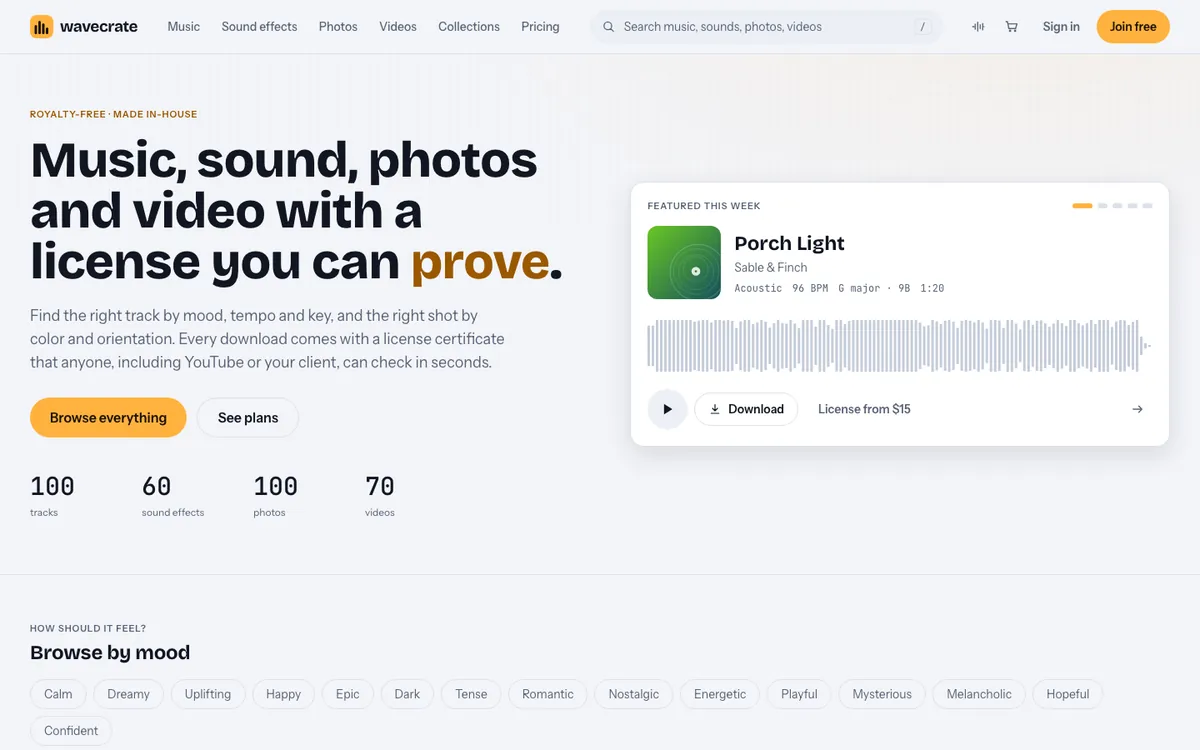
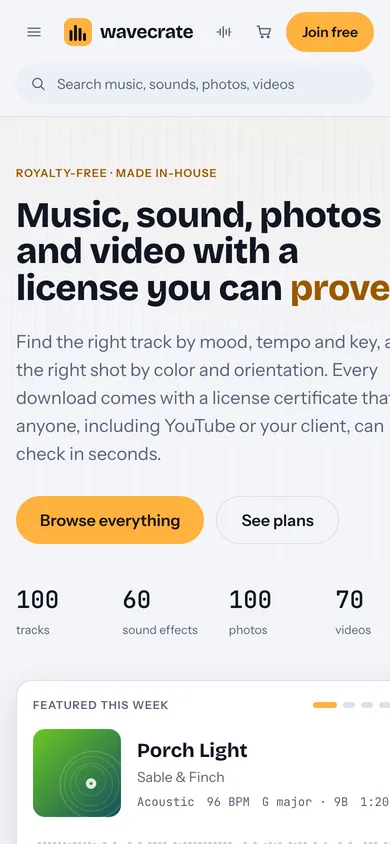
If you need the sounds themselves, Wavecrate has an Interface category of clicks, taps and chimes made in-house, and every download comes with a license certificate you can point to.
Why add toggle switch sounds for a settings screen demo
Settings screens are quiet by nature. Nothing moves except small controls, so while you narrate, the viewer's eyes have to hunt for each switch. A tiny sound on each flip tells them where to look and when something changed.
Sound also proves the state change. A switch that slides without a sound can look like a hover effect. A short click at the right moment says "this was set."
One rule holds throughout: the sound supports the voiceover, not the other way around. Record the narration first, then add the toggle sounds.
What a good toggle sound feels like
A toggle has up to three states to show, and each asks for a slightly different feel.
- On: a small, bright sound, like a light confirmation.
- Off: the same sound, a little quieter or lower, so it feels like the on sound relaxing rather than a different button.
- Disabled: usually silence. If you must show a blocked tap, keep it very quiet and short, because a loud buzz makes a greyed-out switch feel like an error you caused.
The common trick is one sound for both on and off, with the off version nudged down a few decibels in your editor. Two unrelated sounds make the screen feel stitched together.
Which interface sounds to test for a toggle
The Interface sound effects page on Wavecrate lists 10 sounds when read on 20 October 2026: Success Chime, Gentle Notification, Bubble Pop, Error Buzz, Soft UI Click, Glass Notification, two UI Tap sounds, Data Beeps and Scanner Sweep. You can browse them on the Interface sound effects page. None is named "toggle", so choose by feel and test each one against your own recording. These are the ones worth auditioning:
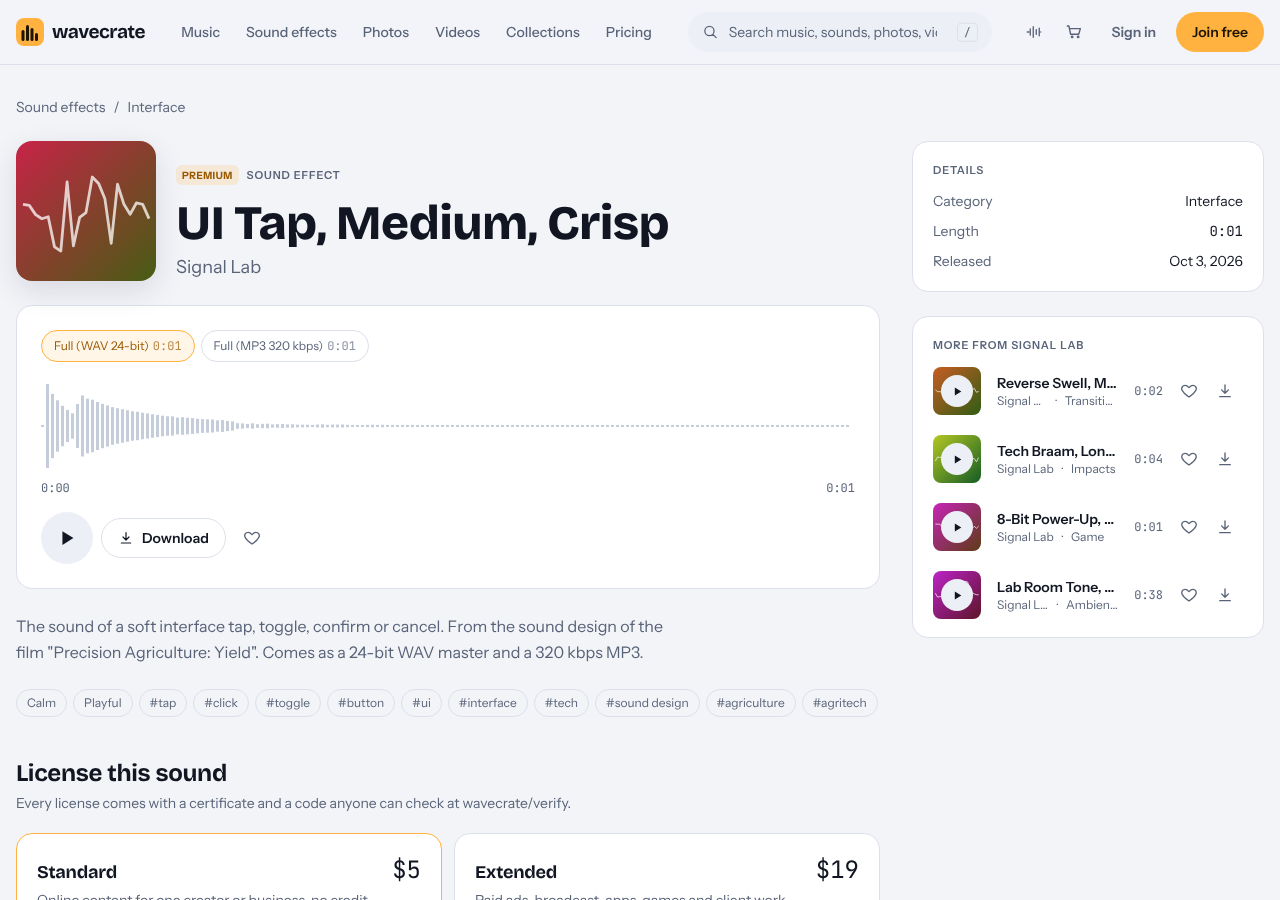
- UI Tap, Medium, Crisp: its page describes it as "the sound of a soft interface tap, toggle, confirm or cancel" and tags it with "toggle". It is the closest match on the list. It is a premium item.
- Soft UI Click: described as a clean, ready-to-drop interface sound for button and tap moments. It is marked Free, so it is the easy first test.
- Bubble Pop: described for pop and cartoon moments. It suits a playful app, and would feel wrong in a banking or privacy screen.
Skip Success Chime for ordinary toggles. Its page frames it as a win sound, so it fits "setup finished", not "dark mode on". Error Buzz is described for wrong and fail moments, so save it for a rejected action.
If you want a matching set, the Interface sound kit collection groups six sounds: Soft UI Click, Bubble Pop, Gentle Notification, Success Chime, Error Buzz and Air Cut Whoosh. Its description reads "Clicks, pops and chimes for apps, games and explainers."
Match the sound to the animation
Timing matters more than which sound you pick. A great click that lands 200 milliseconds late feels broken.
- Zoom your timeline until you can see single frames around the toggle.
- Find the frame where the knob starts to move. Place the start of the sound there, or one frame before.
- Play it at normal speed. If it feels late, move it earlier. Viewers forgive a sound that is slightly early more than one that is late.
- Copy the same placement to every other toggle so they all feel alike.
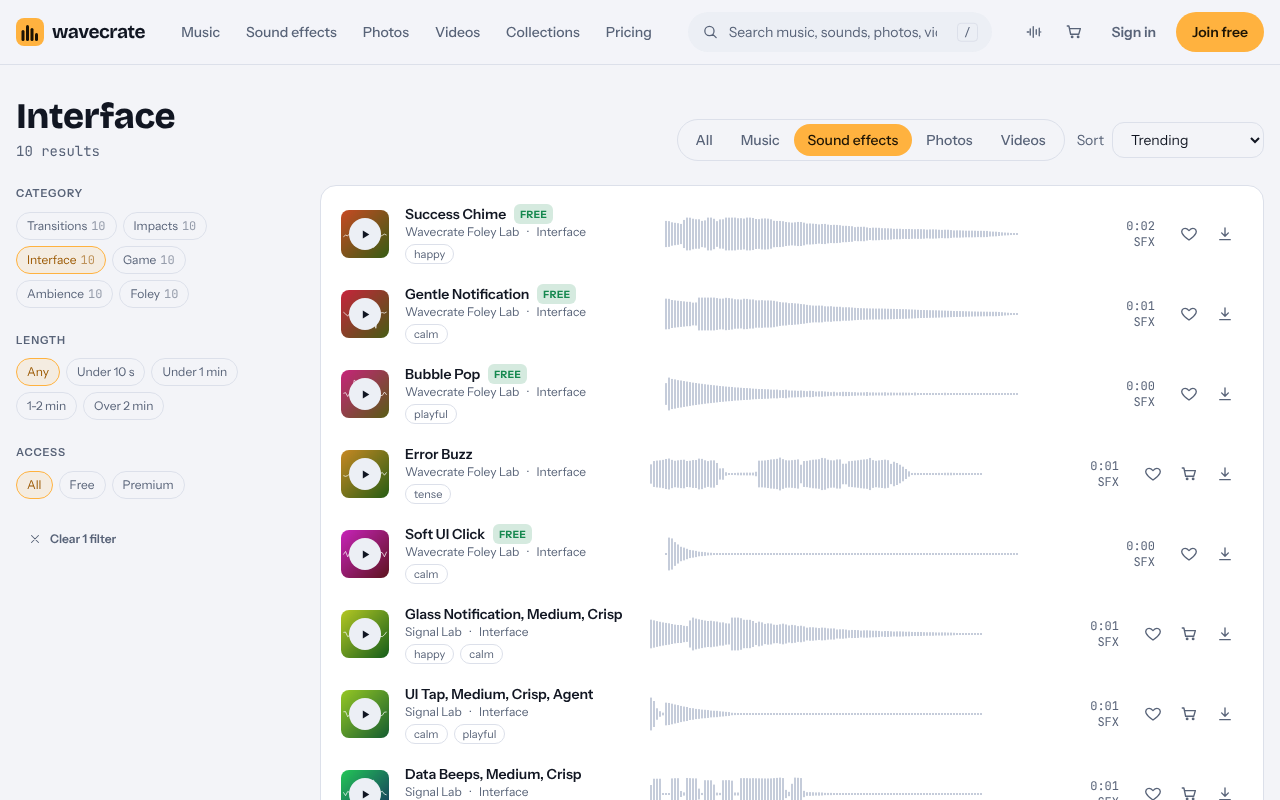
The Interface sounds are very short: the page lists lengths of 0:00 to 0:02, so there is little to trim and each one finishes before the next thing happens. For a recording where you click with a real mouse, place the sound at the click, not at the end of the animation, so the viewer reads the click as the cause.
A worked example: a five-switch settings tour
Say your demo walks through five switches: notifications, dark mode, sync, location and analytics. Here is one way to build it.
- Download Soft UI Click, which is marked Free, or plan on UI Tap, Medium, Crisp once purchases open, and drag the clip into your editor once.
- Record the voiceover in one pass and leave a short pause at each switch.
- Cut the clip so it starts one frame before each knob moves, five times in all.
- Duplicate the clip for the off flips and pull those copies down 3 to 4 dB.
- Skip the clip for any switch that shows as disabled.
- Play the whole demo once on laptop speakers, then on earbuds.
The result is five clicks that sound like one system. If a switch feels louder than the voice, lower the click, never the voice.
Check the license before you publish
The license depends on the item and where the demo goes. These are the terms on the pricing page and the item pages. Paid licenses are not on sale yet: Wavecrate says purchases open soon, so the prices below are the listed prices for when sales open, while items marked Free can already be downloaded with a free account.
- Free: items marked Free, such as Soft UI Click, have a Free license for online videos and podcasts. It needs credit text in your description, and a free account gets 3 free downloads a month.
- Standard: no credit line, for online content and your own business and brand videos. On the pages read, Soft UI Click and Error Buzz list Standard at $3 and UI Tap, Medium, Crisp at $5. Listed prices differ by item, so check the one you choose.
- Extended: paid advertising, TV or radio broadcast, apps, games and software, and client work. It was listed at $9 on Soft UI Click and Error Buzz and $19 on UI Tap, Medium, Crisp.
- Pro: listed at $99 a year, or $12 month to month, and not on sale yet, it gives Standard licenses on the whole catalog, never Extended.
That split matters here. A demo on your own channel is online content. A demo shipped inside an app, run as a paid ad or made for a client needs Extended. You get a license, not ownership. Each download comes with a certificate and a code, and you can put the code in your description so anyone can check it on the verify page.
Mix toggle sounds under your voiceover
Your voice is the main track. Toggle sounds are detail, so mix them until a viewer notices them only when they are missing.
- Set the voice first. Get the narration to a comfortable level, then bring the clicks up until you just hear them.
- Keep every toggle at the same level. Uneven clicks sound like mistakes.
- Cut the very low end. A high-pass filter keeps the click from fighting the warmth of your voice.
- Avoid stressed words. If you say "turn on notifications" as the switch flips, nudge the click a few frames so the word stays clear.
- Listen on two systems. Check laptop speakers and earbuds, since most viewers use one of them.
Common mistakes that make settings demos sound cheap
- A different sound for every switch. Pick one family and stay in it.
- Sounds that are too long. A chime that rings for two seconds covers your next sentence.
- Playful sounds on serious settings. A cartoon pop on a privacy toggle undercuts the message.
- Sound with no movement. If the knob does not visibly move, do not add a click.
- Sound on every motion. Scrolling and hovering do not need audio. Only state changes do.
- Forgetting the credit text. If you used a Free item, put the credit in the description before you publish.
- Using Free or Standard for client work. Client work needs Extended.
Frequently asked questions
Should the on and off toggle sounds be different?
Use the same sound for both and make the off version a little quieter. It keeps the screen feeling like one product.
Which Wavecrate sound fits a toggle switch best?
UI Tap, Medium, Crisp is described as the sound of a soft interface tap, toggle, confirm or cancel, so start there. Soft UI Click is the free one to test beside it.
Can I use a free sound in a product demo on YouTube?
Items marked Free have a Free license for online videos and podcasts, with credit text in your description. If you want no credit line, it needs a Standard license on that item once sales open.
Do I need Extended if the demo is for a client?
Yes. For music and sound effects, client work is covered by Extended, not by Standard or Pro.
Get started
Browse Wavecrate: you can join free and download items marked Free now, paid licenses are not on sale yet (purchases open soon), and every download comes with a license certificate and a code anyone can check on its verify page.
Pick one tap sound, place it a frame before each toggle moves, and mix it just under your voice. Then check the license for where the demo will run. Join Wavecrate free for 3 free downloads a month of items marked Free.
Comments
No comments yet.
Sign in or make an account to comment.